
05 - Send Weekly Training Reminders
Every week the coordinator opens the register and writes the same reminder for each participant. A scheduled flow can do that at a predictable local time.
Copy-paste values: every value you need is in the steps, with a Copy button. The copy-paste page has them all on one page too.
Estimated time: 40 minutes
Your result: A scheduled cloud flow that runs every Monday at 9:00 AM Malaysia time, reads the training register, and prepares one personalised reminder email for each row.
Download: the files for this lab
- TrainingRegister.xlsx: only if you don’t have the workbook from Chapter 2 yet. Upload it to your
Power Automate Trainingfolder in OneDrive and update the dates as in 2.2 step 4.
What You Will Learn
- Schedule a flow with the Recurrence trigger and a local time zone
- Convert the current time into readable local time
- Loop through Excel rows with Apply to each
- Build a personalised email by typing text and inserting dynamic content
- Use a second expression,
formatDateTime(), to make a date readable
How the Flow Works
Recurrence > Current time > Convert time zone > List rows present in a table > Apply to each > Send an email (V2)
Recurrence decides when the flow starts. Current time and Convert time zone produce a readable local timestamp for the message. The Excel action returns the rows, and Apply to each handles them one at a time.
Before You Begin
You need Power Automate Training/TrainingRegister.xlsx with the tblTraining table. This chapter uses every column: ParticipantName for the greeting, Email as the recipient, CourseTitle in the subject and body, SessionDate and Status in the body.
Warning: the email addresses in the workbook are not real. The Email column holds made-up addresses like
learner1@example.com. If you test the flow with them, Outlook can’t deliver the reminders: you get an undeliverable message or an address that won’t resolve. To test, first type your own email address into the Email column of the rows you want to try, and only when the trainer says so.
5.1 Create the Weekly Schedule
- Select Create on the left, then the Scheduled cloud flow tile.
- In Flow name, enter
PA - Weekly training reminders. - Set Repeat every to 1 Week, tick M (Monday), and set the start time to 9:00 AM. Your starting date will differ.
-
Select Create.
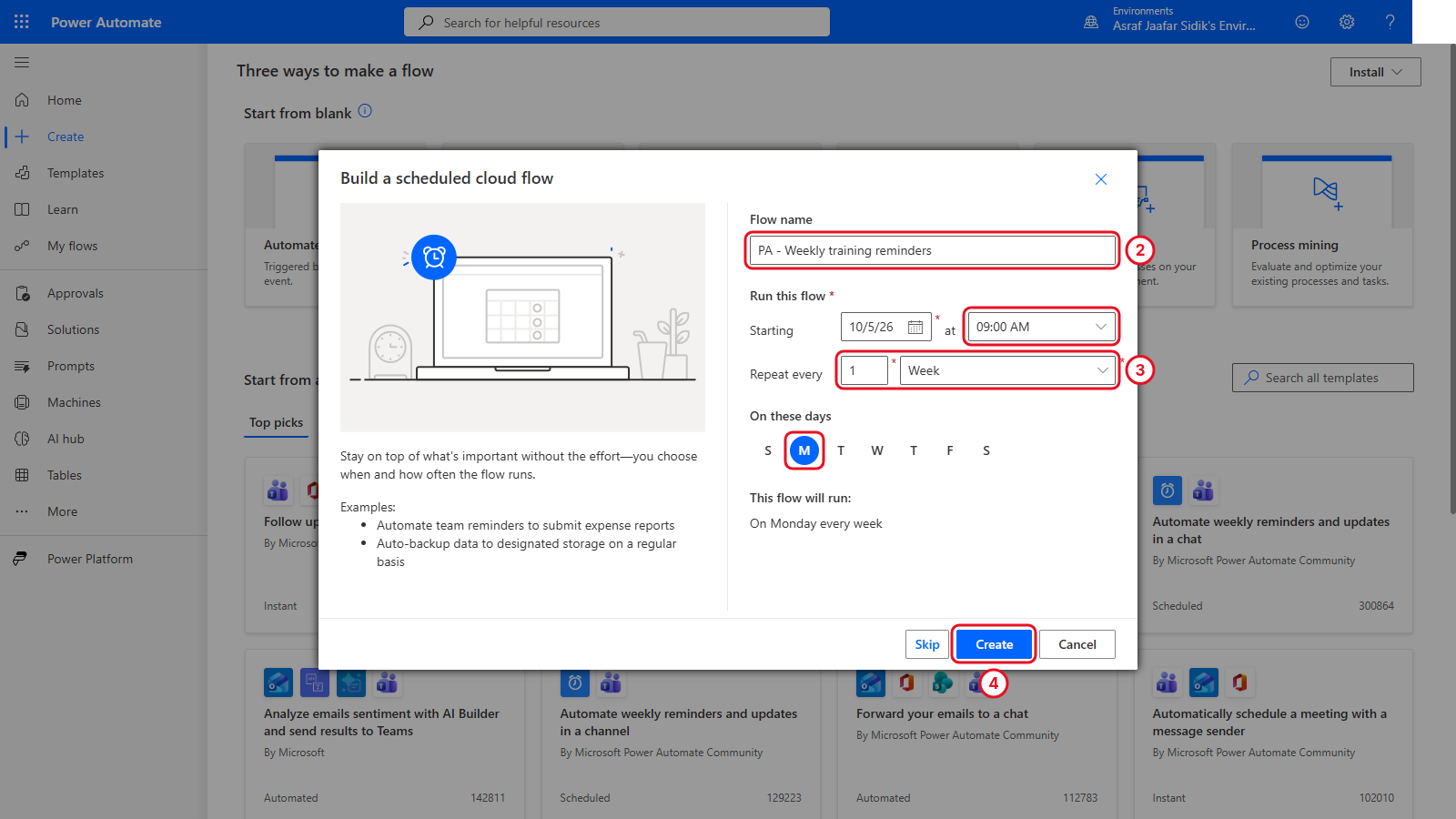
The dialog creates the Recurrence trigger for you.
- The designer opens. On the canvas, select the Recurrence card to open its settings on the left, and check these values. If you can’t see the time zone fields, open Advanced parameters and select Show all.
| Setting | Value |
|---|---|
| Interval | 1 |
| Frequency | Week |
| Time zone | (UTC+08:00) Kuala Lumpur, Singapore |
| Start time | Filled in by the dialog. Leave it. |
| On these days | Monday |
| At these hours | 9 |
| At these minutes | 0 |
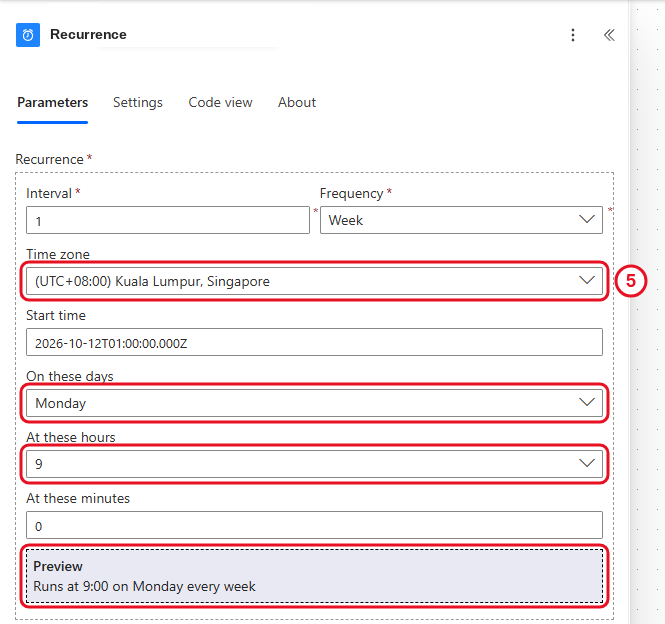
Read the preview line at the bottom. It should say 9:00 on Monday every week.
Check your flow so far. Your screen should look like this.
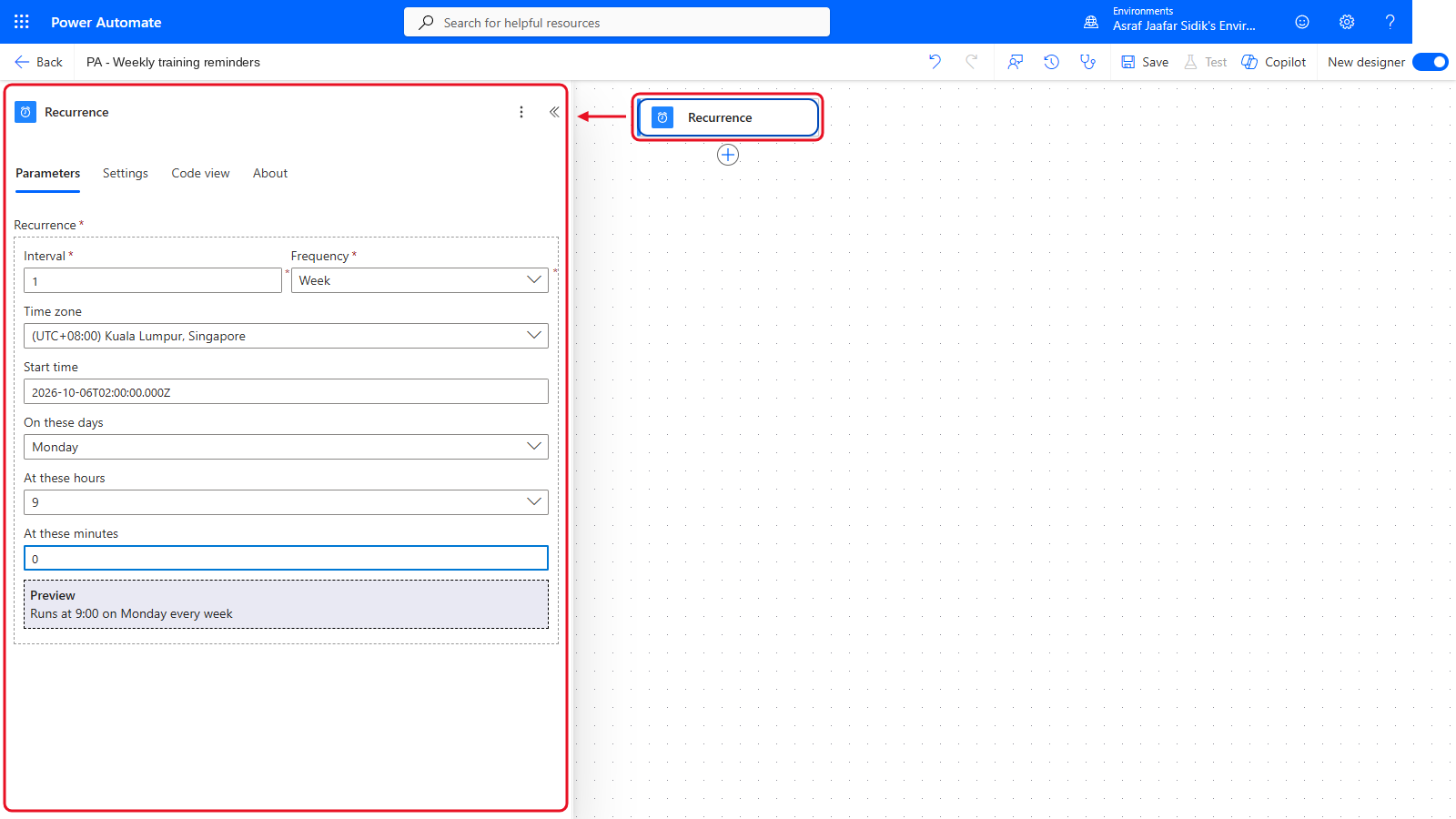
Only Recurrence so far.
5.2 Produce a Readable Local Timestamp
- On the canvas, select the + below Recurrence, then Add an action. In the search box, type
Current time. Under the Date Time heading, select Current time. It needs no settings. - Select the + below Current time, then Add an action. Search for
Convert time zoneand select it under Date Time. - Click into Base time, select the lightning bolt icon beside it, and pick Current time under Current time.
- Set the other boxes from their dropdowns:
| Setting | Value |
|---|---|
| Base time | Current time (the token from step 3) |
| Source time zone | (UTC) Coordinated Universal Time |
| Destination time zone | (UTC+08:00) Kuala Lumpur, Singapore |
| Format string (may be labelled Time unit) | Full date/time pattern (short time) |
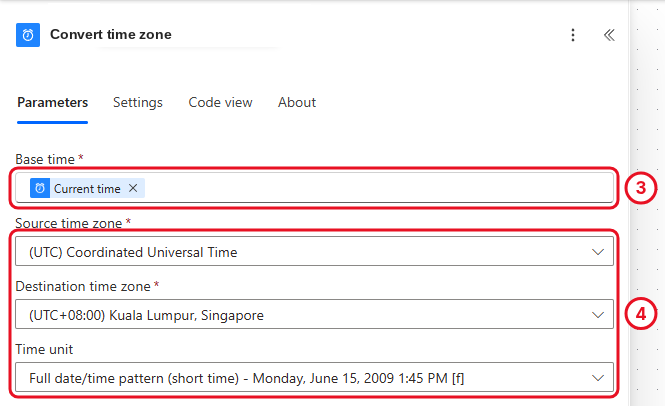
Pick the format from the dropdown. No expression needed.
Key point: The two time zone settings do different jobs. Recurrence decides when the flow starts. Convert time zone only changes a timestamp shown in the message.
Check your flow so far. Your screen should look like this.
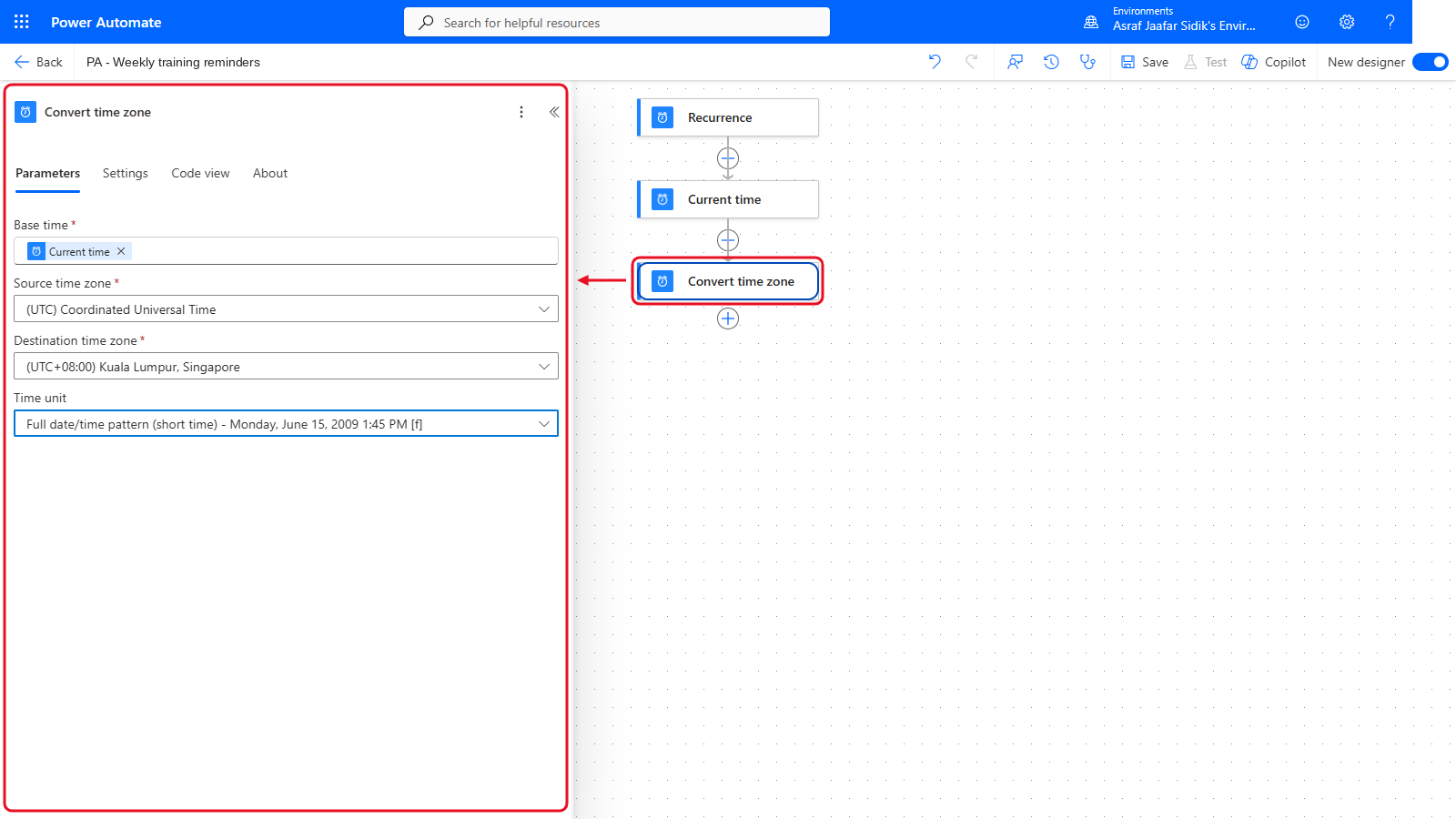
Recurrence, Current time and Convert time zone.
5.3 Read the Excel Rows
The settings are the same as Chapter 4, section 4.3.
- On the canvas, select the + below Convert time zone, then Add an action. Search for
List rows present in a tableand select it under Excel Online (Business). - Open the Location dropdown and select OneDrive for Business.
- Open the Document Library dropdown and select OneDrive.
-
In File, select the folder icon at the right end of the box. Select the > beside
Power Automate Training, then selectTrainingRegister.xlsx.Tip: Clicking a folder’s name selects it but doesn’t open it. Use the > arrow on the right to go inside.
- Open the Table dropdown and select
tblTraining. - Under Advanced parameters, open the dropdown (it reads Showing 0 of 6) and tick DateTime Format. In the new DateTime Format box, choose ISO 8601.
Note: After you pick them, some boxes may switch to an internal value: Location to
me, Document Library to a long code, and Table to an ID in braces like{46727A35-…}. It doesn’t happen every time. Names or codes, both are fine.
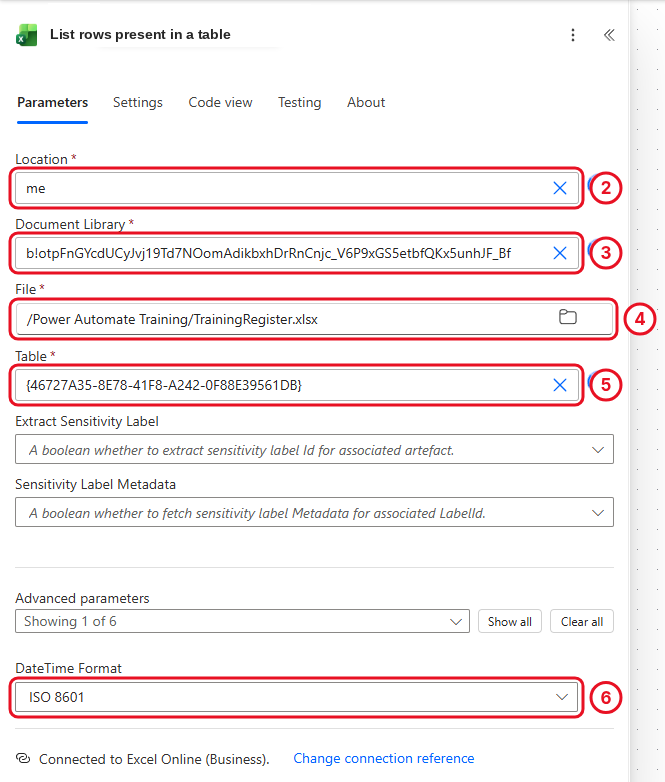
Same settings as Chapter 4. If your boxes show codes instead of names, they stand for the same choices.
Check your flow so far. Your screen should look like this.
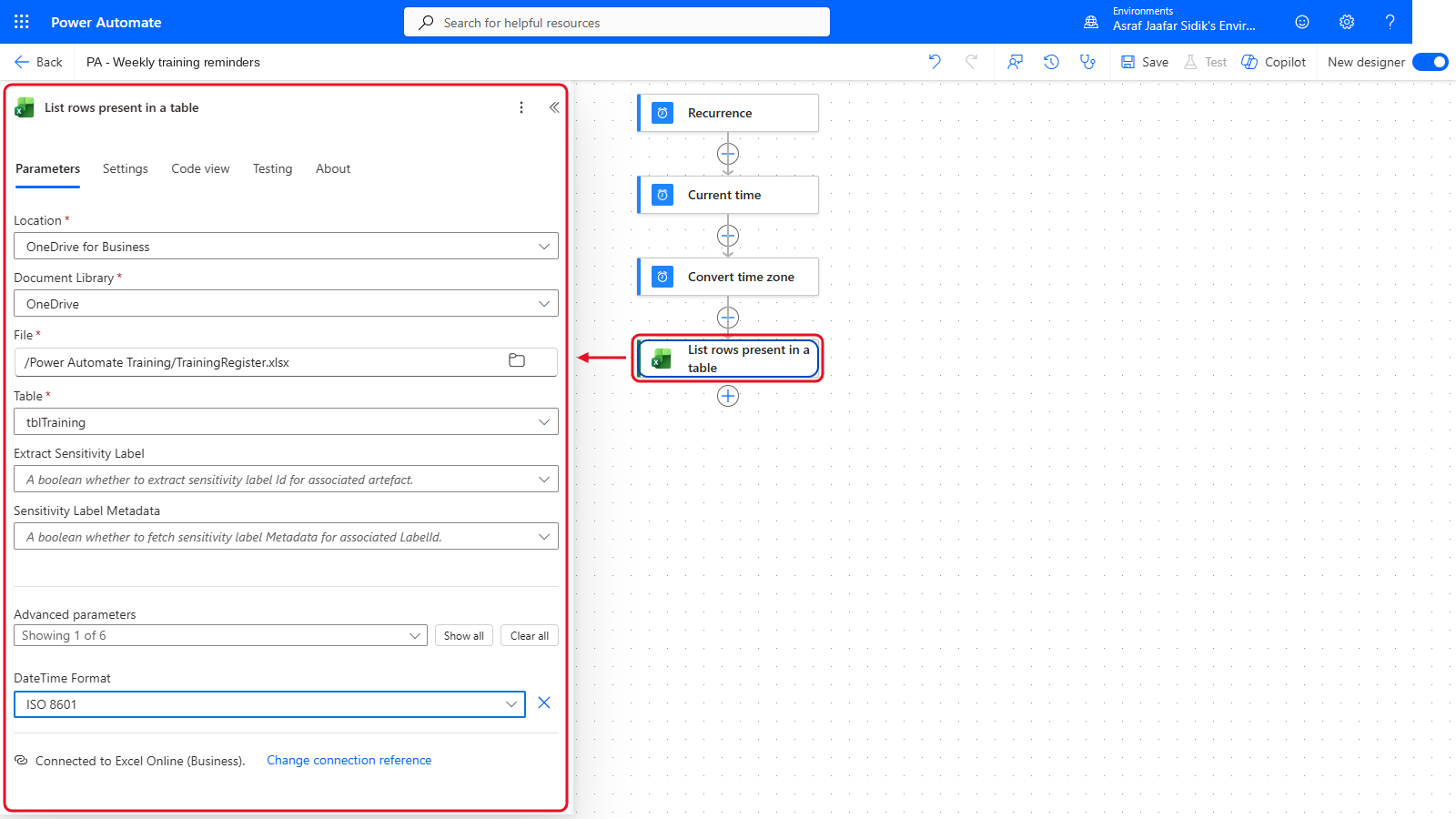
List rows present in a table comes next.
5.4 Process One Row at a Time
- On the canvas, select the + below List rows present in a table, then Add an action. Search for
Apply to eachand select it under Control. - Click into Select an output from previous steps, select the lightning bolt icon beside it, and under List rows present in a table pick body/value (it may be labelled value). If you can’t see it, select See more or type
valuein the picker’s search box.
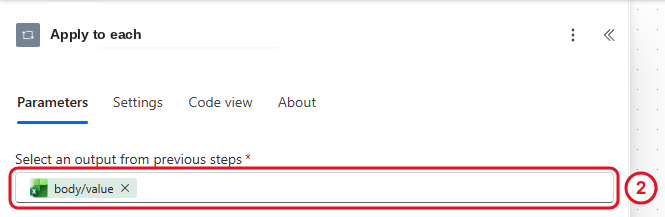
The loop runs once per row in the table.
Checkpoint: The input must be the whole list (value). A single column such as Email isn’t a list of rows.
Check your flow so far. Your screen should look like this.
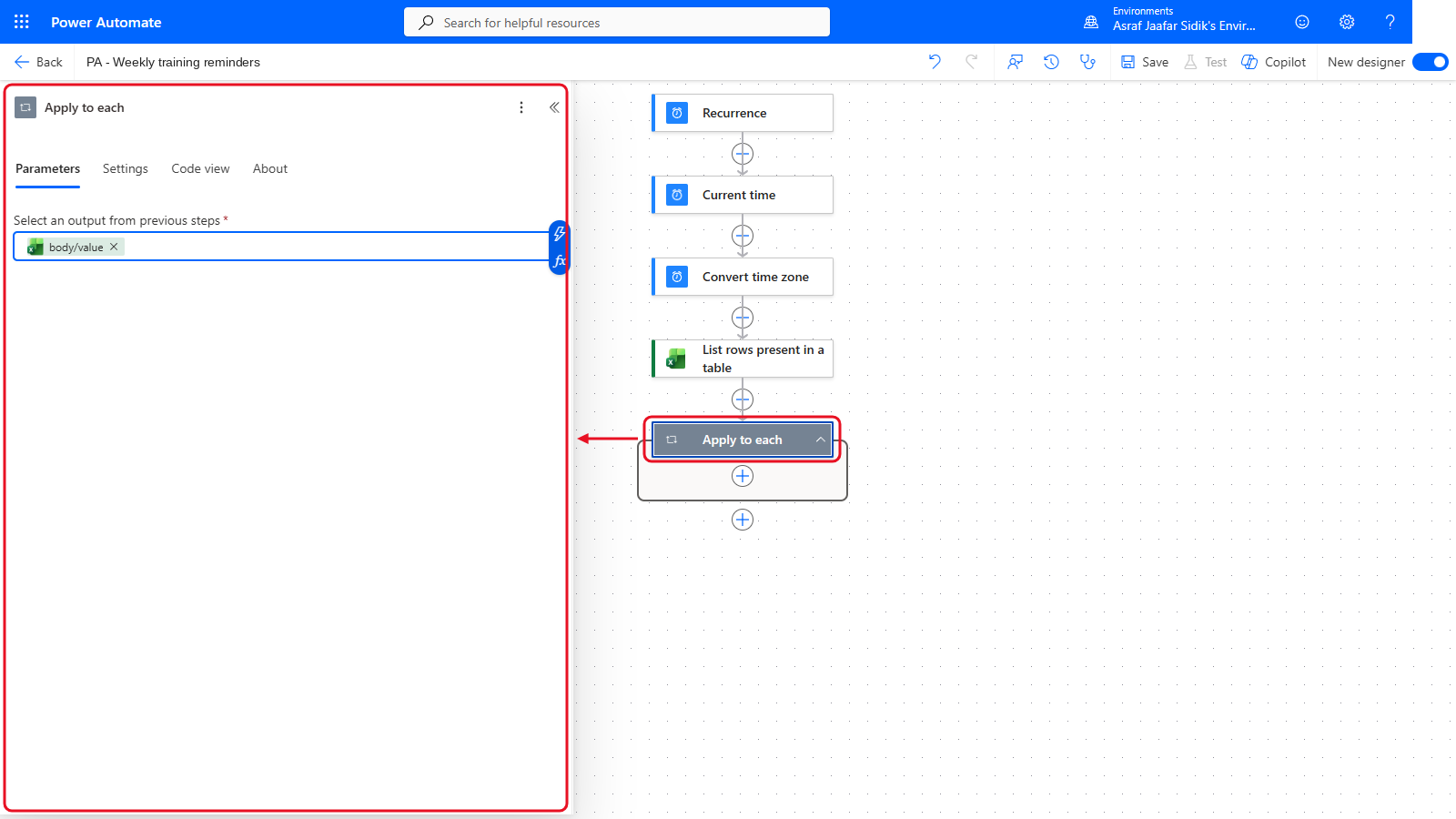
An empty Apply to each at the bottom.
5.5 Prepare the Reminder Email
On the canvas, select the + inside the Apply to each box (below its header), then Add an action. Search for Send an email, then select Send an email (V2) under Office 365 Outlook.
-
To: this box opens a people picker, so it needs switching first. Select the small settings (gear) icon above the right end of the To box, on the same line as the To label. Choose Use dynamic content. Then click into the box, select the lightning bolt icon, and pick Email under List rows present in a table (select See more or type
Emailin the search box if it isn’t listed).
The gear switches To from picking people to accepting dynamic content (shown here after Email was inserted).
-
Subject: click into the box and paste the subject start (it ends with a space). Copy it from the box below.
[PA TRAINING] Reminder:Select the lightning bolt icon and pick CourseTitle under List rows present in a table. If the trailing space disappears after typing or pasting, type a space before inserting CourseTitle.
-
Body: click into the box and type the message below. Where a value belongs, put the cursor there, type
/and choose Insert dynamic content (or select the lightning bolt), then pick the value.
Type this, inserting the tokens where shown:
Hello [ParticipantName],
This is your weekly training reminder.
Course: [CourseTitle] Session date: [SessionDate] Status: [Status] Reminder generated: [Converted time]
Please contact the training coordinator if your plans change.
Each [bold name] is a dynamic content token. Converted time comes from Convert time zone. The rest come from List rows present in a table. If a value isn’t listed, select See more or type its name in the picker’s search box.
The two plain sentences contain no tokens, so you can copy them from the boxes below:
This is your weekly training reminder.
Please contact the training coordinator if your plans change.
The copy-paste page also has the whole body with [Name] placeholders, if you’d rather paste it and replace each placeholder with its token.
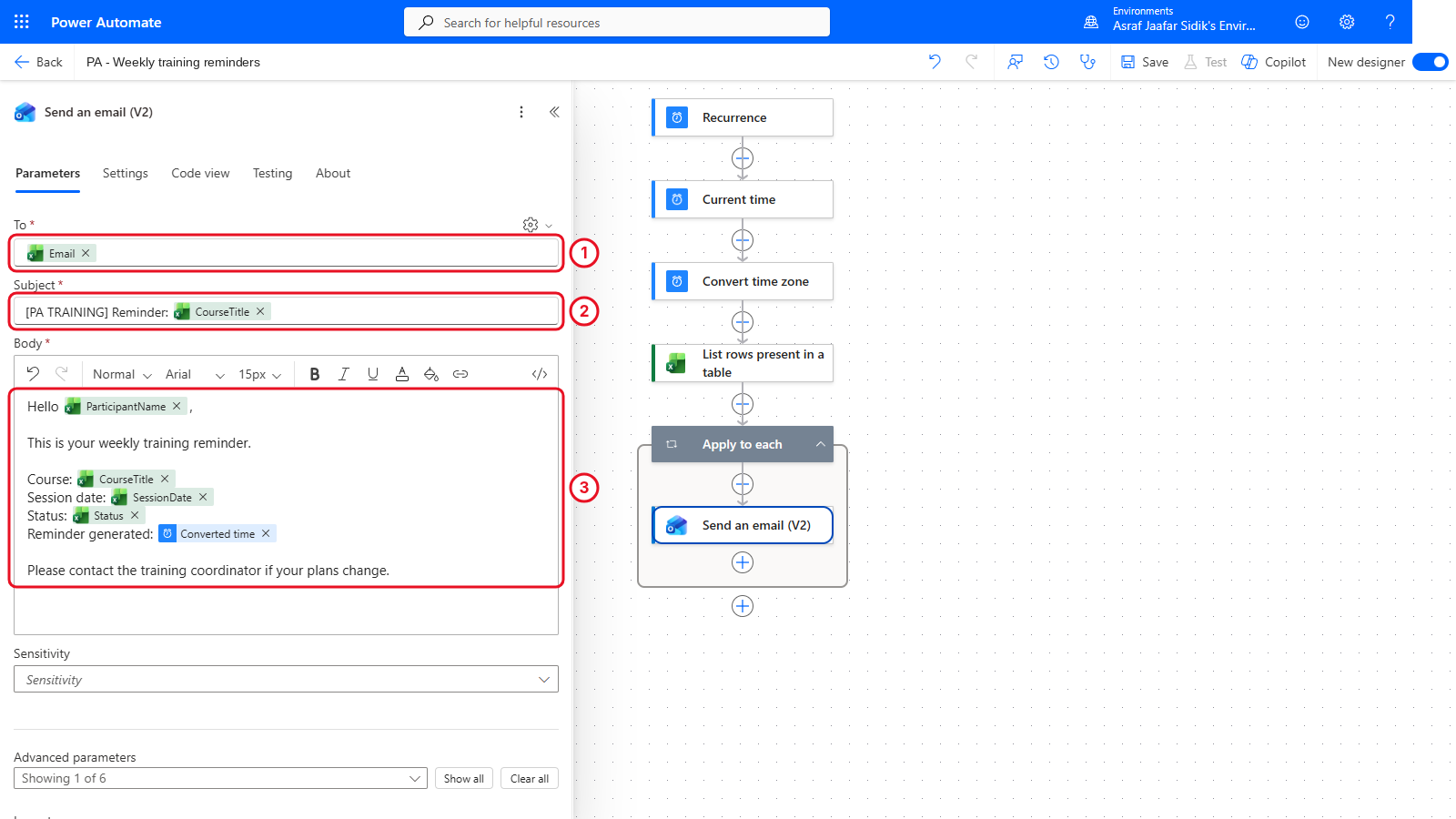
Type the words, insert the tokens. The email reads like a normal message.
Check your flow so far. Your screen should look like this.
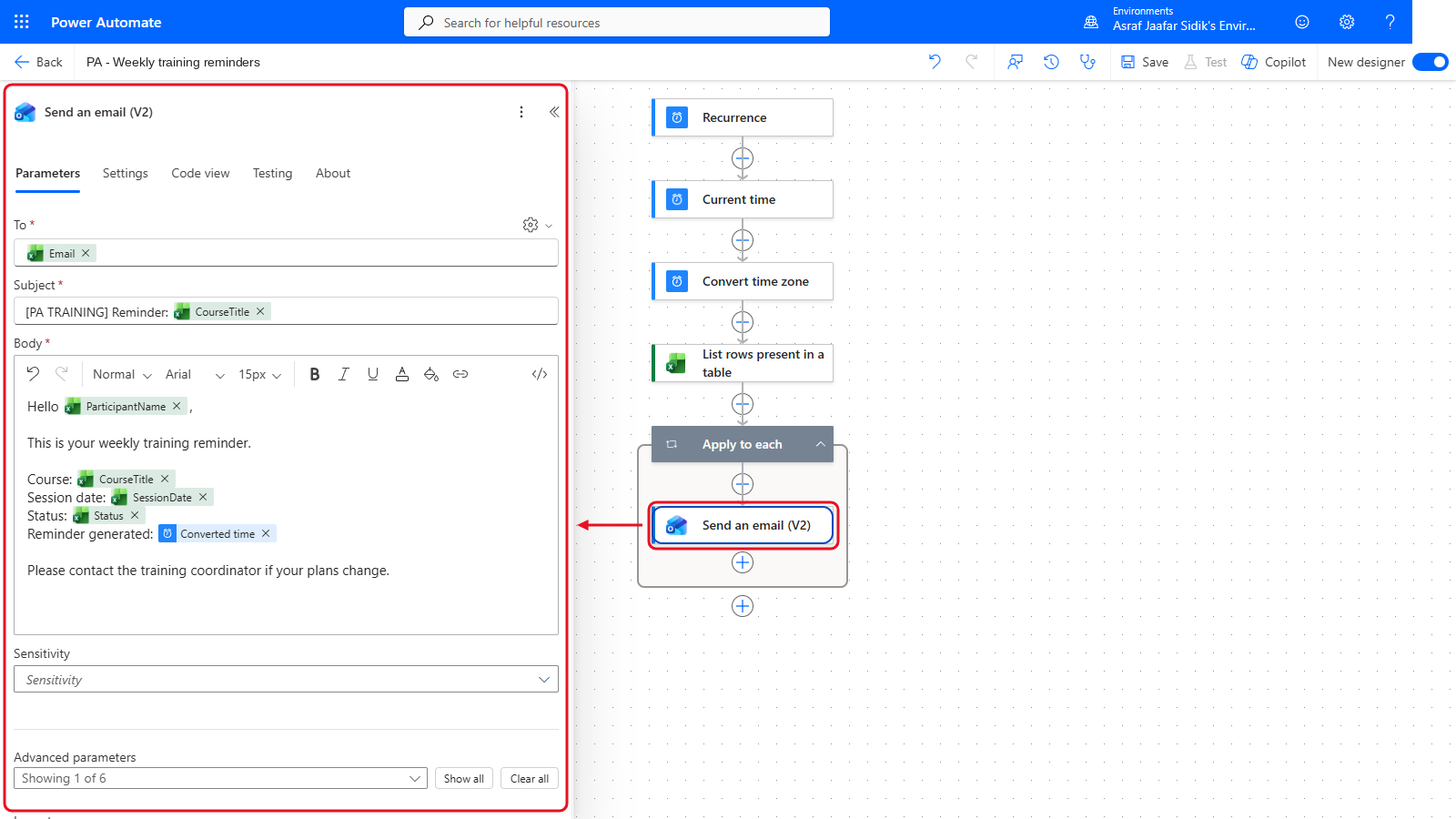
Send an email (V2) sits inside Apply to each.
5.6 Make the Date Readable with an Expression
Run the flow now and the session date reads 2026-09-21T00:00:00.000Z. That’s correct, but nobody wants to read it. There’s no dynamic content value for “the date, written nicely”, so this is a job for an expression.
- In the Body of Send an email (V2), select the x on the SessionDate token to remove it. Make sure the cursor stays right after
Session date:on that line (click there if it moved). - Select the fx button that appears at the right edge of the Body box, just below the lightning bolt. The expression editor opens. (Typing
/and choosing Insert expression works on some screens too, but not all.) - In the expression box, type
formatDateTime( - At the top of the same panel, switch from the Function tab to the Dynamic content tab and select SessionDate (type
Sessionin its search box if it isn’t listed). It drops into the expression. -
Type
, 'dd MMM yyyy')and select Add (it reads Update if you’re editing an expression that’s already there).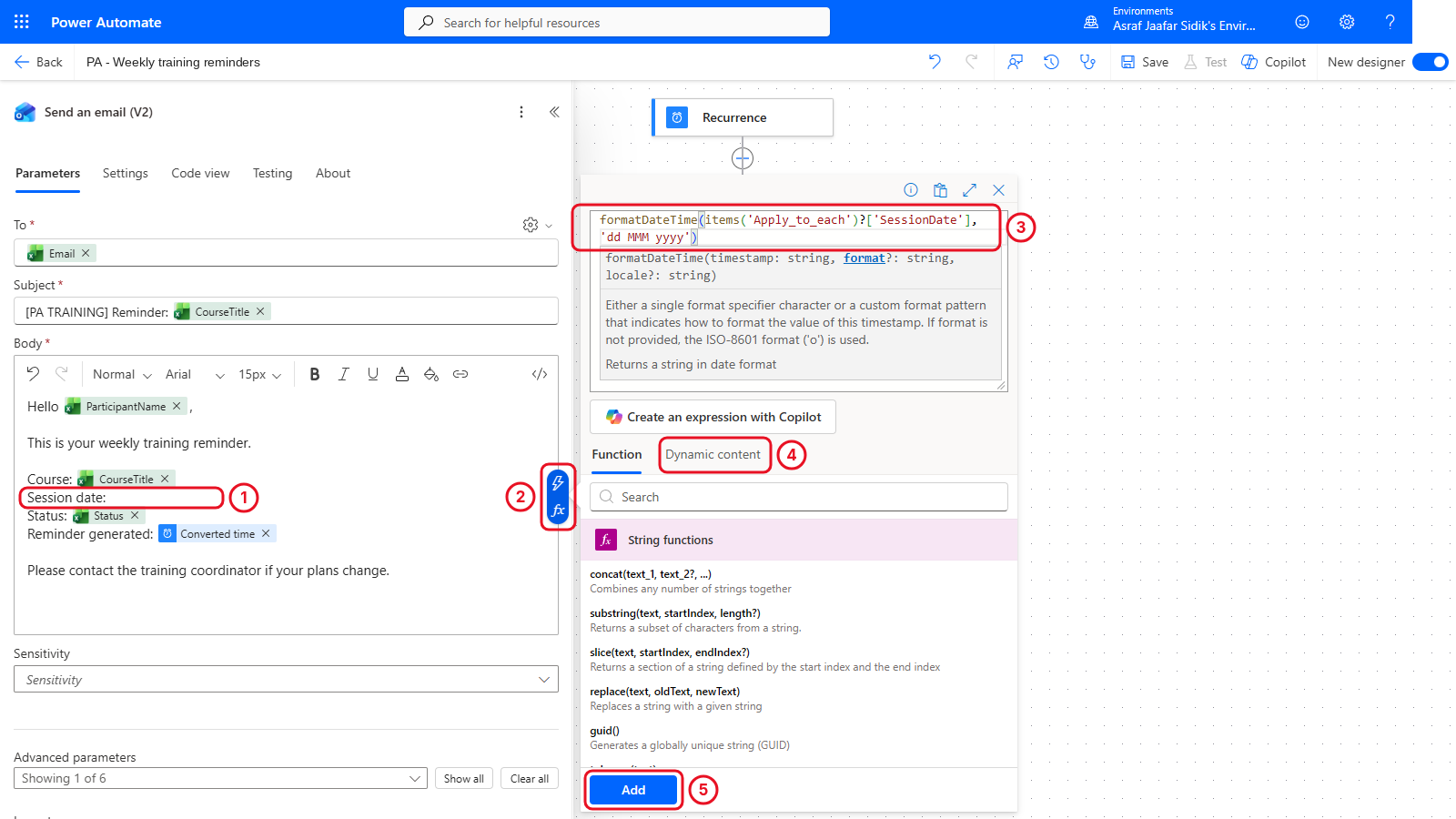
formatDateTime() takes a date and a pattern, and gives back the date written in that pattern.
If you’d rather paste the finished expression, copy it from the box below. It works if your loop still has its default name, Apply to each.
formatDateTime(items('Apply_to_each')?['SessionDate'], 'dd MMM yyyy')The pattern
dd MMM yyyymeans two-digit day, short month name, four-digit year, so21 Sep 2026.Tip: Compare this with Chapter 4.
length()counted a list,formatDateTime()reshapes a date. Both follow the same shape: a function name, then what you give it in brackets. - On the toolbar at the top, select Save, then Flow checker, and fix any error it reports.
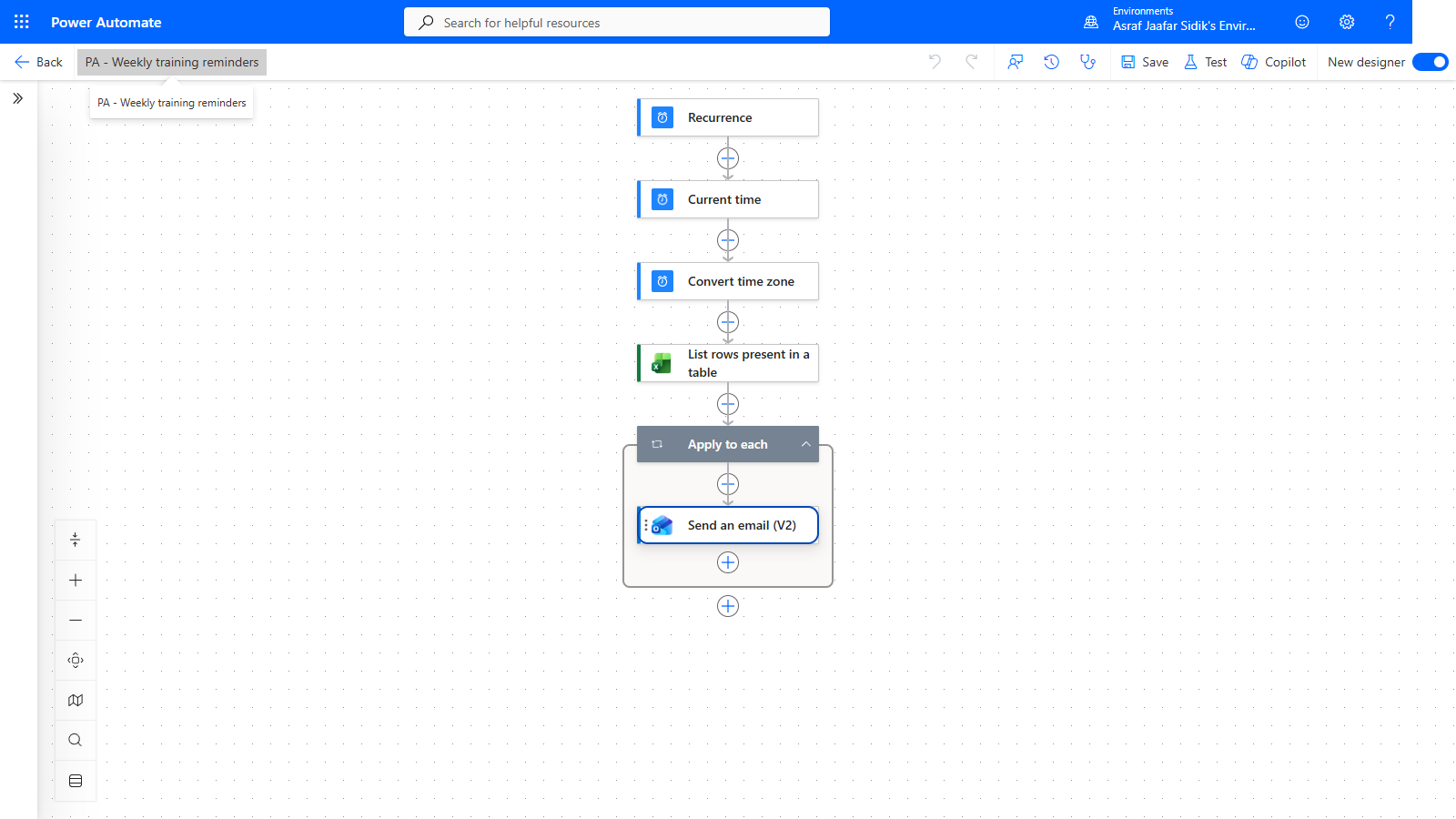
Recurrence, Current time, Convert time zone, List rows, and the loop with its email.
Trainer-Controlled Test
Important: Don’t select Test while the workbook still has
example.complaceholders. A test sends one email per row, so six messages with the sample data. The trainer confirms the recipients and authorises the run immediately before you select Run flow.
After an authorised test, check the run history:
- Every step before the loop succeeded
- Apply to each shows six iterations
- Each email used that row’s Email, CourseTitle and Status, and the date reads like
21 Sep 2026 - The reminder timestamp is in Malaysia time
In this version every row gets a reminder, including Completed ones. Chapter 7 fixes that.
Independent Practice
Change the scheduled hour to a value your trainer gives you, read the Recurrence preview, then set it back to 9:00. Explain why changing Convert time zone wouldn’t change when the flow starts.
Going further: try other date patterns. Change
'dd MMM yyyy'to'dddd, d MMMM'and the date reads Monday, 21 September. You can also go back to Chapter 4 and use the same expression in Select’s Session date value. Optional.
Troubleshooting
| Symptom | What to check |
|---|---|
| The flow starts at the wrong local time | Recurrence time zone, day, hour, minute and preview |
| The timestamp is eight hours early | Convert time zone source and destination |
| No Excel rows are returned | OneDrive location, workbook saved, formatted table and table name |
| Apply to each is empty | Use the Excel action’s value list |
| A recipient or course is blank | Header spelling in the workbook. Re-pick the token |
| The date shows as a number | Set DateTime Format to ISO 8601 in List rows present in a table |
| The date expression shows an error | Brackets and quotes: formatDateTime( … , 'dd MMM yyyy') |
| Completed records get reminders | Expected here. Chapter 7 adds the filter |
Lesson Summary
A scheduled trigger starts the flow at a predictable local time. Date Time actions give a readable timestamp, Excel supplies the rows, Apply to each hands the current row to the email, and a second expression turned a raw date into something a person wants to read. Next you add a human approval decision.