
06 - Process a Training Approval
A training request needs a person to say yes or no before anything is confirmed. This flow collects the request with Microsoft Forms, asks an approver to decide, and posts a different Teams message for each outcome.
Copy-paste values: every value you need is in the steps, with a Copy button. The copy-paste page has them all on one page too.
Estimated time: 75 minutes
Your result: An automated cloud flow that reads a Forms response, asks a person to approve or reject it, and prepares a different Teams message for each outcome.
Files for this lab: None. You build the Microsoft Form yourself in 6.1.
What You Will Learn
- Start a flow when a Microsoft Forms response is submitted
- Retrieve the answers with Get response details
- Request a decision with Start and wait for an approval
- Branch on the approval outcome and post a different Teams message for each result
How the Flow Works
When a new response is submitted > Get response details > Start and wait for an approval > Condition > Approved or rejected Teams message
The Forms trigger only supplies a response ID. Get response details uses that ID to fetch the answers. The approval action pauses the flow until someone decides. The Condition reads the approval Outcome and sends the flow down True or False.
Before You Begin
You need Microsoft Forms, Approvals and Microsoft Teams through your work or school account. Your trainer names an approved test approver and Teams destination before any live test.
Important: The screenshots use
approver@example.com, a documentation placeholder. Replace it with a trainer-approved account before testing. Don’t submit the form or run the flow while the placeholder is still there.
6.1 Prepare the Request Form
- Go to forms.office.com and sign in with your training account. It may open as forms.cloud.microsoft, which is the same app.
-
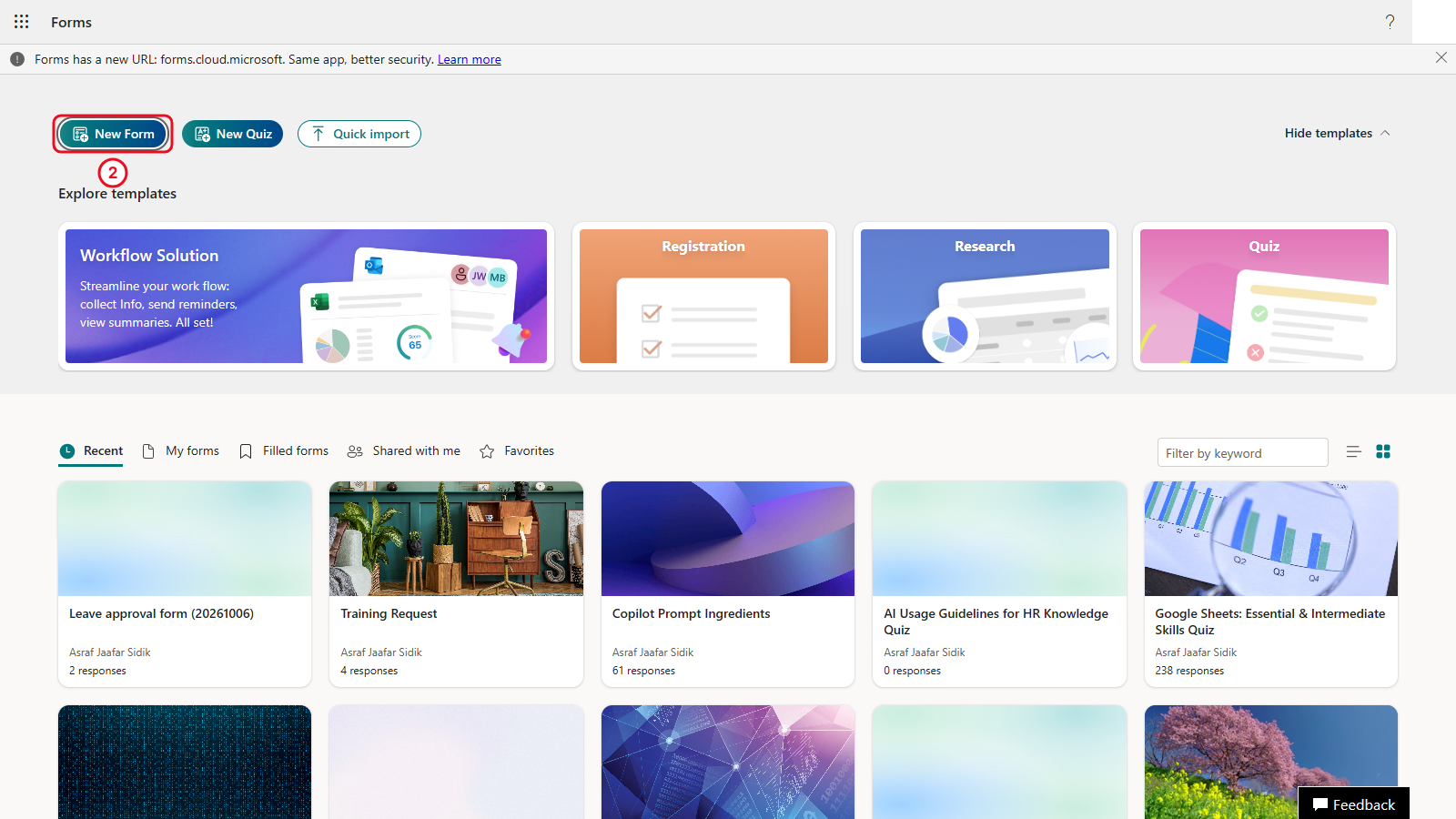
Select New Form. If a Draft with Copilot pane opens, close it.
-
Select Untitled form at the top and type
Training Request. In the description box under it, paste the description. Copy it from the box below.Submit a fictional training request for the Power Automate approval exercise.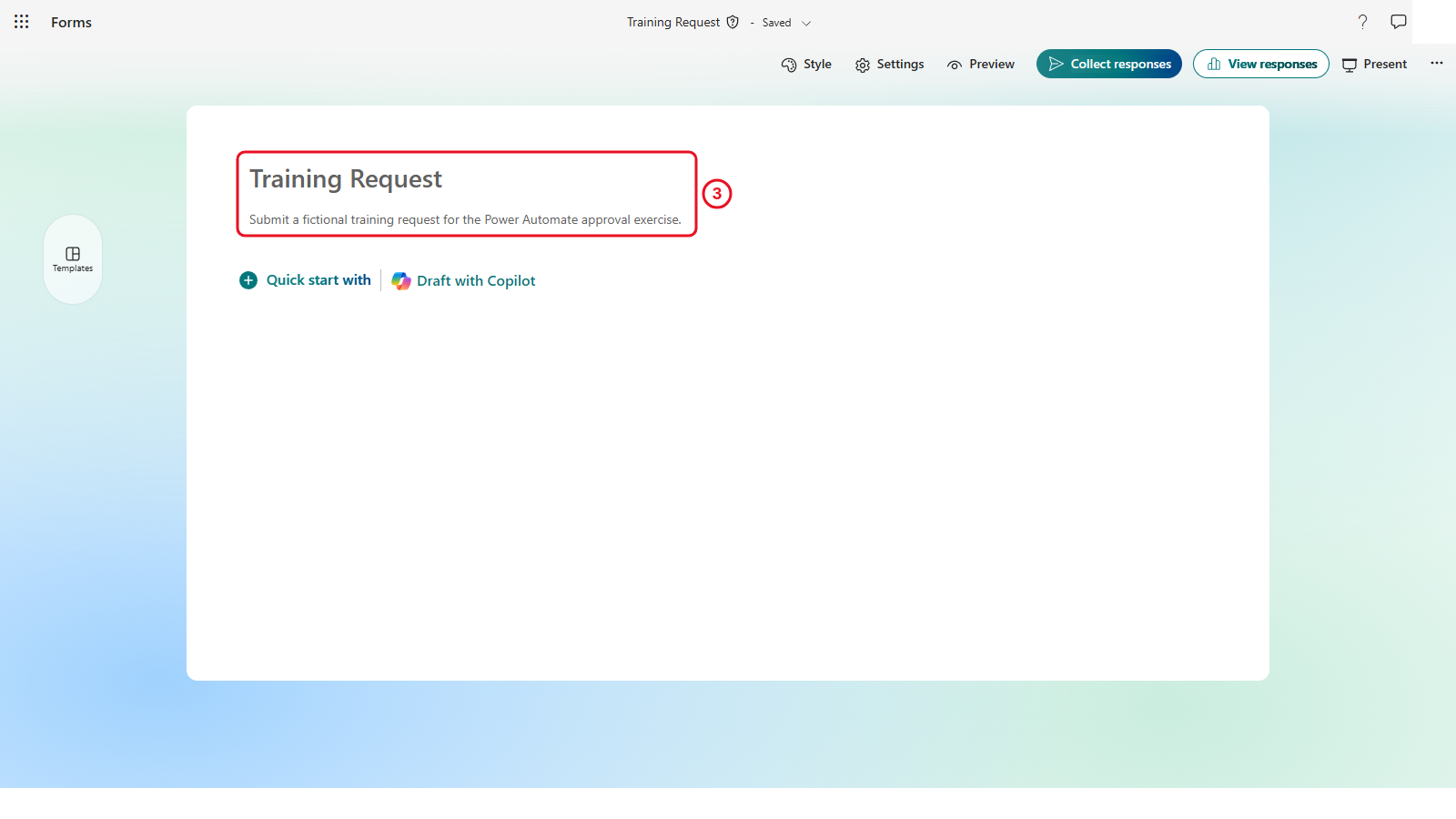
-
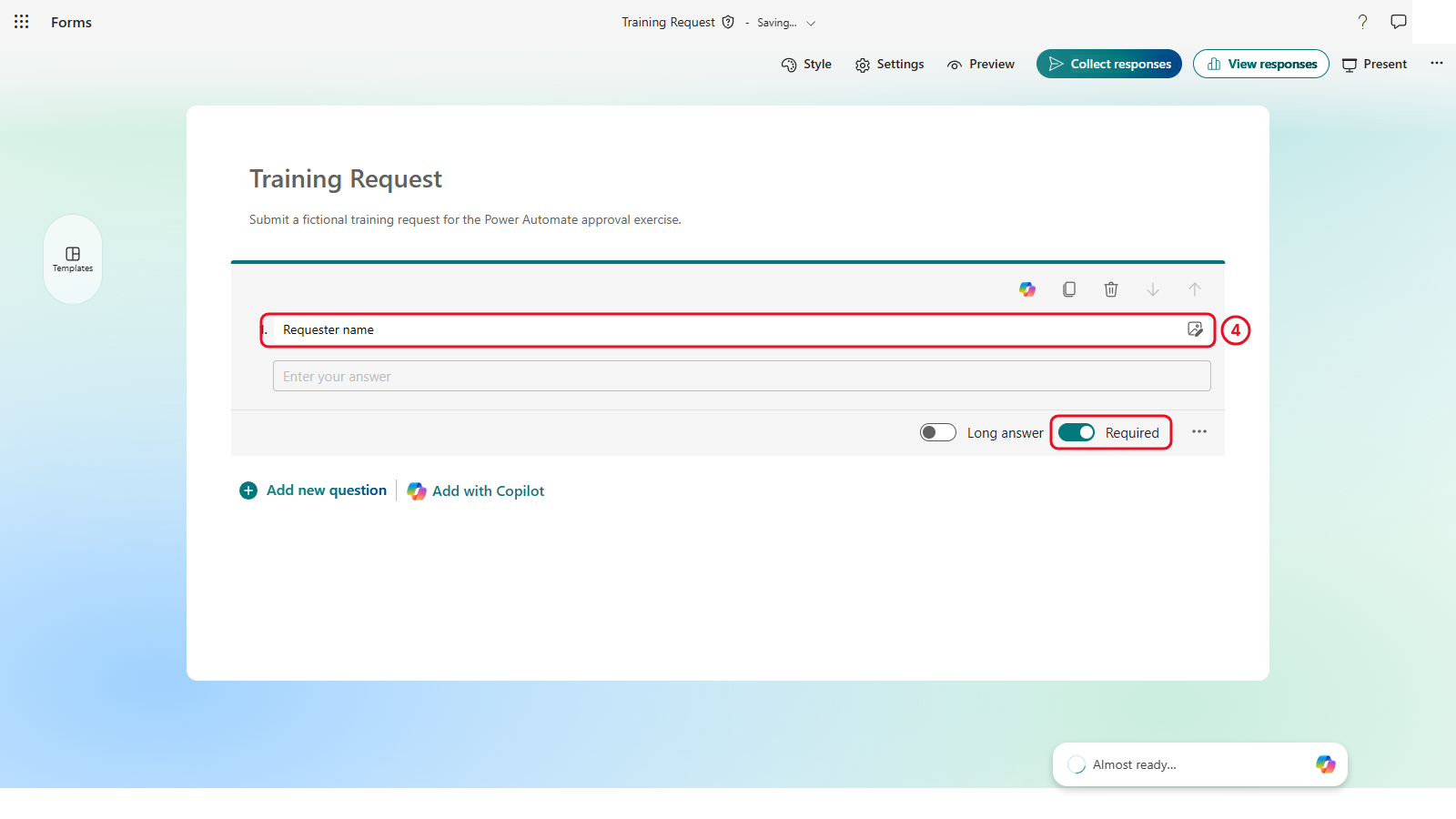
Select + Add new question (on a brand-new form it reads Quick start with), then Text. Type
Requester nameas the question. Switch on Required: it’s a switch along the bottom edge of the question you’re editing.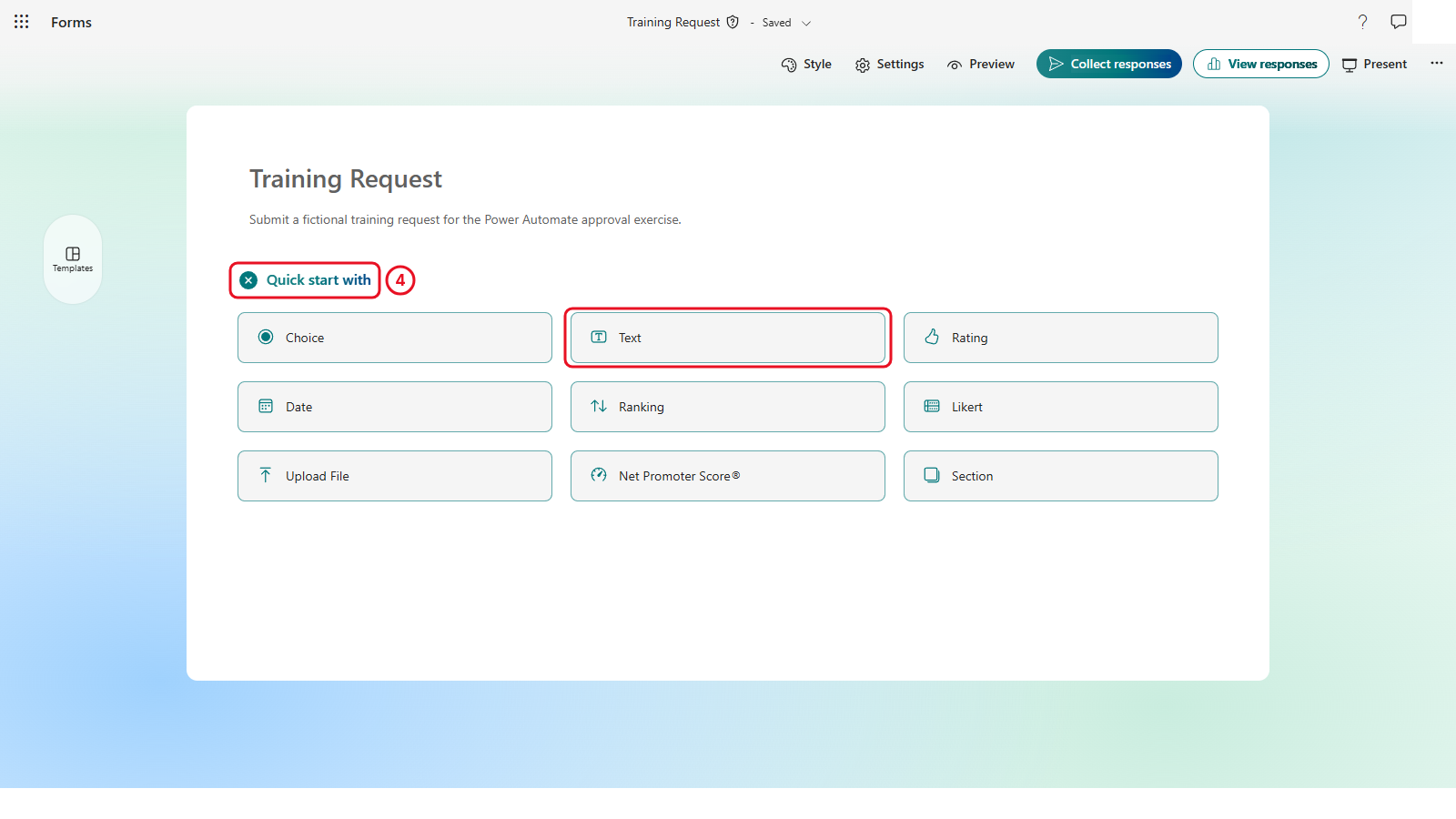
-
Scroll to the bottom of the form and select + Add new question > Choice. Type
Courseas the question, then type the three options, one per option box:Power Automate Basics,Approval Workflows,Excel Reporting. Select Add option if you need a third box. Switch on Required.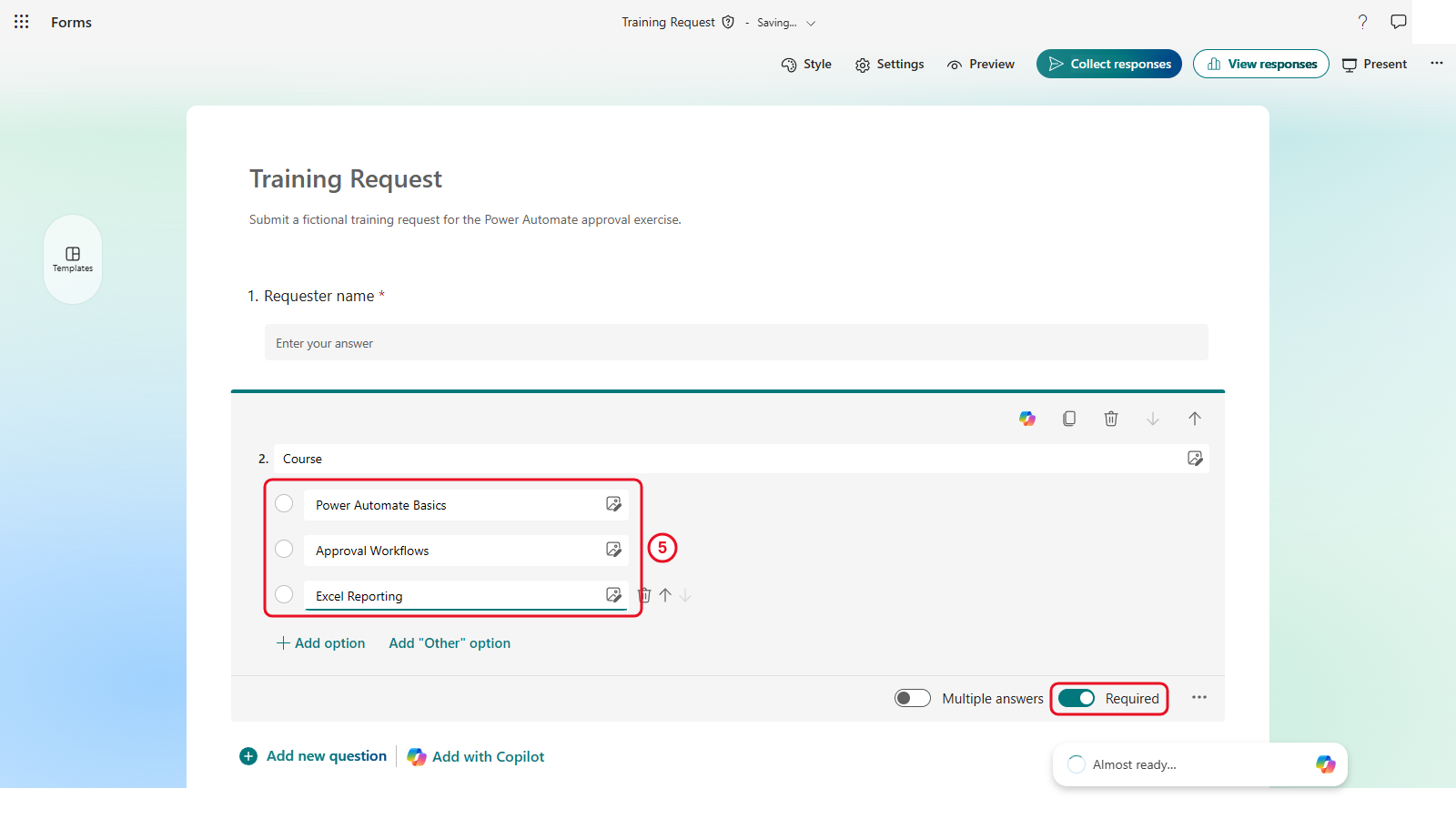
-
Select + Add new question > Date. Type
Preferred dateand switch on Required.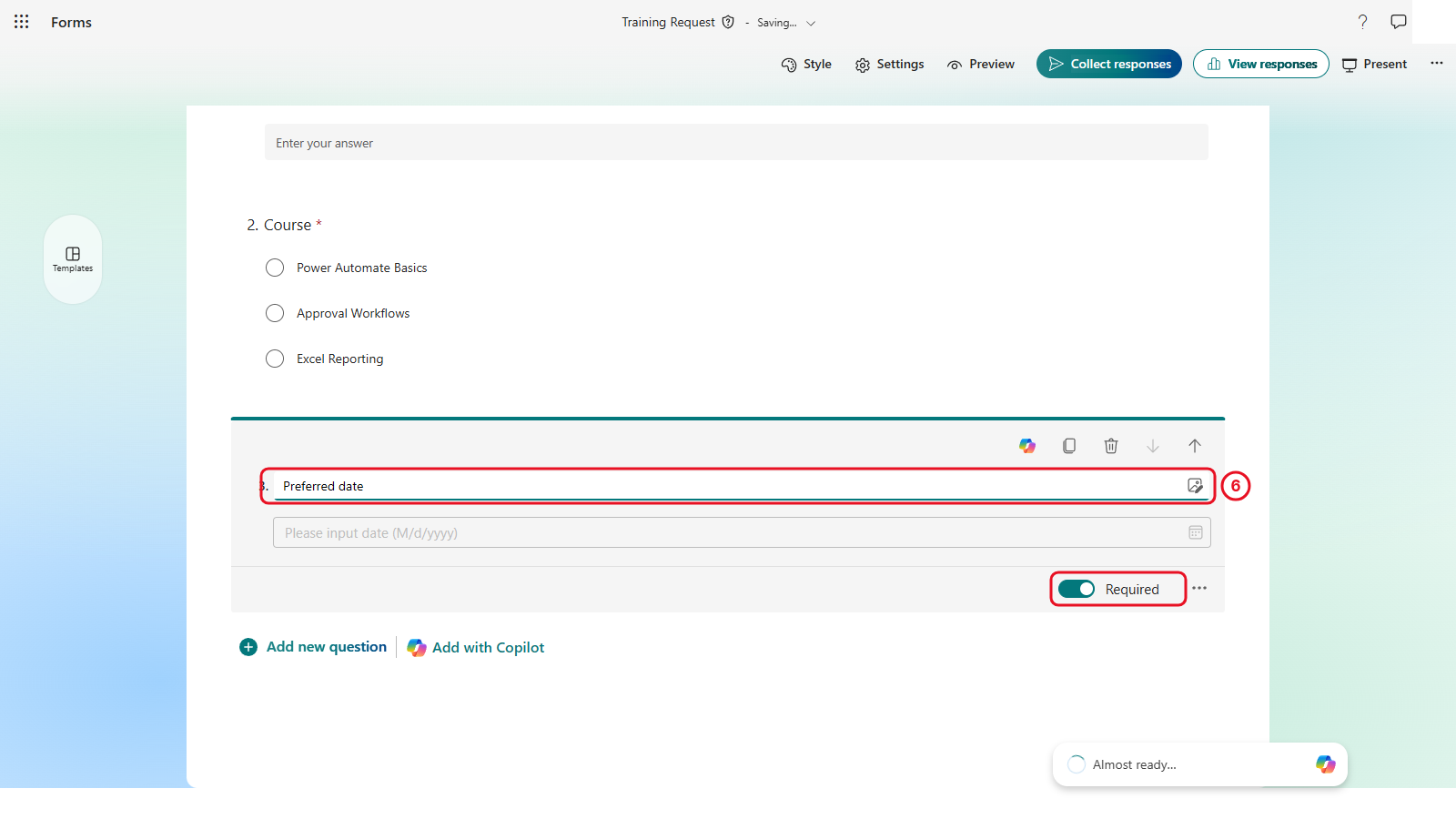
-
Select + Add new question > Text. Type
Business reason. Switch on Long answer and Required, both along the bottom edge of the question.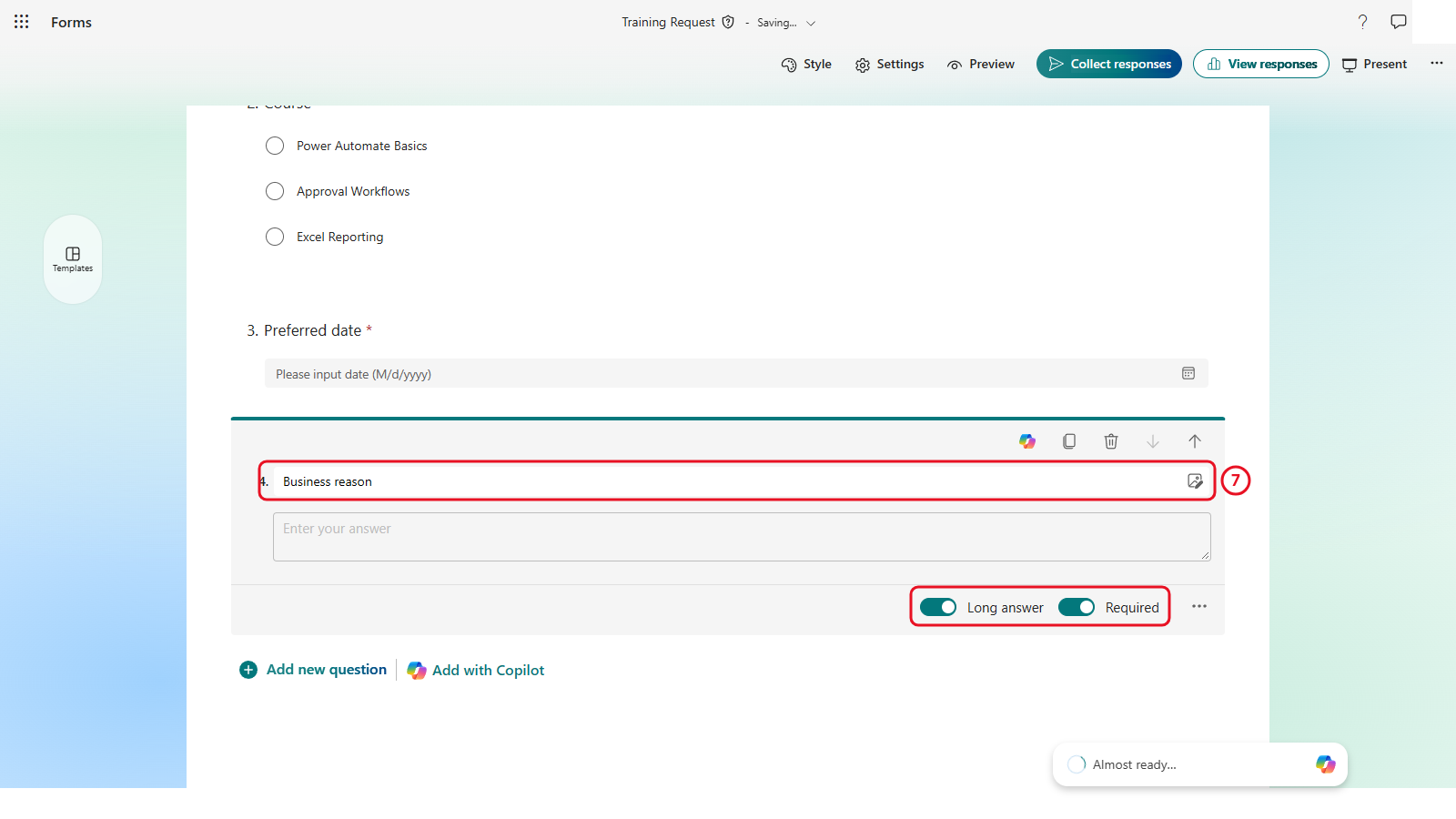
Forms saves as you go. There’s no Save button.
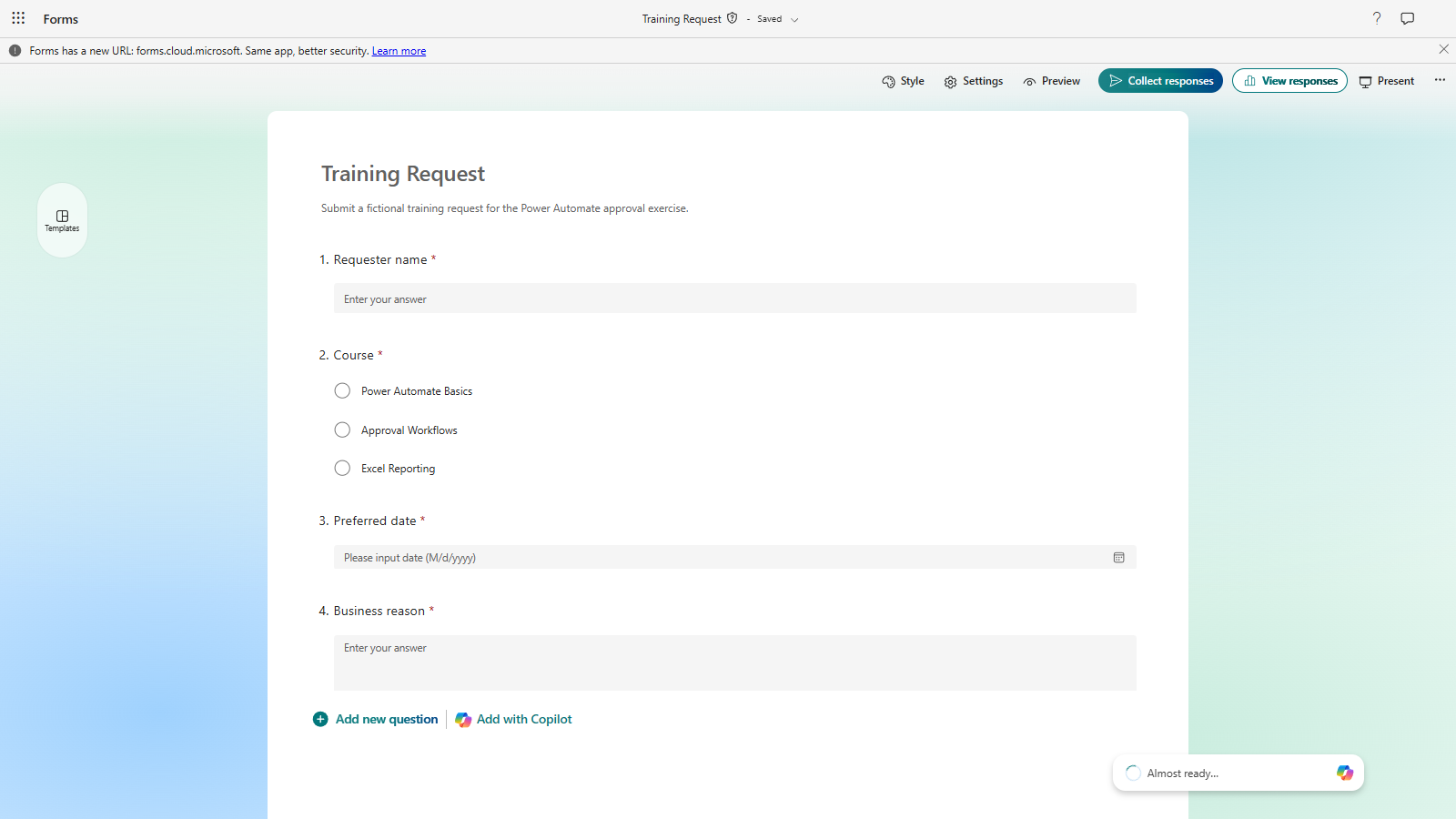
Four required questions. The red asterisk marks each one as required.
Checkpoint: All four questions show the red required marker. A missing answer gives the approver an incomplete card.
6.2 Create the Automated Flow
- In Power Automate, select Create on the left, then the Automated cloud flow tile.
- In Flow name, enter
PA - Training request approval. - In the trigger search box, type
Formsand select When a new response is submitted (Microsoft Forms). - Select Create.
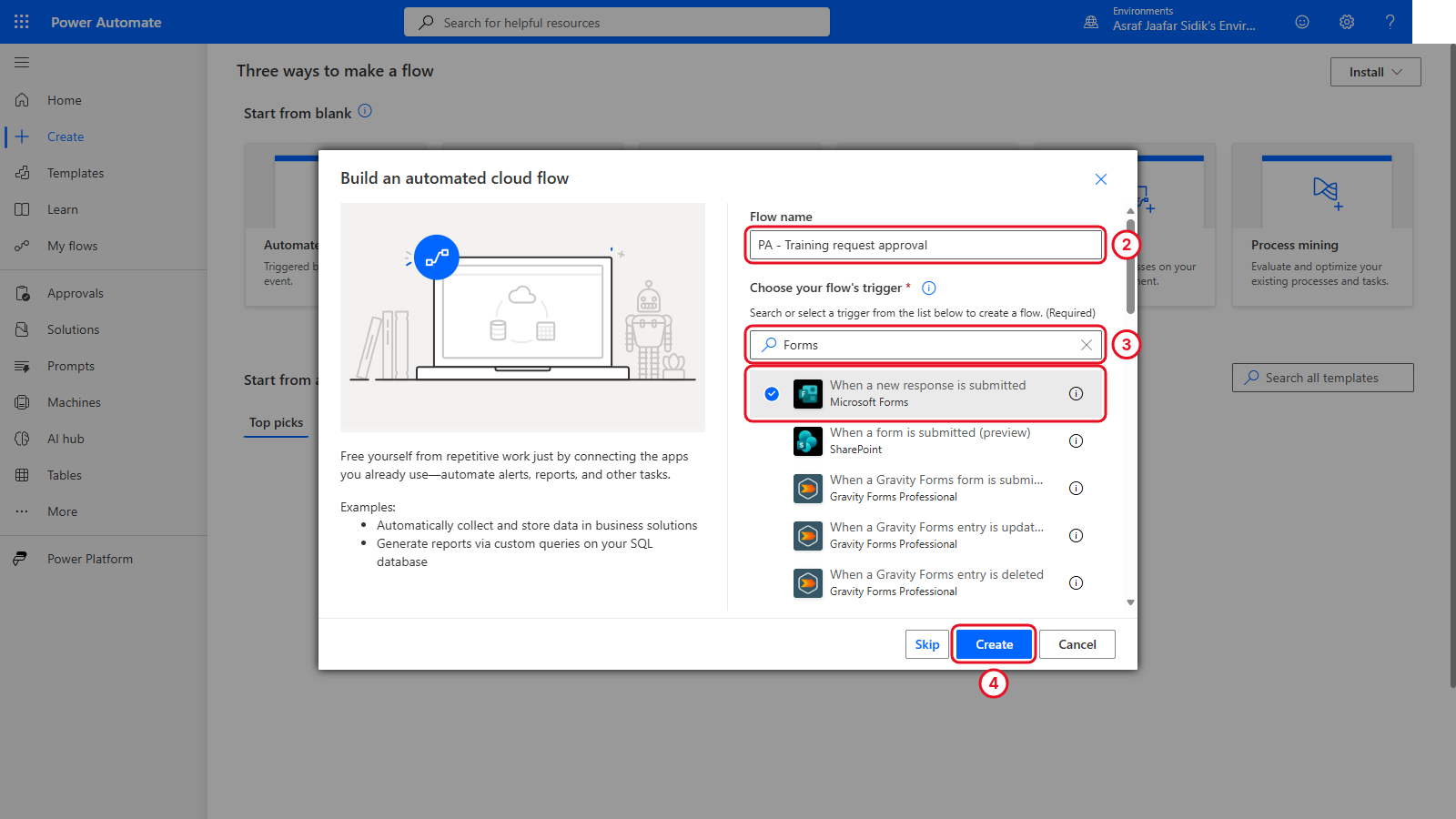
The Forms trigger starts the flow whenever the form gets a response.
6.3 Select the Form
- On the canvas, select the When a new response is submitted card. Its settings open on the left.
- Open the Form Id dropdown and select Training Request.
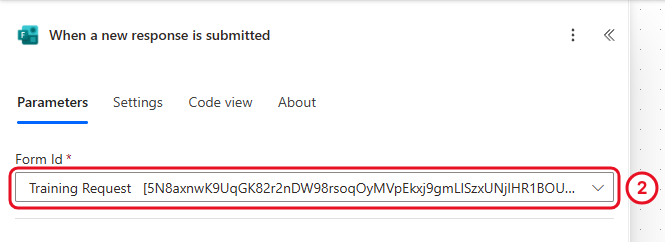
After saving, Form Id shows the form’s long internal ID instead of its name. That’s normal.
If the form isn’t listed, check that you own or can access it, refresh the list, and confirm the Forms connection uses the right account.
Check your flow so far. Your screen should look like this.
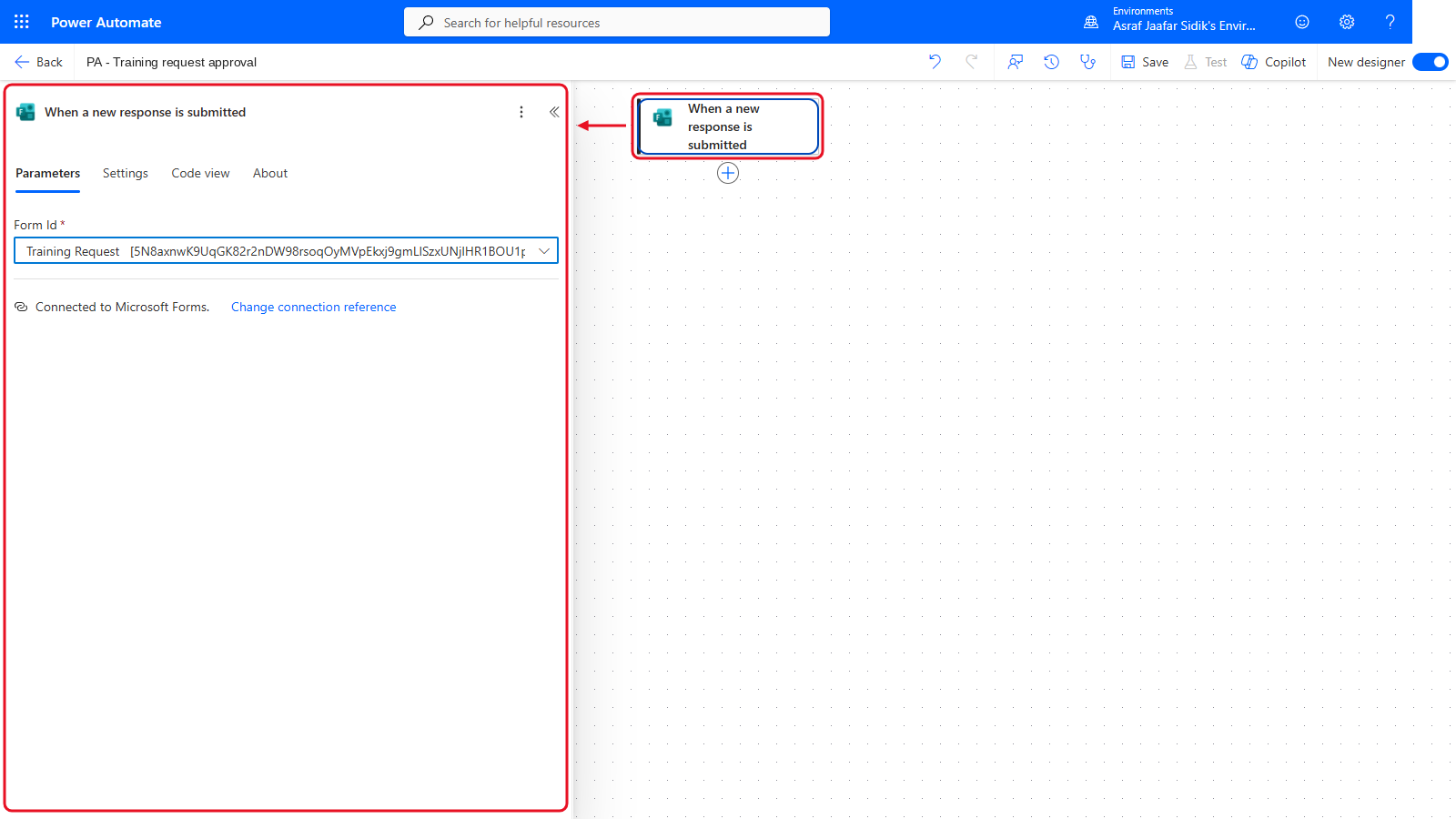
Only the trigger so far.
6.4 Retrieve the Answers
- On the canvas, select the + below When a new response is submitted, then Add an action. Search for
Get response detailsand select it under Microsoft Forms. - Open the Form Id dropdown and select Training Request again.
- Click into Response Id, select the lightning bolt icon beside it, and pick Response Id under When a new response is submitted.
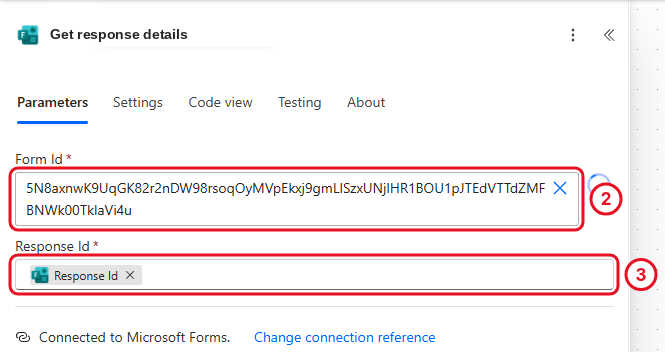
The Response Id token links this step to the exact submission that started the flow. As in 6.3, Form Id shows the form’s internal ID after saving.
The trigger only says a response exists. Get response details returns the individual answers so later actions can use them.
Check your flow so far. Your screen should look like this.
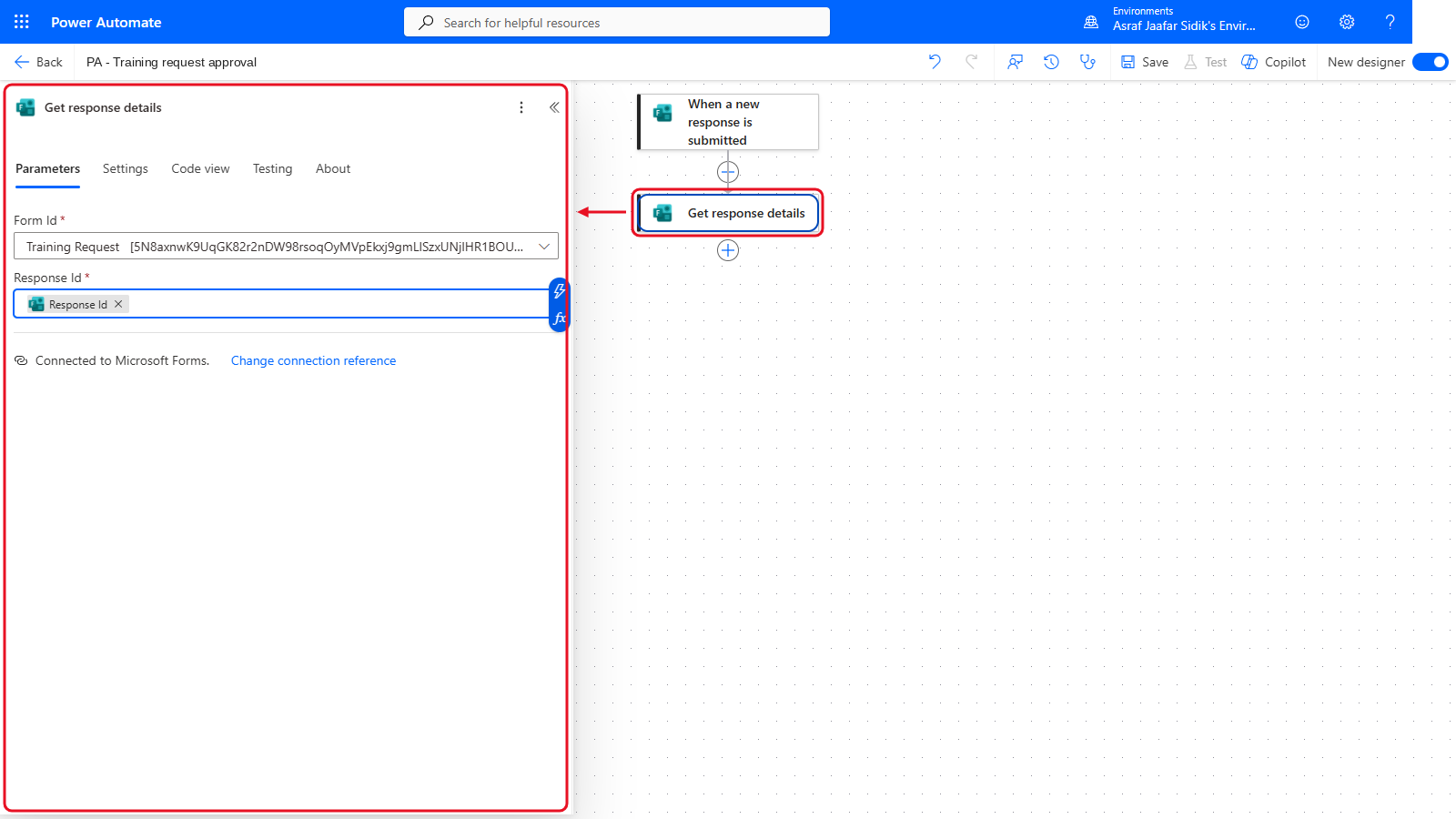
Get response details sits under the trigger.
6.5 Request the Decision
- On the canvas, select the + below Get response details, then Add an action. Search for
Start and wait for an approvaland select it under Approvals. - Set Approval type to Approve/Reject - First to respond. If your list doesn’t have it, choose Basic.
- In Title, enter
[PA TRAINING] Training request. - In Assigned to, type the trainer-approved approver’s name or email and select them from the list.
-
In Details, paste the details template. Copy it from the box below.
**Requester name:**
**Course:**
**Preferred date:**
**Business reason:**
Put the cursor after each label, select the lightning bolt icon, and under Get response details pick the matching answer: Requester name, Course, Preferred date, Business reason. If the list is cut short, select See more or type the question name in the picker’s search box.
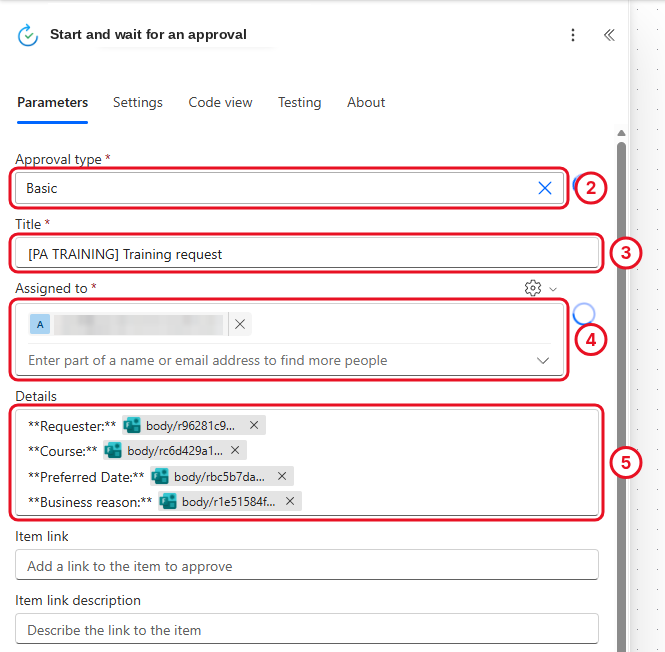
Each label in Details is followed by its answer. In the picker the answers show their question names; after saving they show as codes like body/r96281c9…. The screenshot uses Basic.
Checkpoint: Use the values from Get response details, not similarly named values from another action.
Check your flow so far. Your screen should look like this.
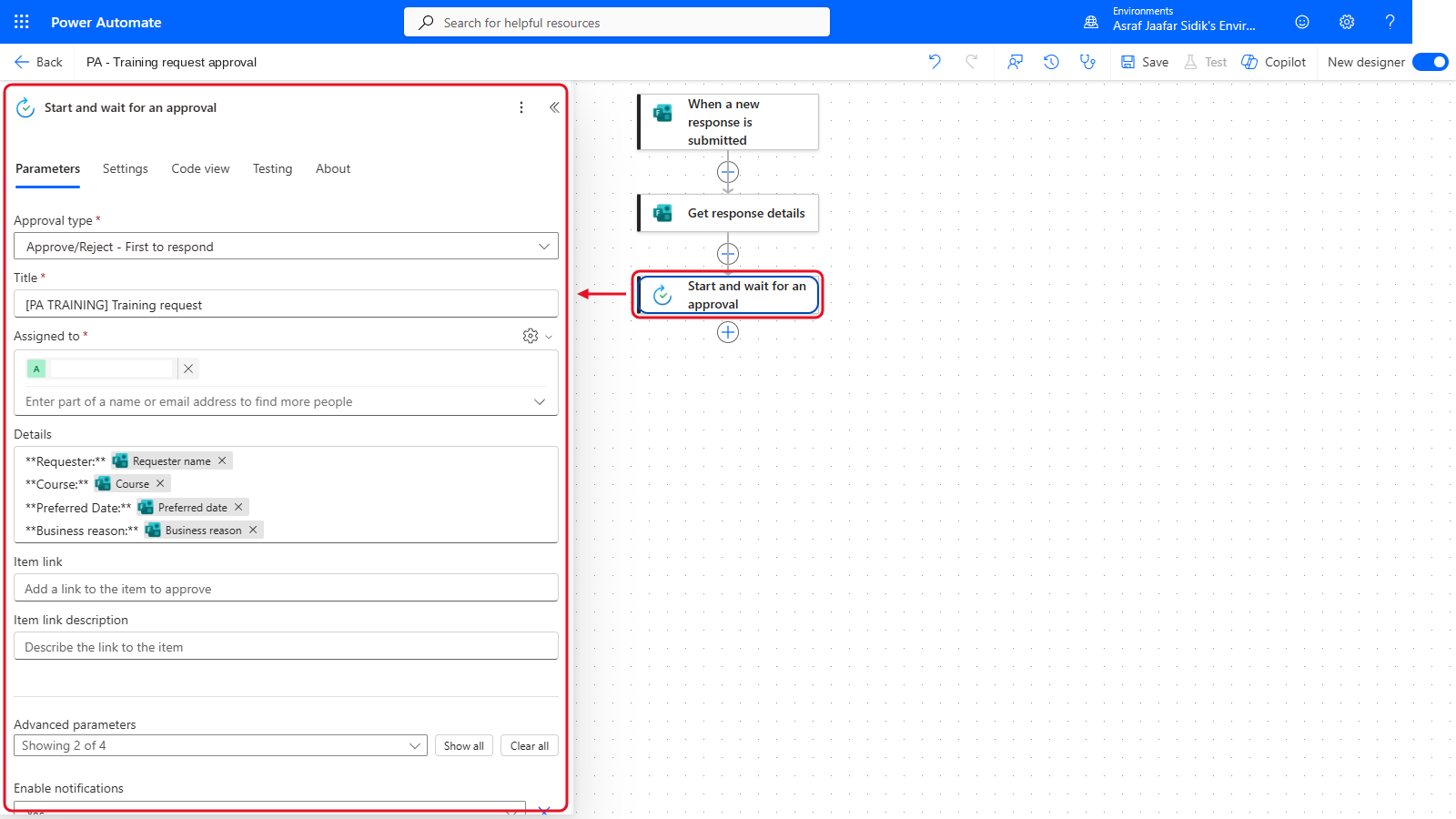
Start and wait for an approval comes next.
6.6 Branch on the Outcome
- On the canvas, select the + below Start and wait for an approval, then Add an action. Search for
Conditionand select it under Control. - Click into the left Choose a value box, select the lightning bolt icon, and pick Outcome under Start and wait for an approval. (After saving it shows as
body/outcome.) - Leave the middle box on is equal to.
- In the right box, type
Approve. - If an empty second row appears, select its … and then Delete.
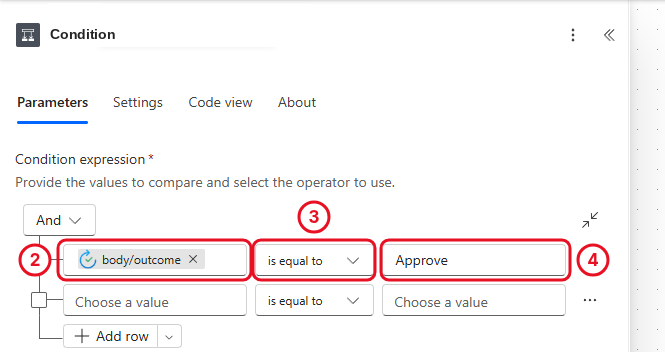
An Approve outcome goes to True. Anything else goes to False. The screenshot still shows the empty row; delete it on yours.
Key point: The text must be exactly
Approve. A typo or a trailing space sends every approval down the False branch.
Check your flow so far. Your screen should look like this.
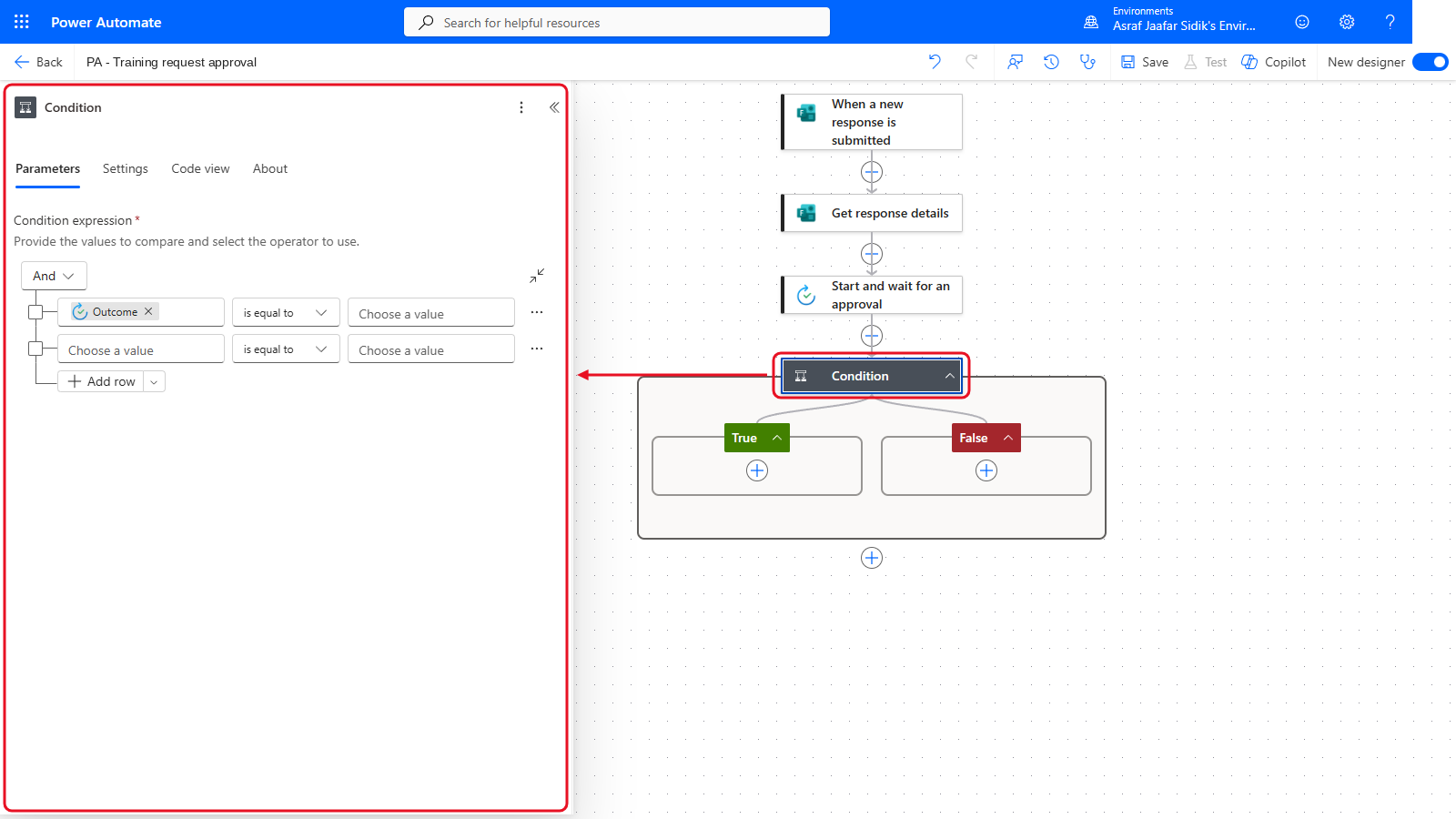
The Condition, with True and False still empty.
6.7 Prepare the Approved Message
- On the canvas, select the + inside the green True box, then Add an action. Search for
Post message in a chat or channeland select it under Microsoft Teams. - Open the Post as dropdown and select Flow bot. Open Post in and select Chat with Flow bot.
- In Recipient, type the trainer-approved Teams account and select it from the list.
-
Click into Message and type the text below, with the space at the end. Copy it from the box below.
Training request approved forSelect the lightning bolt icon and pick Course under Get response details.
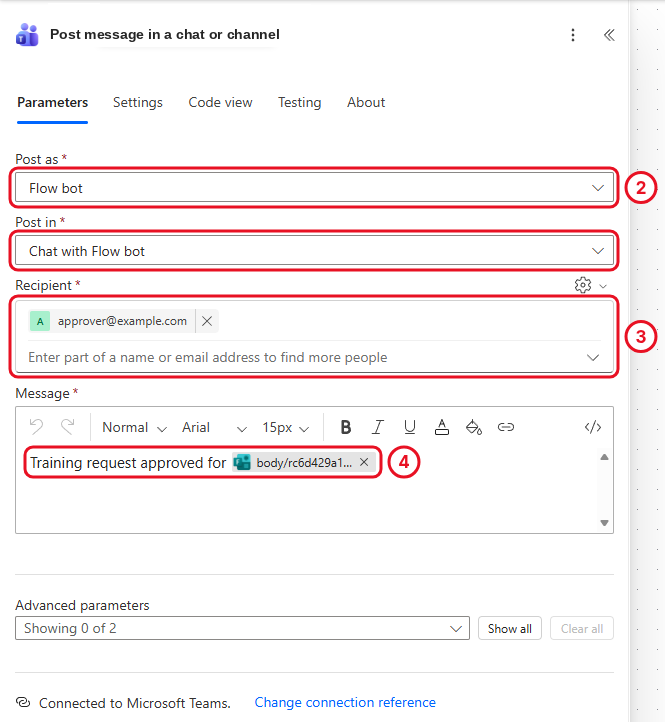
The True branch posts the approved message. After saving, the Course token shows as a code like body/rc6d429a1…. That’s normal. Replace approver@example.com with your trainer-approved account.
Check your flow so far. Your screen should look like this.
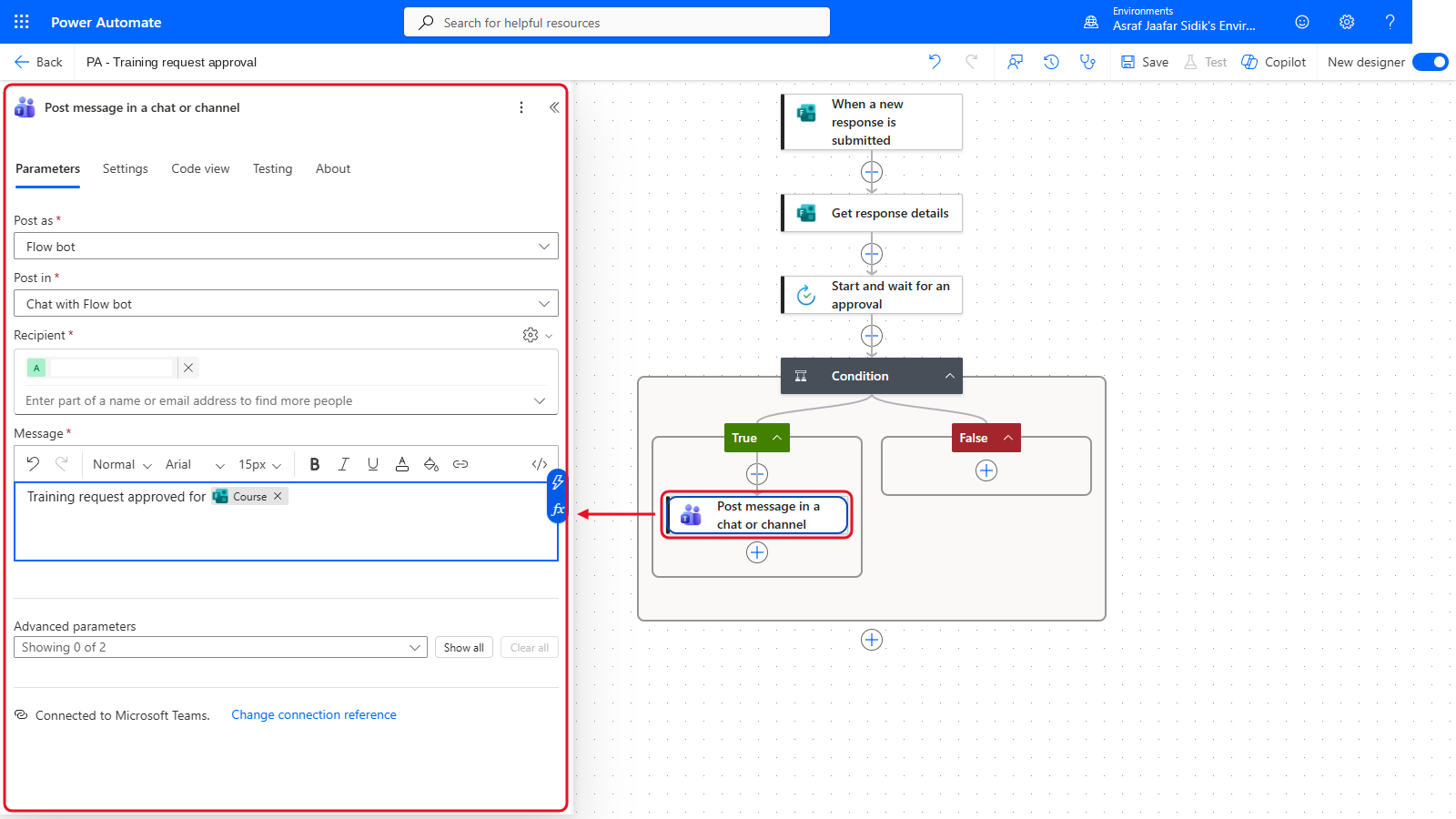
A Teams message in True. False is still empty.
6.8 Prepare the Rejected Message
- On the canvas, select the + inside the red False box, then Add an action, and add a second Post message in a chat or channel (Microsoft Teams).
- Use the same Post as, Post in and Recipient as section 6.7.
-
In Message, type the text below, with the space at the end. Copy it from the box below.
Training request rejected forThen insert Course from Get response details with the lightning bolt, as in 6.7.
A production process would also handle outcomes like cancelled or timed-out approvals. This exercise sticks to the two standard Approve and Reject buttons.
Check your flow so far. Your screen should look like this.
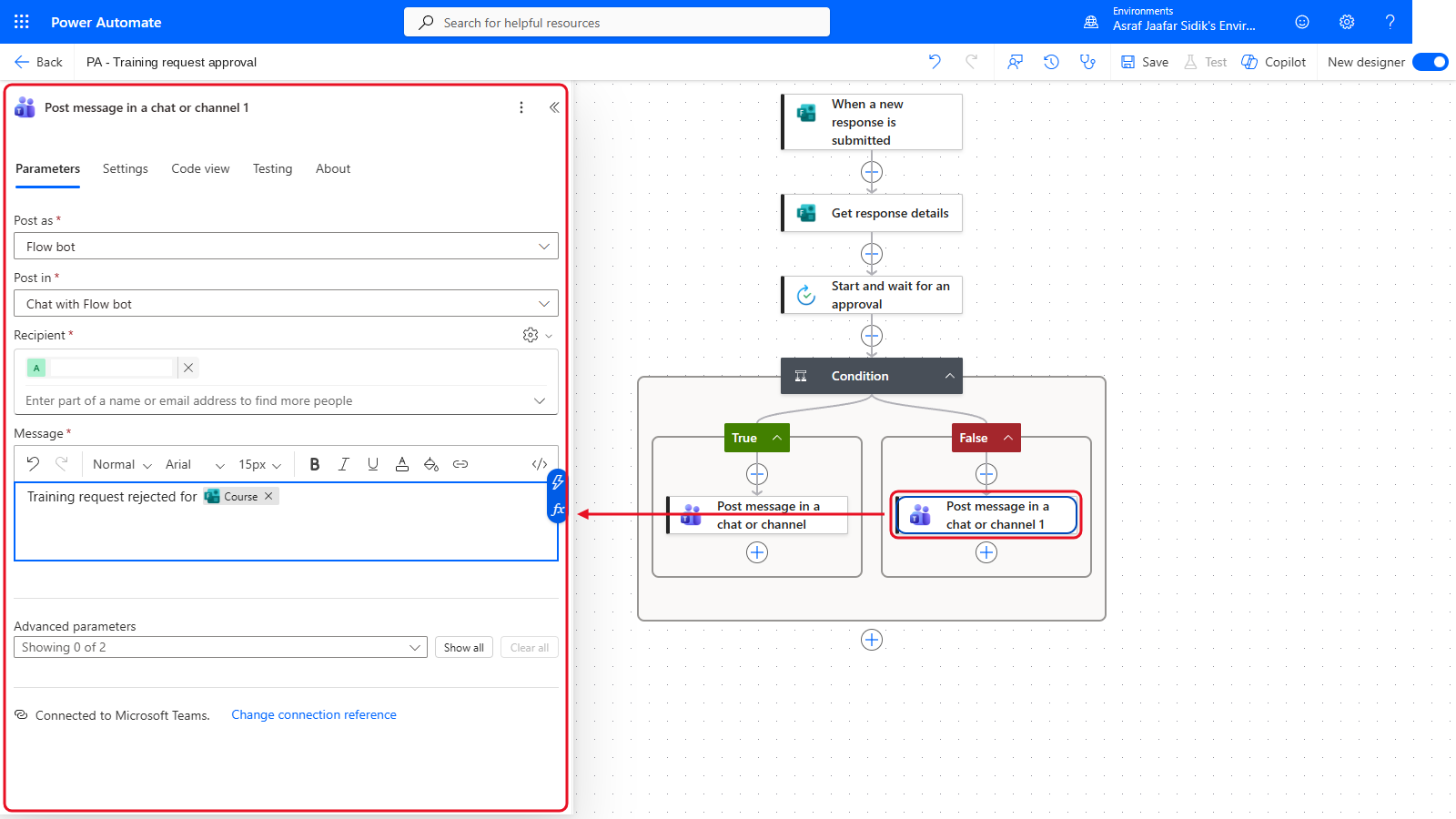
A Teams message in each branch.
6.9 Save and Check the Flow
- On the toolbar at the top, select Save, then Flow checker. Fix every error before testing.
- Confirm the canvas: three steps before the Condition, and one Teams action in each branch.
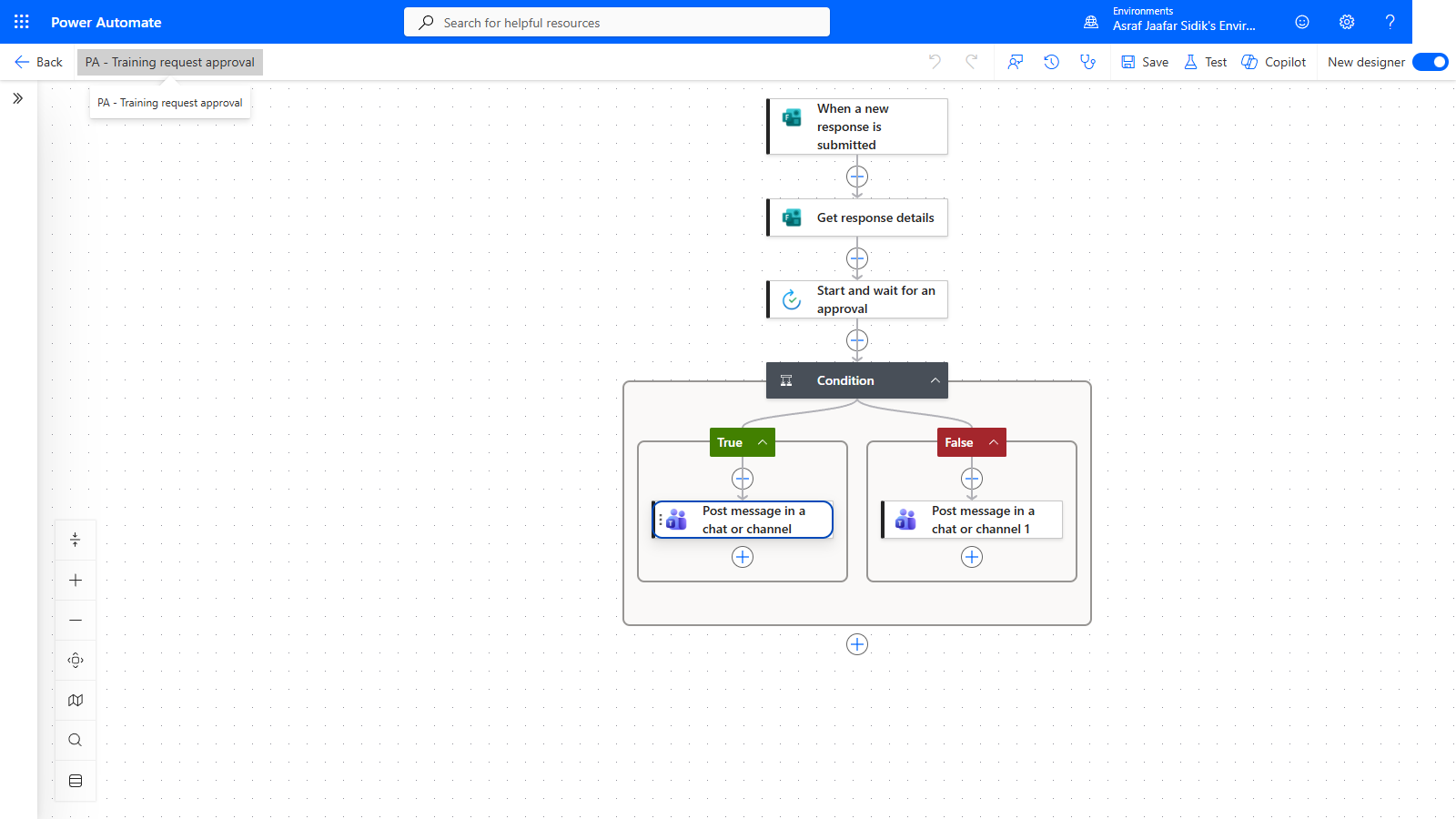
Three steps, then one Teams message per branch.
Trainer-Controlled Test
Testing creates an approval request and may post to Teams. Replace all three approver@example.com placeholders first (Assigned to in 6.5 and the Recipient in each Teams action in 6.7 and 6.8) and confirm the recipient is ready. Then, with the trainer’s go-ahead:
- Submit one fictional Training Request response.
- Approve it, and check the True branch and the approved Teams message.
- Submit a second fictional response.
- Reject it, and check the False branch and the rejected Teams message.
After each test, open run history and confirm the right branch succeeded while the other was skipped.
Independent Practice
Without running the flow, change the approval title so it also includes the Course value. Which action supplies that value, and why can’t the trigger supply it on its own?
Troubleshooting
| Symptom | What to check |
|---|---|
| Training Request isn’t in Form Id | Form ownership or access, the Forms connection account, and a refreshed list |
| The approval has no request details | Get response details Form Id, the Response Id token and the Details tokens |
| The flow waits forever | The assigned approver, the notification, and whether a decision was made |
| An approval goes down False | The Outcome token, is equal to, and the exact text Approve |
| Teams can’t resolve the recipient | Replace the placeholder with a trainer-approved account |
| No Teams message appears | The branch taken, Teams connection, Post in setting, recipient and the action result |
| Flow checker is clean but you can’t test | Flow checker checks structure only, not placeholder recipients or policy |
Lesson Summary
A Forms trigger starts the flow with a response ID, Get response details turns it into usable answers, Start and wait for an approval records a human decision, and a Condition routes the request to the matching branch. The flow is ready for a trainer-controlled test once approved recipients replace the placeholders.