
03 - Save Email Attachments Automatically
Your first build: an automated flow that watches for training emails and saves only the PDF attachments to OneDrive. Everything in this chapter is point and click.
Copy-paste values: every value you need is in the steps, with a Copy button. The copy-paste page has them all on one page too.
Estimated time: 50 minutes
Your result: An automated cloud flow that examines new training emails and saves only PDF attachments to OneDrive for Business.
Download: the files for this lab
- test-files.zip: the test attachments for the email you send in 3.6 (you downloaded these in Chapter 2). SessionNotes.docx is for the Independent Practice.
Connectors: Office 365 Outlook and OneDrive for Business, both standard.
What You Will Learn
- Create an automated cloud flow from a business requirement
- Configure an Outlook trigger with a subject filter
- Process several attachments with Apply to each
- Use a condition to select PDF files
- Insert values with the dynamic content picker
- Test a matching and a non-matching case, then inspect run history
Before You Begin
Complete Chapter 2. Check that the Attachments folder exists and the test email from section 2.3 is saved in Drafts. That draft uses the subject [PA TRAINING] Attachment test and has two of the three files from the Chapter 2 test files attached:
| File | Purpose |
|---|---|
| CourseOutline.pdf | The attachment that should be saved |
| TrainerPhoto.jpg | The attachment that should be skipped |
| SessionNotes.docx | Used only in the independent practice |
Note: OneDrive never silently overwrites a file. If you run the test twice with the same attachment, Create file either fails with a duplicate-name error or OneDrive saves
CourseOutline (1).pdf. Both are correct behaviour. Delete the file from Attachments before a repeat test.
The rule: when a new email arrives with [PA TRAINING] in the subject, examine each attachment. If its name ends in .pdf, create a file in the Attachments folder.
How to Insert Dynamic Content
You’ll do this in every chapter, so learn it once. Dynamic content is a value produced by an earlier step, such as an email’s subject or an attachment’s name.
- Click into the field you want to fill.
- Select the lightning bolt icon that appears beside the field (or type
/and choose Insert dynamic content). - Pick the value from the list. Values are grouped under the step that produces them. Use the search box if the list is long.
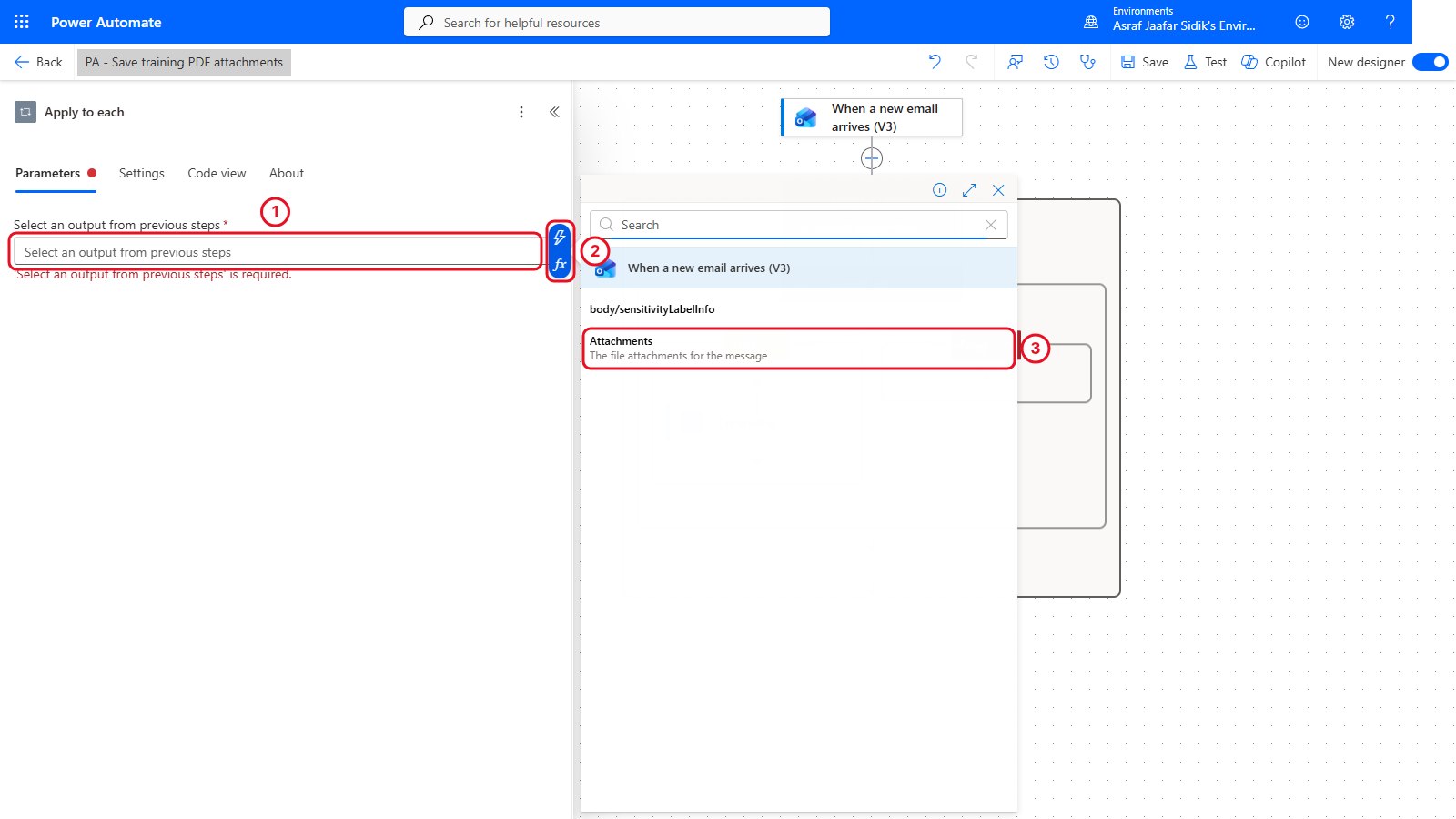
The lightning bolt opens the dynamic content picker. Values are grouped by the step that produced them.
The value appears in the field as a coloured token. To remove it, select the x on the token.
Note: After you save and come back, some tokens show their technical name instead of the friendly one: Attachments Name shows as
name, Attachments Content ascontentBytes, value asbody/value, and Forms answers as codes likebody/r96281c9…. That’s normal, and the screenshots in this course show them that way too. They still point at the right value.
How to Add an Action and Check Your Flow
You’ll also do these in every chapter.
- Add an action: select the + on the line where the new step should go (below the last step, or between two steps), then Add an action. A panel opens on the left with a search box. Type the action’s name; results are grouped by connector, such as Office 365 Outlook or Control. Select the action you want.
- Save: the Save button is at the top right of the designer.
- Flow checker: the small stethoscope icon just left of Save. It opens a panel listing errors and warnings. Close it with the X.
- Test: the Test button next to Save. A panel opens on the right; choose Manually, then select Test.
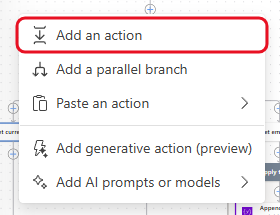
Select a + on the canvas and this menu opens. Add an action is at the top.

Top right of the designer: Flow checker (the stethoscope), Save and Test.
3.1 Create the Automated Cloud Flow
- Open Power Automate and confirm the correct environment.
- Select Create on the left, then the Automated cloud flow tile (shown in Chapter 1, section 1.5).
- In Flow name, enter
PA - Save training PDF attachments. - In the trigger search box, type
new email, then select When a new email arrives (V3) under Office 365 Outlook. - Select Create. The designer opens with only the trigger on the canvas.
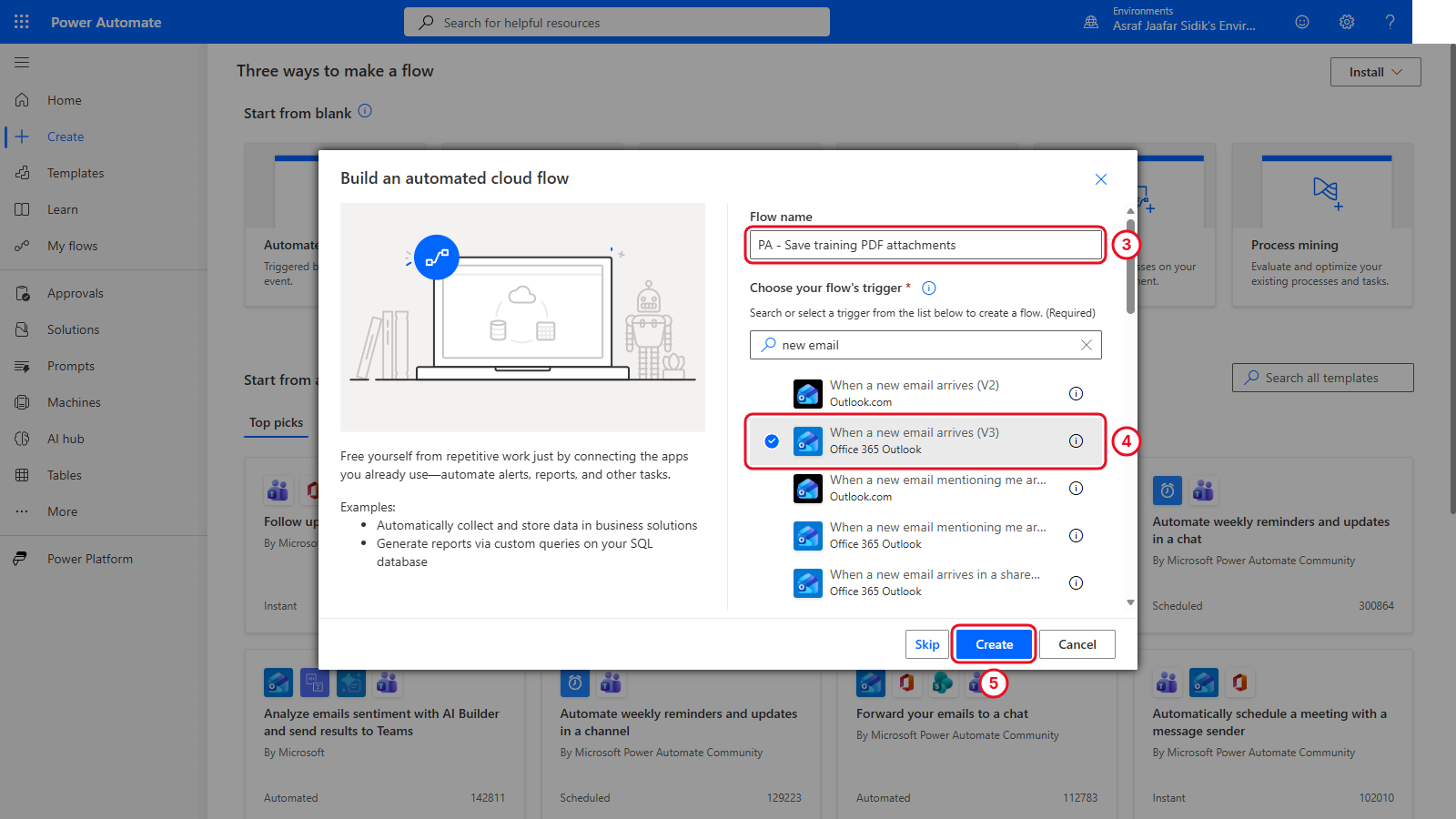
Name the flow and pick the Office 365 Outlook trigger before selecting Create.
3.2 Configure the Trigger
-
Select the trigger (When a new email arrives (V3)) on the canvas. Its settings open in a panel on the left.
The fields below may sit in a different order on your screen. Find each one by its name.
- Set Include Attachments to Yes.
- Set Folder to Inbox.
- Select Show all under Advanced parameters (if the advanced fields are already showing, skip this).
- In Subject Filter, enter
[PA TRAINING]. - Set Only with Attachments to Yes.
Don’t save yet. Power Automate won’t save a flow that has only a trigger, so you’ll save at the end of section 3.3, once the first action is in place.
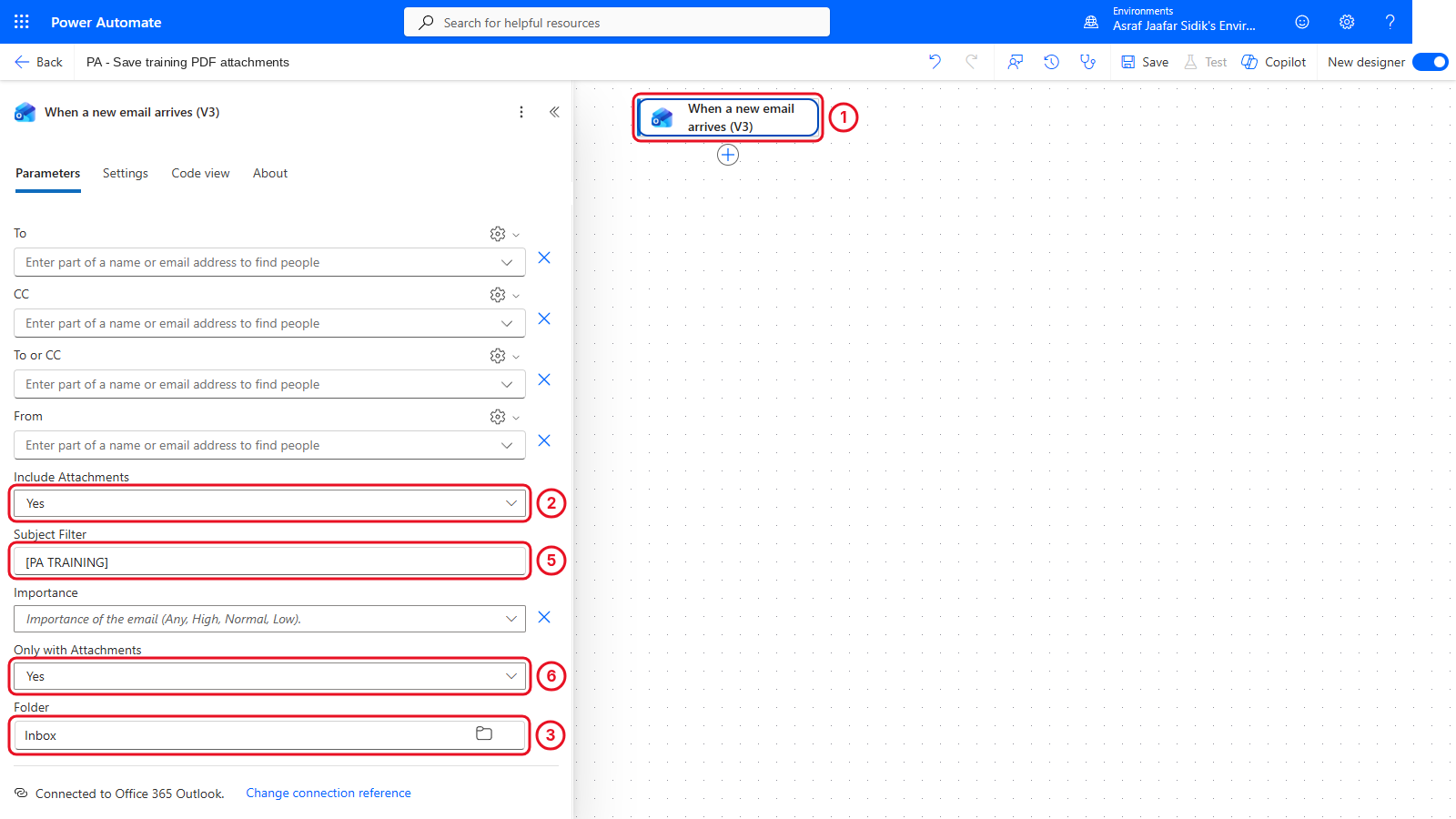
All four trigger fields set. Use Show all if a field is hidden.
Checkpoint: No field shows a red validation message. The flow only starts for new matching messages. It doesn’t go back and process mail already in the inbox.
Check your flow so far. Your screen should look like this.
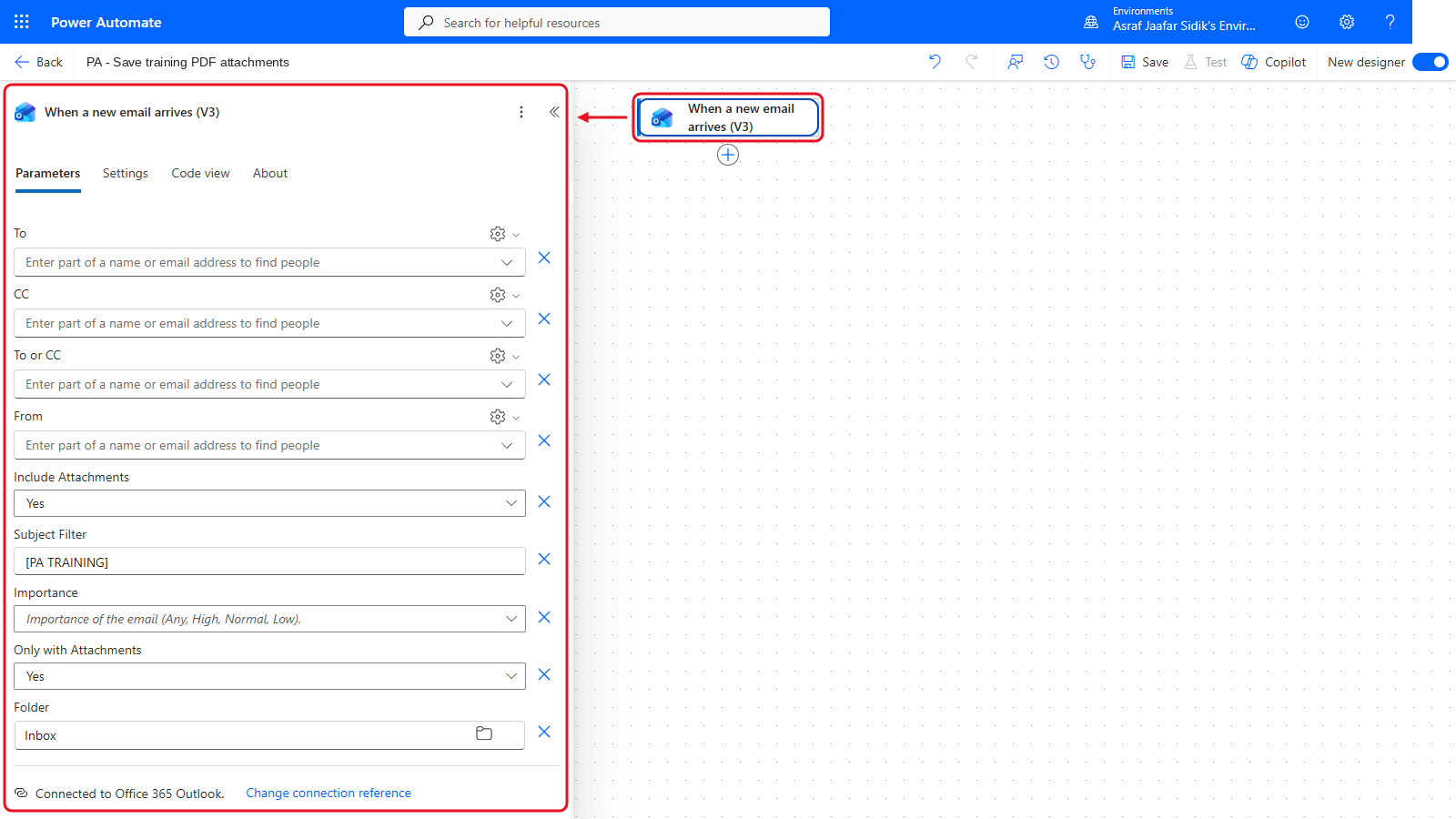
Only the trigger so far. Its settings are open on the left.
3.3 Add Apply to Each
- Select the + below the trigger, then Add an action.
-
Search for
Apply to eachand select it (it’s under Control).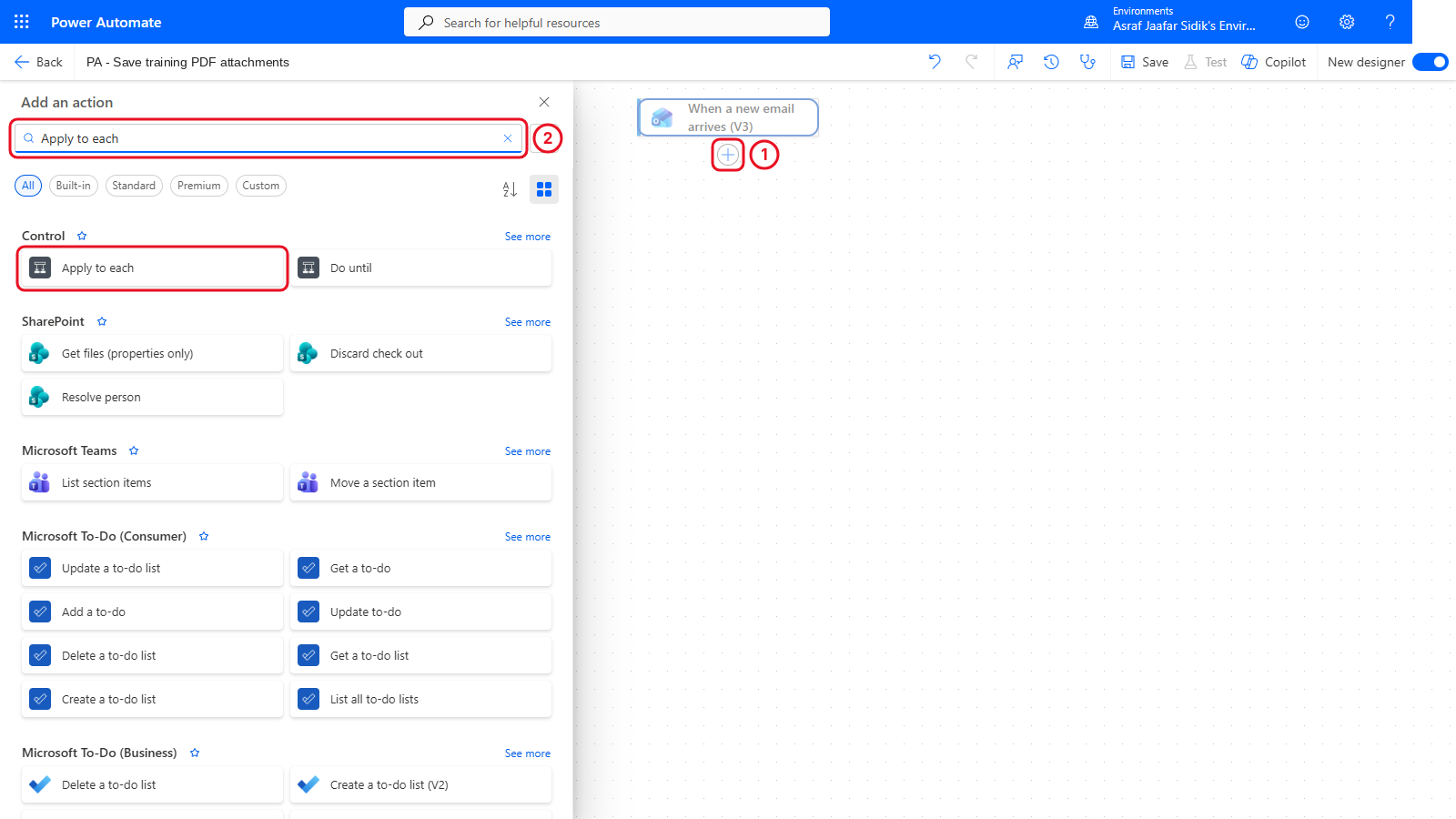
Search by name, then pick the result under Control.
-
The loop’s settings open on the left. Click into Select an output from previous steps, open the dynamic content picker (the lightning bolt), and select Attachments under When a new email arrives (V3).
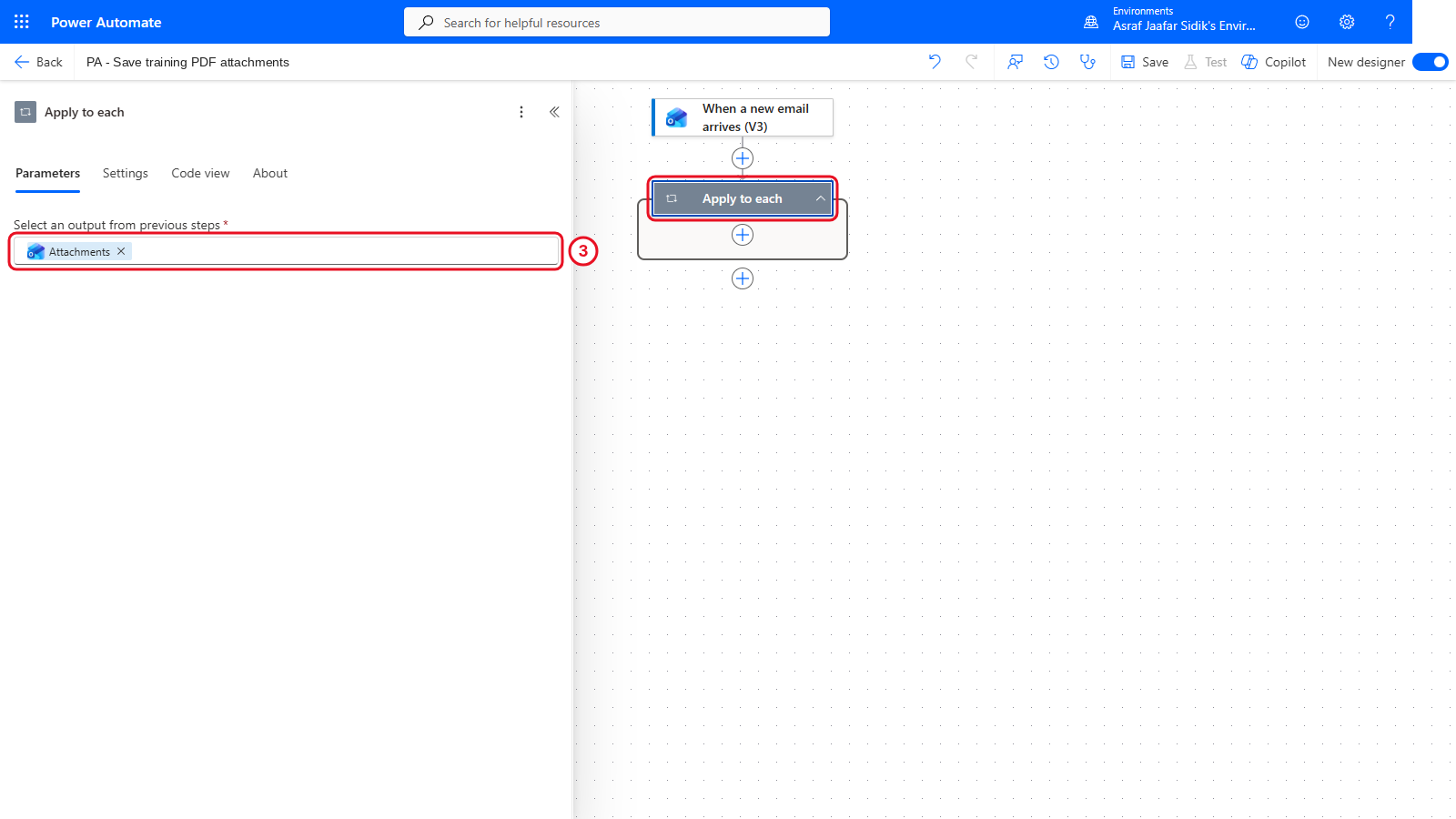
The loop runs once for every attachment in the email.
If Attachments isn’t in the list, go back to the trigger and confirm Include Attachments is set to Yes.
- Select Save (top right). Now that there’s an action, the flow can be saved.
Check your flow so far. Your screen should look like this.
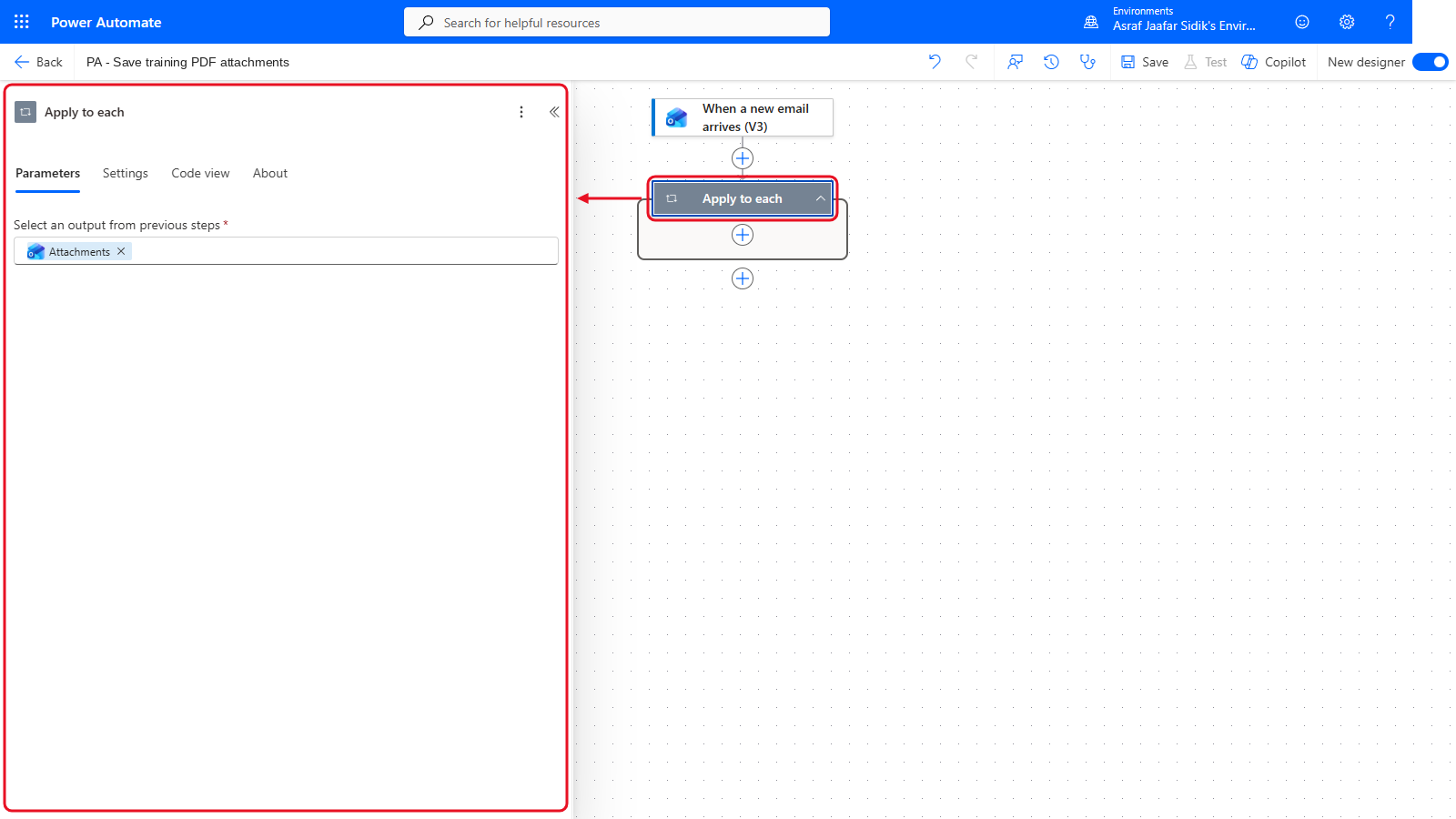
The trigger, then an empty Apply to each.
3.4 Add the PDF Condition
- Select the + inside the Apply to each box (not the one below it), then Add an action.
- Search for
Conditionand select it (under Control). -
Click into the left Choose a value box. Open the dynamic content picker and select Attachments Name. (After saving it shows as
name.)Can’t see Attachments Name? The picker only shows a few values per step at first. Select See more beside When a new email arrives (V3), or type
namein the picker’s search box.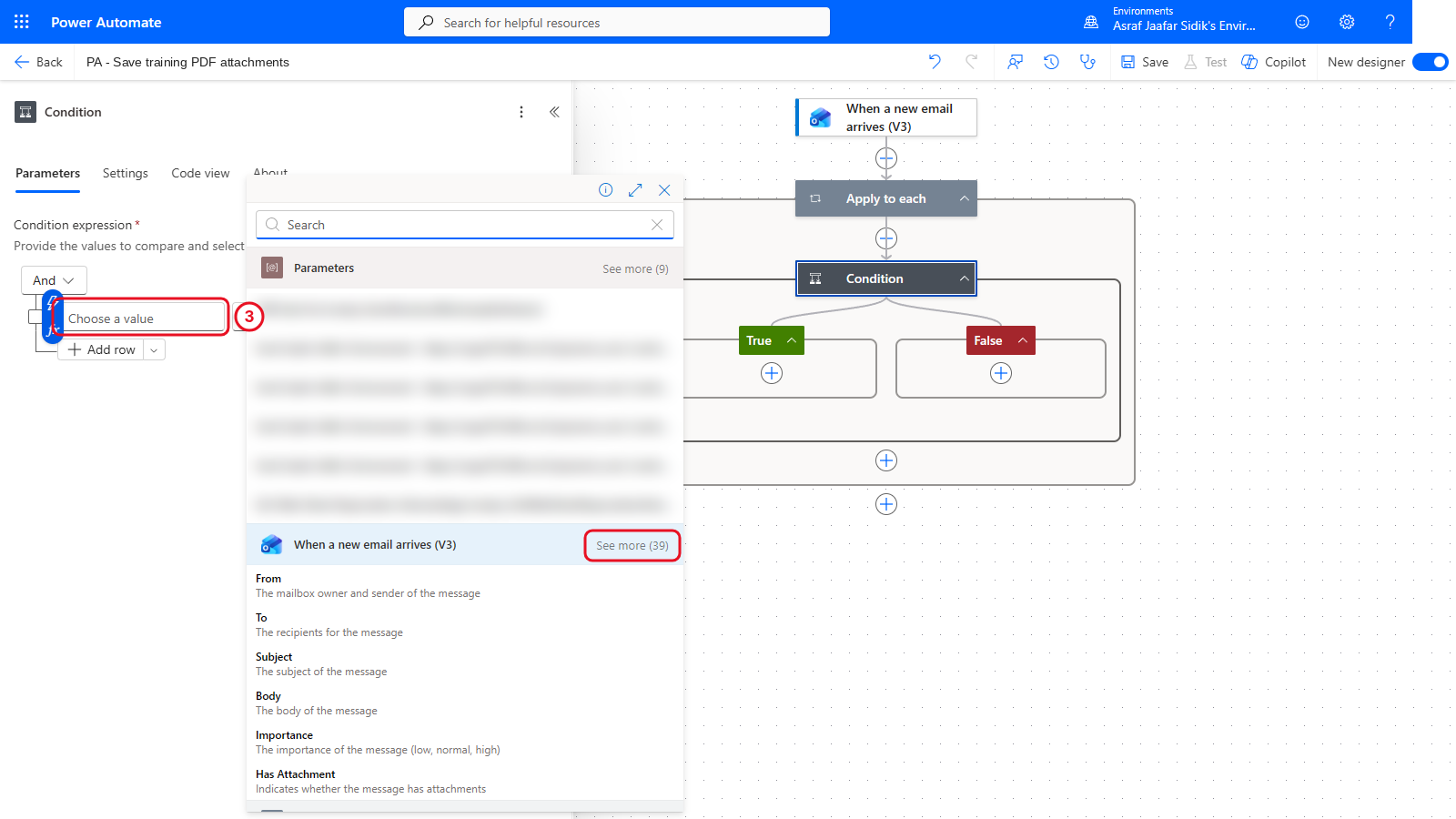
See more lists every value from the trigger.
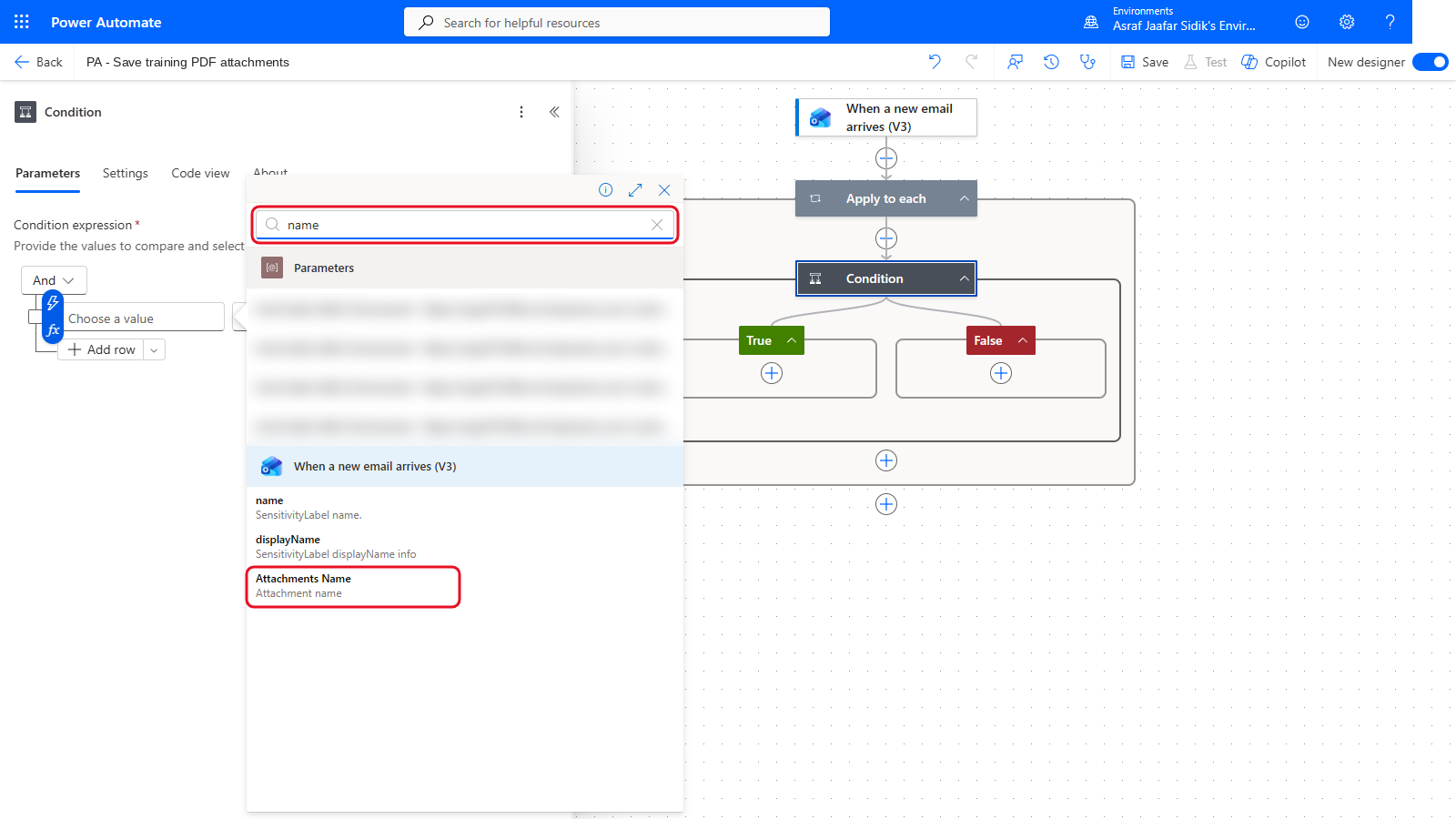
Or search: typing name brings Attachments Name straight up.
- Set the middle box to ends with.
-
In the right box, type
.pdf.If a second, empty row appears below yours, select its … and then Delete.
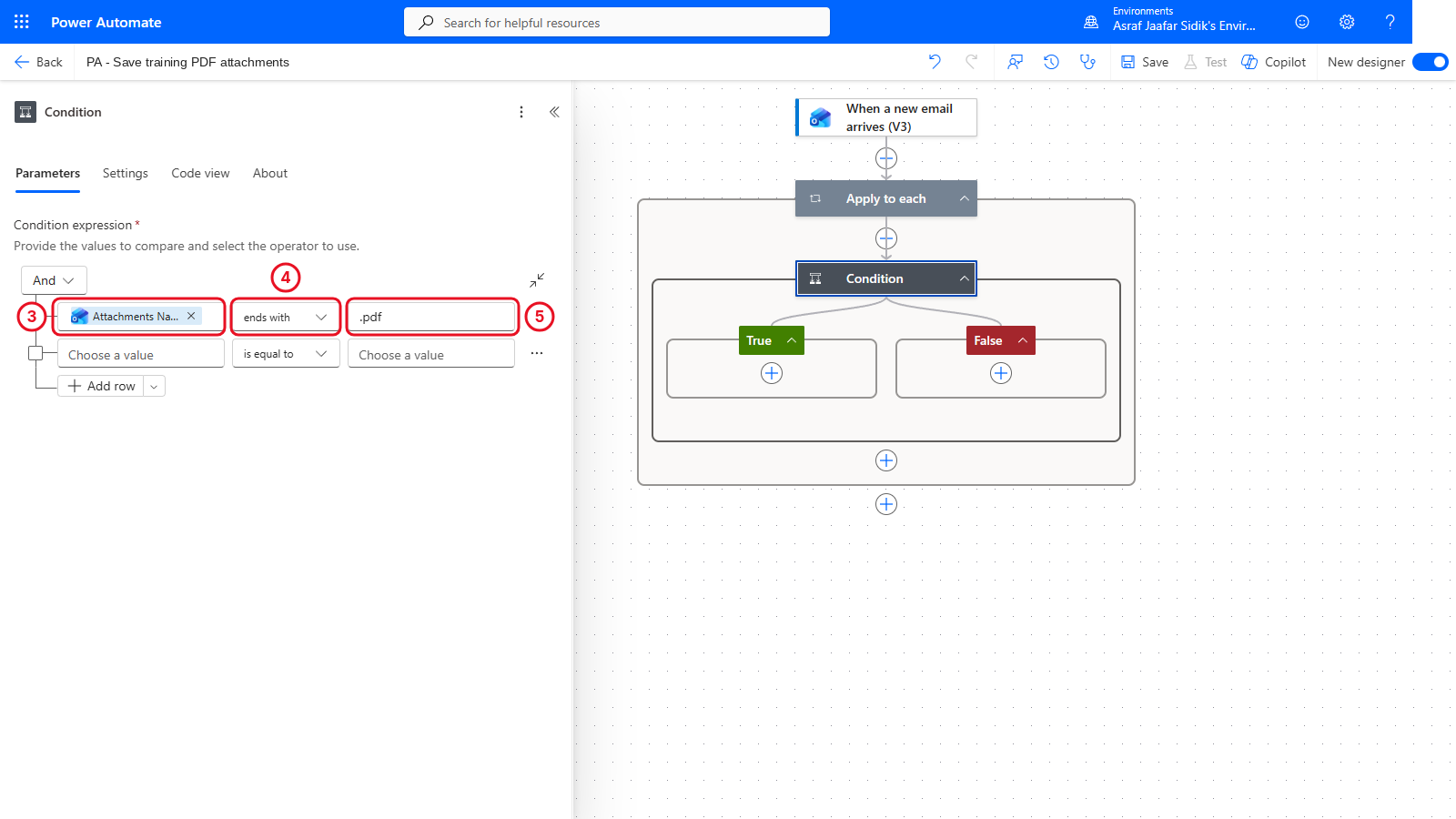
The condition asks one question about the current attachment: does its name end in .pdf? The screenshot still shows the empty row; delete it on yours.
Tip: Make sure you picked Attachments Name (the current attachment’s name), not Subject or another text value. Inside a loop, the “Attachments …” values always refer to the item the loop is currently on.
Check your flow so far. Your screen should look like this.
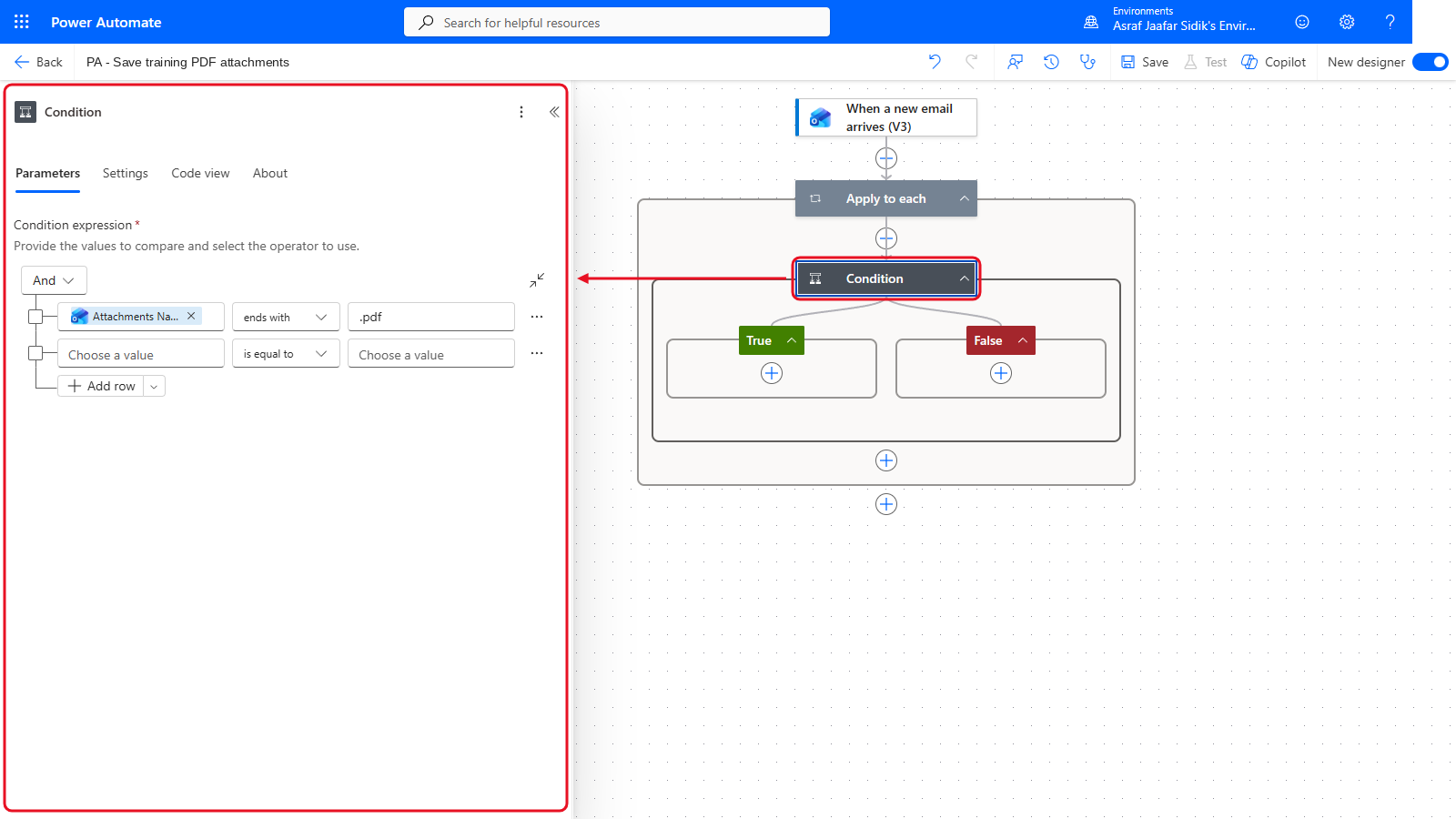
The Condition sits inside Apply to each, with empty True and False boxes.
3.5 Create the OneDrive File
- Select the + inside the green True box, then Add an action.
-
Search for
OneDrive for Business, then select Create file from that connector’s group.Tip: Search by connector name, not action name. Several connectors have an action called Create file, and it’s easy to grab the wrong one.
-
In Folder Path, select the folder icon at the right end of the box. A list of your OneDrive folders opens: select the > arrow beside
Power Automate Trainingto open it, then selectAttachments.
The folder icon opens your OneDrive folders.
- In File Name, insert Attachments Name from the dynamic content picker (use See more or search
nameif it isn’t listed). - In File Content, insert Attachments Content (search
contentif it isn’t listed). -
Leave the False branch empty. That’s the deliberate decision to skip non-PDF files.
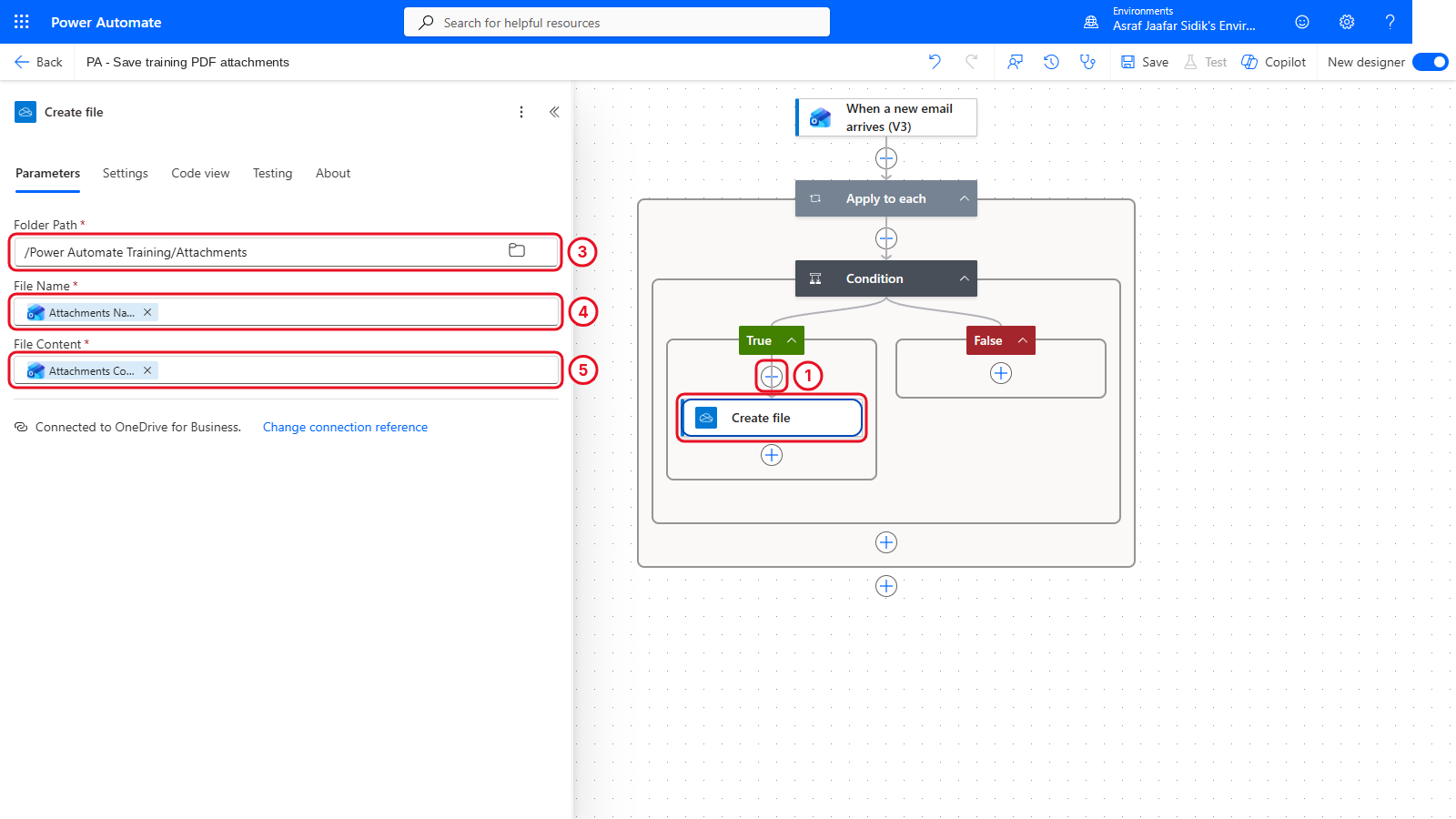
Create file sits inside True. False stays empty.
- Select Save (top right), then the Flow checker icon (the stethoscope just left of Save). Confirm Errors (0) and Warnings (0), then close the panel.
Check your flow so far. Your screen should look like this.
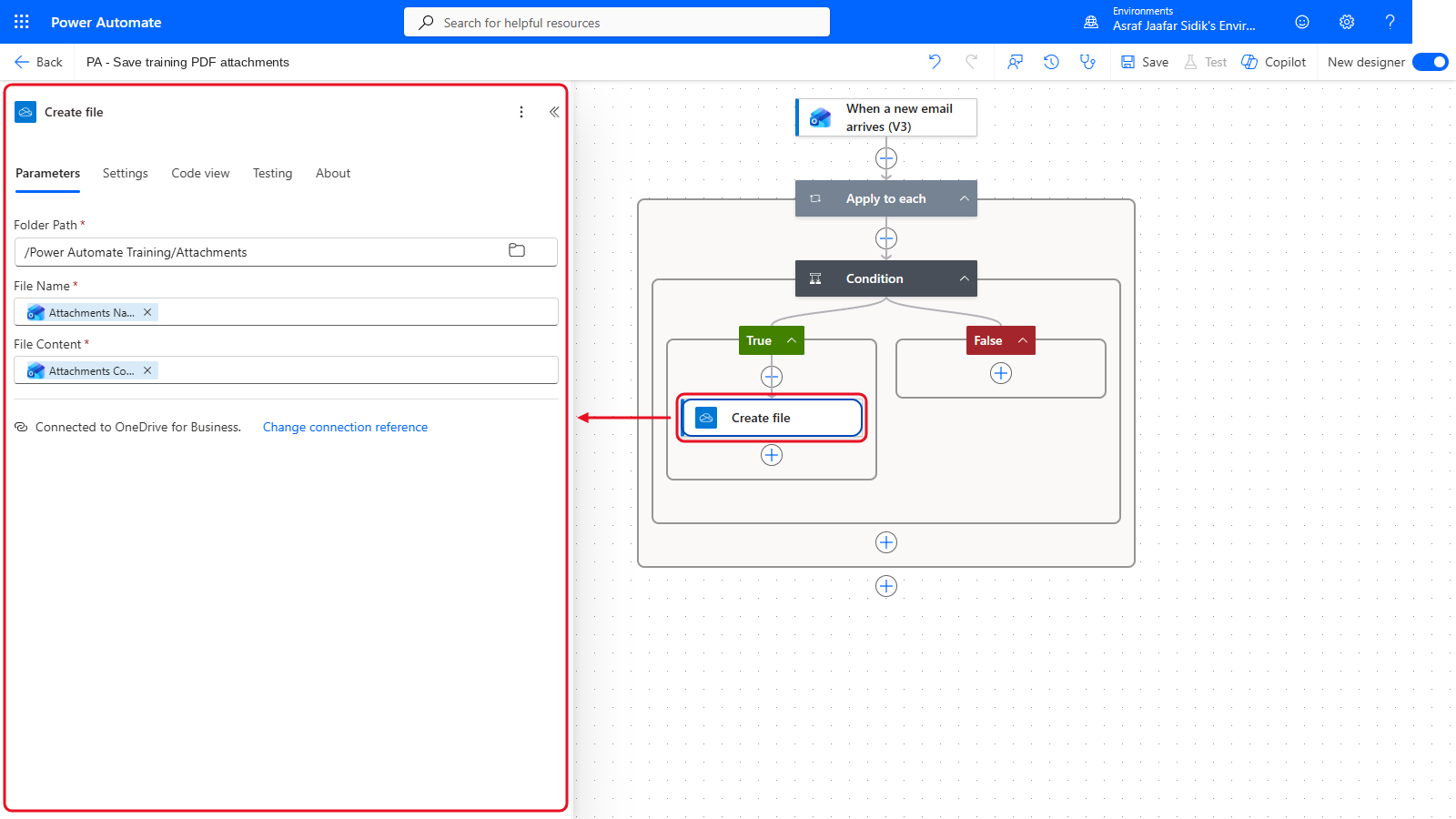
Your finished flow: trigger, Apply to each, Condition, and Create file in True.
3.6 Test a Positive Case
- Select Test (top right). In the panel that opens, choose Manually, then select Test.
- Wait for the banner asking you to send a new email. The flow is now listening.
- Open the draft from section 2.3 in Outlook and send it.
- Back in Power Automate, wait for the run to finish. Every step shows a green tick.
-
Select Apply to each. The counter shows which attachment you’re looking at, out of 2. Use the arrows to find the iteration where Create file has a green tick, then select Create file to see that it succeeded.
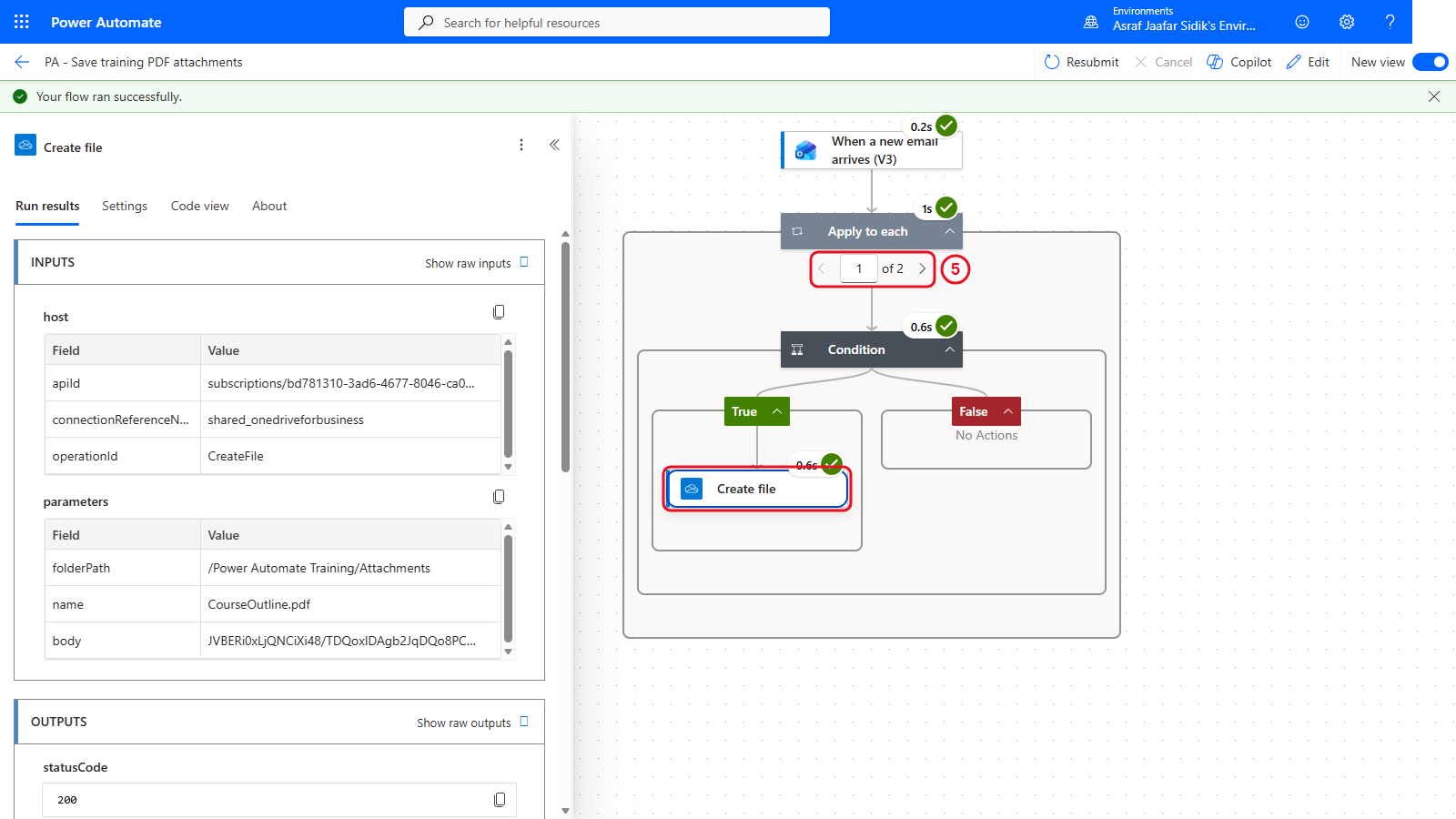
The run processed both attachments.
- Open the Attachments folder in OneDrive. The PDF is there. No image file was created.
3.7 Test a Negative Case
You don’t need another email. The mixed test already produced both outcomes.
- In the same run, use the arrows on Apply to each to switch to the other iteration.
-
Select Condition. The result is false, Create file shows as skipped, and the False branch has nothing to run.
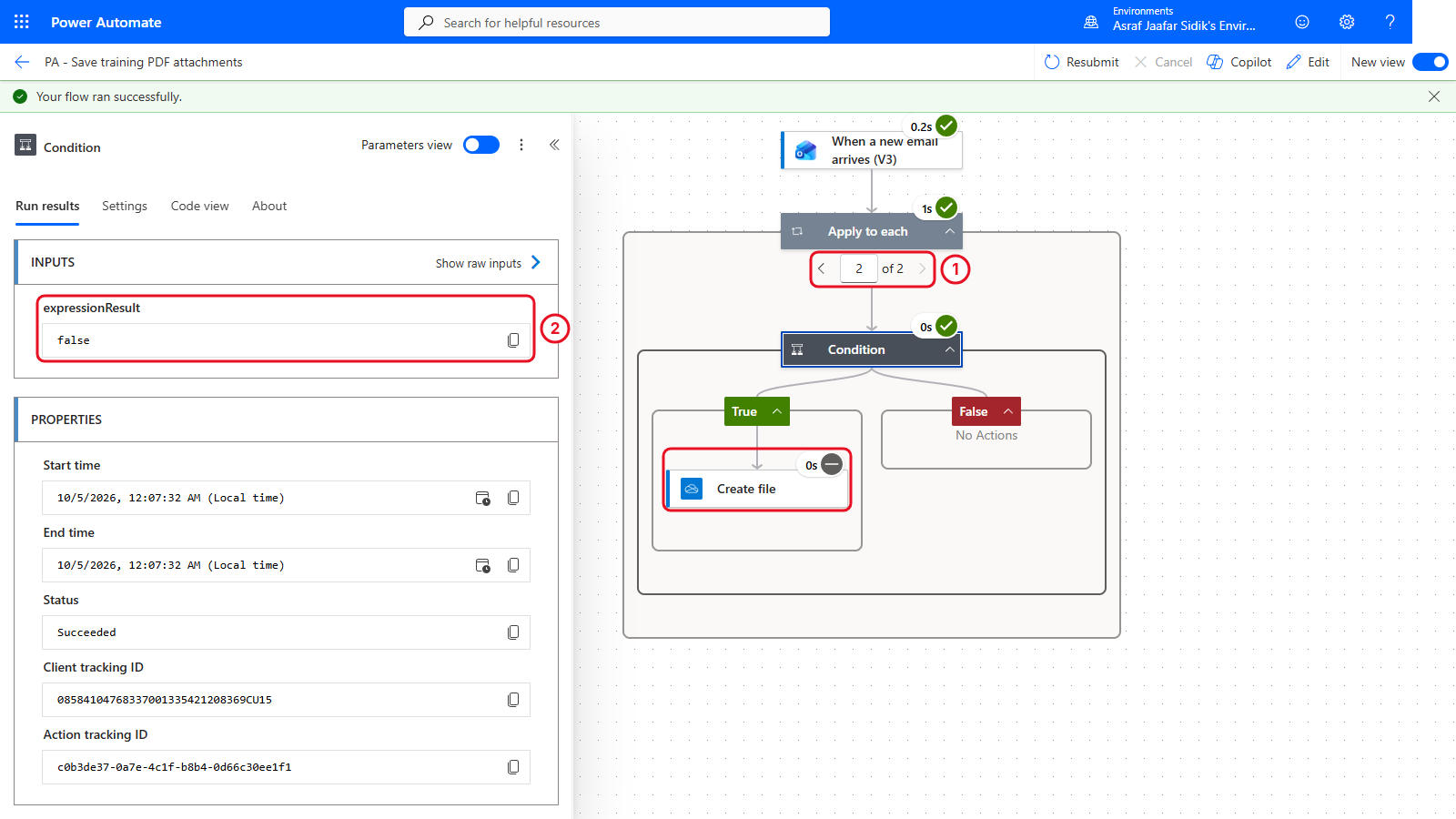
The image attachment took the False branch, so nothing was created.
The panel still shows the old result? The run view sometimes doesn’t refresh the details panel when you change the iteration. Select a different step (such as Apply to each), then select Condition again. You can also trust the canvas: on this iteration Create file shows a grey skip icon instead of a green tick. If it still won’t update, switch New view off at the top right of the run page to use the classic run view, where each iteration opens inline.

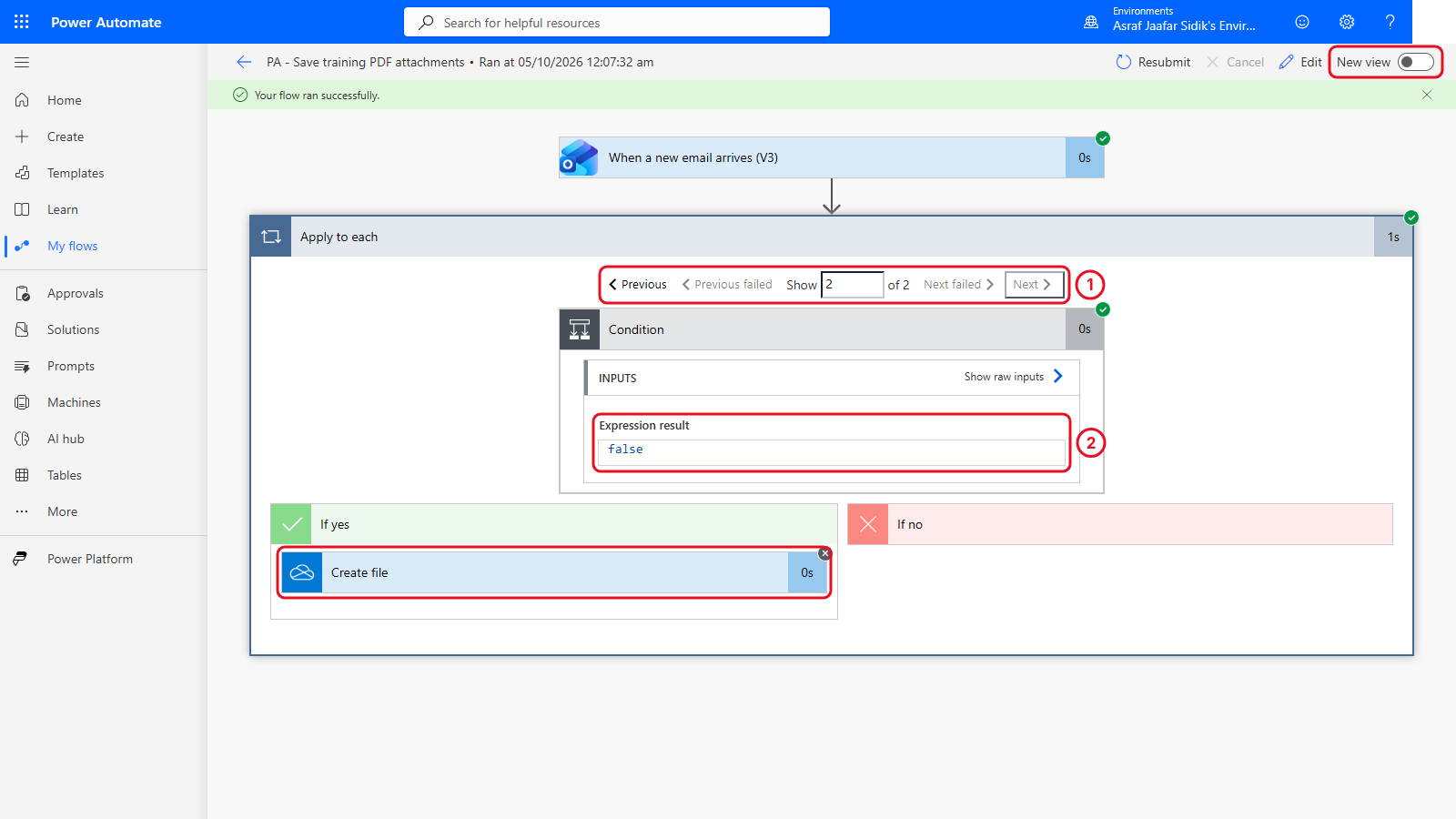
The classic view: True and False show as If yes and If no, and the skipped Create file has a grey cross.
Key point: A run can succeed while deliberately producing nothing. Succeeded means the process completed, not that every branch created an output.
Independent Practice
Change the condition to save .docx attachments instead of PDFs. Select Save, then Test > Manually > Test. Predict which file will appear, then send a new email to yourself with the subject [PA TRAINING] Docx test and both SessionNotes.docx and CourseOutline.pdf attached. Check the run and the Attachments folder, then change the condition back to .pdf and save.
Going further: your first look at an expression. Send the same PDF twice and OneDrive numbers the copy or refuses it. To give every file a unique name, replace the File Name token with an expression that adds the date and time in front: select the fx button beside the box (or type
/and choose Insert expression) and paste the timestamp expression. Copy it from the box below. It produces names like20260913-094512-CourseOutline.pdf. You’ll meet expressions properly in Chapters 4 and 5. Optional.concat(formatDateTime(utcNow(),'yyyyMMdd-HHmmss'), '-', item()?['name'])
Tips and Troubleshooting
| Problem | Check |
|---|---|
| The flow doesn’t run | The message must be new, contain [PA TRAINING] in the subject, and reach the mailbox used by the Outlook connection |
| Attachments isn’t in the dynamic content list | Turn on Include Attachments in the trigger, save (once the flow has an action), and reopen the loop |
| The loop runs but creates nothing | Check the condition: left is Attachments Name, middle is ends with, right is .pdf |
| Create file fails | OneDrive connection, folder path, file name and file content |
| Duplicate file error | Delete the old file from Attachments, or try the Going further box |
| The JPG is saved | Create file is outside the condition. Drag it into True |
Lesson Summary
This flow combines an event trigger, a loop over attachments, a condition for the business rule and a OneDrive action for the result, all built by clicking and picking dynamic content. You tested both a file-producing path and a successful no-output path. Next, an instant flow reads the Excel table and sends a summary.