
08 - My Morning Briefing: Variables and Parallel Branches
Every morning you check the weather, your calendar and your inbox before the day starts. This flow does all three at once and sends you one email. It only reads your own data and only emails you, so it’s safe to build in a live environment.
Copy-paste values: every value you need is in the steps, with a Copy button. The copy-paste page has them all on one page too.
Estimated time: 70 minutes
Your result: A scheduled flow that runs on weekday mornings, looks up the weather, your meetings and your important unread email in three parallel branches, and sends you one briefing email.
Files for this lab: None. This flow uses your own calendar, inbox and the weather.
What You Will Learn
- Create variables with Initialize variable and explain why they live at the top of a flow
- Change variables with Increment variable, Append to string variable and Set variable
- Run independent steps side by side with parallel branches
- Bring parallel branches back together before a final step
- Use a variable’s value in a condition and an email
How the Flow Works
Recurrence
  > Initialize four variables
  > Three parallel branches:
      Weather:  Get current weather
      Meetings: Current time > Get future time > Get calendar view > loop (count + list)
      Email:    Get emails > loop (list)
  > Condition: more than 4 meetings? > Set the subject
  > Send me the briefing
The three lookups don’t depend on each other. The weather doesn’t need your calendar and your calendar doesn’t need your inbox. When steps are independent, they can run in parallel, side by side, instead of waiting in a queue. The flow only moves on to the email once all three branches have finished.
Note: Your trainer has confirmed that MSN Weather, Office 365 Outlook and the Date Time actions are allowed in your environment. Nothing in this flow changes your calendar or mailbox.
8.1 Create the Scheduled Flow
- In the left navigation, select Create, then Scheduled cloud flow.
- In Flow name, enter
PA - My morning briefing. - Set Repeat every to 1 Week. Make sure only M T W T F are selected: if S and S (the weekend) are already highlighted, select them to turn them off. Set the time to 8:00 AM.
- Select Create. The designer opens with a Recurrence card on the canvas.
- Select the Recurrence card on the canvas to open its panel. If Time zone is blank, open the dropdown, type
Kualaand pick (UTC+08:00) Kuala Lumpur, Singapore. If At these hours is blank, open it and select8. Leave At these minutes as it is (blank or0both work). Check the Preview at the bottom reads 8:00 on Monday to Friday. Start time is filled in for you; leave it.
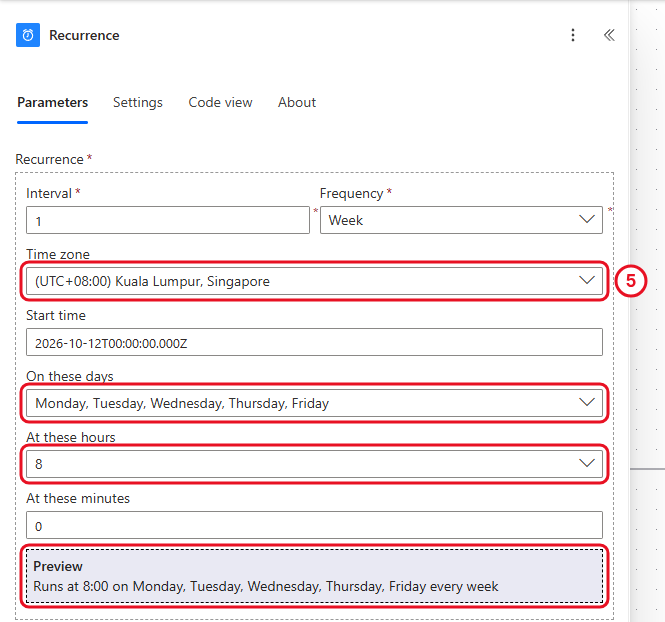
Weekday mornings at 8:00, Malaysia time.
Check your flow so far. Your screen should look like this.
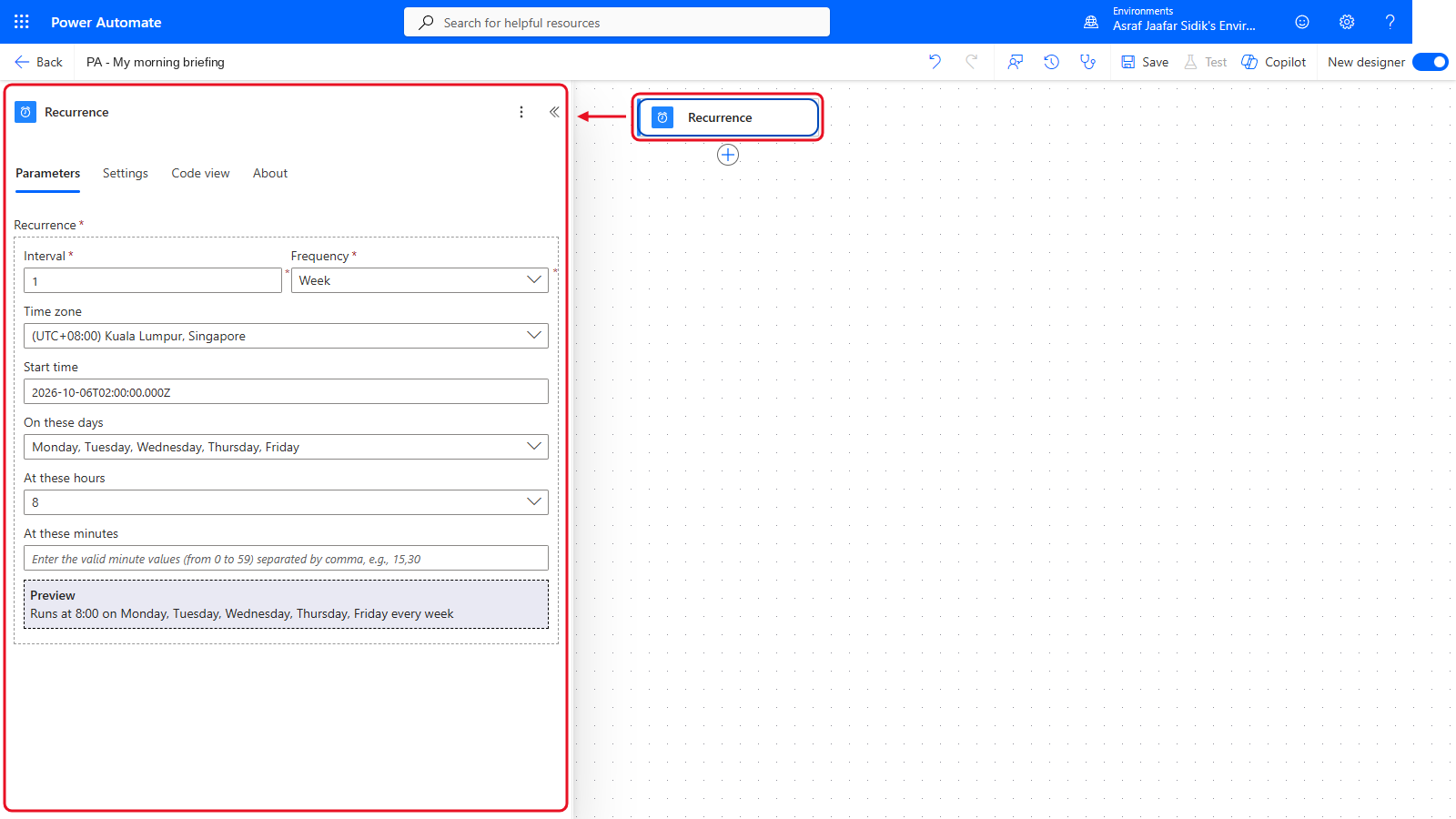
Only Recurrence so far.
8.2 Create the Variables
A variable is a named box that holds a value and can change while the flow runs. You’ve used one already: ReminderCount in Chapter 7. This flow uses four, of two types.
| Name | Type | Starting value | What it’s for |
|---|---|---|---|
MeetingCount |
Integer | 0 |
Counts today’s meetings |
MeetingList |
String | (leave empty) | Collects the meeting names |
EmailList |
String | (leave empty) | Collects the important email subjects |
BriefingSubject |
String | Your day ahead |
The email subject. May change later |
- On the canvas, select the + below Recurrence, then Add an action. Search for
Initialize variableand select it under Variables. - In Name, enter
MeetingCount. Open the Type dropdown and select Integer. In Value, enter0. - Select the + below the variable you just made, then Add an action and search for
Initialize variableagain. Repeat until all four rows of the table are done. Leave Value empty for MeetingList and EmailList. For BriefingSubject, typeYour day ahead.
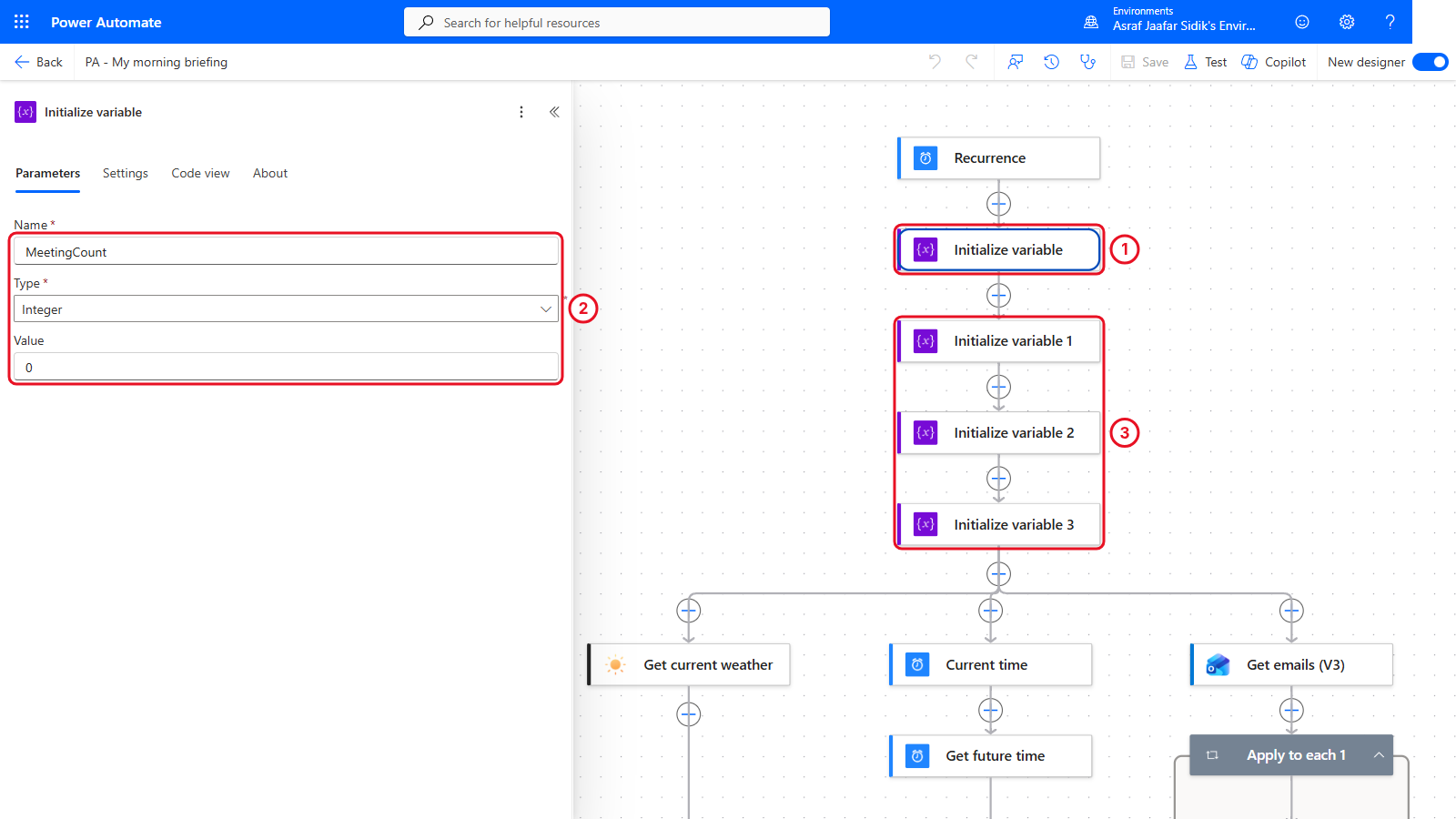
All four variables are created before anything else happens. The canvas in the picture already shows the branches you add later; at this point you only have Recurrence and the four variables (see the checkpoint below).
Key point: Initialize variable only works at the top level of a flow, not inside a loop, condition or branch. So every variable is created first, even ones you won’t use until later.
Check your flow so far. Your screen should look like this.
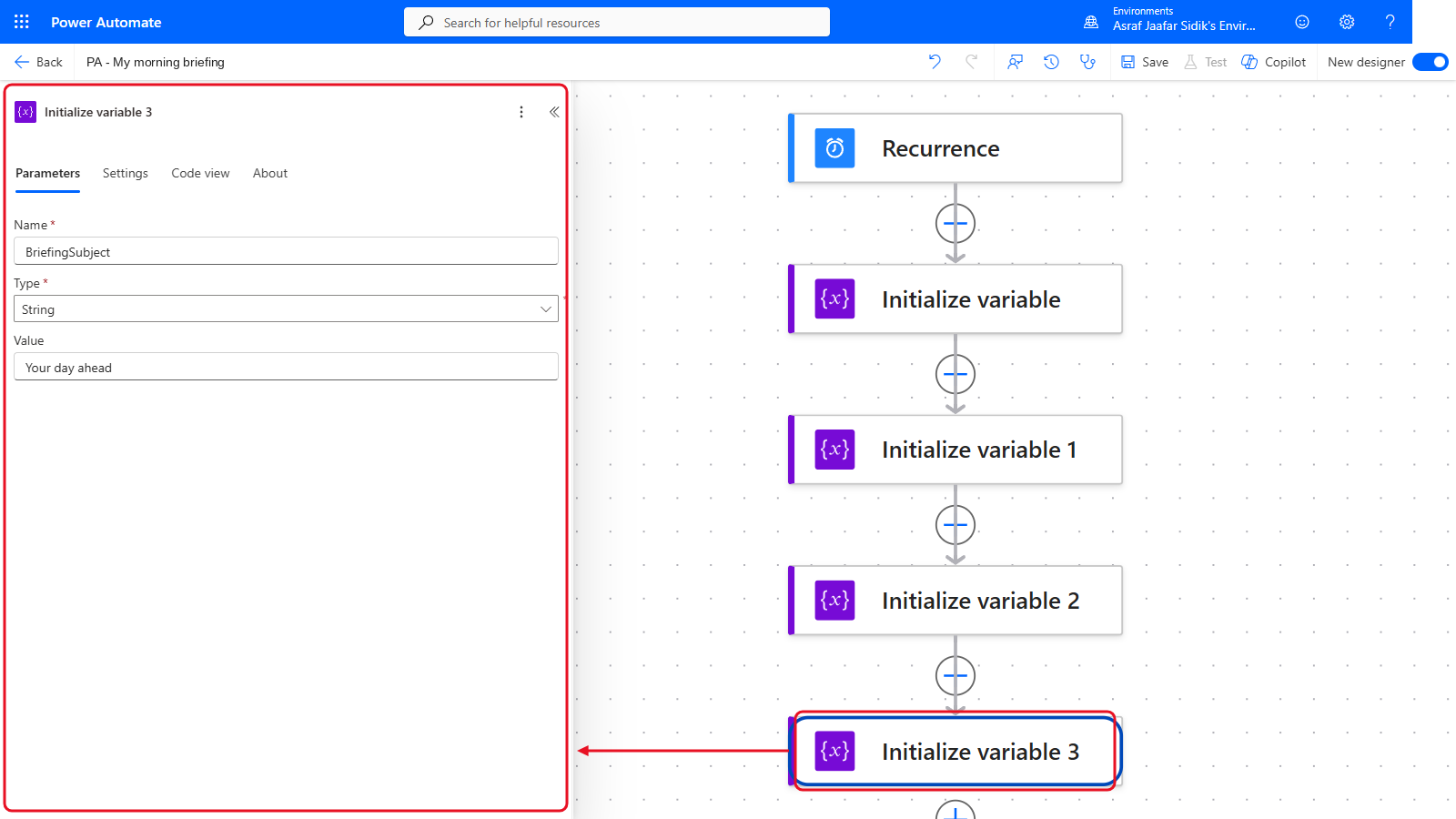
Recurrence and four Initialize variable actions.
8.3 Branch 1: The Weather
- On the canvas, select the + below the last Initialize variable (named Initialize variable 3), then Add an action.
- Search for
Get current weather. Under the MSN Weather heading, select Get current weather. - In Location, type
Kuala Lumpur. Open the Units dropdown and select Metric.
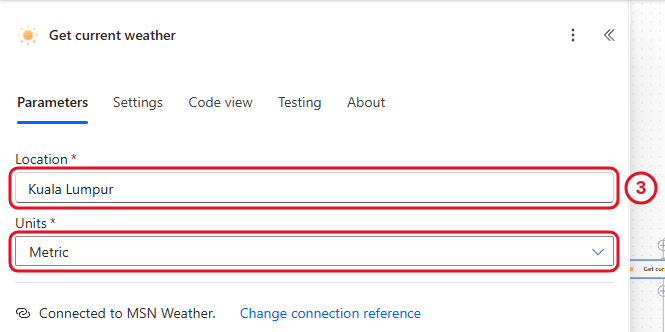
One action. Its values (conditions, temperature) are used in the email later.
Check your flow so far. Your screen should look like this.
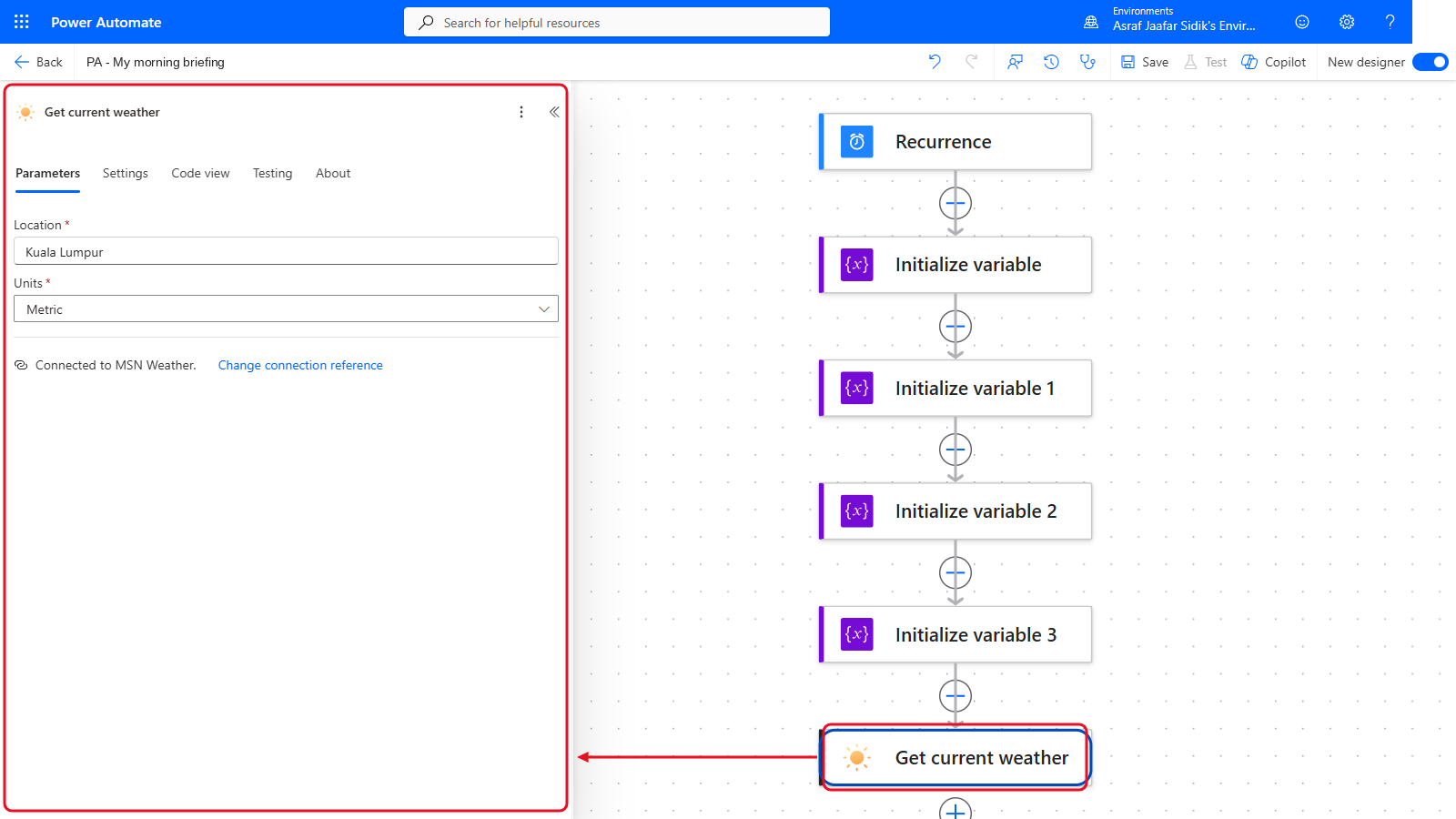
Get current weather under the last variable.
8.4 Branch 2: Your Meetings
This branch starts beside the weather, not below it.
-
Select the + between the last Initialize variable and Get current weather (right-click it if a menu doesn’t open), then choose Add a parallel branch.
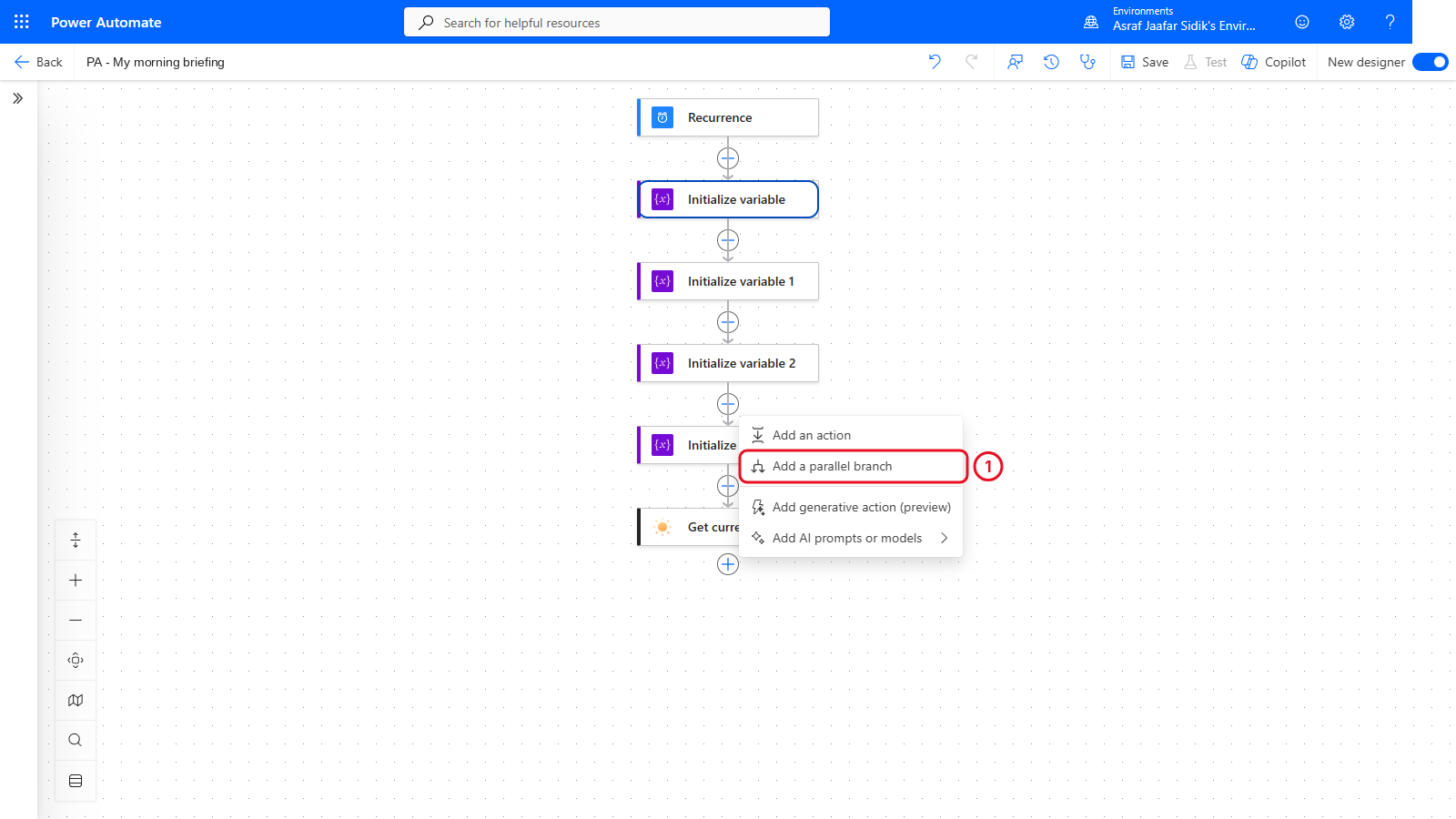
Add a parallel branch starts a new column next to the existing one.
- The action search opens for the new branch. Search for
Current timeand select it under Date Time. - On the canvas, select the + below Current time, then Add an action. Search for
Get future timeand select it under Date Time. In Interval, enter12. Open Time unit and select Hour. -
Select the + below Get future time, then Add an action. Search for
Get calendar viewand select Get calendar view of events (V3) under Office 365 Outlook. For Start Time and End Time, click into the box, select the lightning bolt icon beside it (or type/and choose Insert dynamic content), and pick the value:Field Value Calendar Id Open the dropdown and select Calendar Start Time Current time under Current time End Time Future time under Get future time - Select the + below Get calendar view of events (V3), then Add an action. Search for
Apply to eachand select it under Control. Click into Select an output from previous steps, open the lightning bolt, and select body/value under Get calendar view of events (V3). That’s the list of events. (It may be labelled value. If you can’t see it, select See more or typevaluein the picker’s search box.) - Inside the loop, select the +, then Add an action. Search for
Increment variableand select it under Variables. Open the Name dropdown and select MeetingCount. In Value, enter1. -
Inside the same loop, select the + below Increment variable (if it’s out of view, close the panel with « and use Zoom view to fit at the bottom left of the canvas), then Add an action. Search for
Append to string variableand select it under Variables. Open the Name dropdown and select MeetingList. In Value, paste the text below (it ends with a space). Copy it from the box below.<br>•Then open the lightning bolt and select Subject under Get calendar view of events (V3). If Subject isn’t listed, select See more under Get calendar view of events (V3).
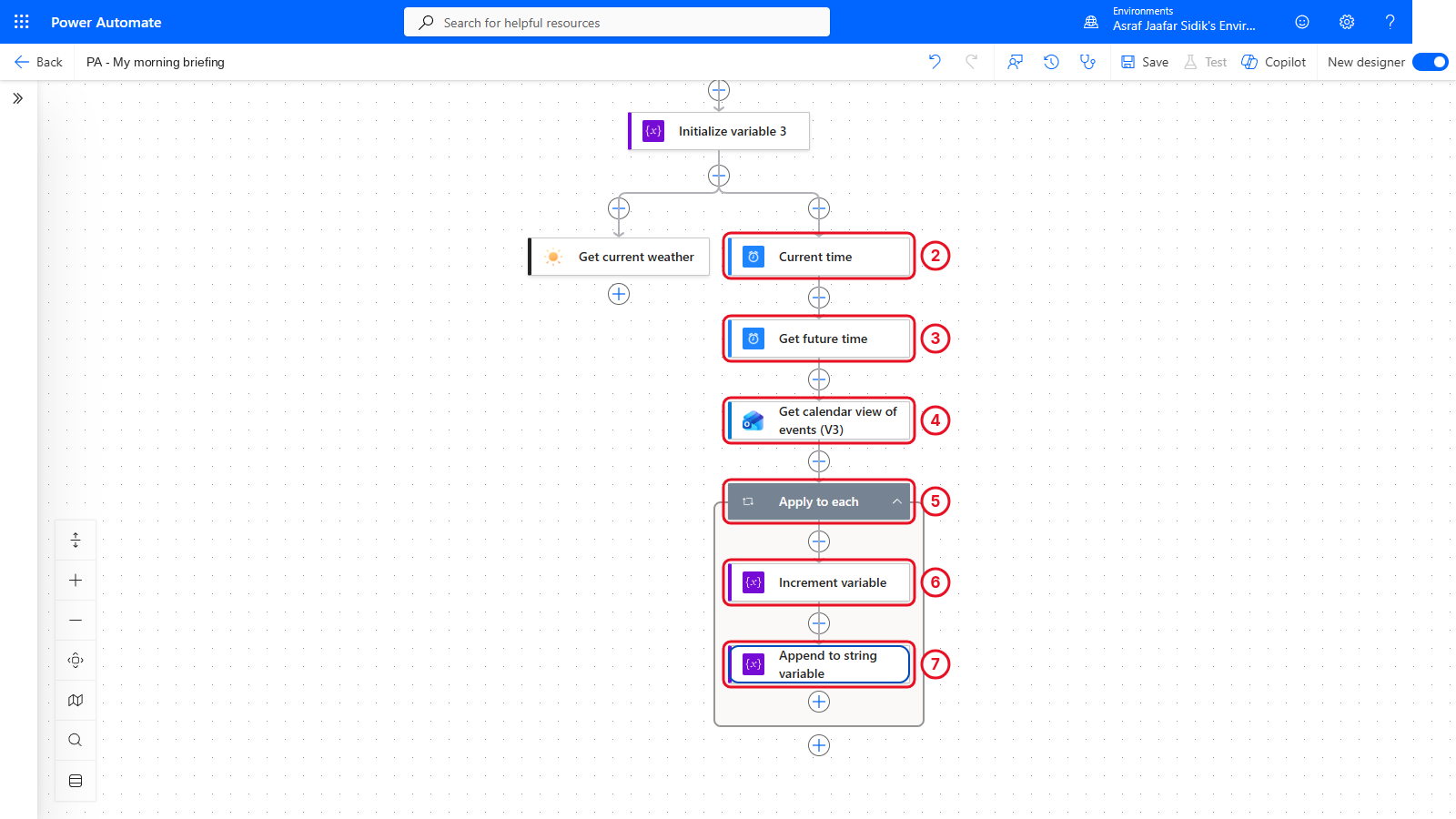
Each meeting adds one to the count and one line to the list.
Tip: Email bodies are written in HTML, the language of web pages.
<br>is HTML for “new line”, so each meeting starts on its own line in the email.
Check your flow so far. Your screen should look like this.
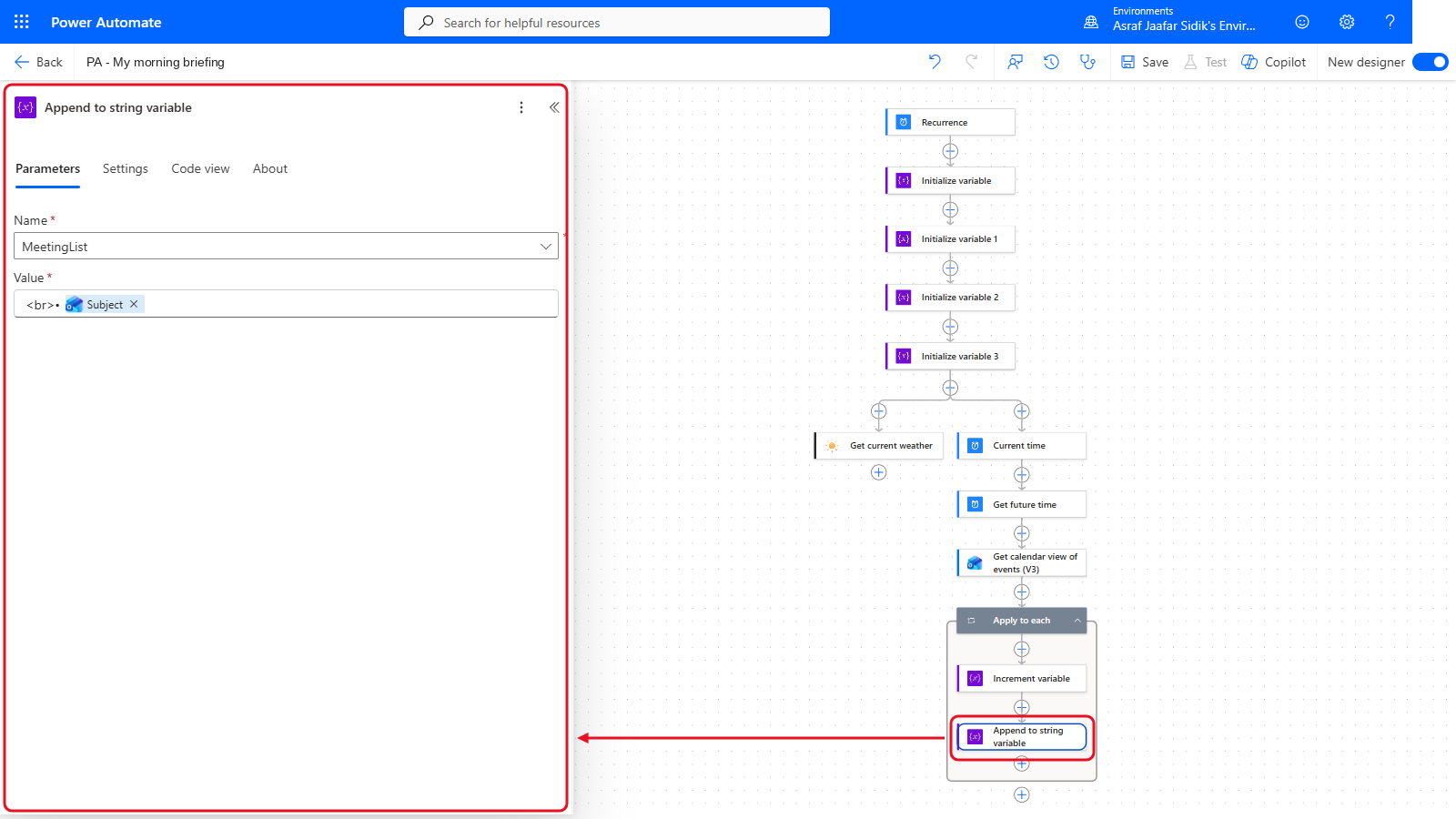
The meetings branch runs beside the weather.
8.5 Branch 3: Important Unread Email
- Add a third parallel branch the same way: select the + on the arrow below the last Initialize variable, then Add a parallel branch.
-
Search for
Get emailsand select Get emails (V3) under Office 365 Outlook. Set the fields below. If a field isn’t shown, open the Advanced parameters dropdown and tick it.Field Value Folder Inbox Fetch Only Unread Messages Yes Importance High Top 5 - On the canvas, select the + below Get emails (V3), then Add an action. Search for
Apply to eachand select it under Control. Click into Select an output from previous steps, open the lightning bolt, and select body/value under Get emails (V3). -
Inside the loop, select the +, then Add an action. Search for
Append to string variableand select it under Variables. Open the Name dropdown and select EmailList. In Value, paste the start of the line (it ends with a space). Copy it from the box below.<br>•Insert Subject, then paste the text below (it starts and ends with a space).
(fromInsert From, then type
). Subject and From are under Get emails (V3) in the picker (select See more if they’re hidden).
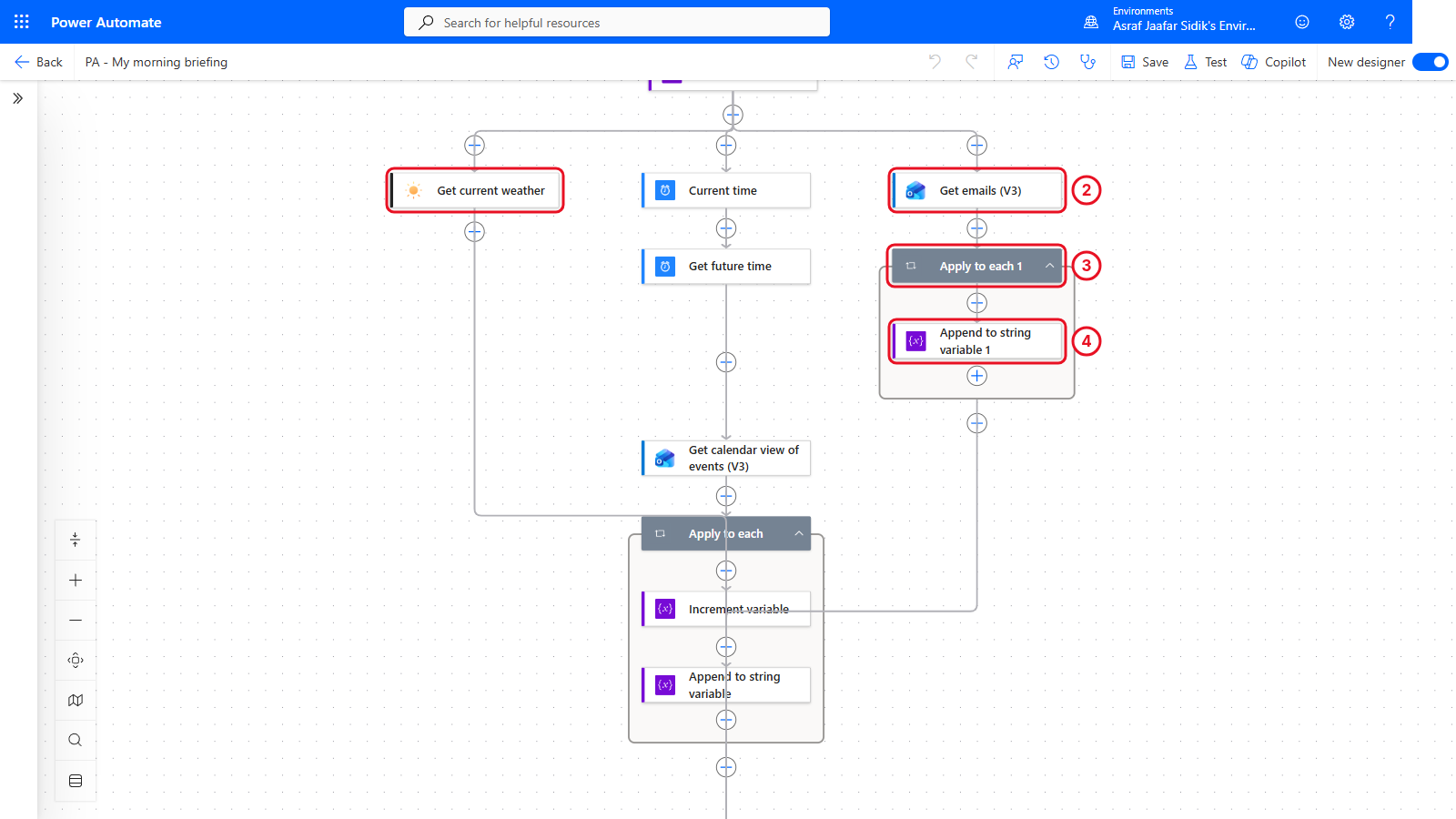
Three independent branches, running at the same time. The lines curving into the meetings loop are explained in section 8.6.
Key point: Each branch writes to its own variable. If all three appended to one shared variable, the sections would arrive in whatever order the branches happened to finish. Separate variables keep the email in a fixed order.
Check your flow so far. Your screen should look like this.
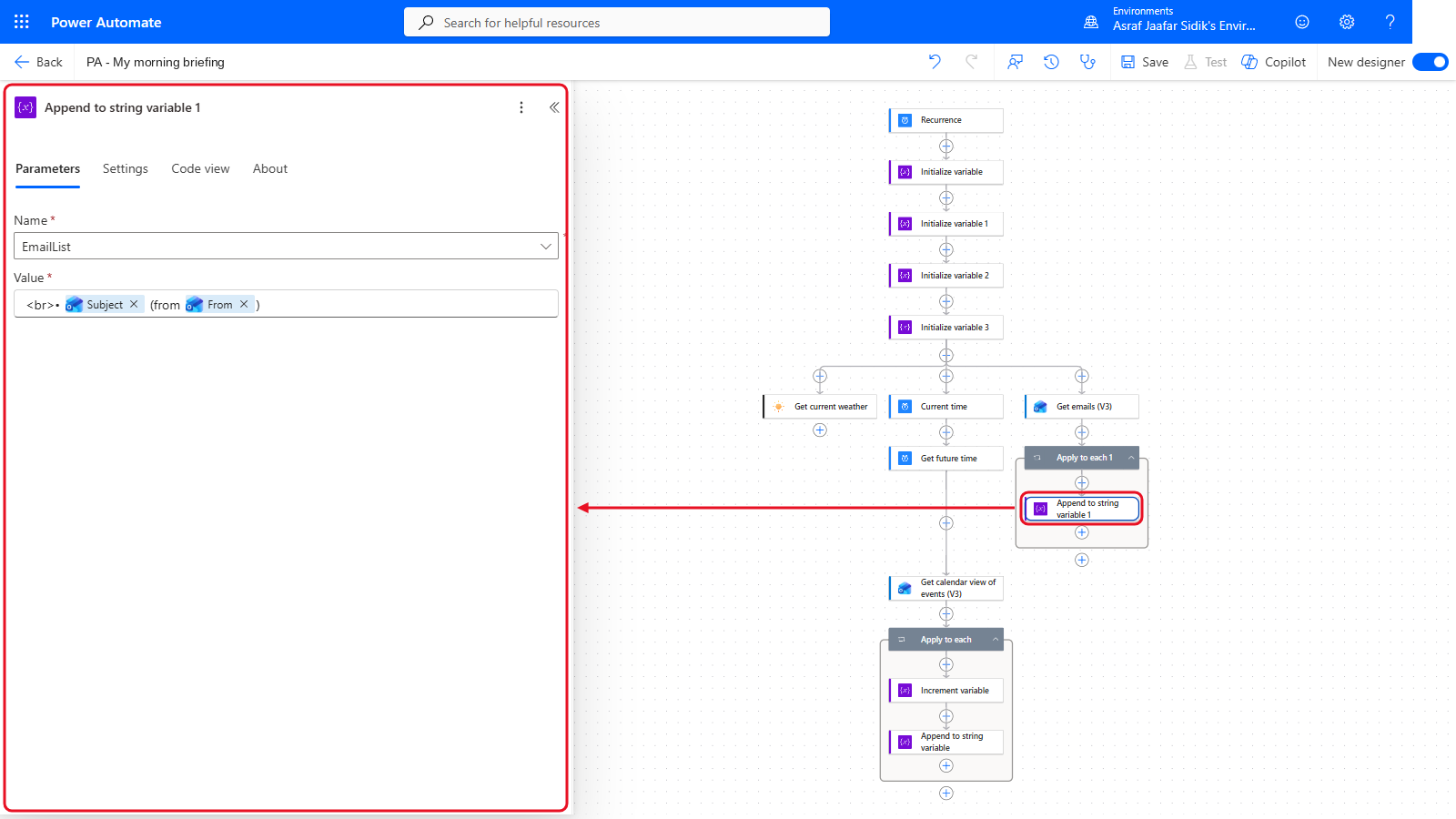
Three branches side by side.
8.6 Bring the Branches Back Together
The next step must wait until all three branches have finished.
- On the canvas, select the + below the meetings Apply to each box (outside it), then Add an action. Search for
Conditionand select it under Control. Rename it: select the title at the top of the panel and typeBusy day. - Select the Busy day card to open its panel, then the Settings tab at the top of the panel. Apply to each is already listed under Run after. Open the Select actions dropdown and tick Get current weather and Apply to each 1.
- Leave Is successful ticked for each. Check the Run after list shows all three actions, then select Save. (After saving, the panel may go blank: select the Busy day card again to reopen it.)
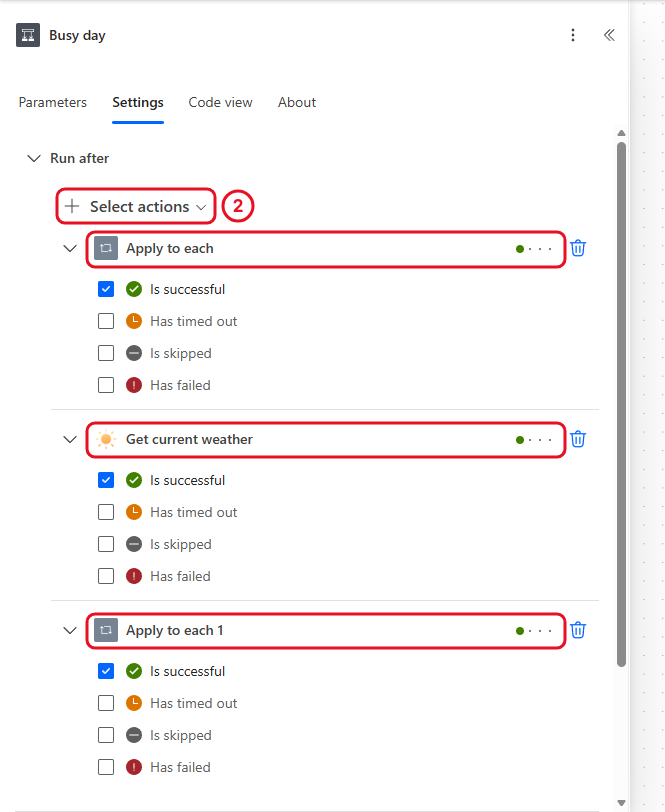
Run after lists one action from each branch, so Busy day waits for the slowest branch.
Note: The designer draws the lines from the weather and email branches into the side of the meetings loop, not into Busy day. That’s just how it lays out the picture. The Run after list is what actually controls the order, so trust that, not the lines.
Check your flow so far. Your screen should look like this.
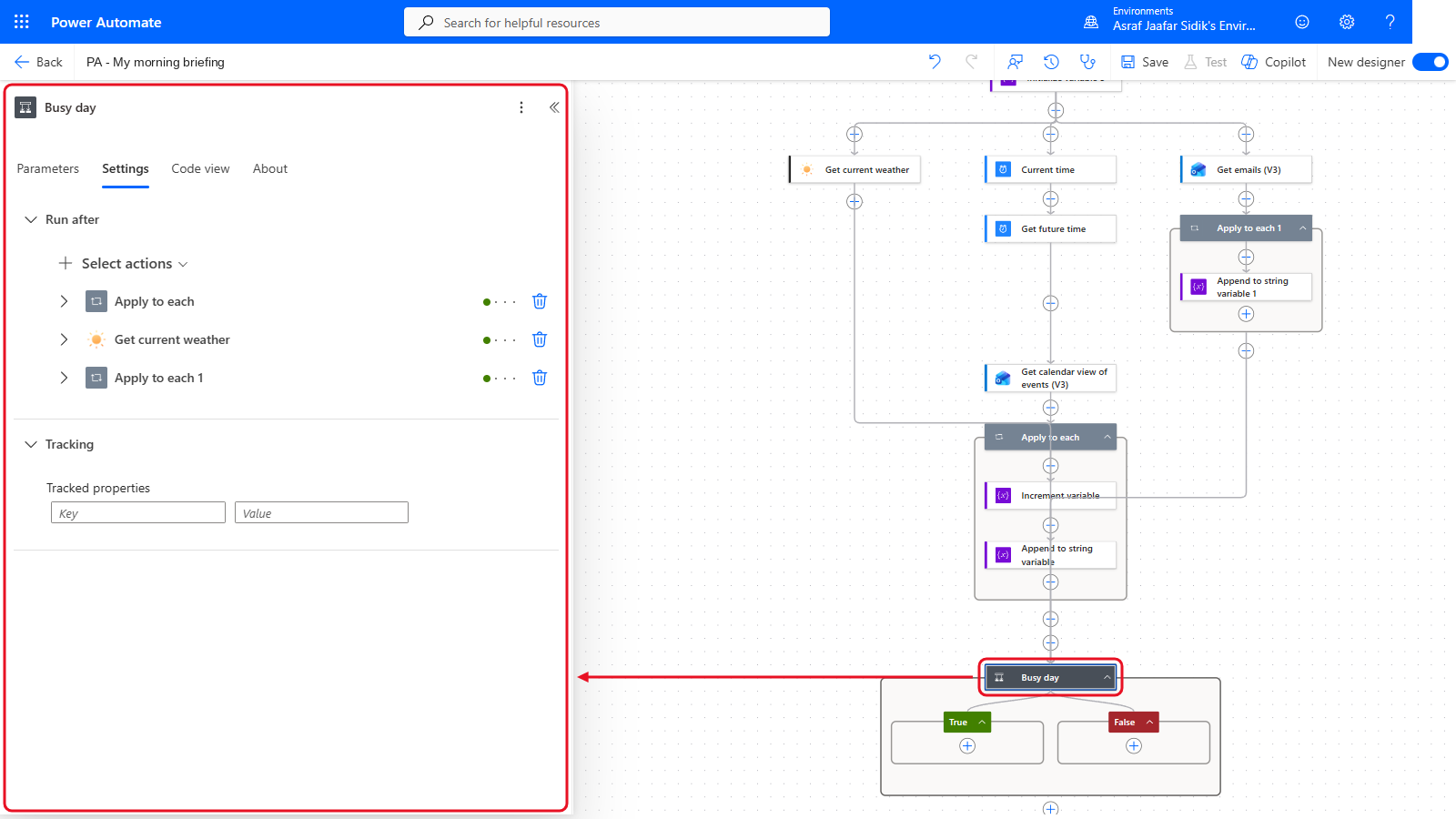
Busy day sits below, after all three branches.
8.7 Change the Subject on a Busy Day
- In the Busy day panel, select the Parameters tab. Click the left Choose a value box, select the lightning bolt (or type
/and choose Insert dynamic content), and pick MeetingCount under Variables. Open the middle dropdown and select is greater than. Click the right box and type4. If an empty extra row appears, select its … and then Delete. The designer may show an empty placeholder row again straight away: that’s fine, only the filled row is saved. -
On the canvas, inside the green True box, select the +, then Add an action. Search for
Set variableand select it under Variables. Open the Name dropdown and select BriefingSubject. In Value, paste the text below (it ends with a space). Copy it from the box below.Busy day ahead:Insert MeetingCount (under Variables), then type ` meetings` (with the space at the start).
- Leave False empty. The subject keeps its starting value, Your day ahead.
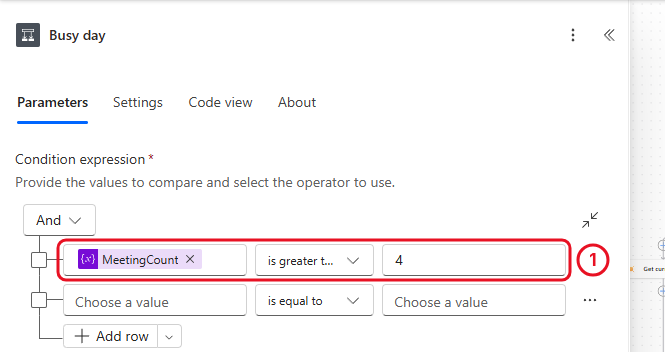
Set variable replaces a variable’s value. Append adds to it. Increment adds to a number. The screenshot still shows the empty row; delete it on yours.
Check your flow so far. Your screen should look like this.
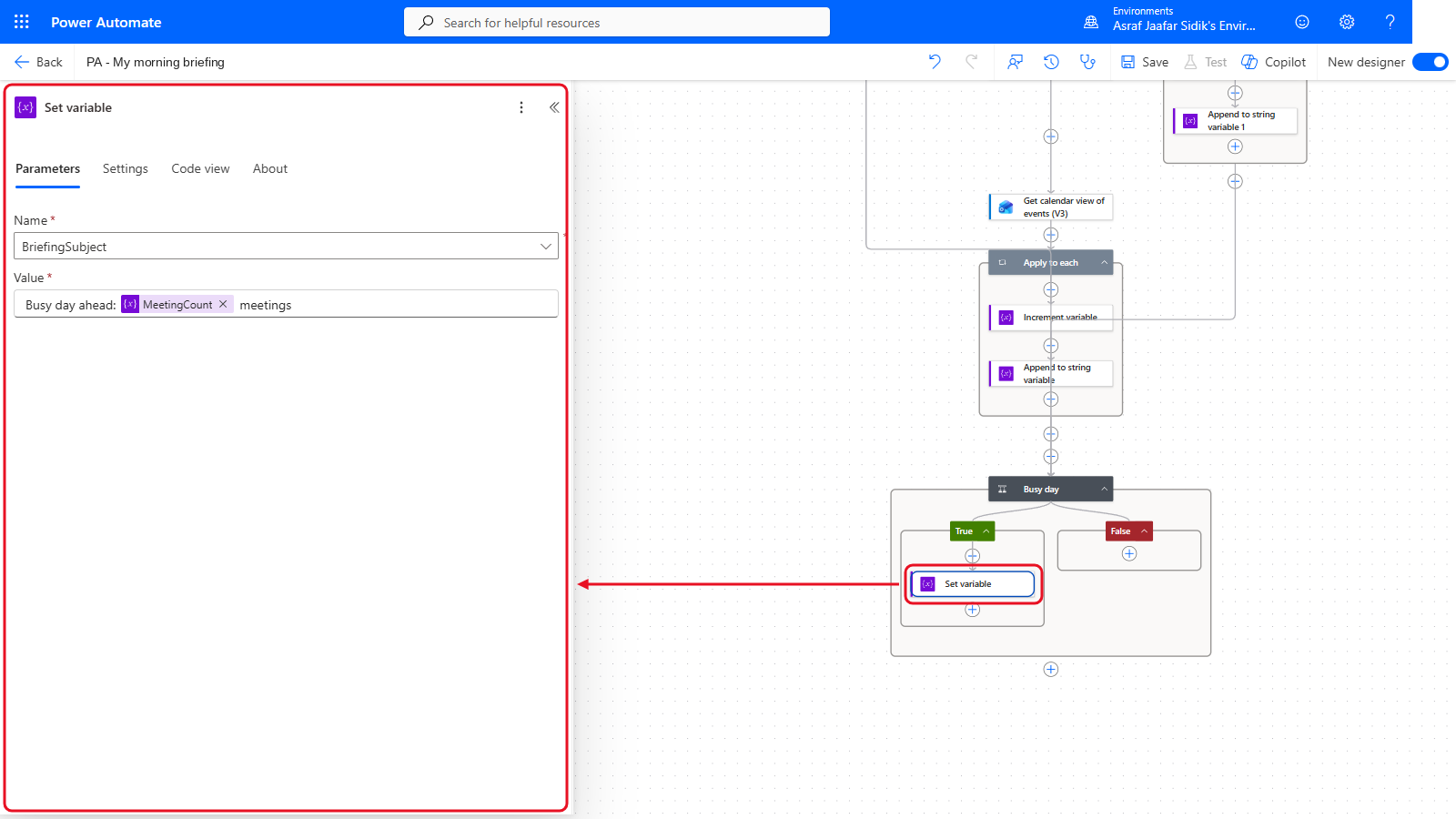
Set variable sits in True.
8.8 Send the Briefing
- On the canvas, select the + below the Busy day box (outside it), then Add an action. Search for
Send an email, then select Send an email (V2) under Office 365 Outlook. - To: start typing your name or email address, then select yourself from the list that appears. If no suggestion appears, type your full email address and press Enter.
- Subject: click into the box, select the lightning bolt, and pick BriefingSubject under Variables.
-
Body: type the text below and insert the tokens shown in brackets. To insert a token, place the cursor where it goes, then select the lightning bolt (or type
/and choose Insert dynamic content). Conditions and Temperature are under Get current weather (select See more if they’re hidden). The rest are under Variables.Good morning,
Weather in Kuala Lumpur: [Conditions], [Temperature]°C
Meetings in the next 12 hours ([MeetingCount]):[MeetingList]
Important unread email:[EmailList]
The plain text pieces are in the boxes below, in order. Paste each one, then insert the token that follows it. Press Enter twice between lines to leave a blank line.
Good morning,Weather in Kuala Lumpur:After [Conditions], type a comma and a space, insert [Temperature], then type
°C.Meetings in the next 12 hours (After [MeetingCount], type
):and then insert [MeetingList].Important unread email: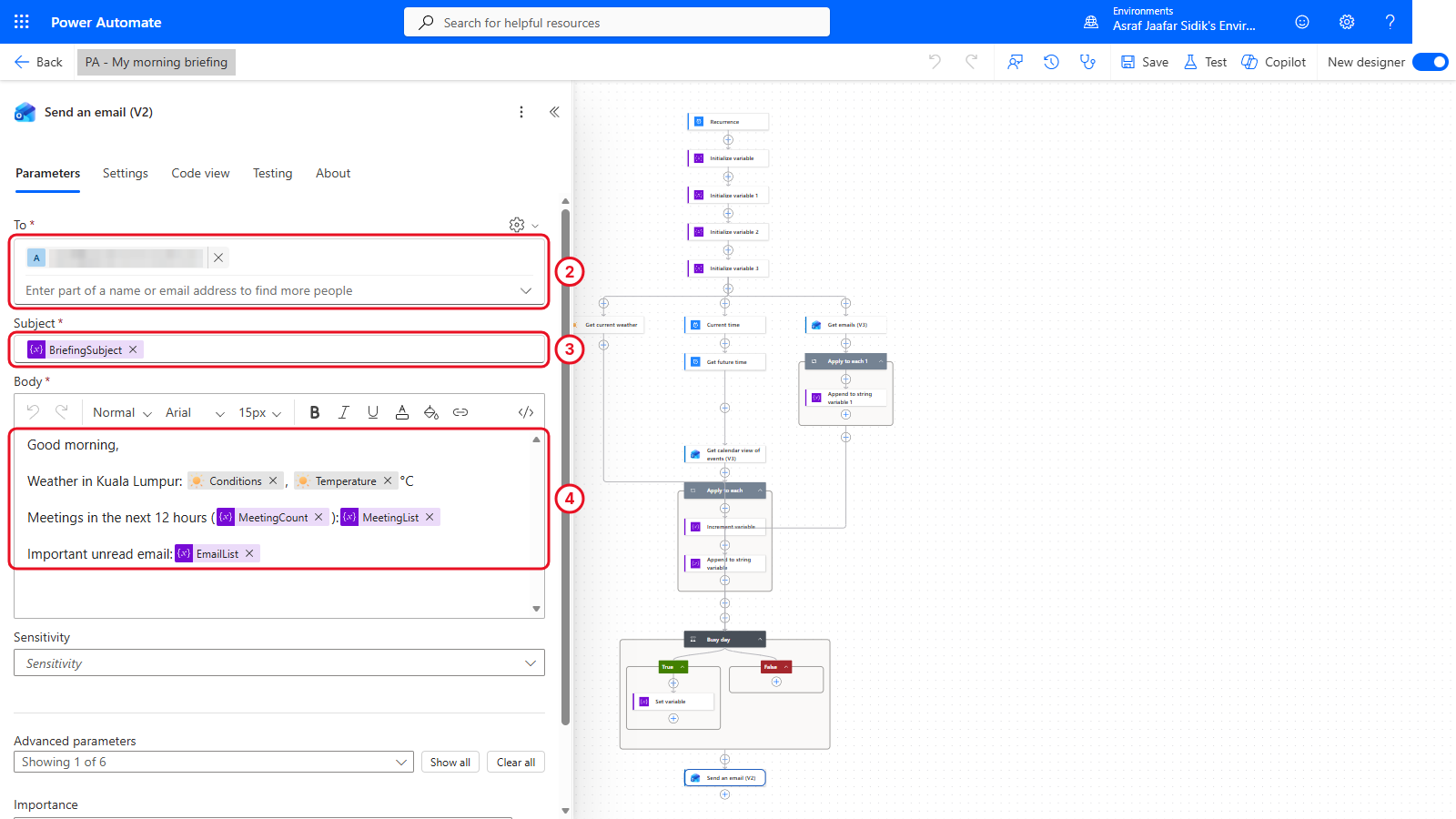
Variables drop into the email like any other dynamic content.
- Select Save in the toolbar at the top right, then the Flow checker icon (the stethoscope just left of Save; hover to see its name). Fix anything it reports.
Check your flow so far. Your screen should look like this.
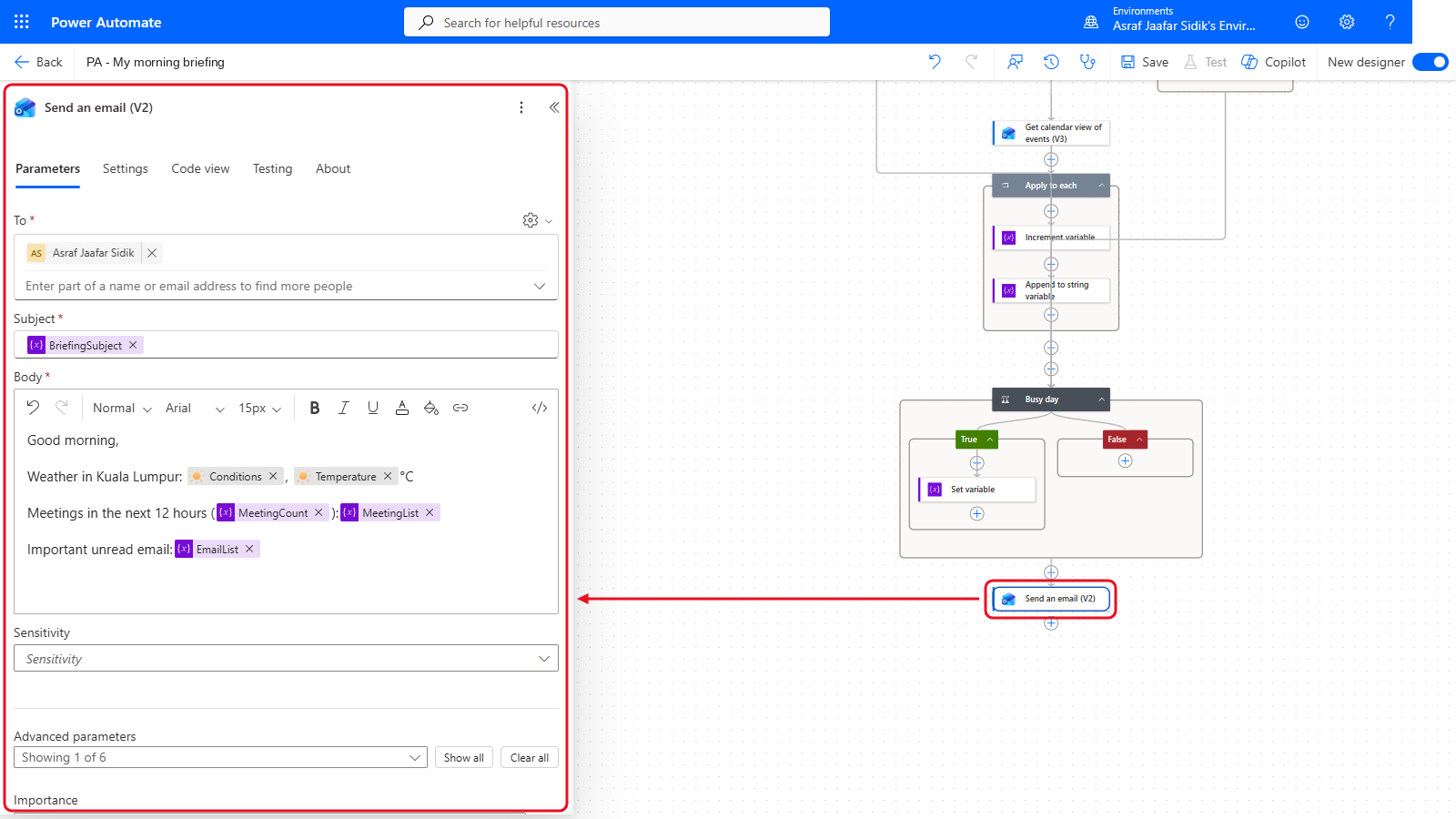
Send an email (V2) at the bottom. That is the whole briefing.
8.9 Test It
This flow only emails you, so you can test it yourself.
- In the toolbar at the top right, select Test, choose Manually, select Test, then Run flow, then Done.
- The run opens on the canvas. Notice that the three branches started at almost the same moment.
- Select Busy day and open Run results to see whether it was true or false. Select Increment variable inside the meetings loop to see the
1it added each time (it shows no outputs, which is normal). If Busy day was false, Set variable shows as skipped. That’s expected: the email’s count is the final check. - In Outlook, find the email with the subject Your day ahead (or Busy day ahead…) in your Inbox. If it isn’t near the top, type the subject in the search box at the top. If you’ve tested before, Outlook may group the briefings into one conversation: open it and check the newest message’s time.
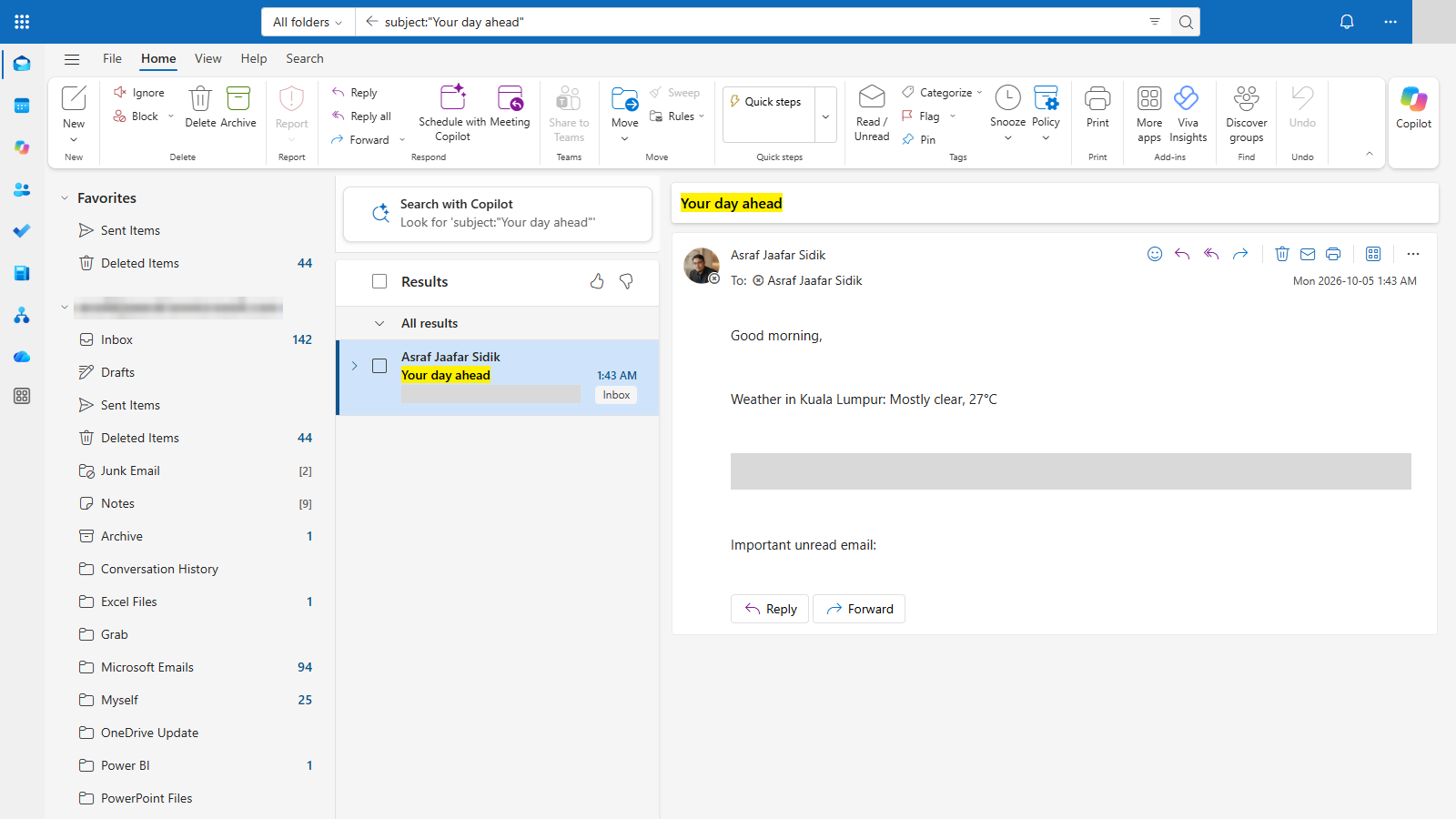
Your briefing. Each section came from a different branch.
If you have no meetings or no important unread email, those lists are simply empty and the count reads 0. That’s correct.
Independent Practice
Add a fourth parallel branch that counts up to 25 unread emails of any importance. Create an Integer variable UnreadCount at the top, use Get emails (V3) with Fetch Only Unread Messages set to Yes and Top set to 25, and increment the variable for each email. Add a line to the briefing: Unread email: [UnreadCount].
Going further: skip empty sections. Use a condition with EmailList is equal to (leave the right side empty) to set EmailList to
<br>Nothing urgent. Enjoy your morning.when there’s no important email. Optional.
Troubleshooting
| Symptom | What to check |
|---|---|
| Initialize variable isn’t offered | You’re inside a branch or loop. Add it below Recurrence |
| Get current weather is blocked | Your environment may block MSN Weather. Ask the trainer, or skip branch 1 |
| The meeting list is empty but you have meetings | Start Time is Current time, End Time is Future time, Calendar Id is Calendar |
| Meetings and email appear on one line | The <br> is missing at the start of the Append value |
| The email sends before a branch finishes | Busy day’s Run after must include the last action of every branch |
| The subject never changes | Set variable is in the True branch, and the condition uses MeetingCount is greater than 4 |
| Times look eight hours off | The meeting window uses UTC from Current time. For a briefing, a 12-hour window still covers your day |
Lesson Summary
Variables give a flow named boxes that change as it runs. You created four at the top, then used Increment to count, Append to build lists and Set to replace a value. Parallel branches let independent lookups run side by side, each writing to its own variable, and a join makes the final email wait for all of them. Next, you’ll ask Copilot to plan a flow for you, and review what it suggests.