
04 - Create and Distribute an Excel Summary
The coordinator wants a readable list of training sessions on demand, without copying cells into an email by hand. An instant flow reads the register and sends one summary table. Along the way you write your first expression.
Copy-paste values: every value you need is in the steps, with a Copy button. The copy-paste page has them all on one page too.
Estimated time: 60 minutes
Your result: An instant cloud flow that reads the training register, picks useful columns, counts the rows and sends one summary email. A Teams update is an optional extension.
Download: the files for this lab
- TrainingRegister.xlsx: only if you don’t have the workbook from Chapter 2 yet. Upload it to your
Power Automate Trainingfolder in OneDrive.
What You Will Learn
- Start a flow on demand with an instant trigger
- Read rows from an Excel table with List rows present in a table
- Choose report columns with the Select action
- Turn the rows into one HTML table and send it in a single email
- Write your first expression to count the rows
- Inspect run history to confirm what each action produced
How the Flow Works
Manually trigger a flow > List rows present in a table > Select > Create HTML table > Send an email (V2)
The Excel action returns a list of rows. Select keeps only the columns readers need. Create HTML table turns the whole list into one table. The email action runs once, after the table is complete.
Before You Begin
You need Power Automate Training/TrainingRegister.xlsx in OneDrive for Business with a formatted table named tblTraining:
| Column | Contents | Used in this chapter for |
|---|---|---|
| TrainingID | TR-001 to TR-006 | The independent practice |
| ParticipantName | Fictional names | A report column |
| Placeholder addresses | Read but deliberately left out of the report | |
| CourseTitle | Fictional course names | A report column |
| SessionDate | Real Excel dates | A report column |
| Status | Registered or Completed | A report column |
Note: Addresses like
learner1@example.comare just data in this chapter.example.comcan’t receive mail. The summary goes to your own training mailbox, not to the people in the table.
Tip: Before each run, finish any cell edit and let Excel save. The connector reads the saved cloud file, so an open edit gives you a stale report.
Important: Keep the workbook in Excel for the web during class. If it’s open in the Excel desktop app while a flow runs, the flow can read old data or fail because the file is locked. Close the desktop app before testing.
4.1 Confirm the Source Table
- Open
TrainingRegister.xlsxfrom the training folder. You built it in section 2.2, so you’re only checking it here. - Check the header row. All six columns must be present and spelled exactly as above.
- Select a cell in the data, open Table Design, and confirm the table name is exactly
tblTraining.
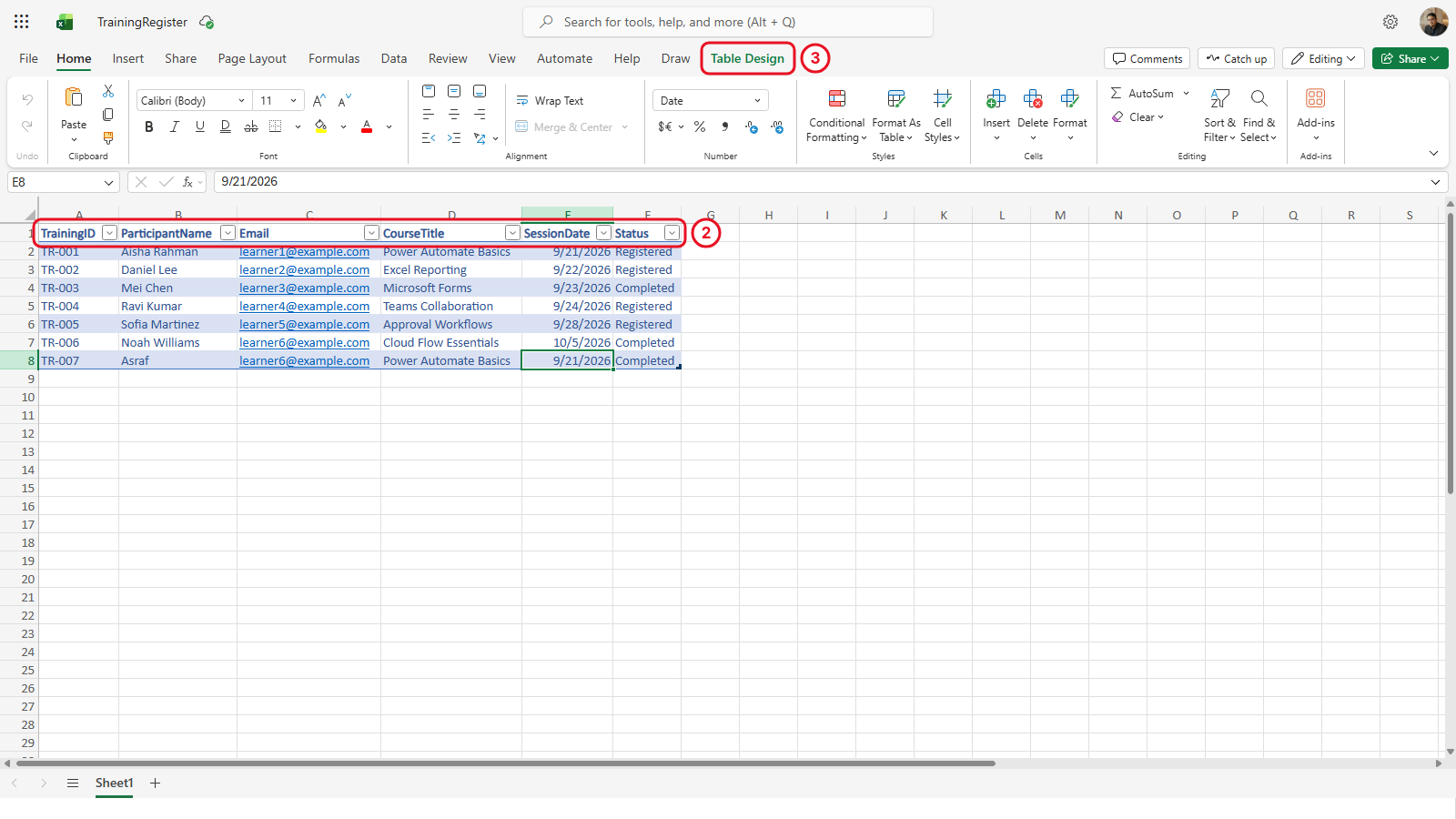
Select any cell in the table, then open the Table Design tab to see its name. The table name, not the sheet name, is what Power Automate looks for. The screenshot has an extra test row, TR-007; yours has six.
Key point: A worksheet name and a table name are different things. If the Table dropdown is empty later, a missing or misnamed table is almost always why.
4.2 Create an Instant Cloud Flow
- Confirm the training environment, select Create on the left, then the Instant cloud flow tile.
- In Flow name, enter
PA - Training register summary. - Select Manually trigger a flow, then Create.
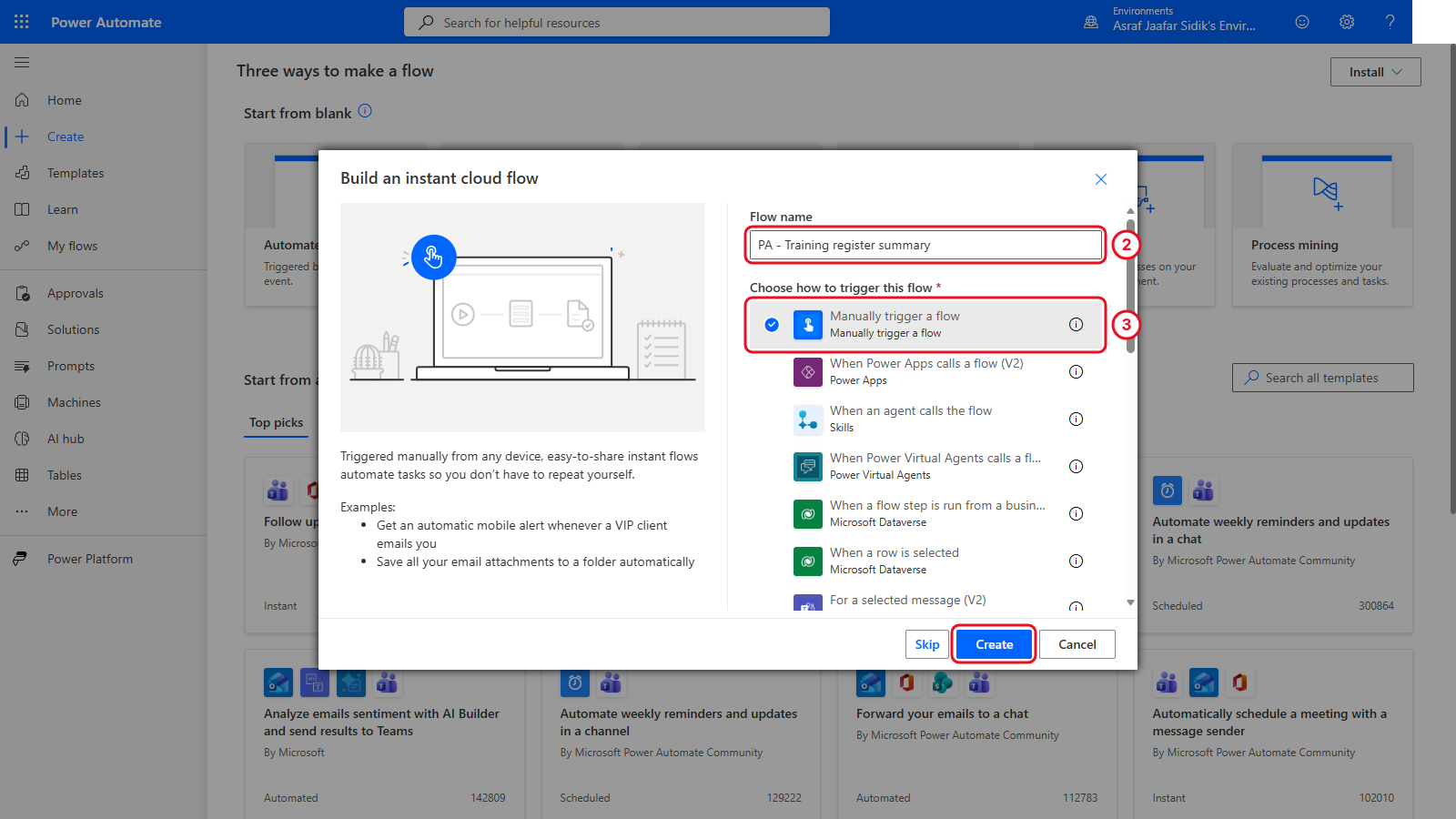
This trigger starts only when you run it.
4.3 Read the Excel Records
- On the canvas, select the + below Manually trigger a flow, then Add an action.
- In the search box at the top of the panel, type
List rows present in a table. Under the Excel Online (Business) heading, select List rows present in a table. Its settings open on the left. - Open the Location dropdown and select OneDrive for Business.
- Open the Document Library dropdown and select OneDrive.
- In File, select the folder icon at the right end of the box. Select the > beside
Power Automate Training, then selectTrainingRegister.xlsx. - Open the Table dropdown and select
tblTraining. - Under Advanced parameters, open the dropdown (it reads Showing 0 of 6) and tick DateTime Format. A new DateTime Format box appears: choose ISO 8601. This returns dates as dates instead of serial numbers like
46286.
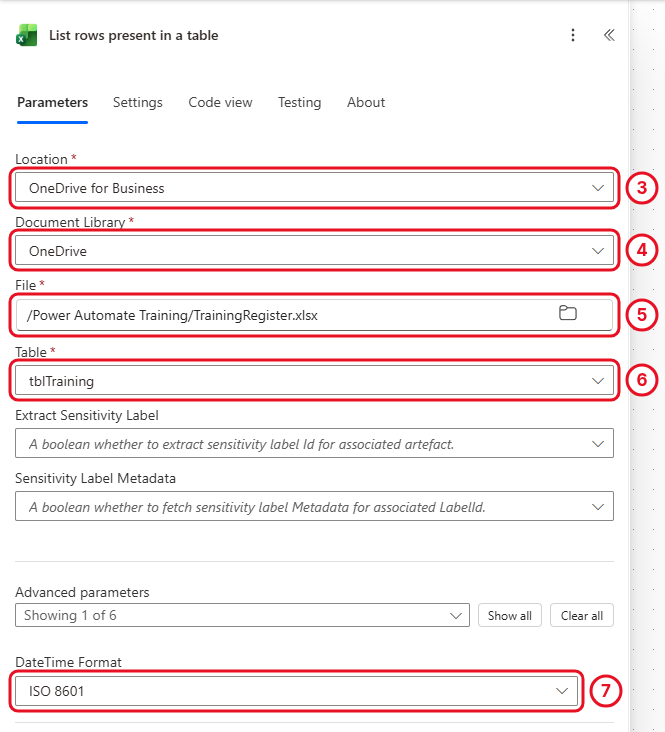
Pick the file by browsing, then the table from the dropdown. Once saved, Location, Document Library and Table show internal IDs like me or {4672…} instead of the names you picked. That’s normal.
If Table shows No items, stop. The workbook has no formatted table. Go back to section 2.2.
Check your flow so far. Your screen should look like this.
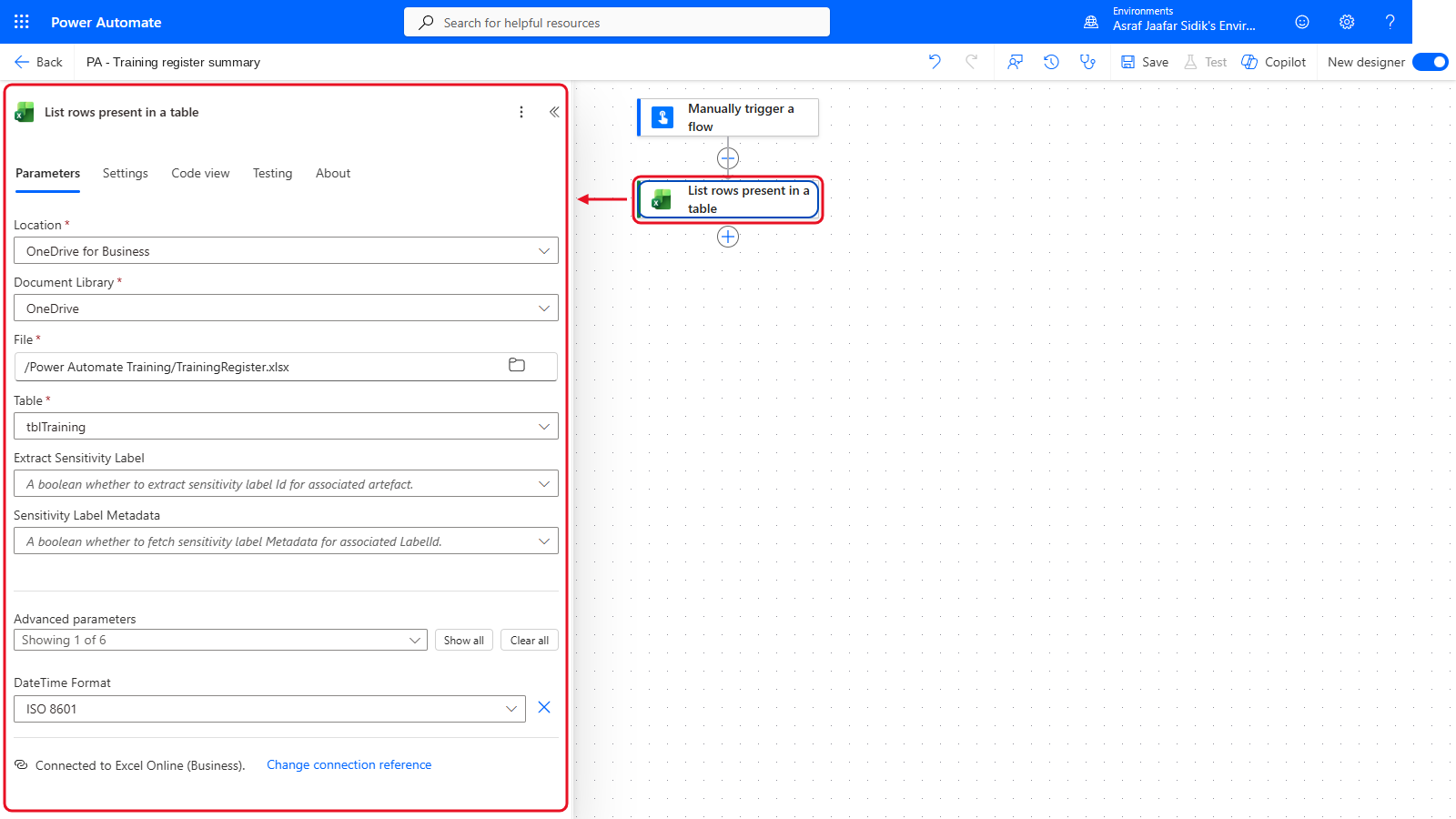
The trigger and List rows present in a table.
4.4 Choose the Report Columns
- On the canvas, select the + below List rows present in a table, then Add an action.
- Search for
Select. Under the Data Operation heading, select Select. - Click into the From box. Select the lightning bolt icon that appears beside it to open the dynamic content picker. Under List rows present in a table, select body/value. This is the list of all rows. (It may be labelled value. If you can’t see it, select See more or type
valuein the picker’s search box.) - In the Map area, click the first Enter key box (left) and type
Participant. - Click the Enter value box beside it (right), open the lightning bolt, and select ParticipantName under List rows present in a table. Type
Participantin the picker’s search box if it isn’t listed. Don’t type the value yourself: it must be the green token from the picker. - A new empty row appears underneath. Fill three more rows the same way, typing the key and picking the value. Leave the last empty row blank:
| Enter key | Enter value (dynamic content) |
|---|---|
| Participant | ParticipantName |
| Course | CourseTitle |
| Session date | SessionDate |
| Status | Status |
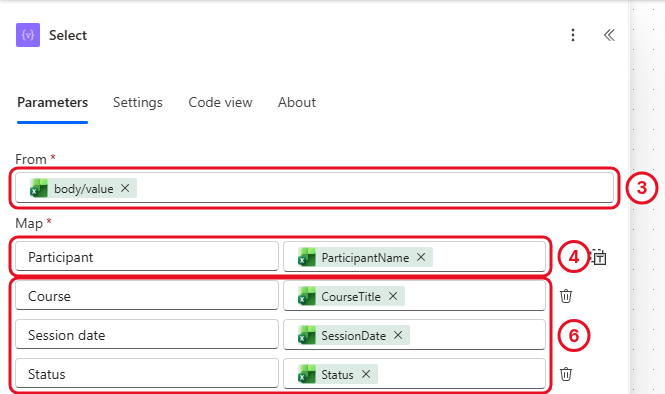
Each key becomes a column heading. Every value is a green Excel token you picked, not typed. Email and the internal row data are left out.
The Session date comes through as 2026-09-21T00:00:00.000Z. That’s fine for now: the Going further box at the end of the chapter shows how to tidy it.
Select handles every row for you, so you don’t need an Apply to each here.
Check your flow so far. Your screen should look like this.
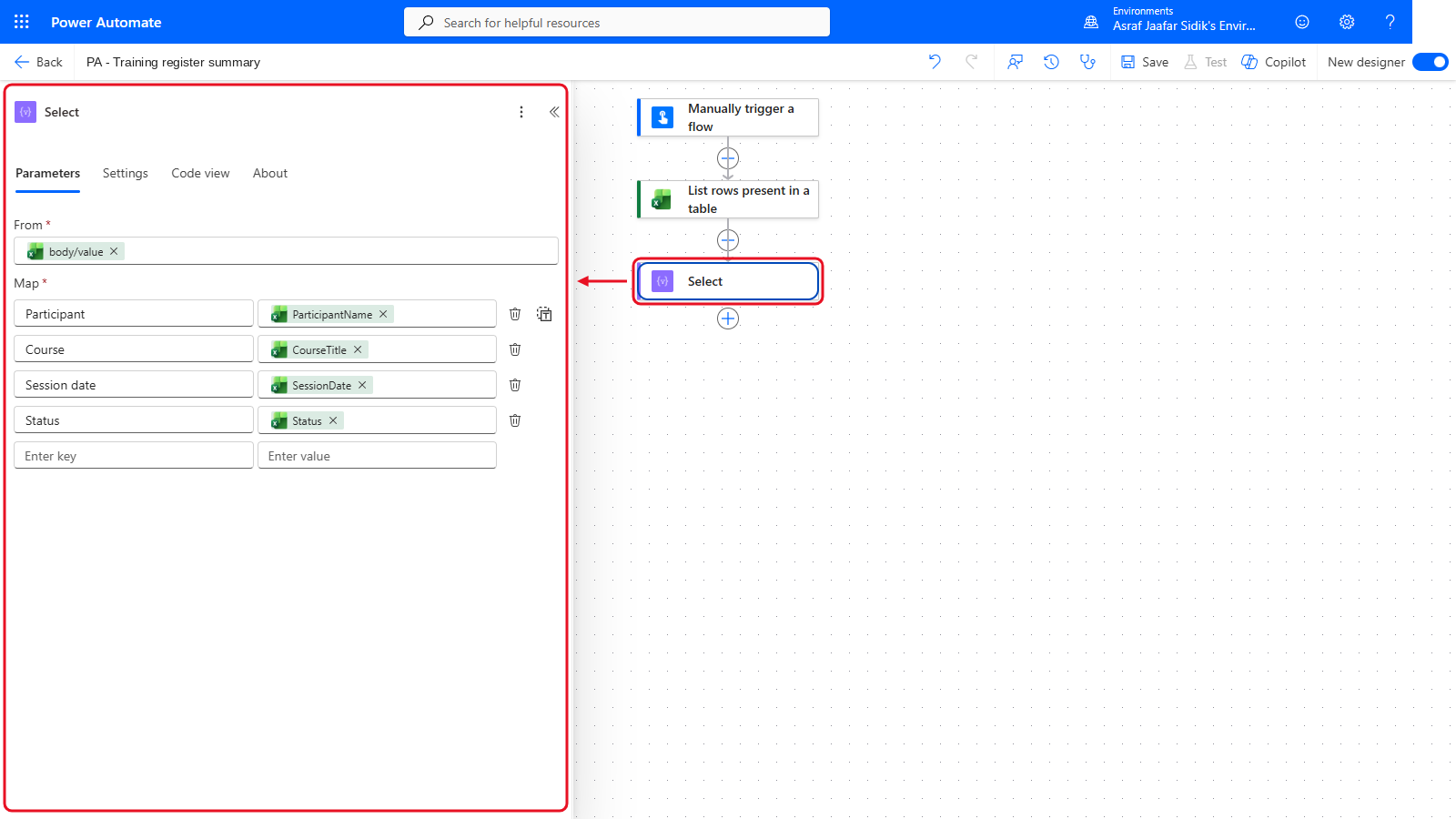
Select comes after List rows present in a table.
4.5 Build One HTML Table
- On the canvas, select the + below Select, then Add an action.
- Search for
Create HTML tableand select it under Data Operation. - Click into From, open the lightning bolt, and select Output under Select.
- Leave everything else as it is. Select already defined the headings.
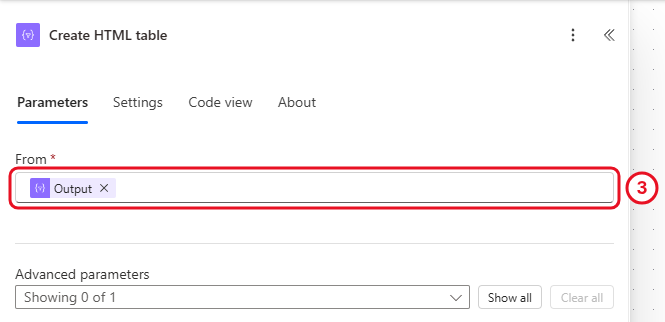
The whole list goes in, one table comes out.
Checkpoint: If an Apply to each suddenly wraps this action, you picked a single column instead of the whole Output. Delete the loop and pick Output again.
Check your flow so far. Your screen should look like this.
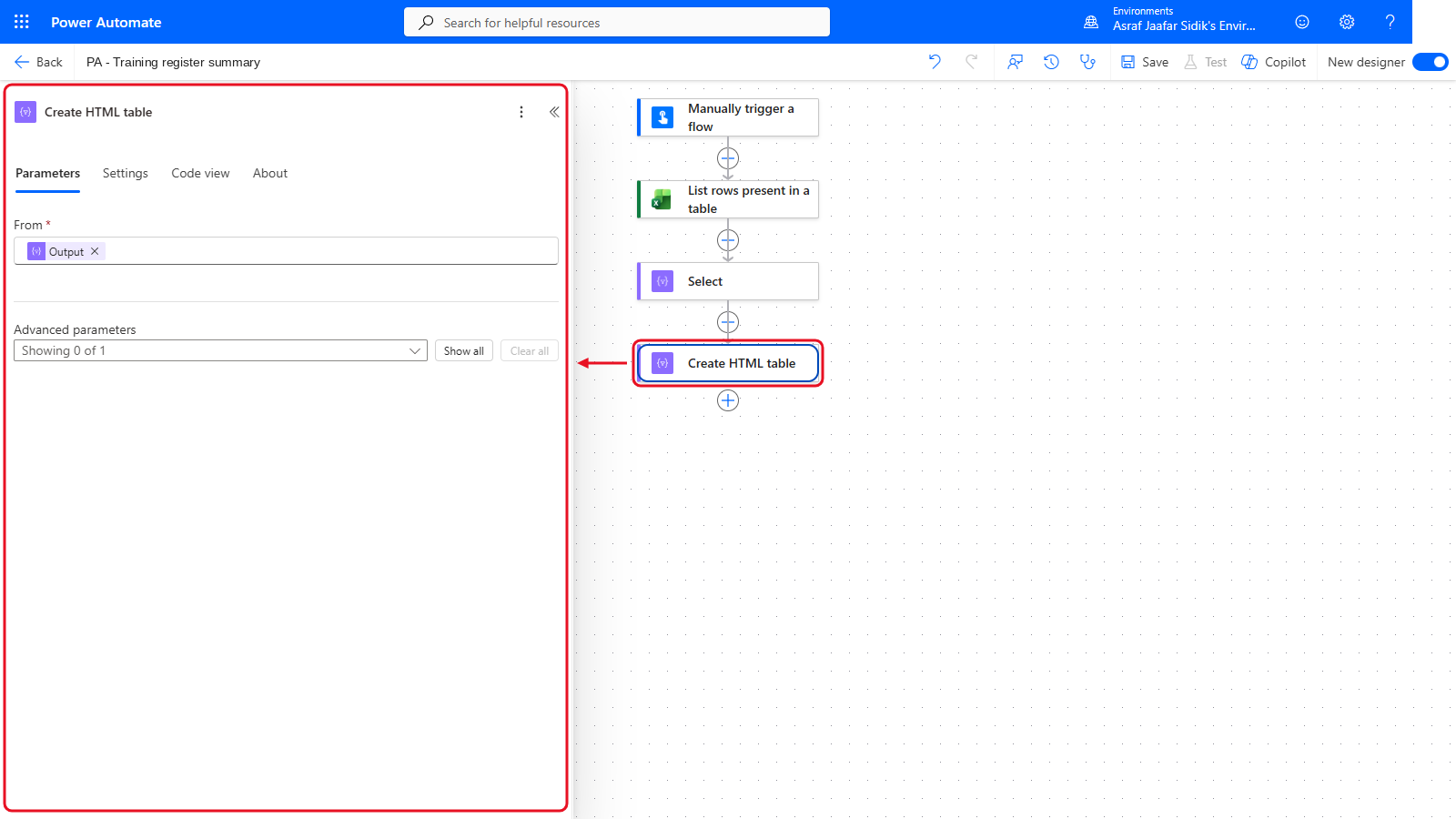
Create HTML table comes after Select.
4.6 Send the Coordinator Summary
- On the canvas, select the + below Create HTML table, then Add an action. Search for
Send an email, then select Send an email (V2) under Office 365 Outlook. - In To, start typing your name or email address, then select yourself from the list that appears.
-
In Subject, enter the subject. Copy it from the box below.
[PA TRAINING] Training register summary -
Click into Body, type the introduction below, then press Enter.
Here is the current training register. -
On the new line, type
/and choose Insert dynamic content (or select the lightning bolt). Select Output under the Create HTML table heading. The picker lists two values called Output: pick the one under Create HTML table, not the one under Select.Leave the body as these two lines for now. You add the count sentence in 4.7.
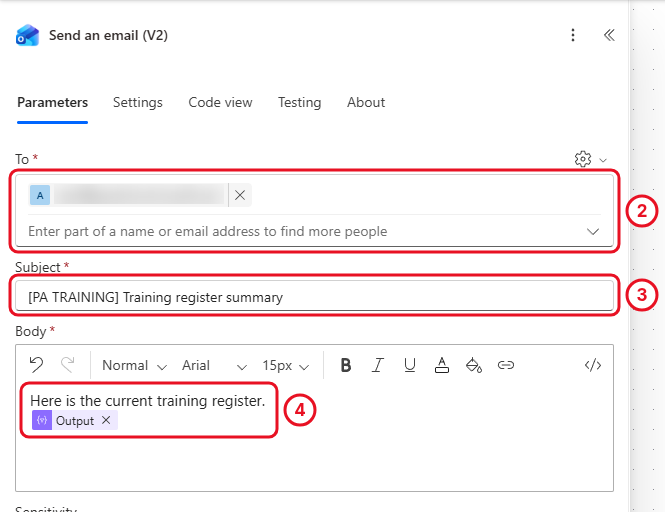
The table token goes in the body below a short introduction.
Check your flow so far. Your screen should look like this.
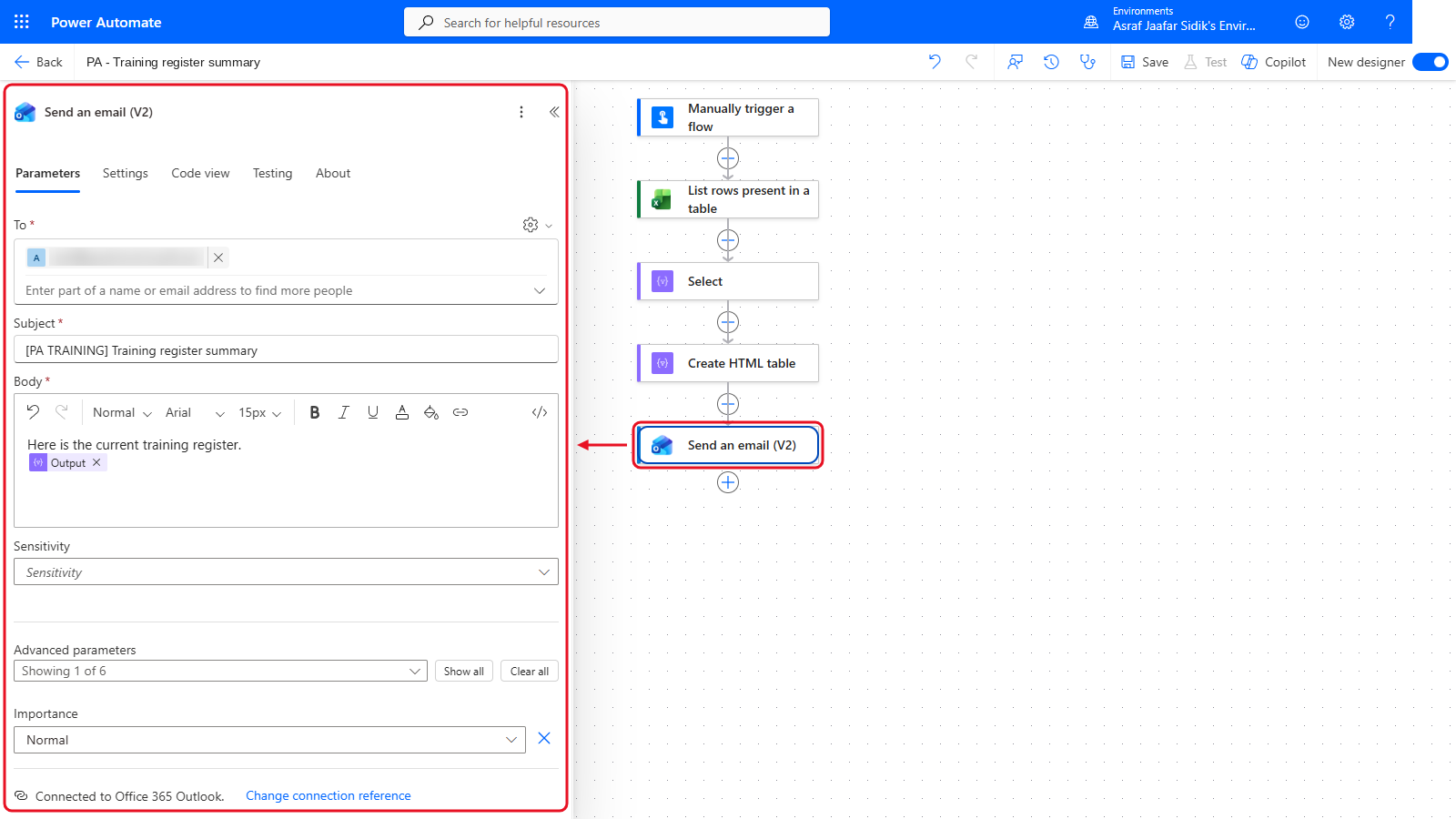
Five steps, with Send an email (V2) last. No count sentence yet.
4.7 Your First Expression: Count the Rows
The coordinator wants a line like “This report lists 6 sessions.” None of the dynamic content values is a count. Dynamic content gives you values that already exist. When you need a value calculated, you write an expression.
- On the canvas, select Send an email (V2) to open it again. In Body, click right after
register.at the end of the first line, then type a space, thenThis report lists, then another space. - Select the fx button that appears at the right edge of the Body box, just below the lightning bolt. The expression editor opens. (Typing
/and choosing Insert expression works on some screens too, but not all.) - In the expression box, type
length( - At the top of the same panel, switch from the Function tab to the Dynamic content tab and select Output under Select. It drops into the expression.
-
Type
)to close the bracket, then select Add (it reads Update if you’re editing an expression that’s already there). -
After the new token, type ` sessions.`
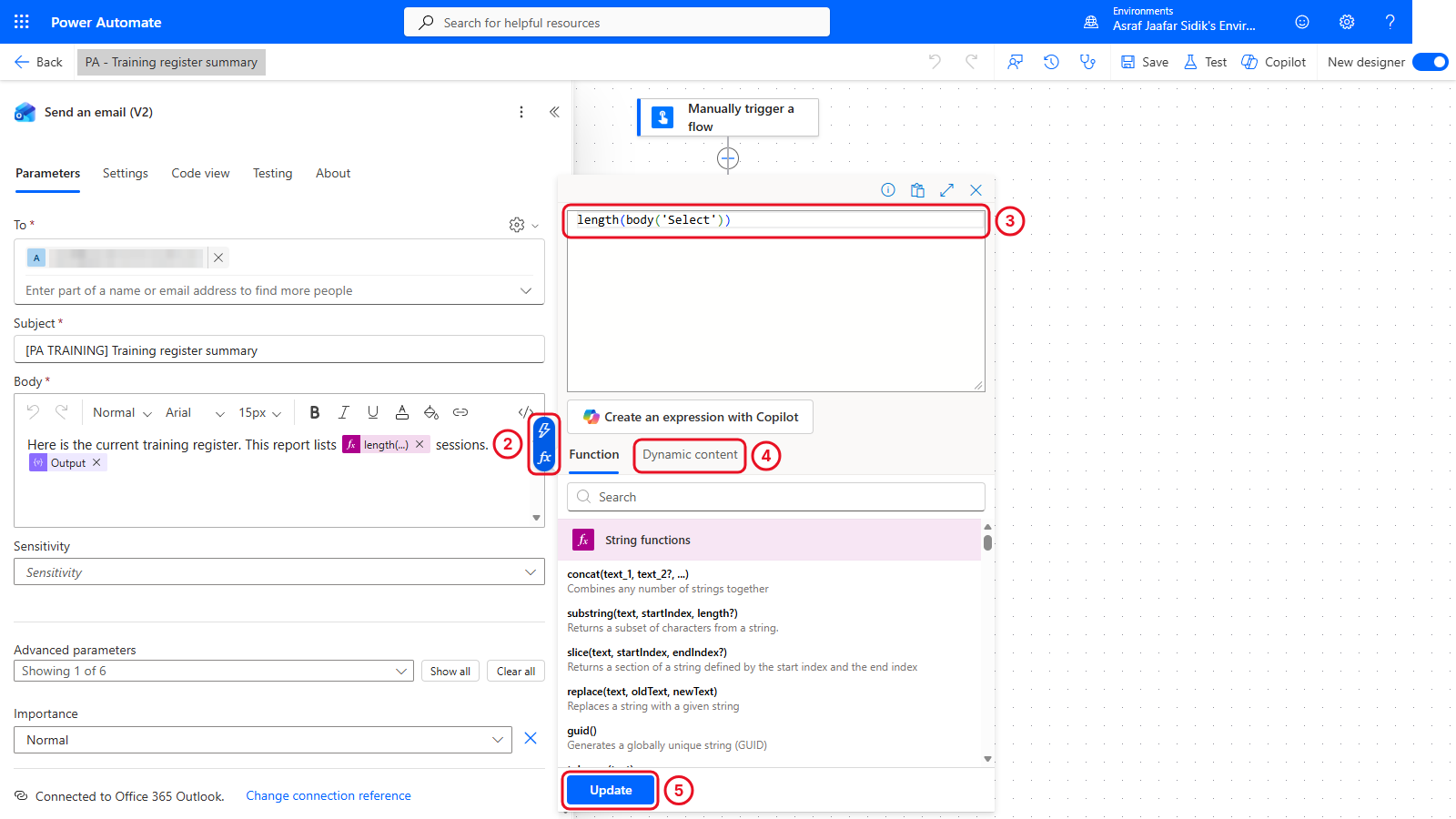
length() counts the items in a list. Here it counts the rows Select produced.
The expression reads as below. You can also paste it into the expression box instead: copy it from the box below.
length(body('Select'))length()is a function: you give it something inside the brackets and it gives back an answer.Tip: If you renamed the Select action, the name inside the quotes changes too. Picking Output from the Dynamic content tab handles that for you, which is why step 4 picks it instead of typing it.
- Select Save, then Flow checker, and fix anything it reports.
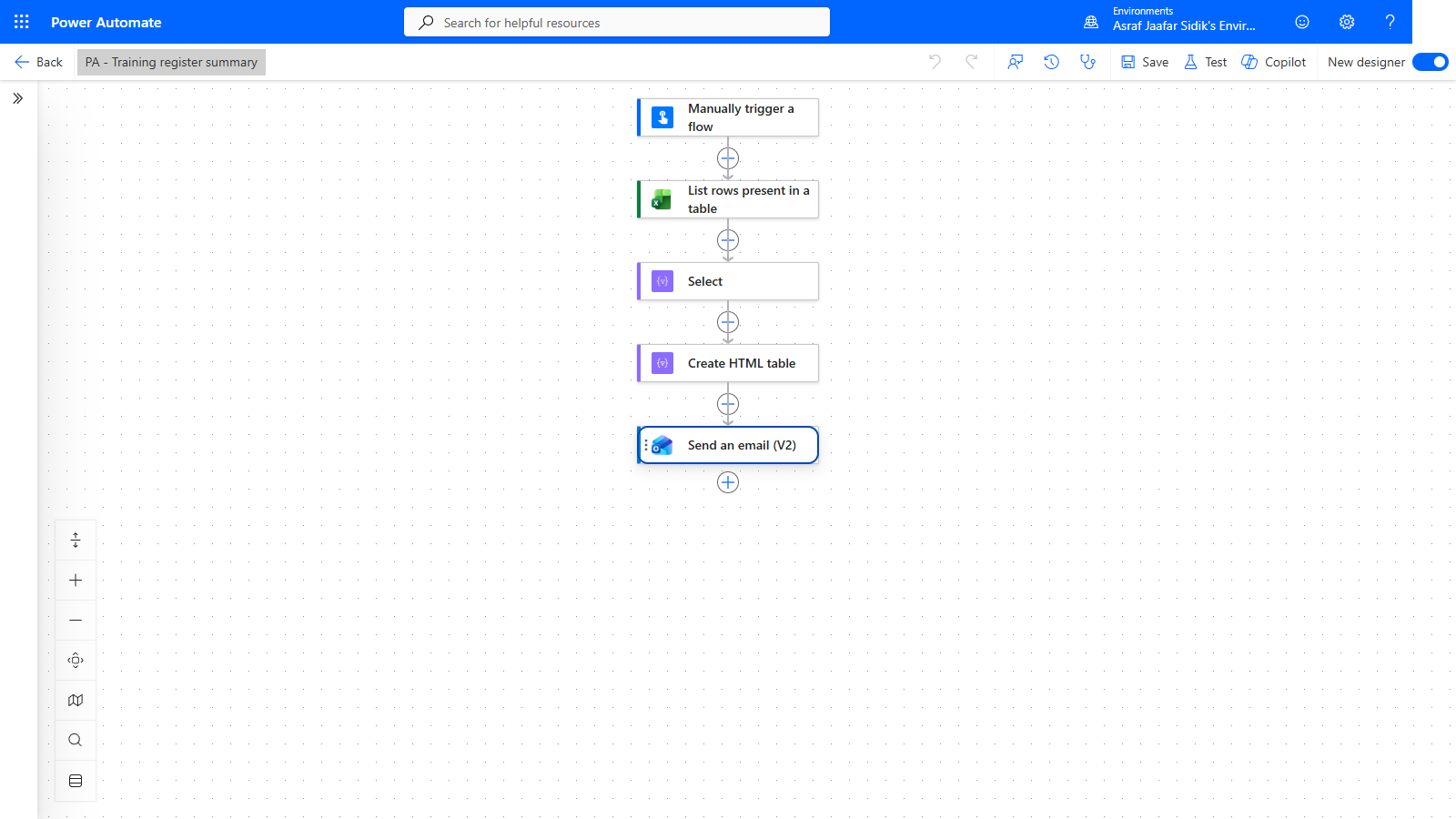
Five steps. One email.
4.8 Test and Inspect
- Select Test > Manually > Test. A Run flow panel opens; select Continue if it asks about connections, then Run flow, then Done. This sends a real email to you, so follow your trainer’s instruction first.
- Open the completed run. Every action has a green tick, and Send an email (V2) ran once.
- Select the Select step on the canvas. In the panel on the left, scroll to Outputs and select Show raw outputs. You see six records with real names and courses.
- Open the email. You should see the sentence This report lists 6 sessions., four headings, and six rows. The number always matches the rows in your table, so if you added a row it goes up too.
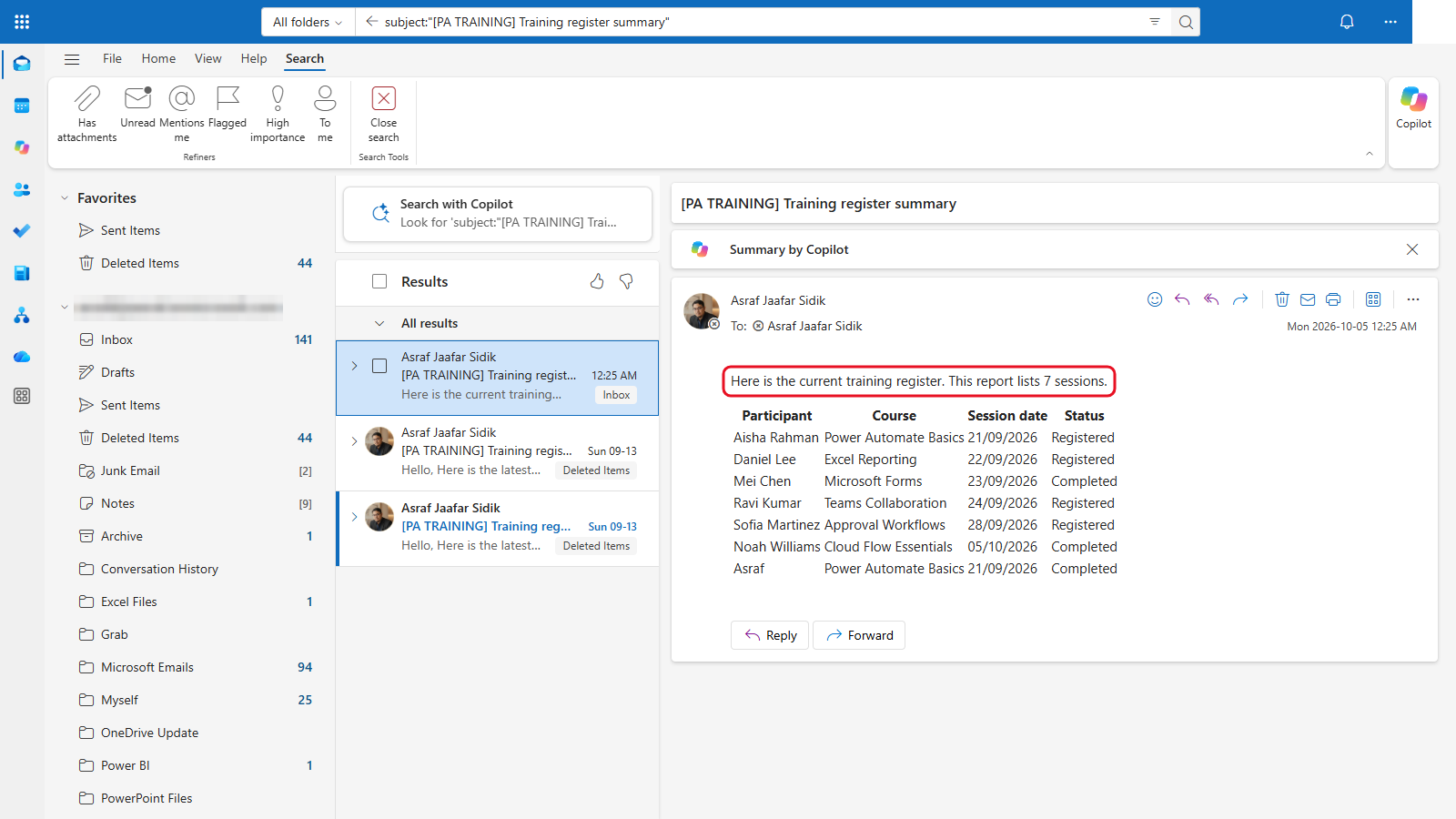
One email, one table, counted by your first expression. This workbook had a seventh test row, so it reads 7. Its dates were already formatted with the Going further tip; yours show values like 2026-09-21T00:00:00.000Z.
Each manual run sends one current report. Earlier emails stay as historical snapshots.
4.9 Optional Teams Update
Trainer-led only, once a permitted destination is confirmed. After the email, add Microsoft Teams > Post message in a chat or channel, choose Flow bot and Chat with Flow bot, pick yourself as the recipient, and post a short message such as Training register summary sent. Keep it short. Teams doesn’t show the email’s HTML table the same way.
Independent Practice
Add Training ID to the report without adding Email. Predict where the change belongs, make it, and check the received message. Then explain why a six-record table still produces only one email.
Going further: format the date. The Session date column shows values like
2026-09-21T00:00:00.000Z. In Chapter 5 you’ll learn theformatDateTime()expression that turns it into21 Sep 2026. Come back afterwards and use it in Select’s Session date value. Optional.
Troubleshooting
| Symptom | What to check |
|---|---|
| No Excel table is listed | Workbook location, saved table, table name and connector account |
| One email arrives for every row | The email ended up inside a loop. Use Output from Create HTML table |
| The report includes internal columns | Use Select to define headings and values |
| The email shows HTML tags | Check you inserted Output from Create HTML table, not from Select |
| A date appears as a number | Set DateTime Format to ISO 8601 in List rows present in a table |
| The expression shows an error | Brackets must match: length( … ). Pick Output from the Dynamic content tab instead of typing it |
| The report is stale | Finish the Excel edit, wait for save, and run again |
Lesson Summary
An instant trigger lets the coordinator decide when to run. Excel supplies the records, Select defines the report columns, Create HTML table produces one report, and your first expression counted the rows. Next, a recurrence trigger starts a reminder process on a schedule.
For reference, see the Excel Online (Business) connector and data operations in Power Automate.