
02 - Prepare Your Training Workspace
Every flow in this course reads from or writes to something: a folder, a table, a mailbox, a form, a Teams chat. Set those up first and the later build steps become predictable.
Copy-paste values: every value you need is in the steps, with a Copy button. The copy-paste page has them all on one page too.
Estimated time: 30 minutes
Your result: A training folder, an Excel workbook with a table, and safe test data for the first two build exercises.
Download: the files for this lab
- test-files.zip: the three test attachments for 2.3 (CourseOutline.pdf, TrainerPhoto.jpg, SessionNotes.docx). Download it and choose Extract All.
- TrainingRegister.xlsx: a ready-made training register, only if your trainer tells you to upload it instead of building it in 2.2. Update its dates as in 2.2 step 4.
What You Will Learn
- Create a dedicated training folder structure in OneDrive for Business
- Build an Excel workbook and format its data as a named table
- Prepare a safe test email with sample attachments
- Confirm that Forms, Teams and your Power Automate environment are ready
Note: Use your own training account and the environment your trainer names. Never put real participant information in the practice resources. Use fictional names and test addresses only.
Forms and Teams preparation in this chapter are trainer-led readiness checks, because those destinations depend on your organisation’s policy.
Apps You’ll Use
Everything in this course runs in the browser. Start from the Microsoft 365 home page and you can reach every app from it.
| App | Web address | What you use it for |
|---|---|---|
| Microsoft 365 home | m365.cloud.microsoft | Your starting point. The app launcher (nine dots, top left) opens every app below |
| OneDrive | Open from the app launcher | The training folder and the Excel register |
| Outlook | outlook.office.com | Test emails and the emails your flows send |
| Microsoft Forms | forms.office.com | The training request form (Chapter 6) |
| Teams | teams.microsoft.com | Flow bot messages (Chapters 6 and 11) |
| Power Automate | make.powerautomate.com | Building your flows |
Sign in to each one with your work or school account, the same one every time.
Note: Used to OneDrive as a folder in File Explorer? That folder and OneDrive on the web are the same storage, so files appear in both. During class, use the web version so your screen matches the screenshots. Power Automate can only see files inside OneDrive: a workbook saved to your Desktop or Documents outside the OneDrive folder is invisible to it.
2.1 Create the Training Folders in OneDrive
- Open m365.cloud.microsoft, select the app launcher (nine dots, top left), then OneDrive. Select My files on the left.
-
Select the blue Create or upload button at the top left, then Folder.
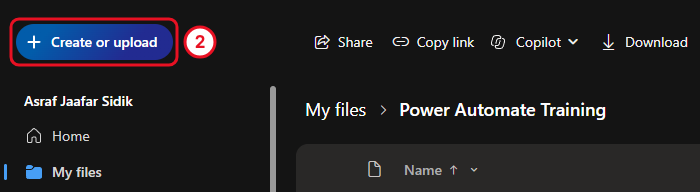
Create or upload makes folders, uploads files and creates new Office documents. The picture was taken inside Power Automate Training, but the button is in the same place in My files.
- Name the folder
Power Automate Trainingand select Create. - Select the new folder’s name to open it. The path at the top now reads My files > Power Automate Training.
- Inside it, create two subfolders the same way (Create or upload > Folder):
AttachmentsandReports.
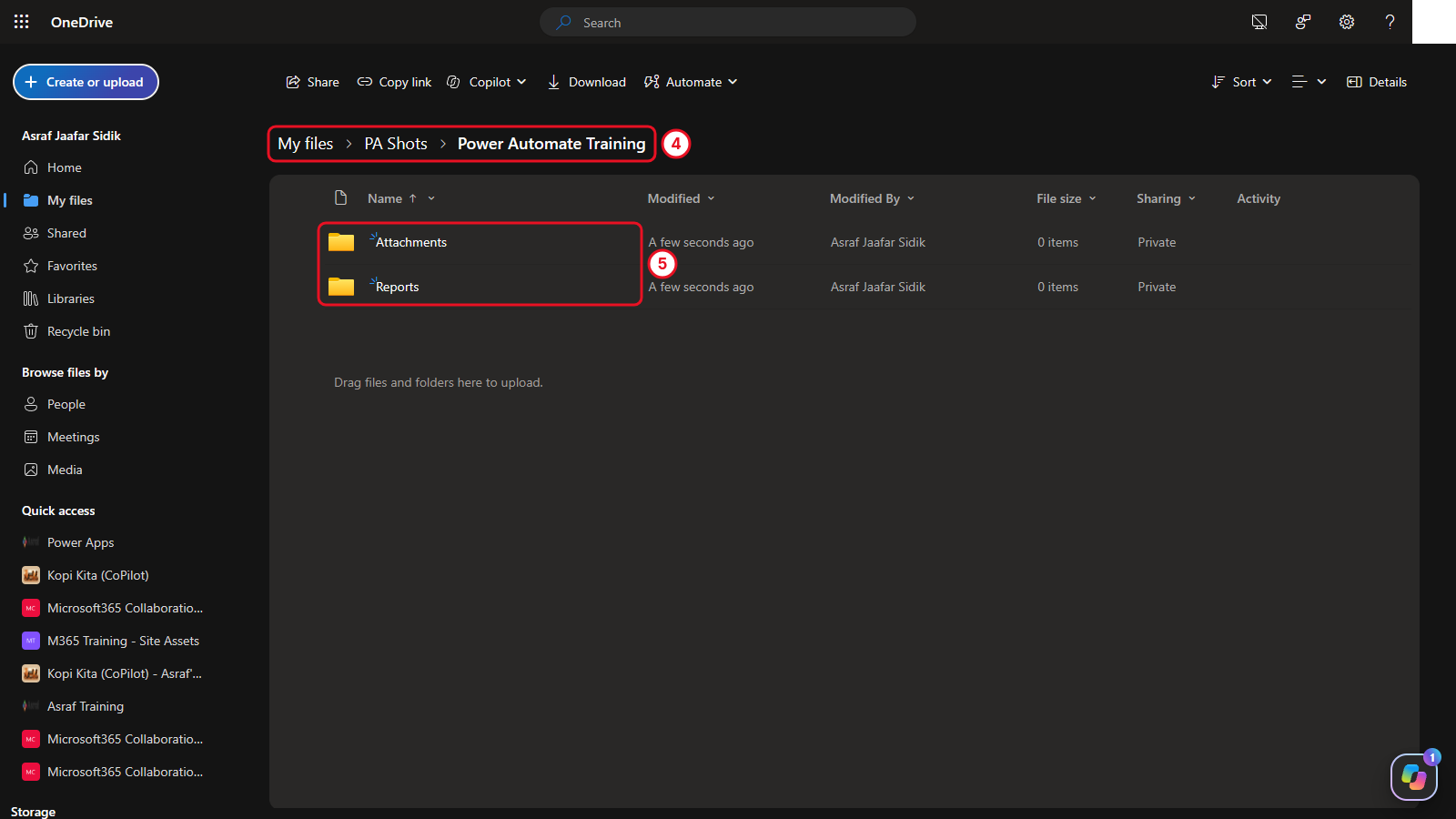
Both subfolders inside Power Automate Training. The breadcrumb in the picture includes an extra PA Shots folder used for the screenshots. Yours reads My files > Power Automate Training.
Checkpoint: You can see Attachments and Reports inside Power Automate Training. The Chapter 3 flow writes to Attachments. Summary outputs can go to Reports.
2.2 Create the Excel Workbook
- Inside
Power Automate Training, select Create or upload, then Excel workbook. Check the breadcrumb first: the workbook is created in whichever folder you’re viewing. - When Excel for the web opens, select the file name in the title bar and rename it
TrainingRegister. Excel adds.xlsxfor you. -
Select cell A1, then paste the headers and sample rows. Copy them from the box below. Each header lands in its own column (TrainingID, ParticipantName, Email, CourseTitle, SessionDate, Status), and the six fictional rows fill rows 2 to 7.
TrainingID ParticipantName Email CourseTitle SessionDate Status TR-001 Aisha Rahman learner1@example.com Power Automate Basics 9/21/2026 Registered TR-002 Daniel Lee learner2@example.com Excel Reporting 9/22/2026 Registered TR-003 Mei Chen learner3@example.com Microsoft Forms 9/23/2026 Completed TR-004 Ravi Kumar learner4@example.com Teams Collaboration 9/24/2026 Registered TR-005 Sofia Martinez learner5@example.com Approval Workflows 9/28/2026 Registered TR-006 Noah Williams learner6@example.com Cloud Flow Essentials 10/5/2026 Completed - If your trainer gave you approved test addresses, type them over the addresses in the Email column. Then change the SessionDate values so they fit your class week, because the sample dates (21 September to 5 October 2026) may already be in the past. Count from today and make sure you have:
- at least two Registered rows with a date within the next 14 days
- one Completed row
- one row with a date more than 14 days away
Chapter 7 needs this mix to show which rows the 14-day window keeps and which it leaves out.
Tip: If the dates paste left-aligned, Excel has stored them as text. Retype them in your local date format (for example,
21/09/2026instead of9/21/2026) and they line up on the right.Tip: Short on time? Your trainer may tell you to upload the ready-made TrainingRegister.xlsx to
Power Automate Traininginstead (Create or upload > Files upload). It already has thetblTrainingtable and six fictional records, so you can skip steps 5 to 7. You still need to update its SessionDate values as described in this step.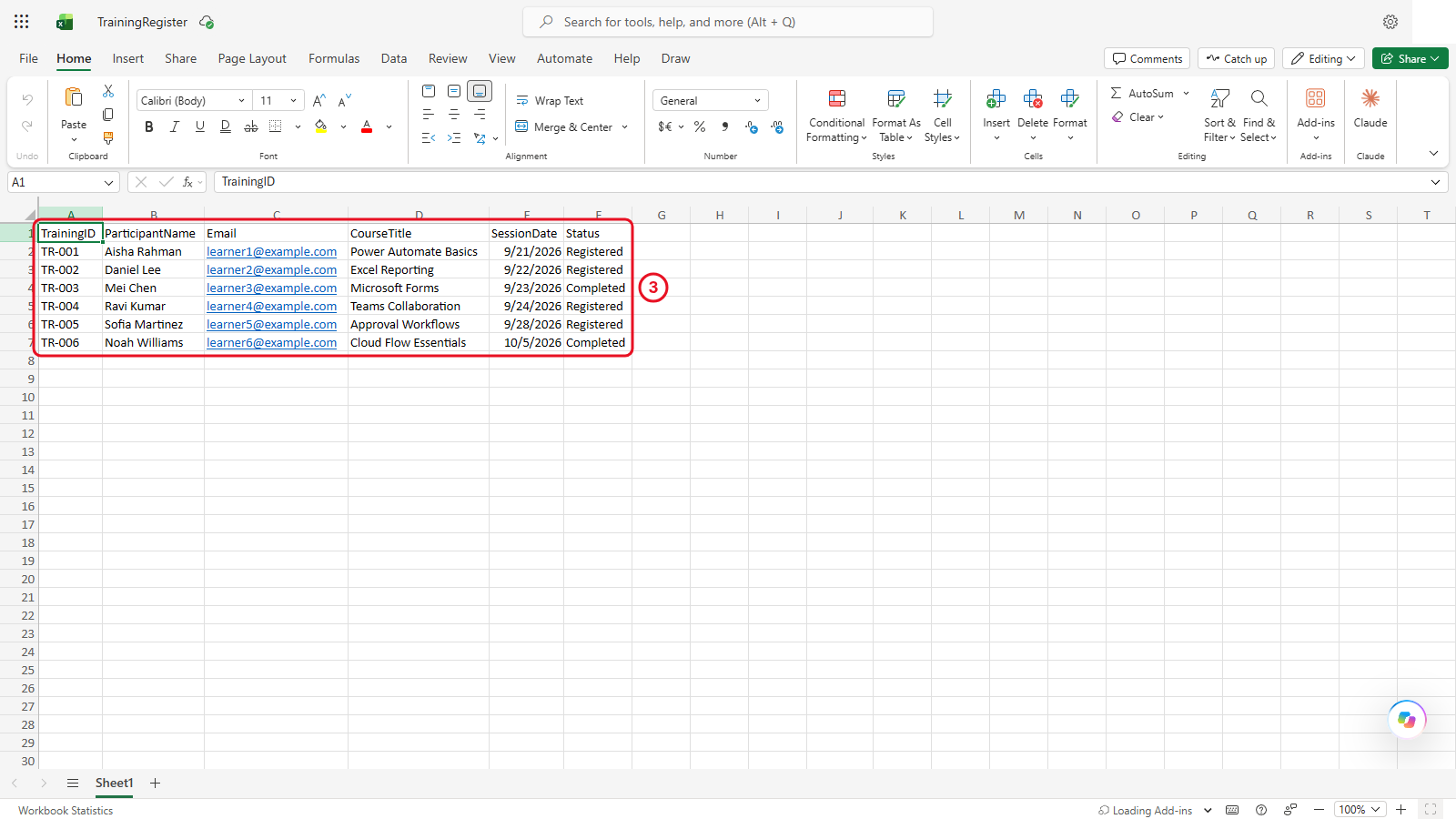
Fictional rows. The example.com addresses can’t receive mail. The cells look plain until you format them as a table in the next step.
-
Select any cell with data in it, then select the Insert tab and Table. In the box that opens, make sure My table has headers is ticked, and select OK. The rows turn into a striped table.
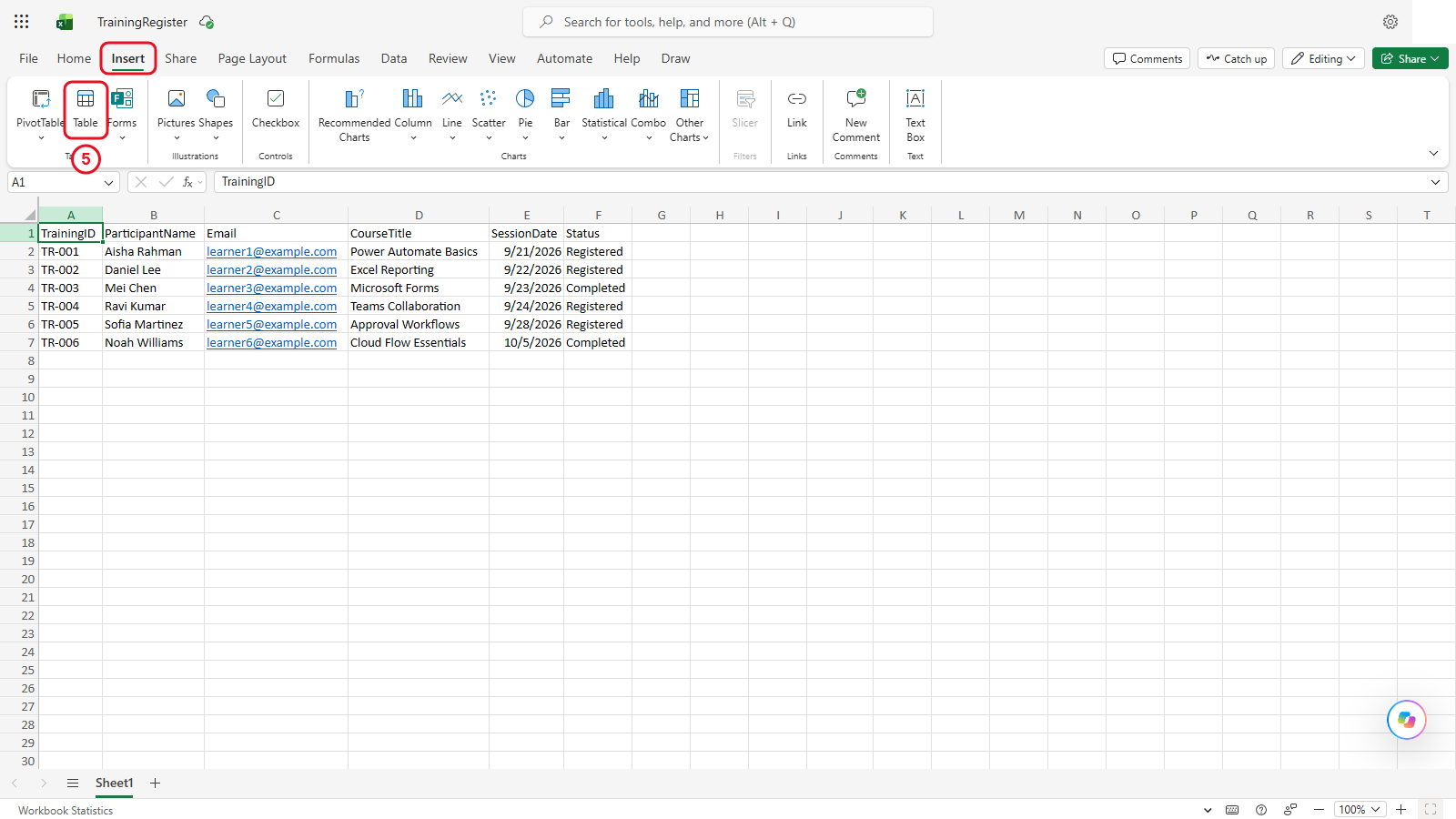
Insert is the third tab, after File and Home. Table is near the left end of the Insert tab.
- With a cell in the table still selected, select the Table Design tab that has appeared at the end of the ribbon.
- At the far left of that tab, select the name box (it reads something like Table1), type
tblTrainingand press Enter.
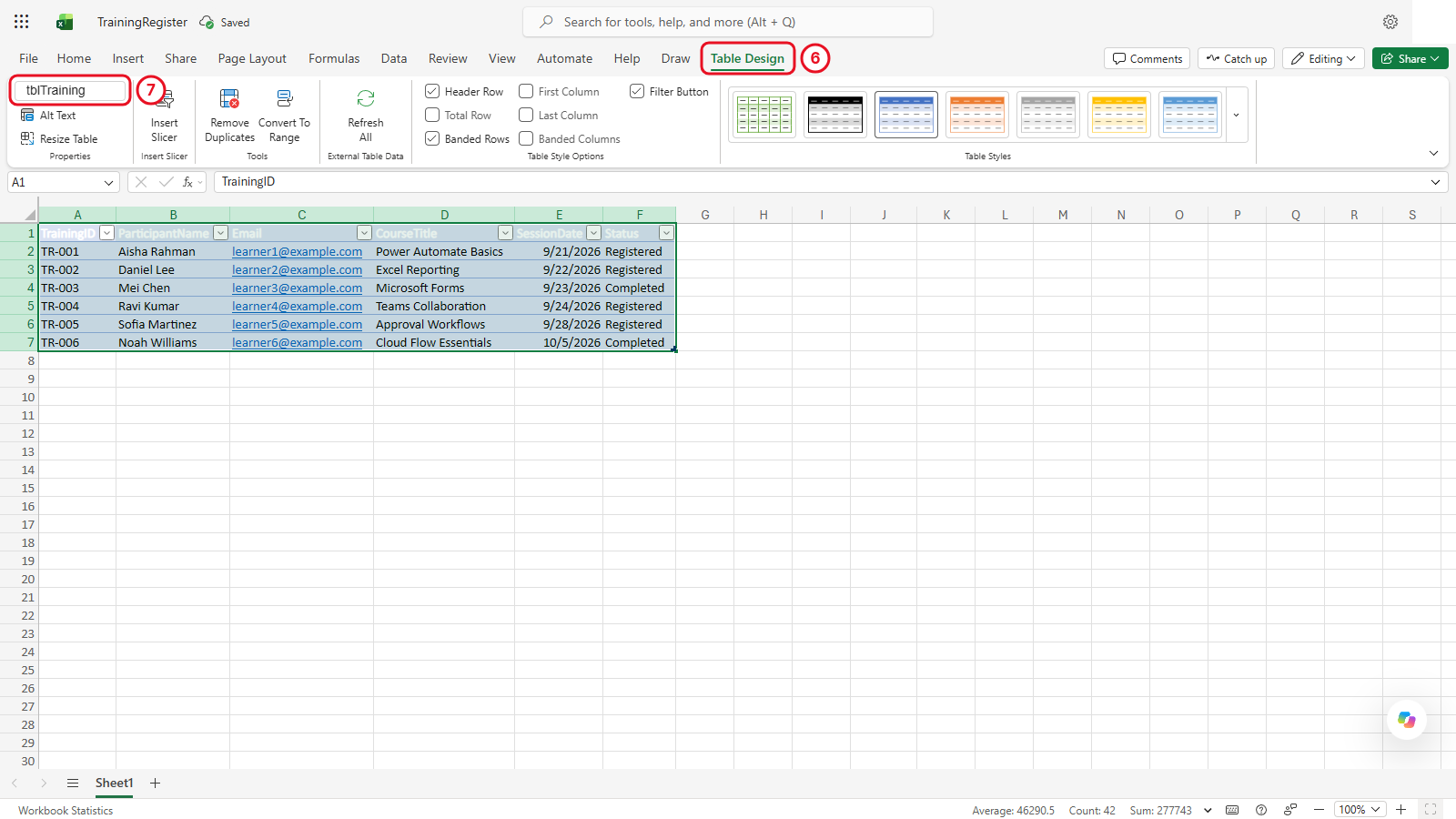
Set the table name on the Table Design tab.
Checkpoint: The workbook is named TrainingRegister.xlsx, the data is a formatted table named tblTraining, and the table has six fictional records.
If Power Automate can’t find the table later, check three things: the workbook is in OneDrive for Business, the range is formatted as a table, and the table name is exactly tblTraining.
2.3 Prepare a Test Email
Download: test-files.zip (one click, all three files).
- Open your Downloads folder, right-click
test-files.zipand choose Extract All. - Open Outlook on the web (outlook.office.com) with the training account and select New mail (it may just say New) at the top left.
-
In To, type your own email address, the mailbox you connect to Power Automate in Chapter 3. In the subject line, enter the subject below.
[PA TRAINING] Attachment test -
Select the large empty area under the subject line (the message body) and type the text below.
Training attachment test. - On the Message tab of the ribbon, select Attach file > Browse this computer, go to the extracted test files and pick
CourseOutline.pdf. Repeat forTrainerPhoto.jpg. If Outlook asks whether to attach the picture or insert it inline, choose to attach it. - Don’t send it. Outlook saves the message automatically (you see Draft saved at the right of the subject line). Select Inbox in the folder list to leave it. The message waits in Drafts.
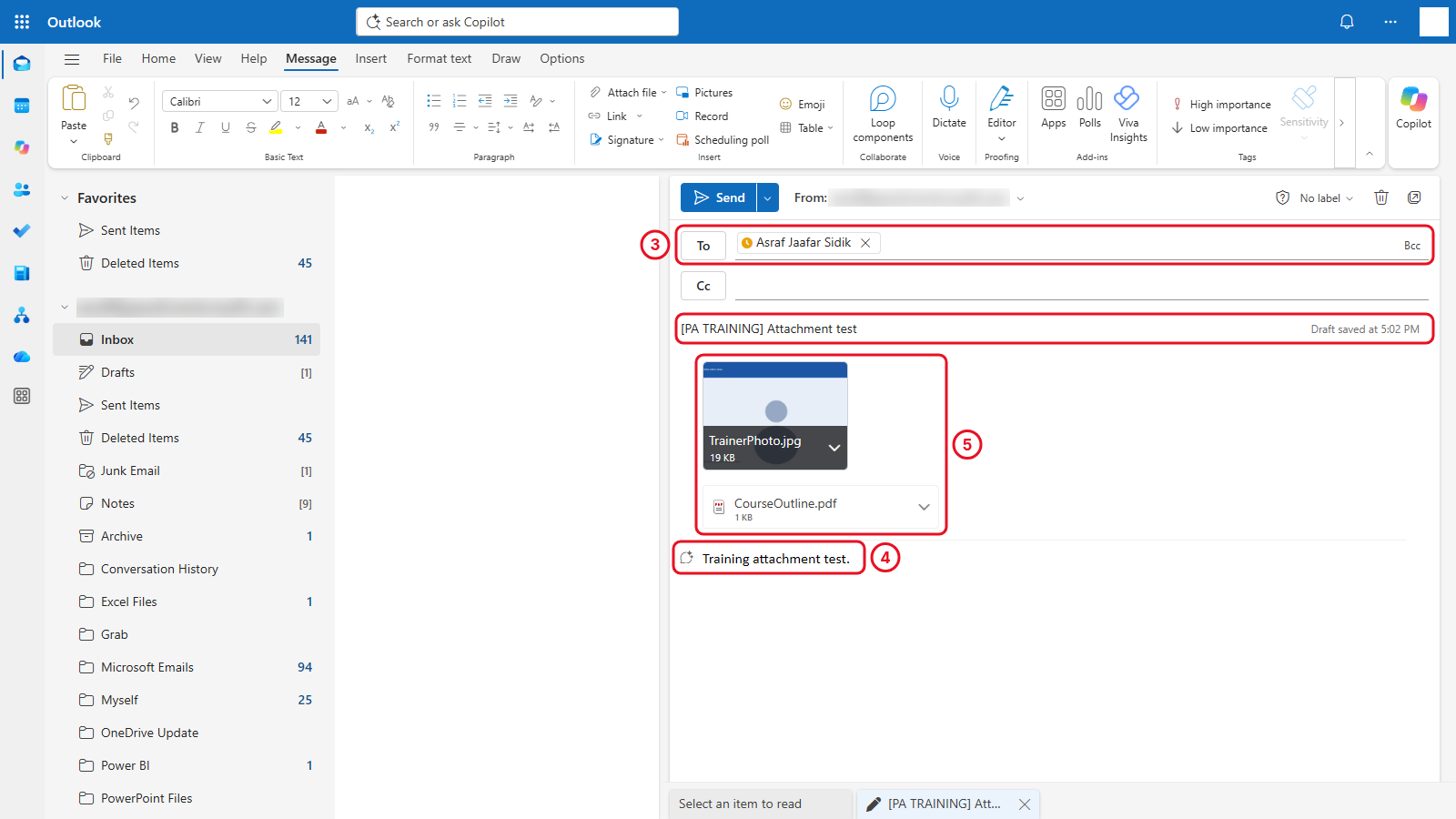
The picture shows as a thumbnail and the PDF as a smaller chip. Both are attachments. The test email waits in Drafts until Chapter 3.
Important: Don’t attach real course materials or any file whose name contains a person’s name. The filename shows up in run history and in your OneDrive folder.
The Chapter 3 flow only reacts to new messages, so you send this draft during the test in section 3.6.
2.4 Confirm Forms Readiness
Open Microsoft Forms and confirm the training account can create a form. You build the Training Request form in Chapter 6, right before the flow that uses it. It will ask for Requester name, Course, Preferred date and Business reason, with fictional answers only.
2.5 Confirm the Teams Training Destination
Ask the trainer for the team and channel, or the training chat, and write its name down. The trainer confirms posting access before the Teams exercises: the optional extension in Chapter 4 and the approval messages in Chapter 6.
The Teams connector is standard, but your organisation may restrict posting or require the Workflows app. If you can’t post a test message, tell the trainer before building the summary flow.
2.6 Confirm the Power Automate Environment
- Return to Power Automate.
- Look at the top right of the blue bar. The small word Environments sits above your environment’s name.
- Confirm it matches the environment your trainer gave you.
Key point: OneDrive files, Excel workbooks, Forms and Teams destinations aren’t packaged automatically when a solution is moved. Keep a note of where each resource lives. Your trainer demonstrates moving flows in Chapter 10.
Independent Practice
Find the rows in tblTraining whose Status is Completed (there are two: TR-003 and TR-006). Which later reminder test should exclude them, and why? Then write a second test email without the [PA TRAINING] marker, save it as a draft, and predict whether the attachment flow should process it once it’s sent.
Lesson Summary
You created a dedicated OneDrive training area with its folders and Excel table, prepared safe inputs for the attachment and summary exercises, confirmed the environment, and noted where the Forms and Teams work will happen. Next you build the flow that saves qualifying email attachments.