
13 - Extra Practice: Personal Automations
Four small flows for when you finish early, or for practice back at your desk. Each one only reads your own data or writes to your own OneDrive training folder, and only notifies you. None of them touches shared sites, lists, teams or other people’s mailboxes.
Copy-paste values: every value you need is in the steps, with a Copy button. The copy-paste page has them all on one page too.
Estimated time: 15 to 20 minutes each, self-paced
Your result: Up to four working personal flows, each built with the skills from Chapters 3 to 8.
Files for this lab: None. Each exercise uses your own mailbox, OneDrive, Teams or a public news feed.
Which One Should I Try?
| Exercise | Flow type | Practises | Connectors |
|---|---|---|---|
| A. Flagged email to To Do | Automated | Triggers and dynamic content | Office 365 Outlook, Microsoft To Do (Business) |
| B. Send me a note | Instant | Trigger inputs | Microsoft Teams (your own Flow bot chat) |
| C. Save an email to OneDrive | Automated | Trigger filters, file actions | Office 365 Outlook, OneDrive for Business |
| D. News digest | Automated | A non-Microsoft 365 trigger | RSS, Office 365 Outlook |
Tip: Turn each flow off when you’ve finished testing, unless you want to keep using it. In My flows, select the … beside the flow, then Turn off.
How the steps work: the designer basics are the same as in Chapter 3.
- Add an action: on the canvas, select the + under the last step, then Add an action. Type the action’s name in the search box and pick it under the named connector.
- Insert a value: click into the field, then select the lightning bolt icon beside the box (or type
/and choose Insert dynamic content) and pick the value. If you can’t see it, select See more under the step’s name, or type the value’s name in the picker’s search box.- Save and Test are at the top right of the designer.
A. Flagged Email to To Do
The problem: You flag emails to come back to, then forget about them. This flow adds every flagged email to your personal To Do list.
- Select Create in the left navigation, then the Automated cloud flow tile. In Flow name, enter
PA - Flagged email to To Do. - In the trigger search box, type
flagged, select When an email is flagged (V4) under Office 365 Outlook, and select Create. - Select the trigger card on the canvas to open its panel on the left, and set Folder to Inbox.
-
Under the trigger, select + > Add an action, search
to-do, and choose Add a to-do (V3) under Microsoft To Do (Business). Open the To-do List dropdown and pick Tasks, then fill in the other two fields:Field Value Title Type Follow up:(with a space at the end), then insert SubjectBody Content Type From(with a space at the end), then insert FromTitle start (ends with a space):
Follow up:Body Content start (ends with a space):
From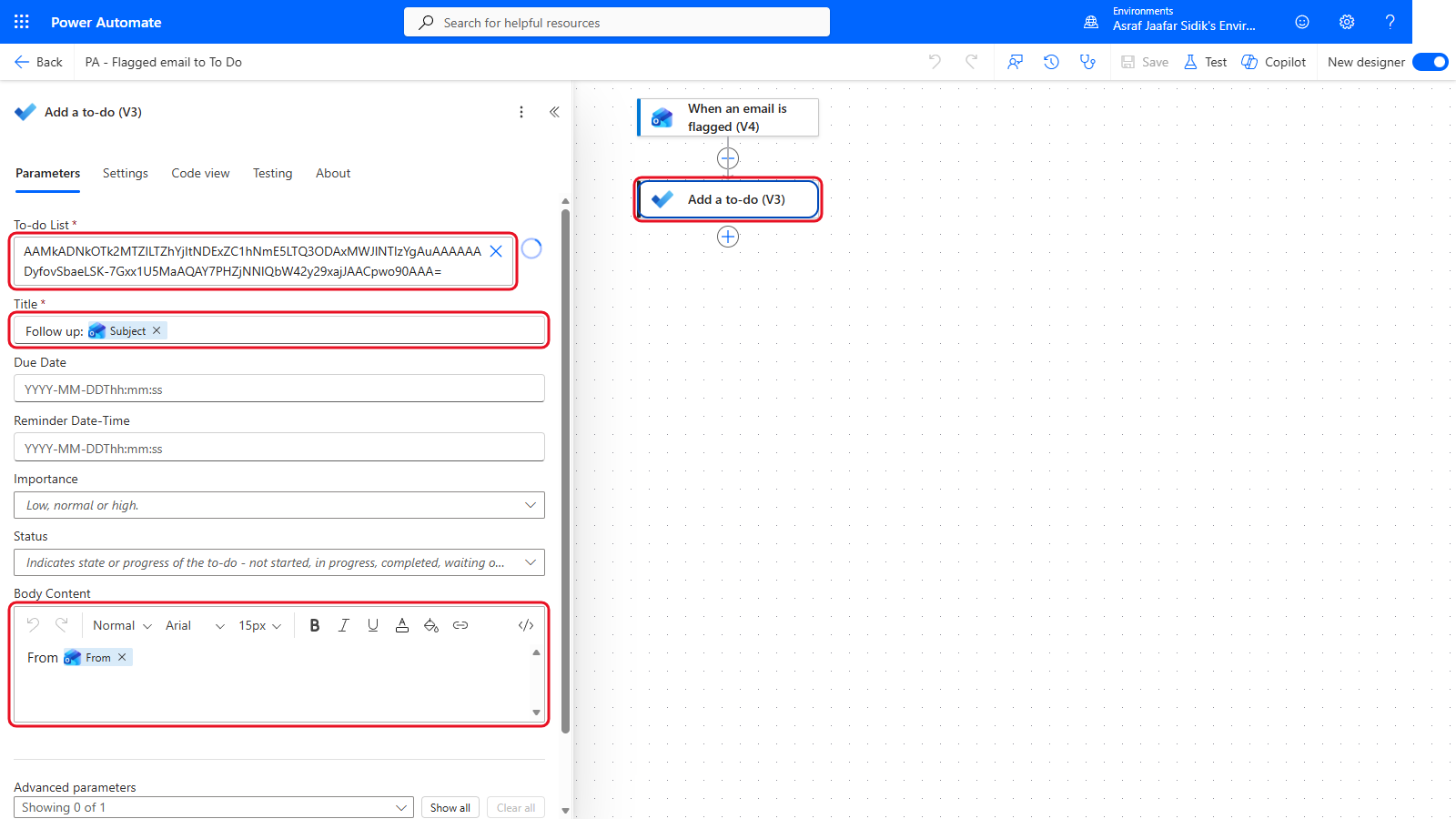
The flagged email’s subject becomes the task title.
Note: After you pick Tasks, the To-do List field may show a long ID instead of the name. That’s normal.
- Select Save, then Test > Manually > Test. In Outlook, flag any email in your inbox. Within a minute, the task appears in Microsoft To Do.
Check your flow so far. Your screen should look like this.
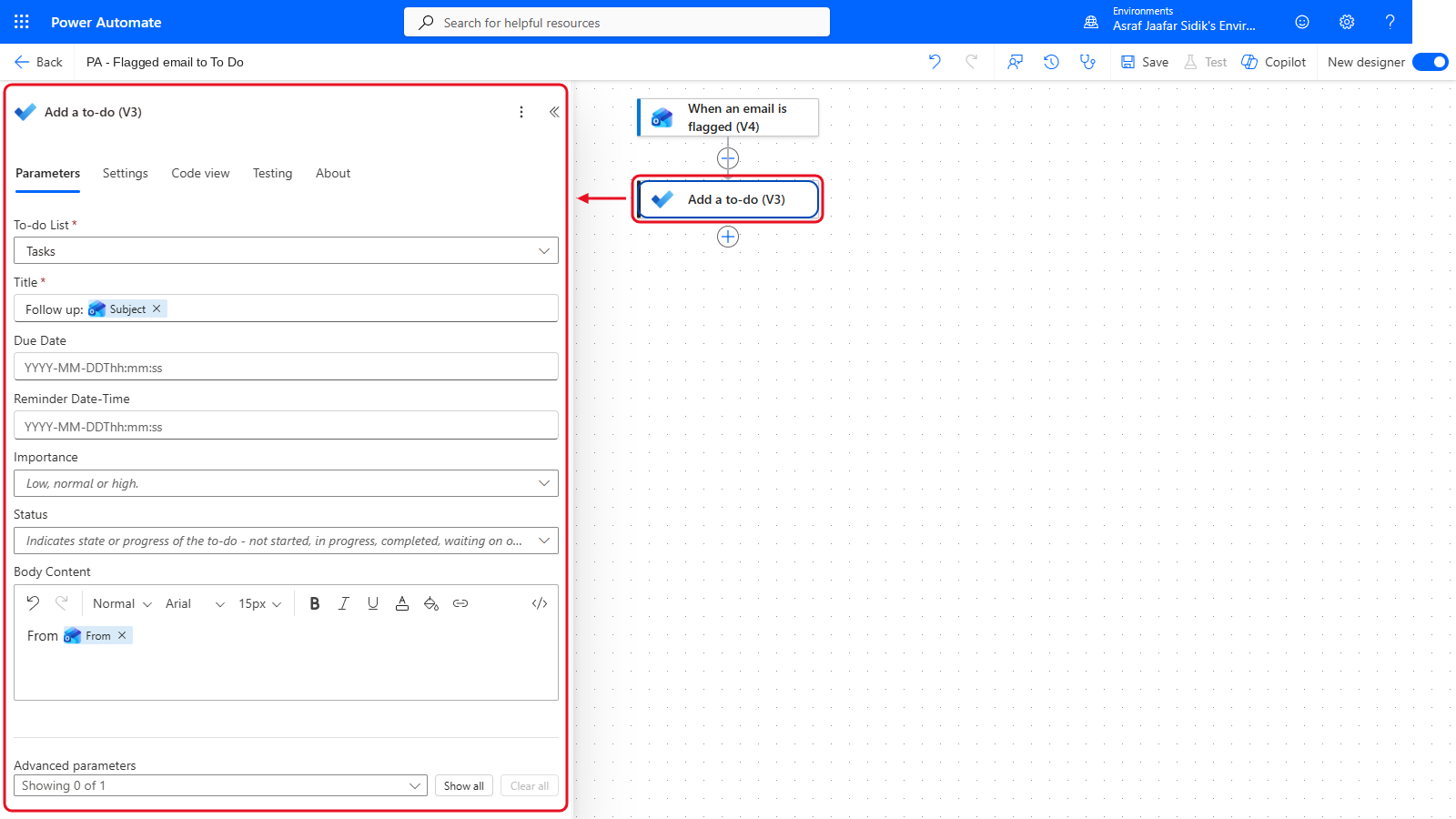
Two steps: the trigger and Add a to-do (V3).
B. Send Me a Note
The problem: You think of something and want a quick reminder where you’ll see it. This instant flow asks you for a message and sends it to you as a Teams chat from Flow bot. It only posts in your own chat with Flow bot.
- Select Create in the left navigation, then the Instant cloud flow tile. In Flow name, enter
PA - Send me a note. - Under Choose how to trigger this flow, select Manually trigger a flow, then select Create.
-
Select the trigger card on the canvas. In its panel, select + Add an input, then Text. Select the first box, which reads Input, delete that word and type
Message.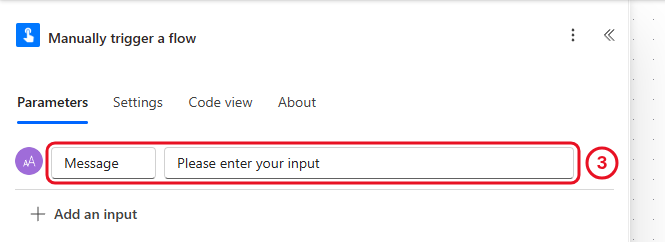
A trigger input asks the person running the flow to type something first.
-
Under the trigger, select + > Add an action, search
post message, and choose Post message in a chat or channel under Microsoft Teams. Fill in the fields in this order, because Recipient only appears after you choose Post in:Field Value Post as Flow bot Post in Chat with Flow bot Recipient Your own email address Message Type Reminder:(with a space at the end), then insert Message from Manually trigger a flowMessage start (ends with a space):
Reminder: - Select Save, then Test > Manually > Test. In the panel that opens, type a short message, then select Run flow. The message appears in Teams, in your chat with Flow bot.
Note: Earlier versions of this exercise used Send me a mobile notification. During testing that action reported that the Power Automate mobile app had been retired and notifications had nowhere to go, so this version uses Teams instead.
Check your flow so far. Your screen should look like this.
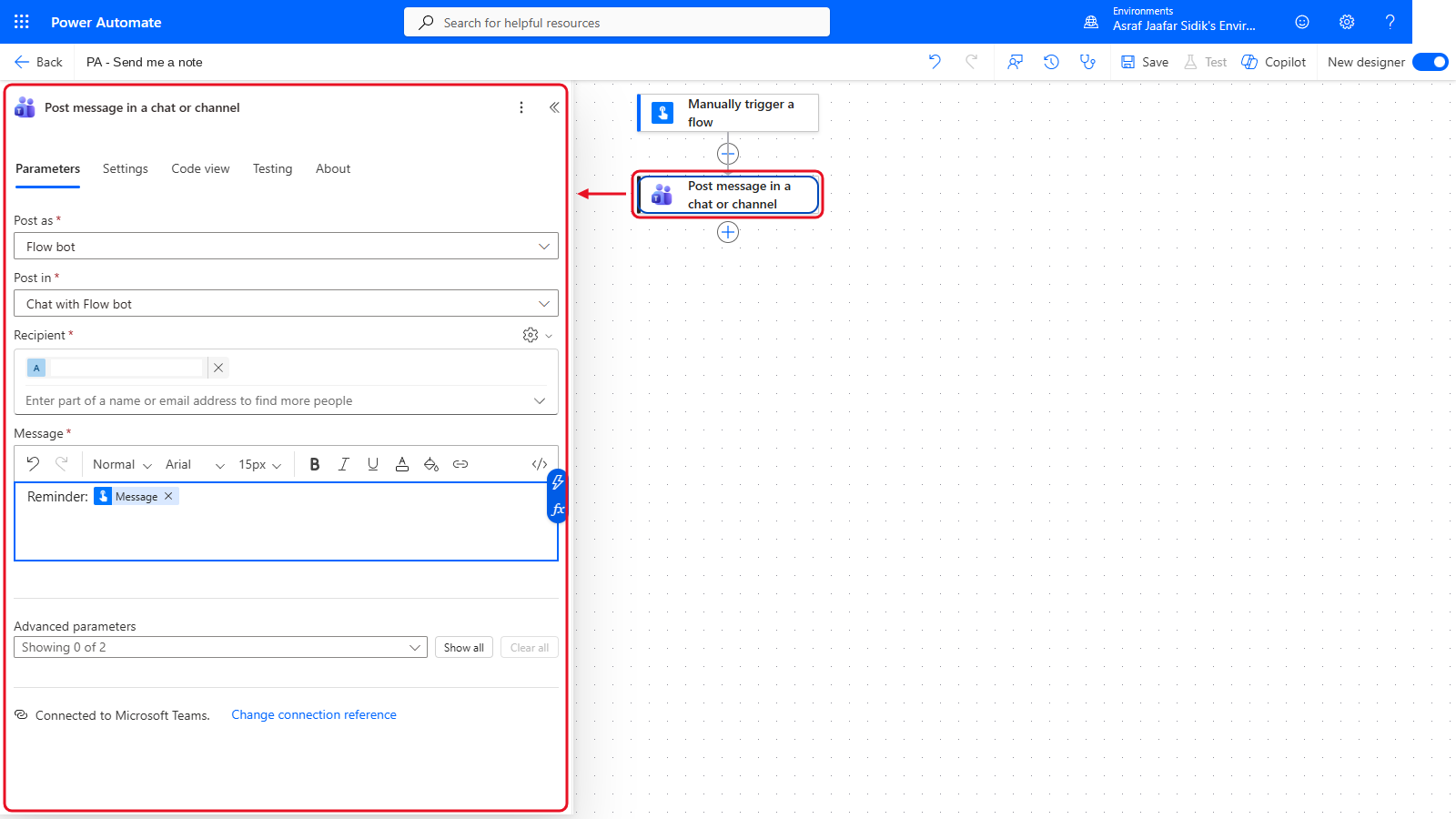
Two steps: the trigger and the Teams message.
C. Save an Email to OneDrive
The problem: Some emails need keeping as files: a confirmation, a booking, an agreement. This flow saves any email you send yourself with [PA SAVE] in the subject as a file in your training folder.
- Select Create in the left navigation, then the Automated cloud flow tile. In Flow name, enter
PA - Save email to OneDrive. - In the trigger search box, type
new email, select When a new email arrives (V3) under Office 365 Outlook, and select Create. - Select the trigger card on the canvas to open its panel, and set Folder to Inbox. Near the bottom of the panel, next to Advanced parameters, select Show all, then type
[PA SAVE]in Subject Filter. - Under the trigger, select + > Add an action, search
export email, and choose Export email (V2) under Office 365 Outlook. Click into Message Id and insert Message Id from When a new email arrives (V3). -
Under Export email (V2), select + > Add an action, search
create file, and choose Create file under OneDrive for Business:Field Value Folder Path Type /Power Automate Training/Reports, or select the folder icon at the right of the box and browse to ReportsFile Name Insert Subject from the trigger, then type .emlstraight after itFile Content Insert Body from Export email (V2) Folder Path:
/Power Automate Training/Reports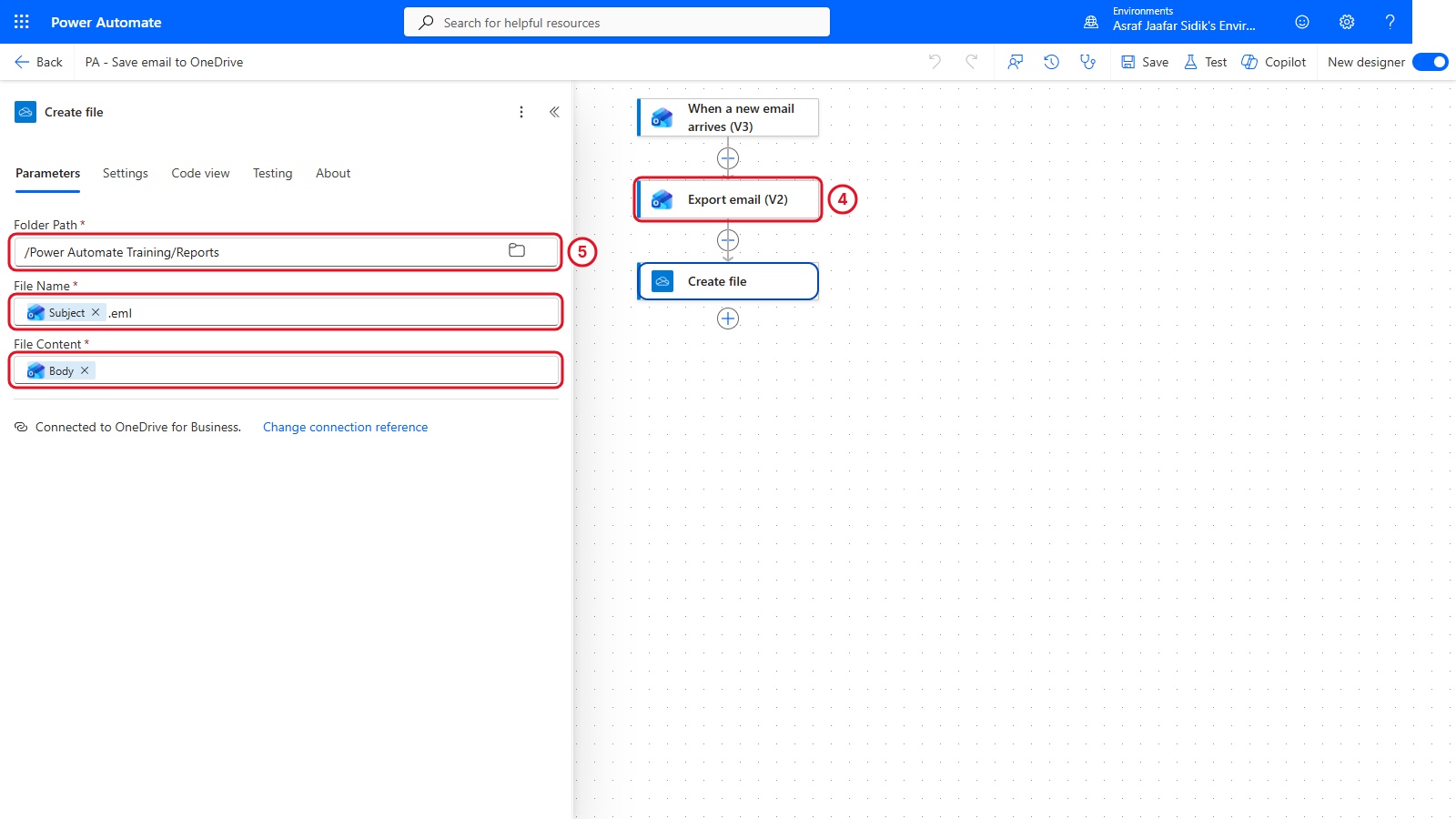
Export email turns the message into a file. Create file saves it.
-
Select Save, then Test > Manually > Test. In Outlook, send yourself an email with the subject below. Copy it from the box below.
[PA SAVE] Booking confirmationA
.emlfile appears in Reports. Double-click it to open it in Outlook.
Check your flow so far. Your screen should look like this.
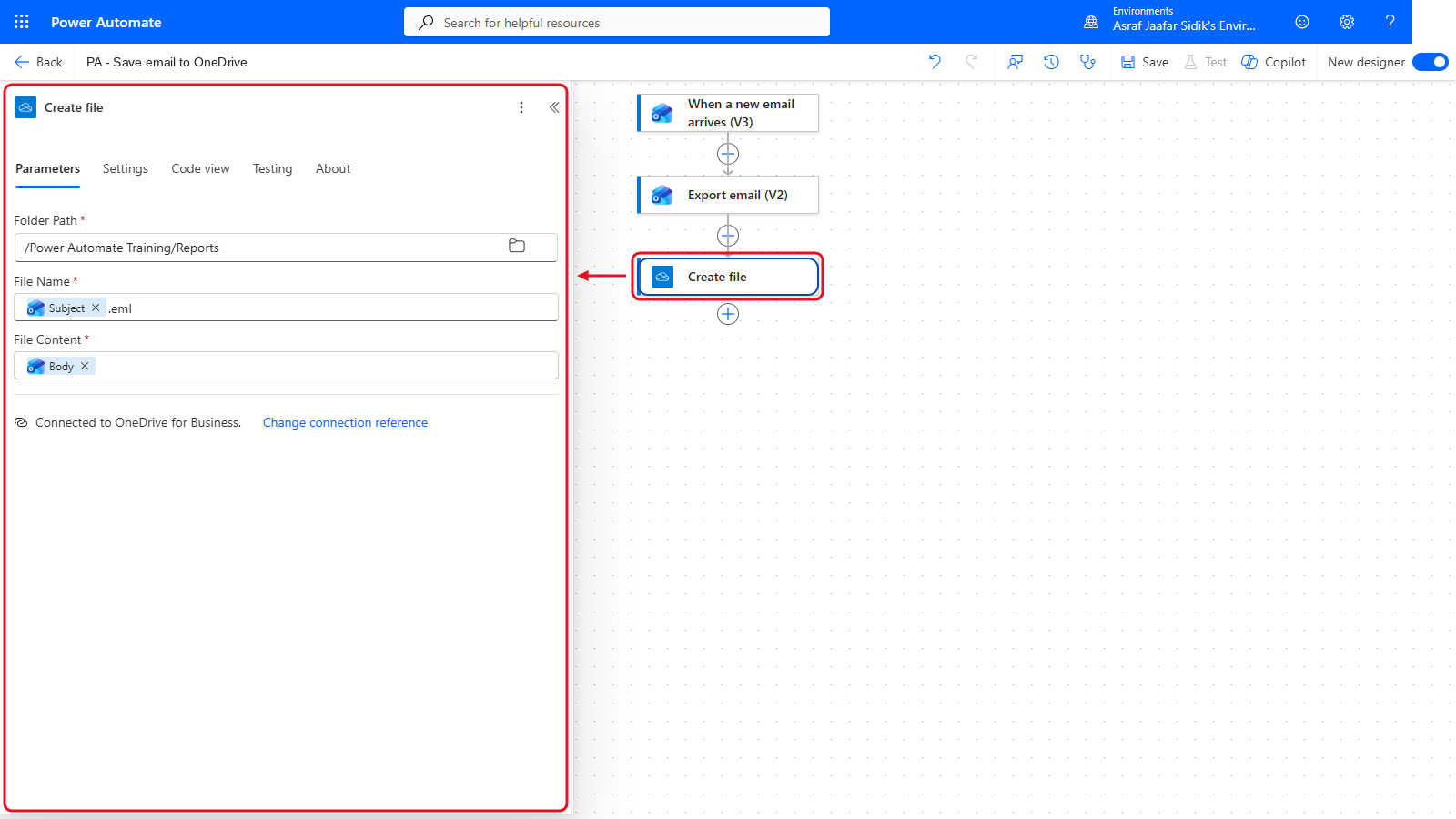
Three steps: the trigger, Export email (V2) and Create file.
D. News Digest
The problem: You want to keep up with Power Automate news without checking the blog. This flow emails you whenever a new post is published.
- Select Create in the left navigation, then the Automated cloud flow tile. In Flow name, enter
PA - Power Platform news. - In the trigger search box, type
RSS, select When a feed item is published, and select Create. -
Select the trigger card on the canvas. In The RSS feed URL, paste the Microsoft Power Platform blog feed. Copy it from the box below.
https://www.microsoft.com/en-us/power-platform/blog/feed/ -
Under the trigger, select + > Add an action, search
send an email, and choose Send an email (V2) under Office 365 Outlook:Field Value To Type your own email address and select it from the suggestions Subject Type New post:(with a space at the end), then insert Feed titleBody Insert Feed summary, press Enter, then insert Primary feed link Subject start (ends with a space):
New post: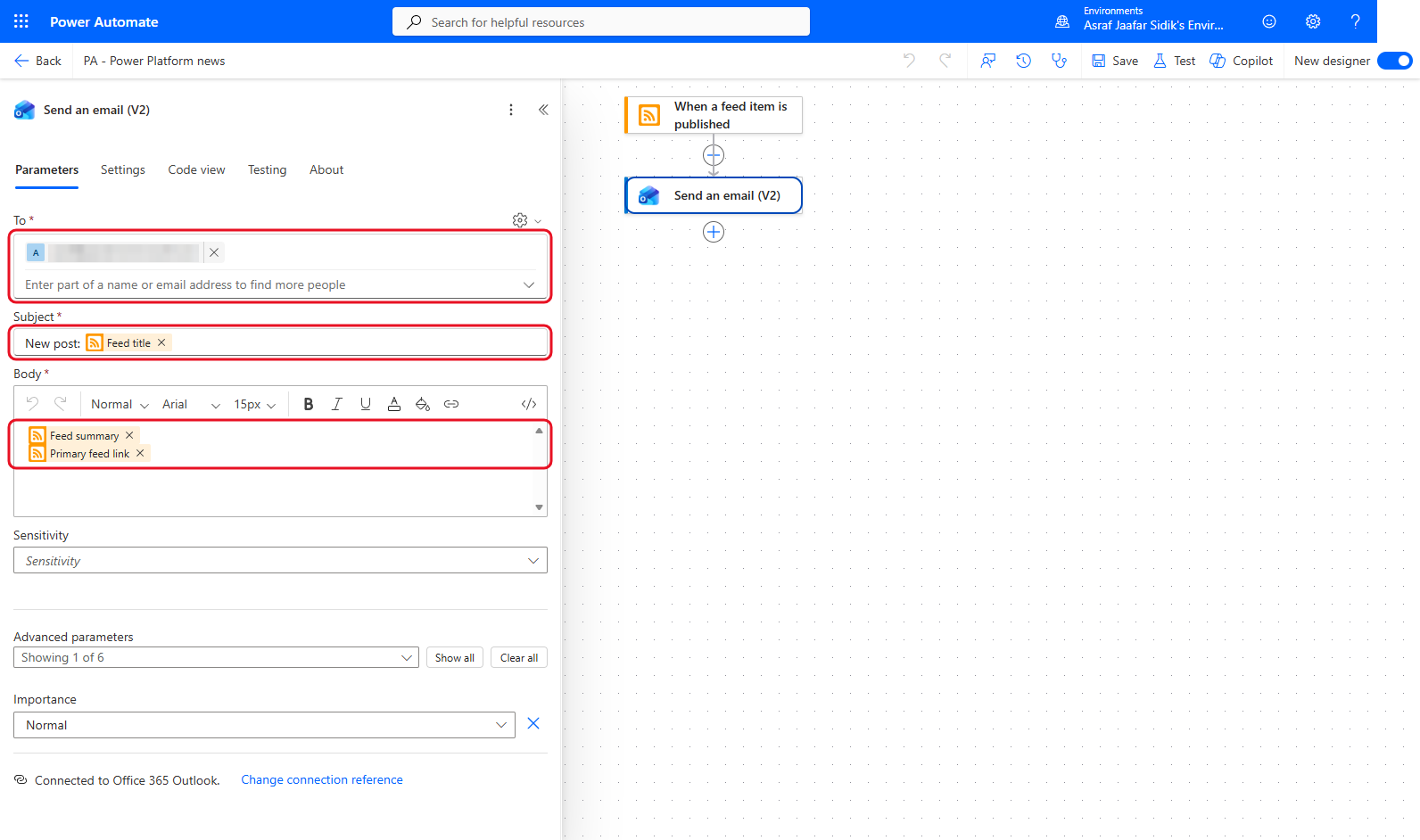
The RSS connector watches a public web feed. It reads, and never writes, anything. Ignore any extra fields such as Importance; leave them as they are.
-
Select Save, then select My flows on the left. Select the … beside PA - Power Platform news, then Turn on. The next new blog post arrives in your inbox.
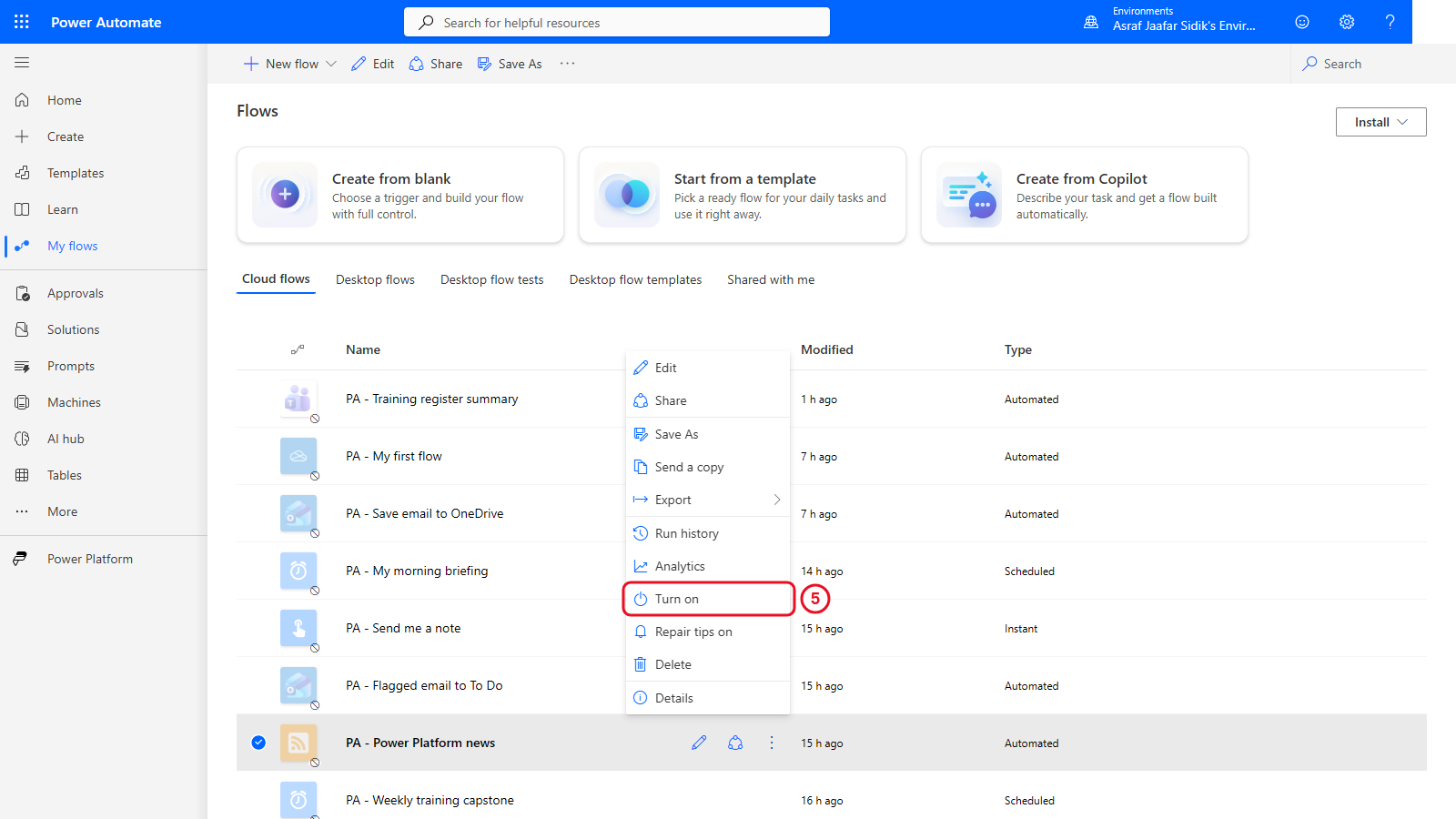
Turn on is in the flow’s … menu in My flows. The RSS trigger checks for new posts on a schedule, so a test may not fire straight away.
Note: If the feed URL stops working, open the blog in your browser and look for its RSS link, or try any other news site that offers an RSS feed.
Check your flow so far. Before step 5, your designer should look like this.
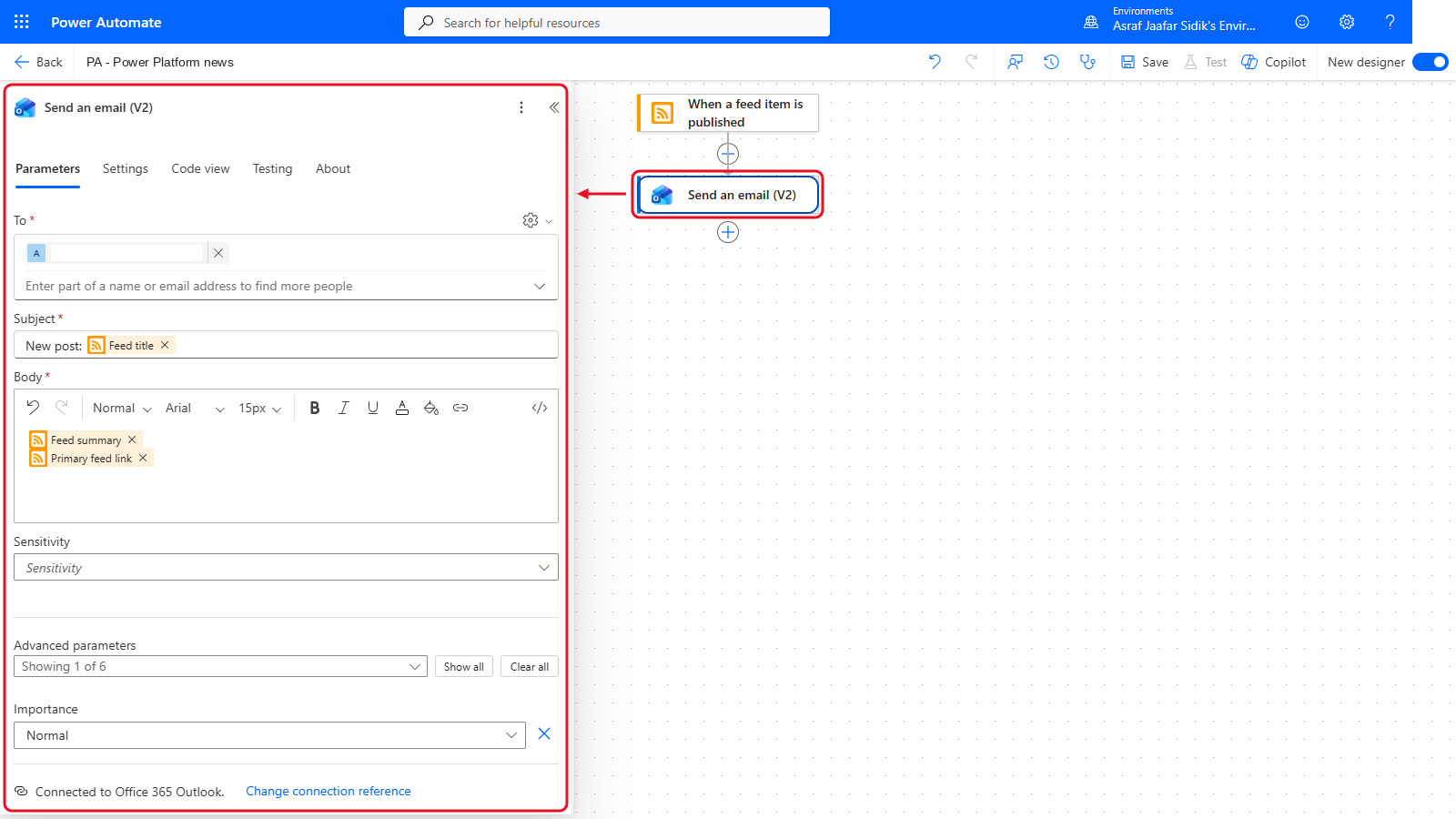
Two steps: the feed trigger and Send an email (V2).
Lesson Summary
Small personal flows are the best way to keep practising after the course. Each one here uses a different starting point (a flag, a button, a subject filter and a web feed) with the same building blocks: a trigger, dynamic content and an action.