
11 - Look Up Currency Rates with a Desktop Flow
Every chapter so far built a cloud flow that talks to online services. This one is different. You build a desktop flow in Power Automate for desktop that drives your own computer: it opens Excel and Microsoft Edge, searches Google for each currency pair in a list, reads the converted amount off the page and types it back into Excel.
Copy-paste values: every value you need is in the steps, with a Copy button. The copy-paste page has them all on one page too.
Estimated time: 45 minutes
Your result: A desktop flow that loops through a list of currency pairs in Excel, looks up each rate on Google in Edge and writes the result into the third column.
Download: the files for this lab
- CurrencyList.xlsx: the list of currency pairs. Save it to your Desktop.
What You Will Learn
- Create a desktop flow in Power Automate for desktop
- Open Edge and Excel from a flow and store each one in a variable
- Find where an Excel table starts and ends with Get table range from Excel worksheet
- Repeat steps for every row with a Loop
- Capture UI elements on a web page and fill in or read them
- Send mouse clicks and keystrokes the way a person would
- Write a value back into a cell
How the Flow Works
Launch Edge > Launch Excel > Get table range > Loop (read From and To > type the search > press Enter > wait > read the rate > write it to Excel) > End
The flow opens Google in Edge and the workbook in Excel. It asks Excel where Table1 ends, then loops from row 2 (the first row under the headings) to the last row. On each pass it reads the two currency codes, types something like USD to MYR into Google, reads the converted amount from Google’s currency converter and writes it into column 3 of the same row.
| Cloud flow (Chapters 3 to 8) | Desktop flow (this chapter) |
|---|---|
| Runs in Microsoft’s cloud, even when your PC is off | Runs on your PC, using your mouse, keyboard and screen |
| Talks to services through connectors | Clicks, types and reads windows and web pages like a person |
| Built in a browser at make.powerautomate.com | Built in the Power Automate for desktop app |
Key point: A desktop flow takes over your mouse and keyboard while it runs. Once you select Run, keep your hands off them until the flow finishes.
Before You Begin
You need:
- A Windows computer with Power Automate for desktop installed, signed in with your training account. Search for Power Automate in the Start menu. If it isn’t installed, ask your trainer.
- The Excel desktop app. This flow opens the file in Excel on your PC, not Excel for the web.
- Microsoft Edge with the Microsoft Power Automate browser extension turned on. In Power Automate for desktop, select Tools > Browser extensions > Microsoft Edge to install it, then turn it on in Edge’s extensions page.
CurrencyList.xlsxsaved to your Desktop. Download it from the link at the top of this page.
The workbook has one table, named Table1:
| Column | Heading | Contents |
|---|---|---|
| 1 | From | The currency you have, such as USD |
| 2 | To | The currency you want, such as MYR |
| 3 | Result | Empty. The flow fills it in |
Warning: This flow reads a real web page that Google controls. If Google shows a cookie or sign-in prompt, accept or close it once in Edge before you run the flow. If Google changes its page, the UI elements you capture in 11.7 and 11.10 may stop matching and you’ll need to capture them again.
Important: Run this flow with one screen. With a second monitor, Edge can open on the other screen and the typing in 11.7 lands in whatever window is in front, usually Excel. To switch, press Windows key + P and choose PC screen only, then switch back after the lab. If your Desktop is in OneDrive (the file shows a cloud or tick icon), open
CurrencyList.xlsxonce, turn AutoSave off at the top left of Excel and close it. Otherwise a stray keystroke into the workbook is saved straight away.
11.1 Create the Desktop Flow
- Open Power Automate from the Start menu. This is the desktop app, not the website.
- Select + New flow.
-
In Flow name, enter the name below. Leave Sequence mode selected, then select Create.
PA - Currency lookup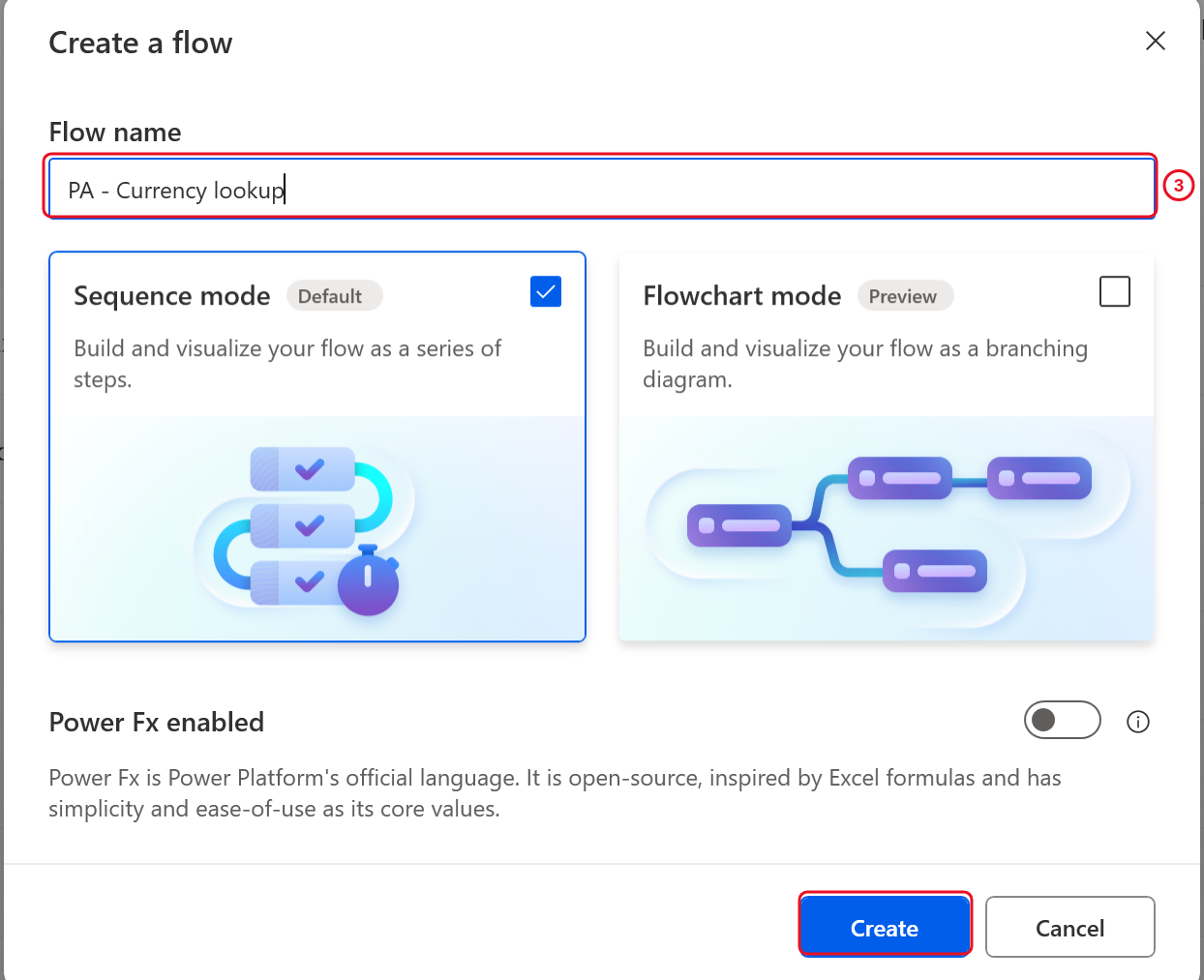
Type the name, keep Sequence mode, then Create.
- The flow designer opens. Actions is on the left, the Main tab (your flow) is in the middle, and the variables pane is on the right.
To add any action in this chapter: type its name in the Search box at the top of the Actions pane, then double-click it, or drag it into the Main tab where you want it. A settings window opens. Fill it in and select Save.
11.2 Open Google in Edge
- Search for
Launch new Microsoft Edgeand add it. - Set Launch mode to Launch new instance.
-
In Initial URL, enter:
https://www.google.com/ - Set Window state to Maximized, so Edge fills the screen.
-
Leave Variables produced as
Browser. Later actions use it to know which Edge window to work in.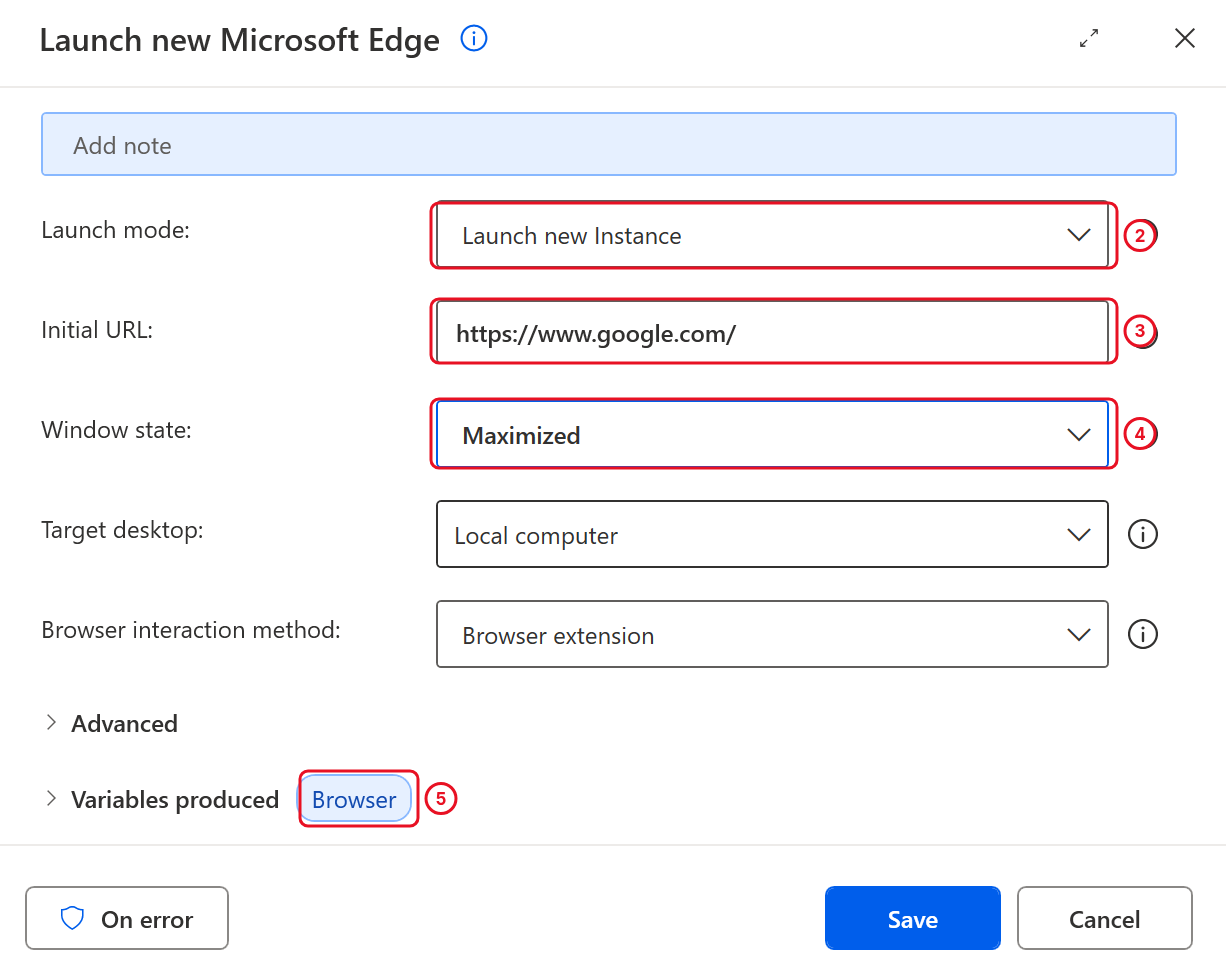
Check these four settings before you select Save. Target desktop and Browser interaction method keep their defaults.
- Select Save.
11.3 Open the Workbook in Excel
- Search for
Launch Exceland add it below the Edge action. - Set Launch Excel to and open the following document.
- In Document path, select the file icon at the right of the box, browse to your Desktop and select
CurrencyList.xlsx. - Leave Make instance visible on, so you can watch the results appear.
-
Leave Variables produced as
ExcelInstance.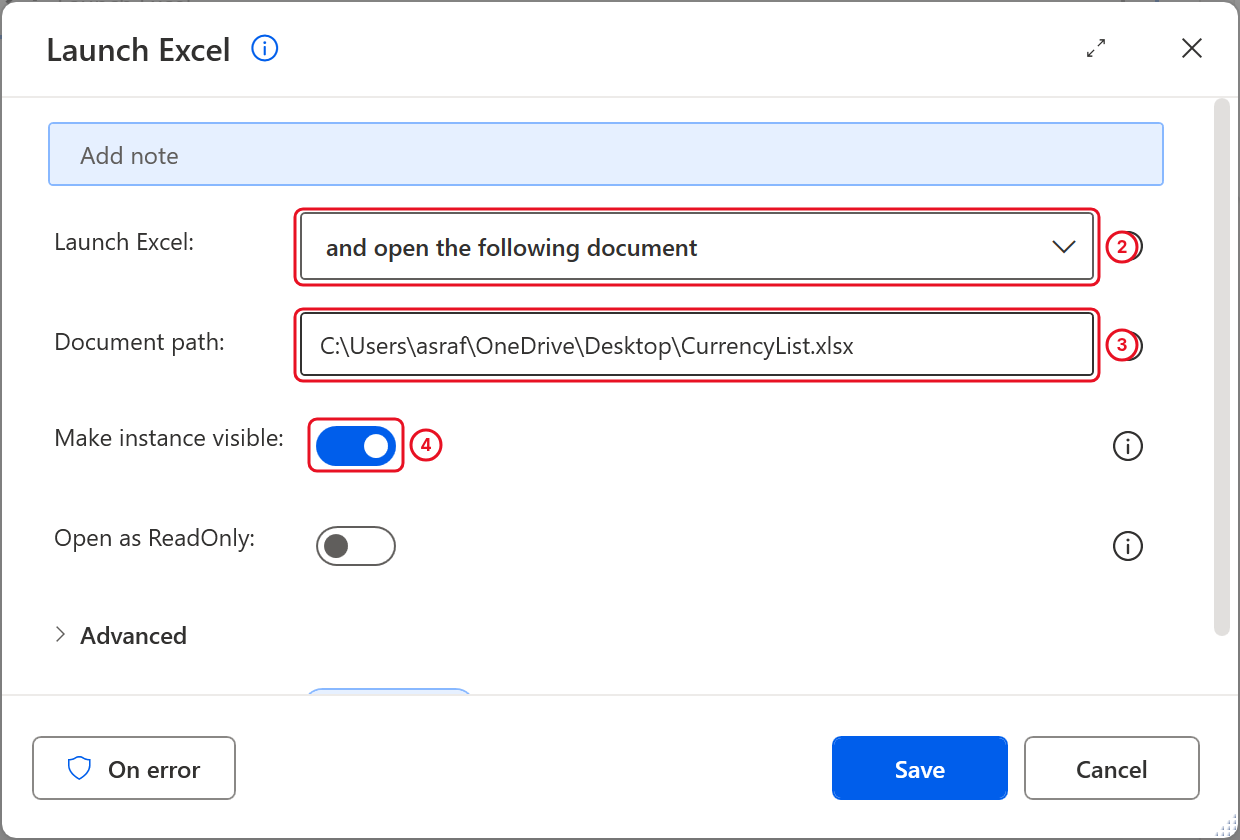
Your Document path shows your own user name and folder.
- Select Save.
11.4 Find the End of the Table
You could tell the loop to stop at row 6, but then it breaks the day someone adds a seventh pair. This action asks Excel where the table ends instead.
- Search for
Get table range from Excel worksheetand add it below Launch Excel. - Excel instance already shows
%ExcelInstance%. Leave it. -
In Table name, enter:
Table1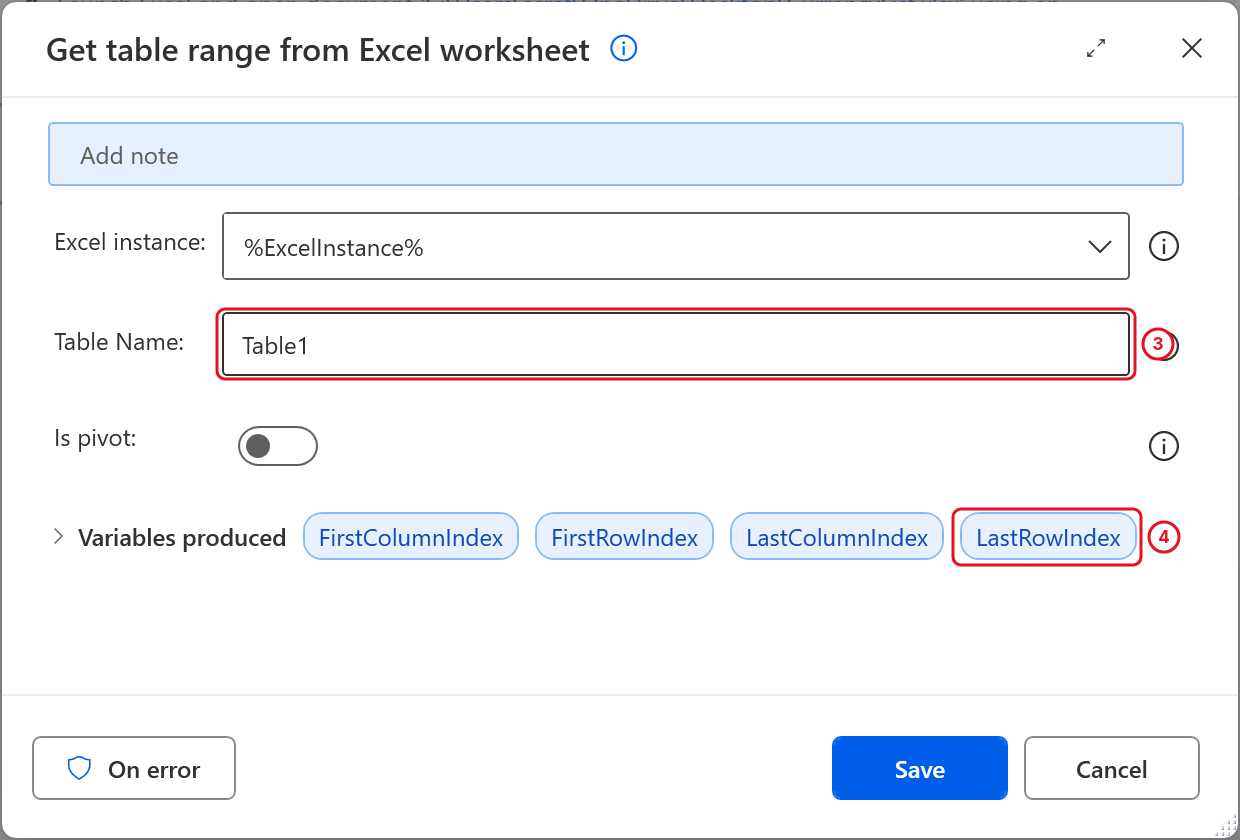
Table1 in Table Name, and LastRowIndex is the one variable you use.
- Select Save. It produces four variables:
FirstRowIndex,FirstColumnIndex,LastRowIndexandLastColumnIndex. You only needLastRowIndex, the row number of the last row in the table (6 in the downloaded file).
Note: Power Automate for desktop writes variables between percent signs, like
%LastRowIndex%. That tells it to use the variable’s value instead of the text. You can type them, or select the {x} icon at the right of a box and pick one from the list.
11.5 Loop Through the Rows
- Search for
Loopand, under Loops, add Loop (not For each or Loop condition) below Get table range. - In Start from, enter
2. Row 1 holds the headings, so the first pair is on row 2. -
In End to, enter:
%LastRowIndex% - In Increment by, enter
1. -
Leave Variables produced as
LoopIndex. It holds the current row number: 2 on the first pass, then 3, and so on.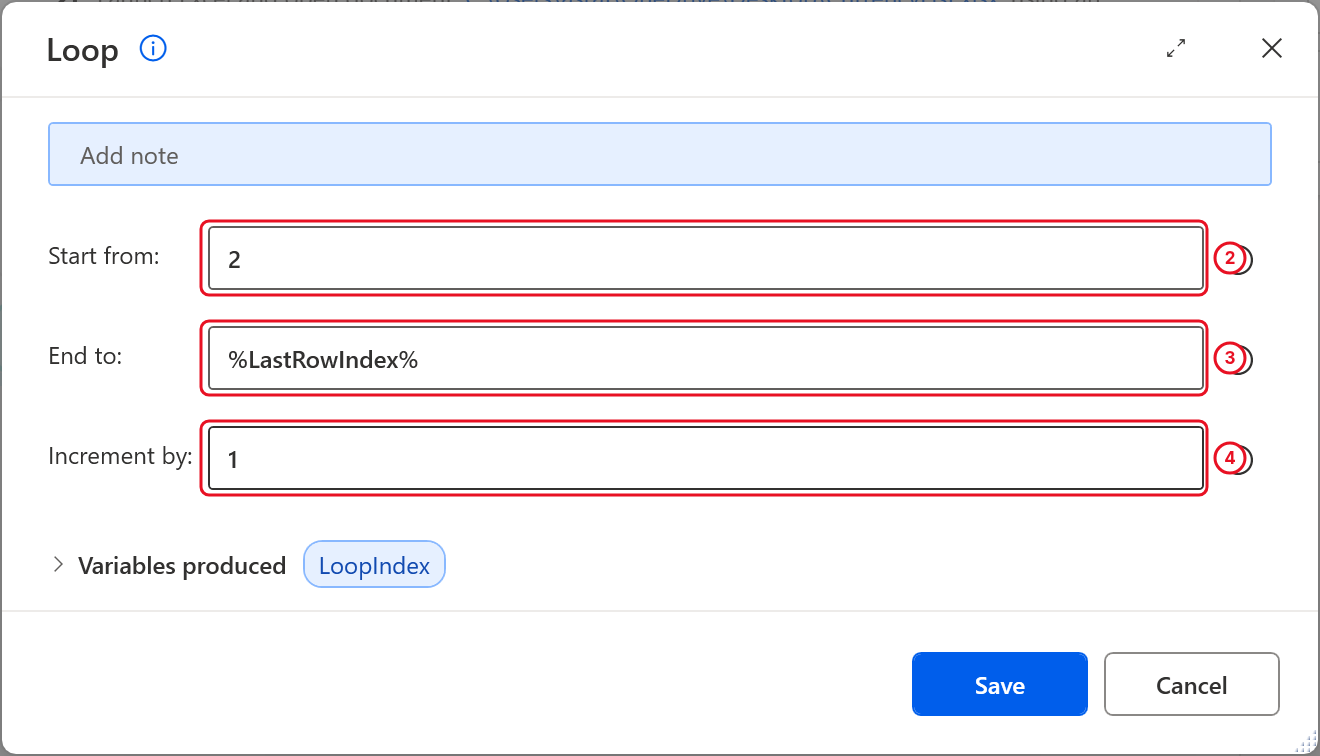
Start at 2, end at the last row, one row at a time.
-
Select Save. The designer adds a Loop line and an End line. Every action from 11.6 to 11.11 goes between them, so drop each one just above End. Actions inside the loop are indented.
Check your flow so far. Your screen should look like this.
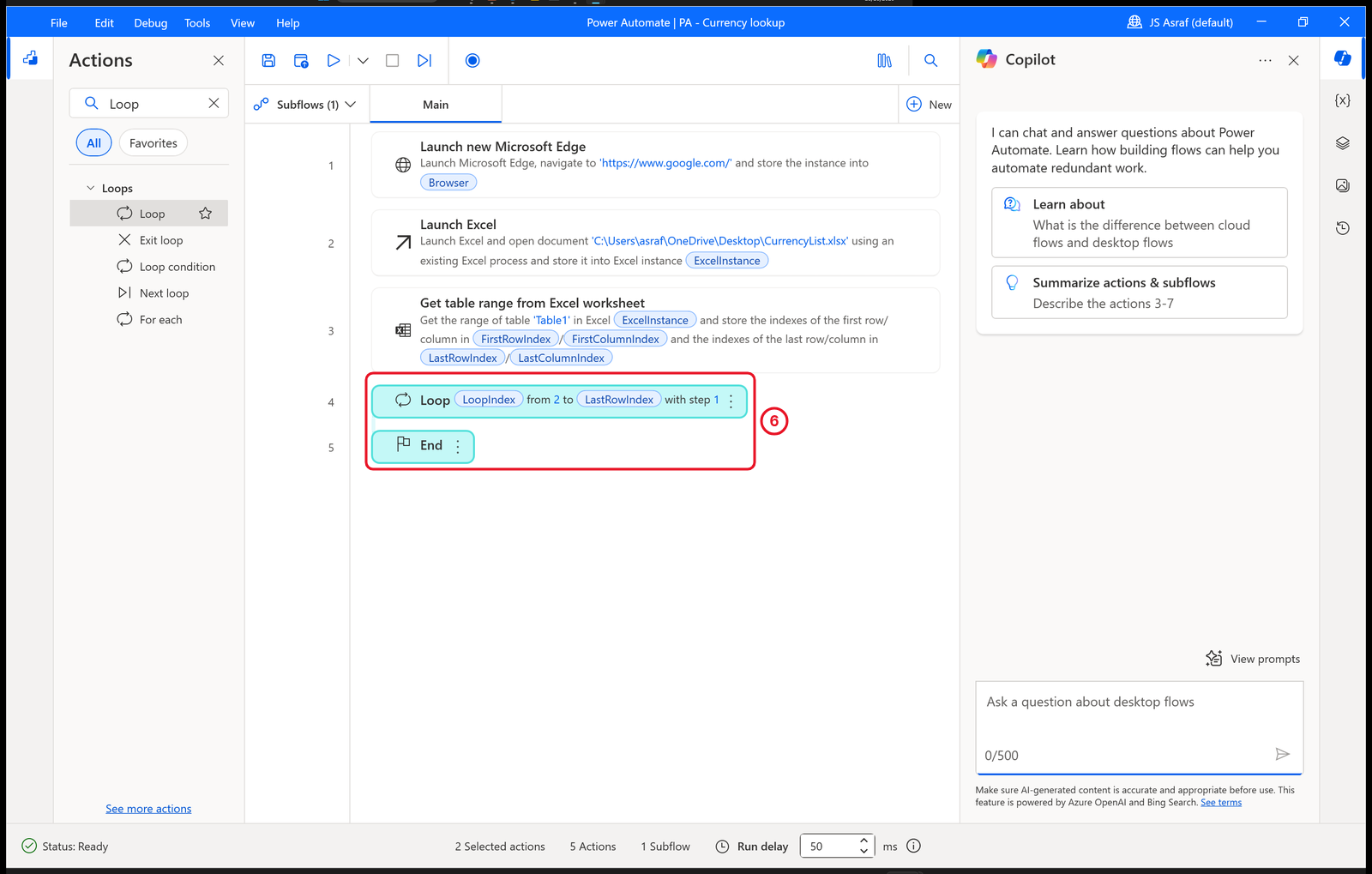
Four actions, then End. The next actions go between Loop and End.
11.6 Read the Two Currency Codes
Read the From code (column 1)
- Search for
Read from Excel worksheetand drag it between Loop and End. - Set Retrieve to The value of a single cell.
- In Start column, enter
1. -
In Start row, enter:
%LoopIndex% -
Under Variables produced, select the name
ExcelDataand change it to:scShort for source currency.
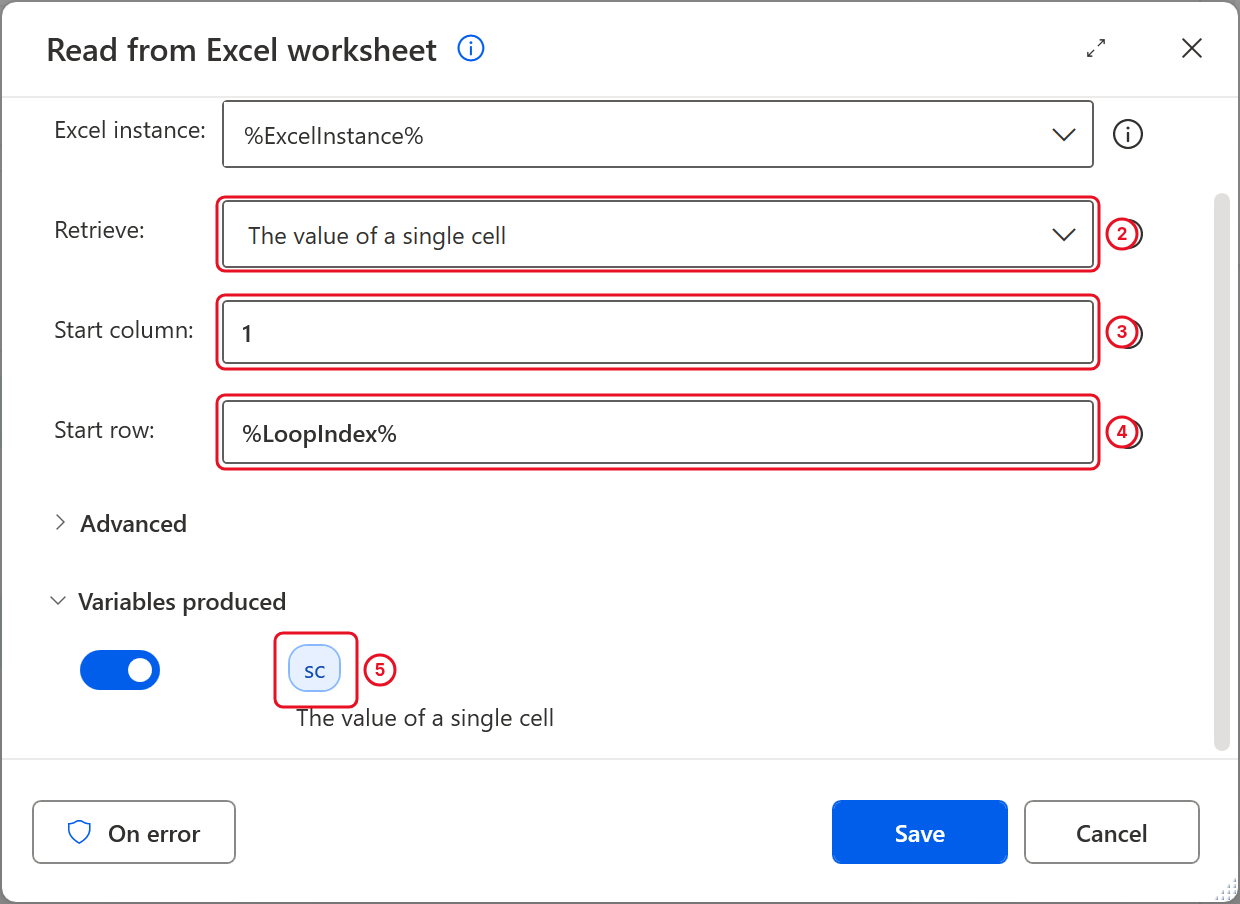
Column 1 of the current row goes into sc.
- Select Save.
Read the To code (column 2)
- Add another Read from Excel worksheet just below the first one, still inside the loop.
- Set Retrieve to The value of a single cell, Start column to
2and Start row to%LoopIndex%. -
Rename the variable from
ExcelDatato:ToBeCShort for to be converted to.
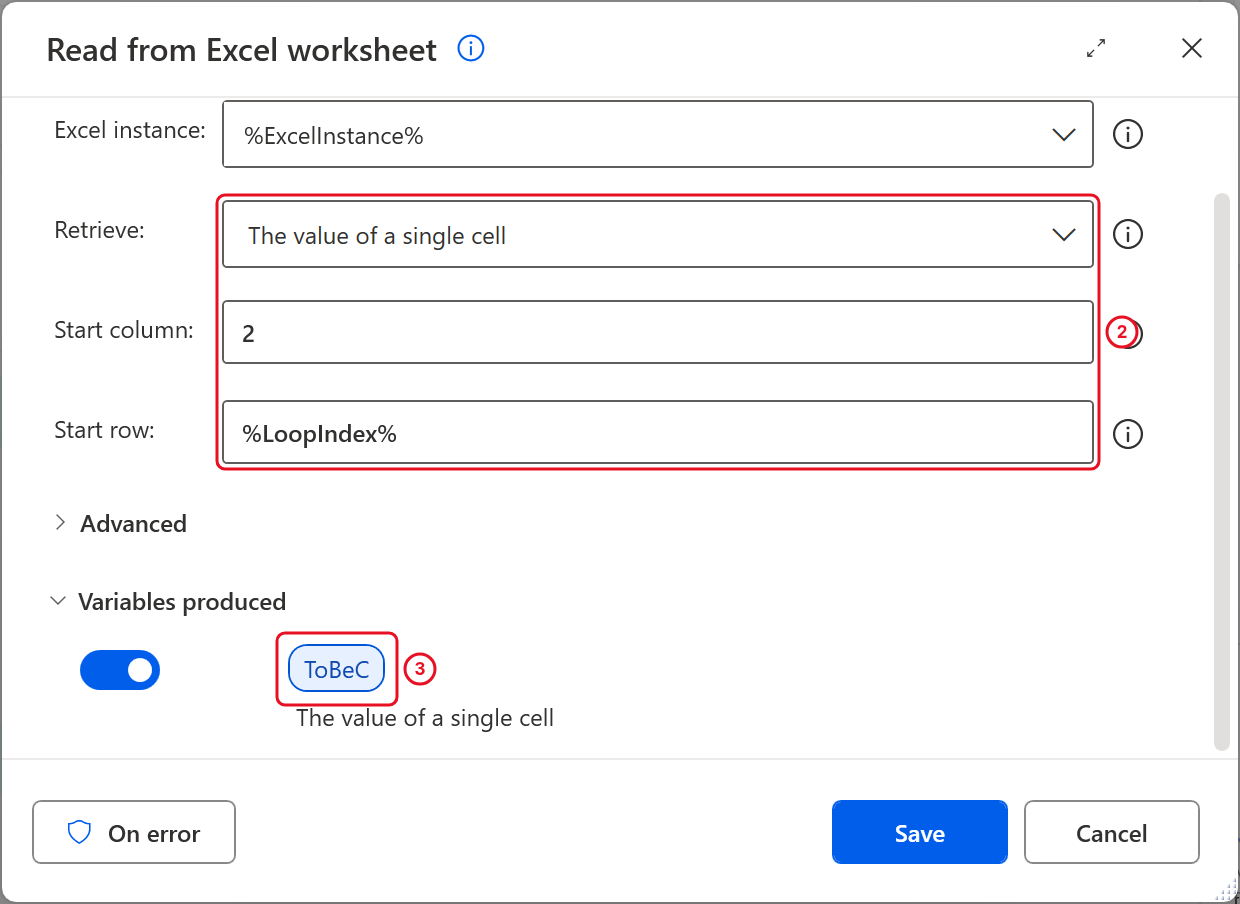
The same settings with column 2, stored in ToBeC.
- Select Save.
11.7 Type the Search into Google
You need Google open in Edge to capture its search box. Open Edge yourself, go to https://www.google.com/ and leave it on screen.
- Search for
Populate text field on web pageand add it below the second Read action, inside the loop. - Web browser instance shows
%Browser%. Leave it. - Open the UI element dropdown and select Add a new UI element. The tracking window appears.
- Switch to Edge and hover over Google’s search box. When a red frame labelled Text area ‘Search’ surrounds the box, hold Ctrl and click.
-
Back in the action, UI element shows Text area ‘Search’. In Text, enter:
%sc% to %ToBeC%For the first row this types
USD to MYR. -
Under Advanced, leave Emulate typing on, so the text is typed key by key like a person would.
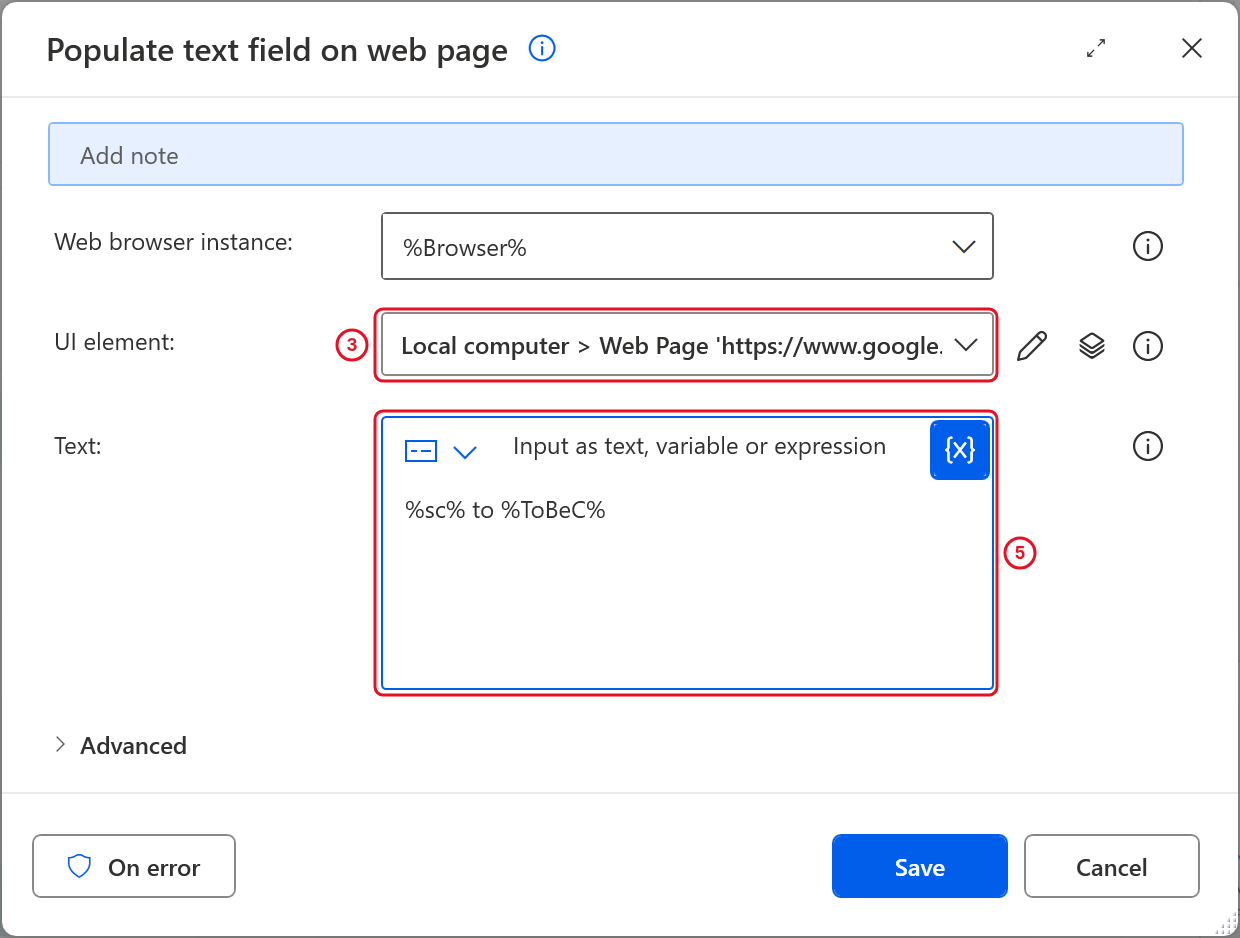
UI element now points at the Google search box you captured, shown as a path that starts Local computer > Web Page. Advanced is closed here: Emulate typing is on by default.
- Select Save.
11.8 Click and Press Enter
- Search for
Send mouse clickand add it below the Populate action. -
Leave Mouse event to send as Left click and Move mouse off. Select Save.
This clicks wherever the mouse pointer is. Because Edge is maximized, that lands in Edge and makes sure Edge is the active window before the next step presses Enter.
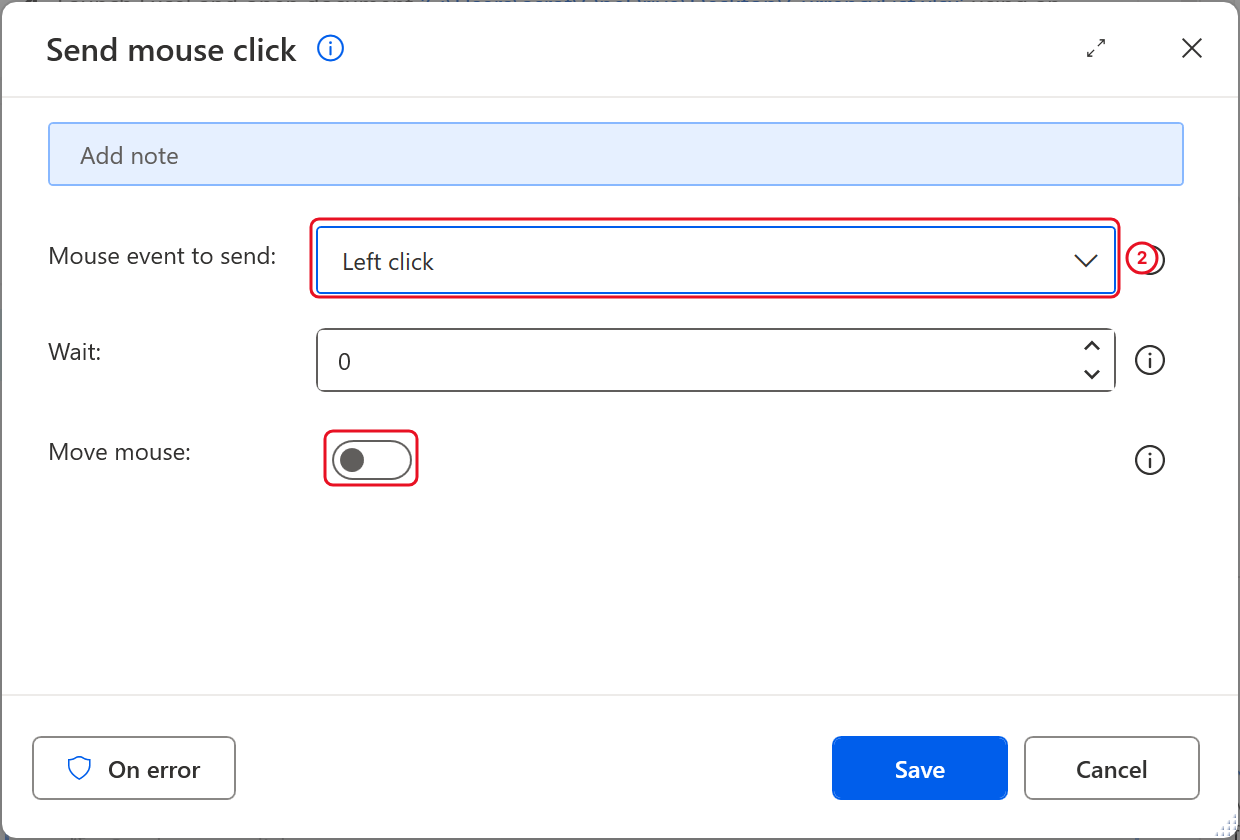
Left click, Wait 0 and Move mouse off are the defaults.
- Search for
Send keysand add it below Send mouse click. - Leave Send keys to as Foreground window.
-
In Text to send, enter:
{Enter}Type it exactly, with curly brackets. You can also select Insert special keys under the box and pick Enter.
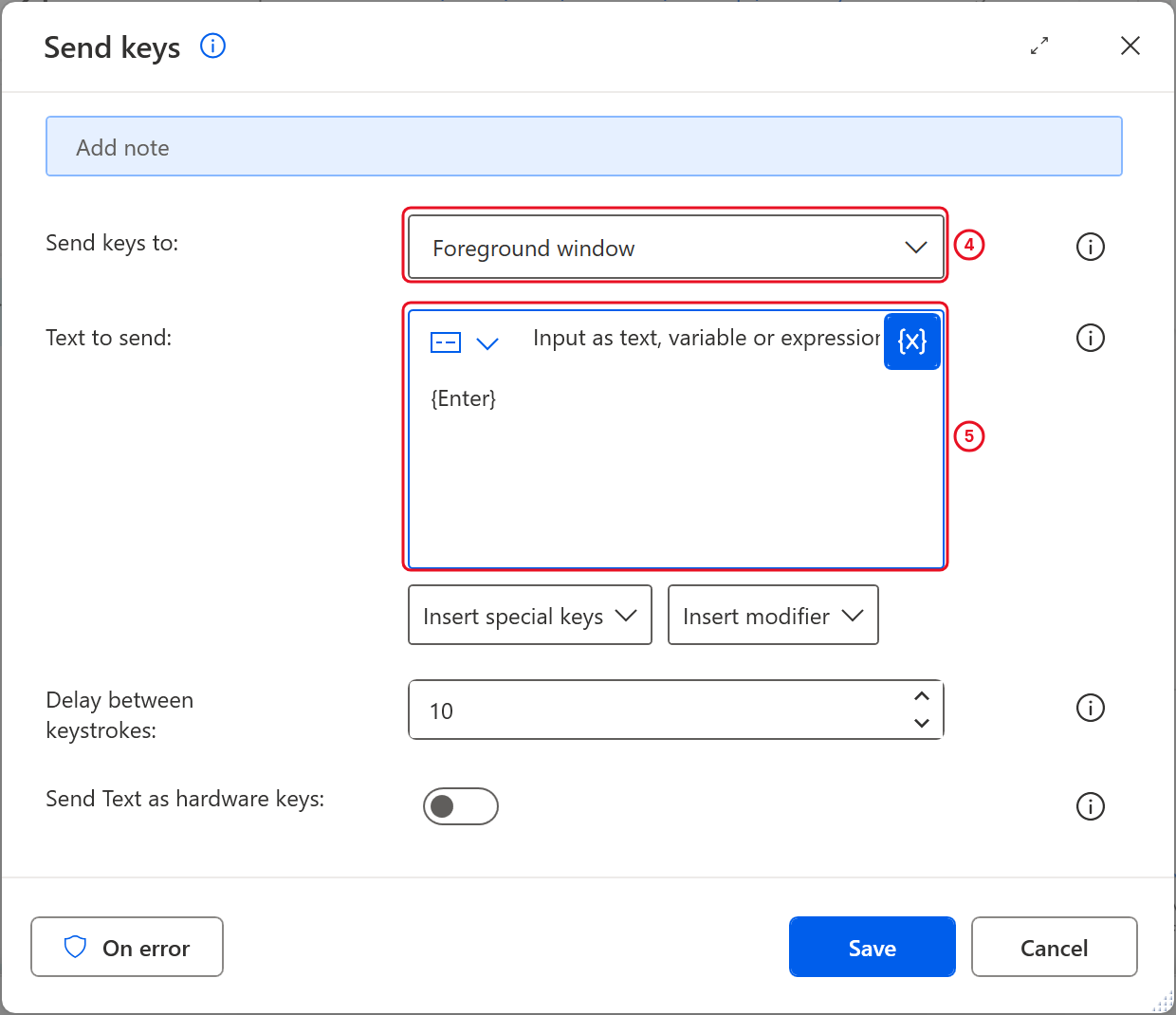
Foreground window and {Enter}. Leave the delay and hardware keys as they are.
- Select Save.
11.9 Wait for the Results
- Search for
Waitand, under Flow control, add Wait below Send keys. -
In Duration, enter
2. Select Save.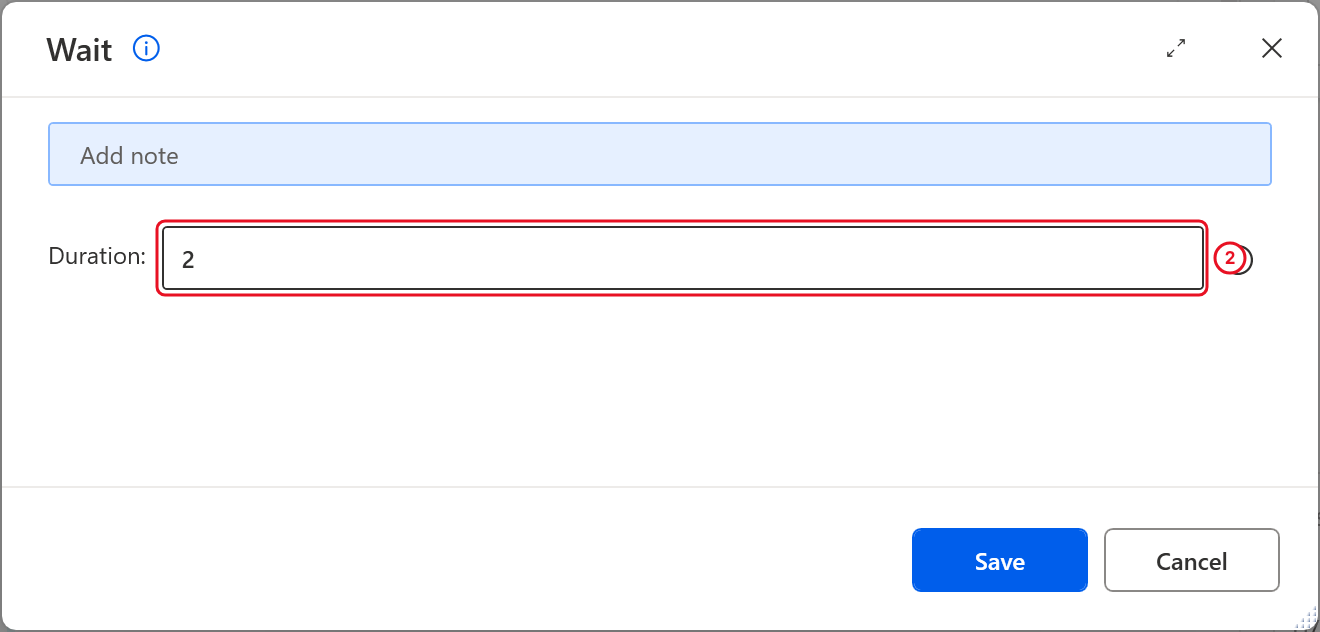
Two seconds is enough on a normal connection.
Google needs a moment to show the converter. Without the wait, the next action can look for the amount before it appears.
11.10 Read the Converted Amount
To capture the amount box, Google must be showing its converter. In Edge, search for USD to MYR. Google shows a currency converter with two amount boxes: the one you convert from and the converted amount.
- Search for
Get details of element on web pageand add it below Wait. - Web browser instance shows
%Browser%. Leave it. - Open UI element, select Add a new UI element, switch to Edge and hover over the converted amount box (the one showing the MYR value). When the red frame reads Input number ‘Currency Amount Field’, hold Ctrl and click.
- Set Attribute name to Own Text.
-
Leave Variables produced as
AttributeValue.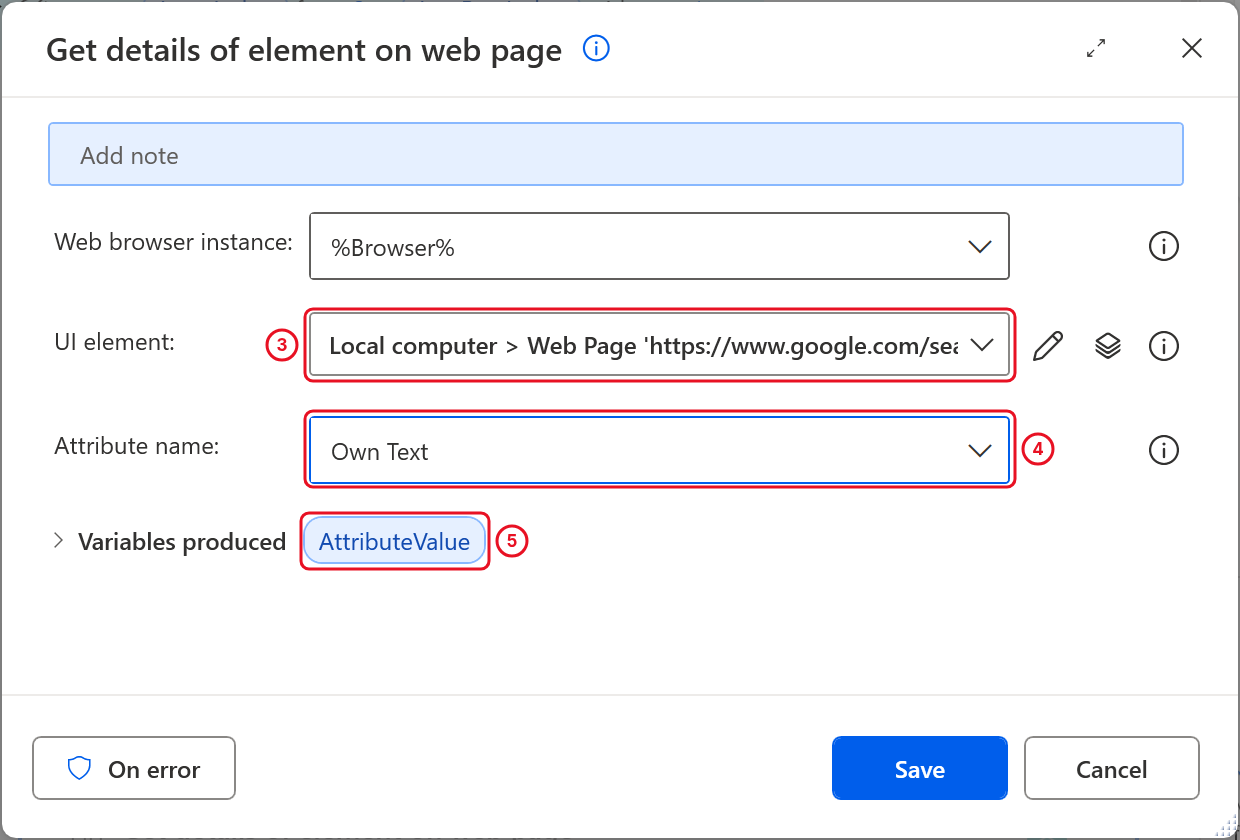
The UI element is the converted amount box you captured in step 3.
- Select Save.
Tip: If the red frame grabs the whole converter instead of the box, move the pointer slightly further inside the box until the label reads Input number.
11.11 Write the Rate into Excel
- Search for
Write to Excel worksheetand add it below Get details, still inside the loop. - Excel instance shows
%ExcelInstance%. Leave it. -
In Value to write, enter:
%AttributeValue% - Set Write mode to On specified cell.
-
In Column, enter
3. In Row, enter%LoopIndex%. The rate goes into the Result column of the same row the codes came from.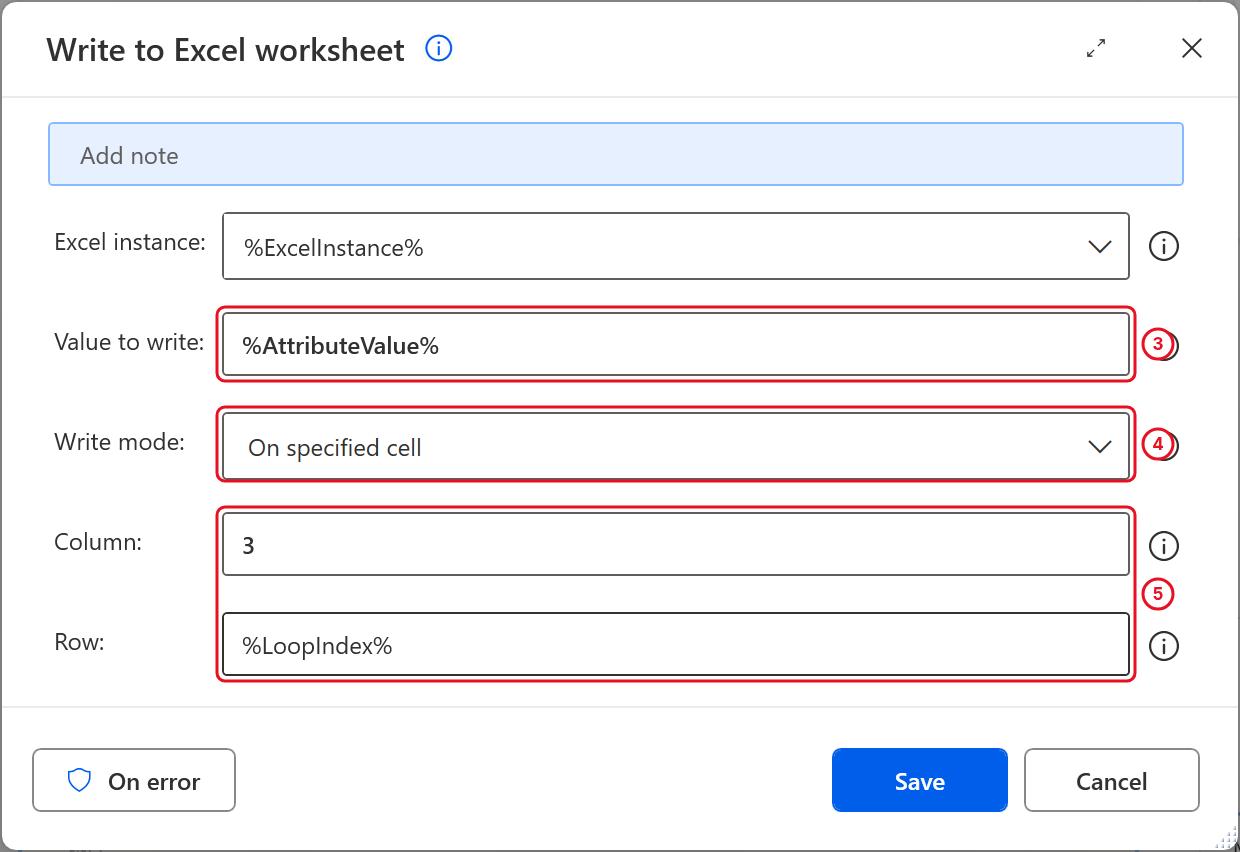
The rate goes into column 3 of the row the codes came from.
- Select Save.
11.12 Check Your Finished Flow
Select Save (the disk icon at the top left). The status bar at the bottom should show 13 Actions. Compare your flow with these two screenshots: the first shows the top, the second is scrolled down to the end of the loop.
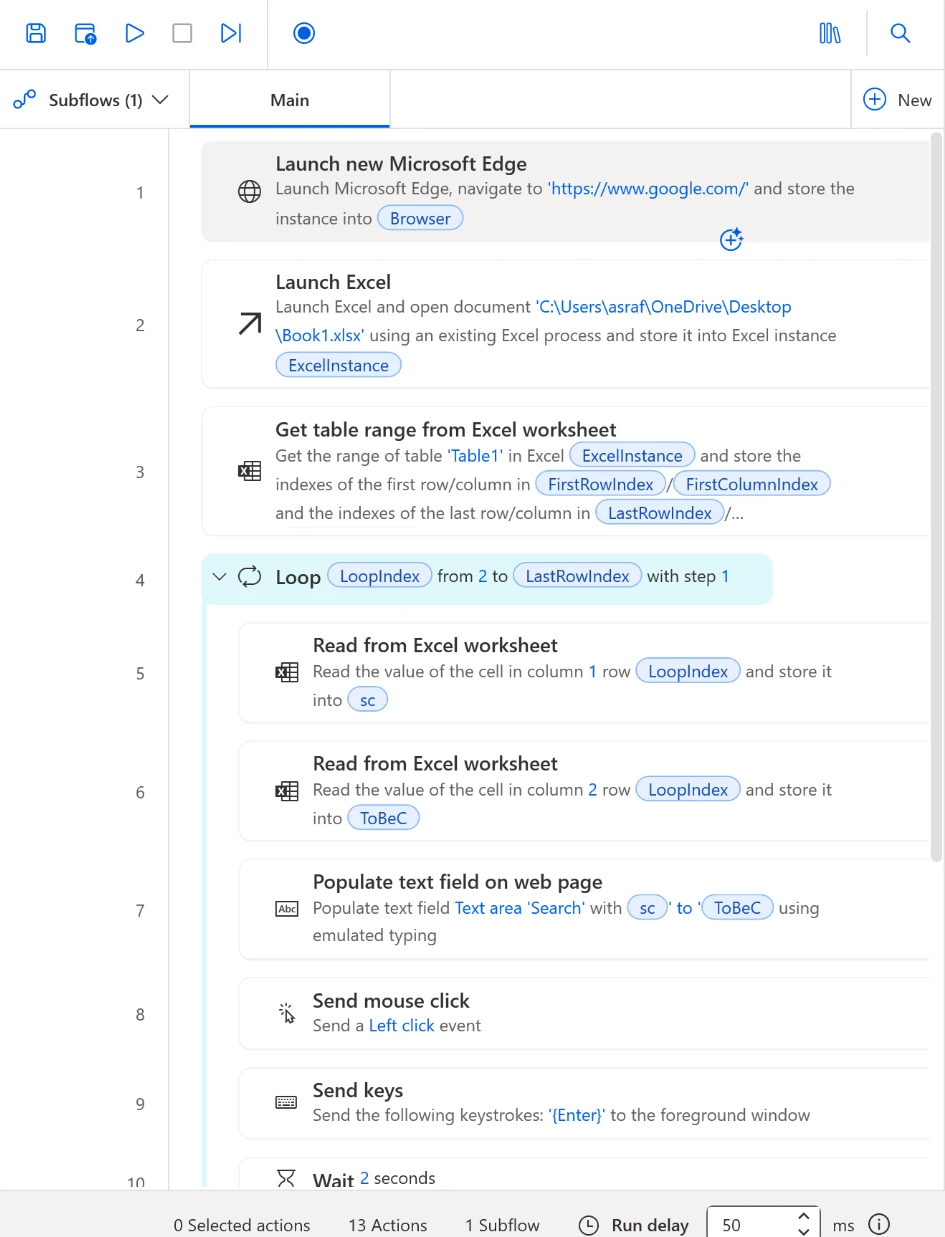
Actions 1 to 3 open Edge and Excel and find the end of the table. Everything from 5 onwards is indented, so it runs once per row. Your document path shows your own user name.
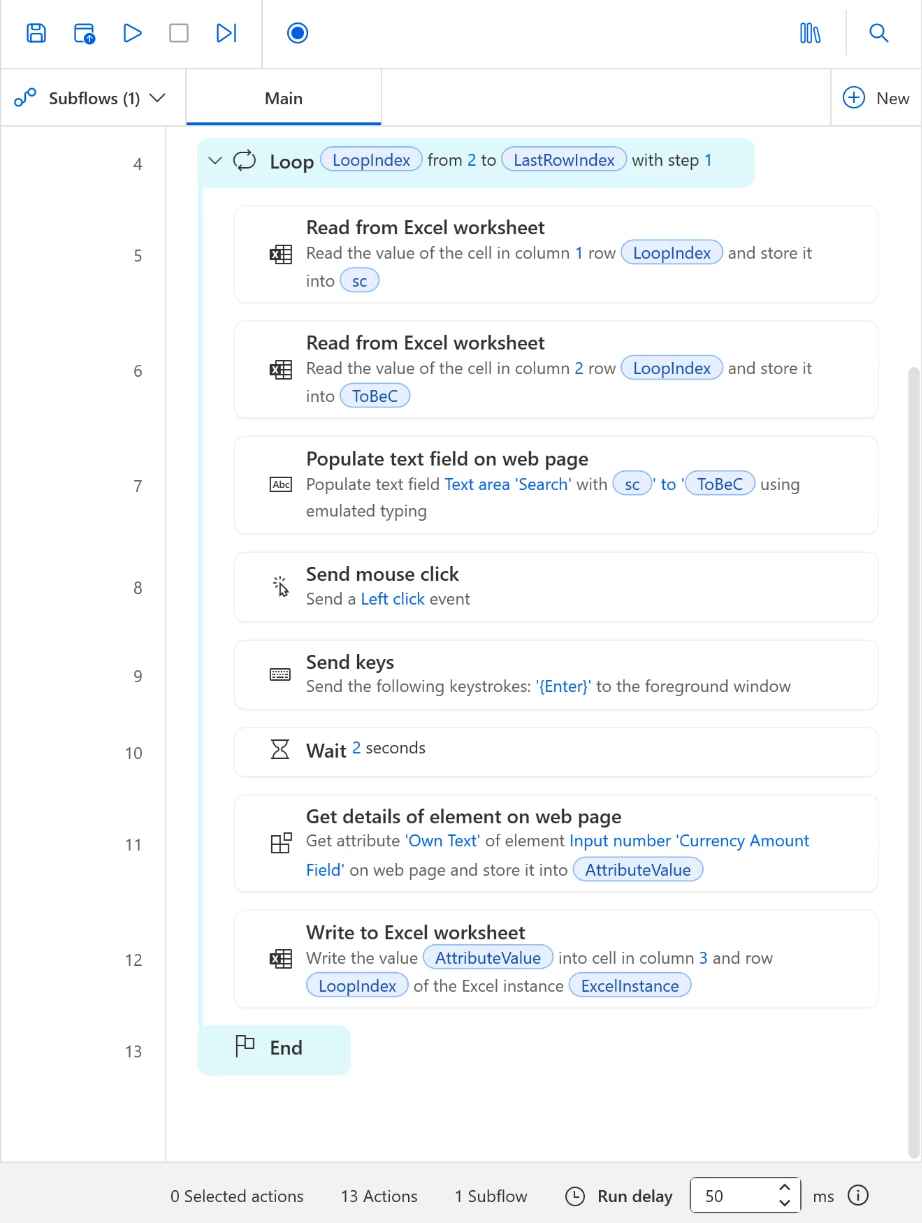
Actions 11 and 12 read the converted amount and write it to column 3 of the current row. End closes the loop.
| # | Action | What it does |
|---|---|---|
| 1 | Launch new Microsoft Edge | Opens Google, stores the window in Browser |
| 2 | Launch Excel | Opens CurrencyList.xlsx, stores it in ExcelInstance |
| 3 | Get table range from Excel worksheet | Finds the last row of Table1 |
| 4 | Loop | Repeats for rows 2 to LastRowIndex |
| 5 | Read from Excel worksheet | Column 1 of this row into sc |
| 6 | Read from Excel worksheet | Column 2 of this row into ToBeC |
| 7 | Populate text field on web page | Types USD to MYR into Google |
| 8 | Send mouse click | Makes sure Edge is active |
| 9 | Send keys | Presses Enter to search |
| 10 | Wait | Gives Google 2 seconds |
| 11 | Get details of element on web page | Reads the converted amount into AttributeValue |
| 12 | Write to Excel worksheet | Writes it to column 3 of this row |
| 13 | End | Goes back to Loop for the next row |
11.13 Run and Check
- Close the Edge window you opened yourself and close
CurrencyList.xlsxif it’s open. The flow opens fresh copies. - Select Run (the play icon) in the toolbar.
- Take your hands off the mouse and keyboard. Edge opens Google, Excel opens the workbook, and the searches run one after another.
-
When the status bar shows Status: Ready again, switch to Excel. The Result column has a rate on every row.
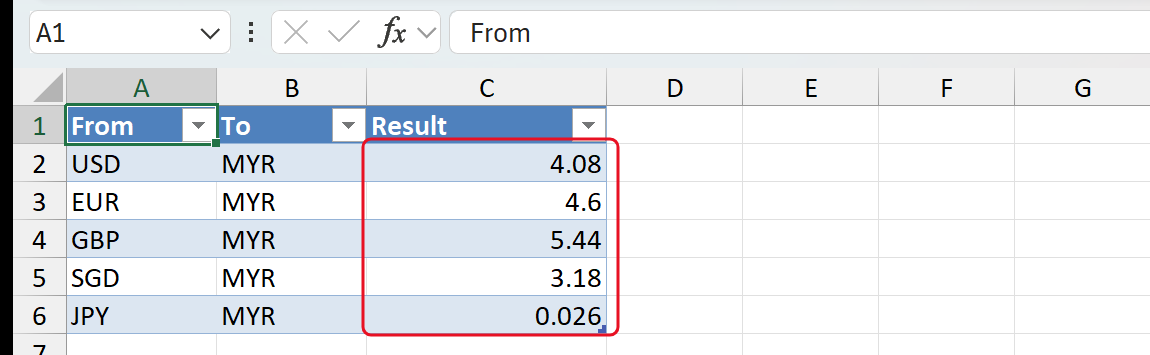
One run’s results. Your rates will differ.
- Save the workbook in Excel. The flow writes the values but doesn’t save the file.
Note: Every rate comes from Google at the moment the flow runs, so your numbers won’t match anyone else’s exactly.
Independent Practice
Add two rows to Table1 in Excel, for example MYR to THB and AUD to MYR, save and close the workbook, and run the flow again. Before you run it, predict: do you need to change the Loop? Why not?
Going further: tidy up when the loop ends. After End (outside the loop), add Close Excel with Before closing Excel set to Save document, then Close web browser with
%Browser%. The flow now saves your results and leaves nothing open. Optional.
Troubleshooting
| Symptom | What to check |
|---|---|
| Edge opens but nothing is typed | The Power Automate extension isn’t turned on in Edge. Check Edge’s extensions page |
| Failed to get the UI element on Populate text field | Google showed a cookie or sign-in prompt, or the search box changed. Clear the prompt, or capture the search box again in 11.7 |
| The search text appears but no search happens | The mouse click landed outside Edge, so Enter went to another window. Check Edge is set to Maximized, and don’t move the mouse during the run |
| The Result column is empty or wrong | Capture the converted amount box again in 11.10, with Google’s converter on screen. Increase Wait to 3 on a slow connection |
| Only the first row is filled | Every action from Read to Write must sit between Loop and End, indented. Drag any stray action back inside |
| Table not found | The table in the workbook must be named exactly Table1. Check Table Design > Table Name in Excel |
| The rate goes into the wrong row | Start row in both Read actions and Row in Write must all be %LoopIndex% |
USD to MYR is typed into an Excel cell, or the workbook gets renamed |
Edge opened on another monitor, so the typing went to Excel. Switch to one screen (Windows key + P > PC screen only), close Excel without saving and run again |
| An Unhandled error appears when you save an action, or the Errors list points to a line after End | Power Automate for desktop left a broken, invisible action behind. Save the flow, close the designer and open the flow again. The broken action now shows at the end: delete it |
Lesson Summary
A desktop flow works your PC the way you would: it opened Excel and Edge, typed a search, pressed Enter, read a number off a web page and wrote it back into a cell. The Loop and LoopIndex kept every read and write on the same row, and Get table range meant the flow handles a longer list without changes.
For reference, see Power Automate for desktop documentation, the Excel actions reference and the browser automation actions reference.