
09 - Plan an Automation with Copilot
Copilot in Power Automate can turn a plain-language description into a suggested flow. A suggestion isn’t a finished design, though. In this chapter you review what Copilot proposes, correct it precisely, and walk away without creating anything.
Copy-paste values: every value you need is in the steps, with a Copy button. The copy-paste page has them all on one page too.
Estimated time: 30 minutes
Your result: A reviewed and improved flow plan produced with Copilot, without creating or running a cloud flow.
Files for this lab: None. Everything you need is in the prompts below.
What You Will Learn
- Describe an automation to Copilot with a clear, bounded prompt
- Review an AI-generated flow plan against the business rule
- Refine a suggestion by naming the exact change you need
- Leave the planning experience without creating a flow
- Plan your own automation with Copilot before you build it
The Business Problem
Copilot may leave out a calculation, add an action you don’t need, or read a broad instruction differently from what you meant. You ask it to plan a weekly coordinator summary, check every proposed step, and correct it until it matches this intended plan:
Recurrence > List rows present in a table > Filter array > Compose count > Send one coordinator email
Before You Begin
Copilot availability depends on your organisation, environment, region and admin settings. If Create with Copilot or Describe it to design it isn’t available, follow along with the screenshots in this chapter and answer the review questions without entering a prompt.
Important: Use only fictional details and
coordinator@example.com. Never put confidential information, personal data, passwords or real recipients into a training prompt.
9.1 Open the Copilot Planning Experience
On the Power Automate home page, select Create with Copilot. The Create page may call the same thing Describe it to design it.
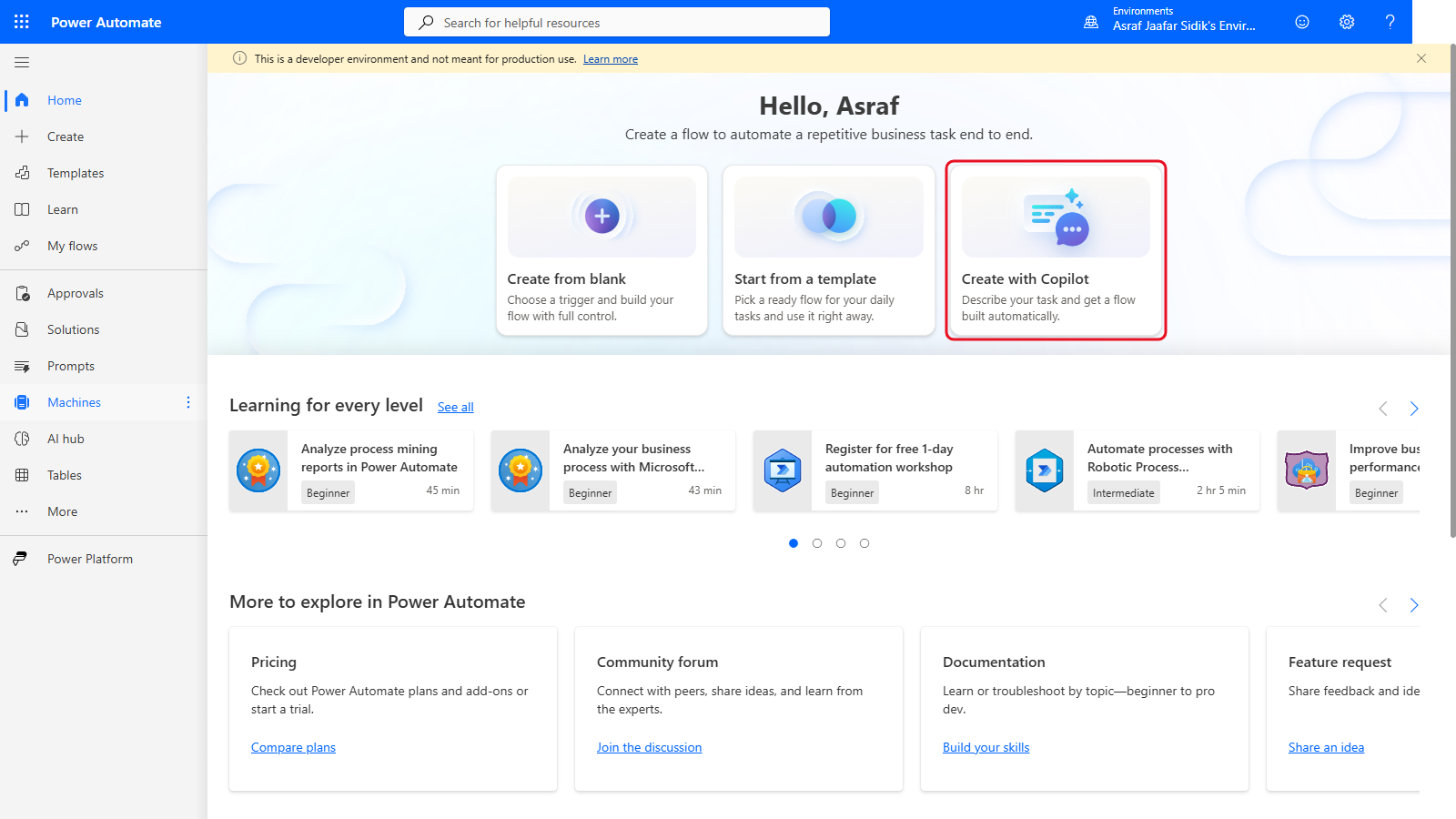
Create with Copilot starts from a plain-language description.
9.2 Describe the Complete Business Outcome
In What will your flow do?, paste prompt 1 and select the arrow icon at the bottom right of the box to send it. Copy it from the box below.
Every Friday at 4:00 PM Singapore time, read rows from the tblTraining table in TrainingRegister.xlsx in OneDrive for Business. Keep rows whose Status is Registered and SessionDate is within the next 14 days. Email the training coordinator a summary count. Do not send participant emails.
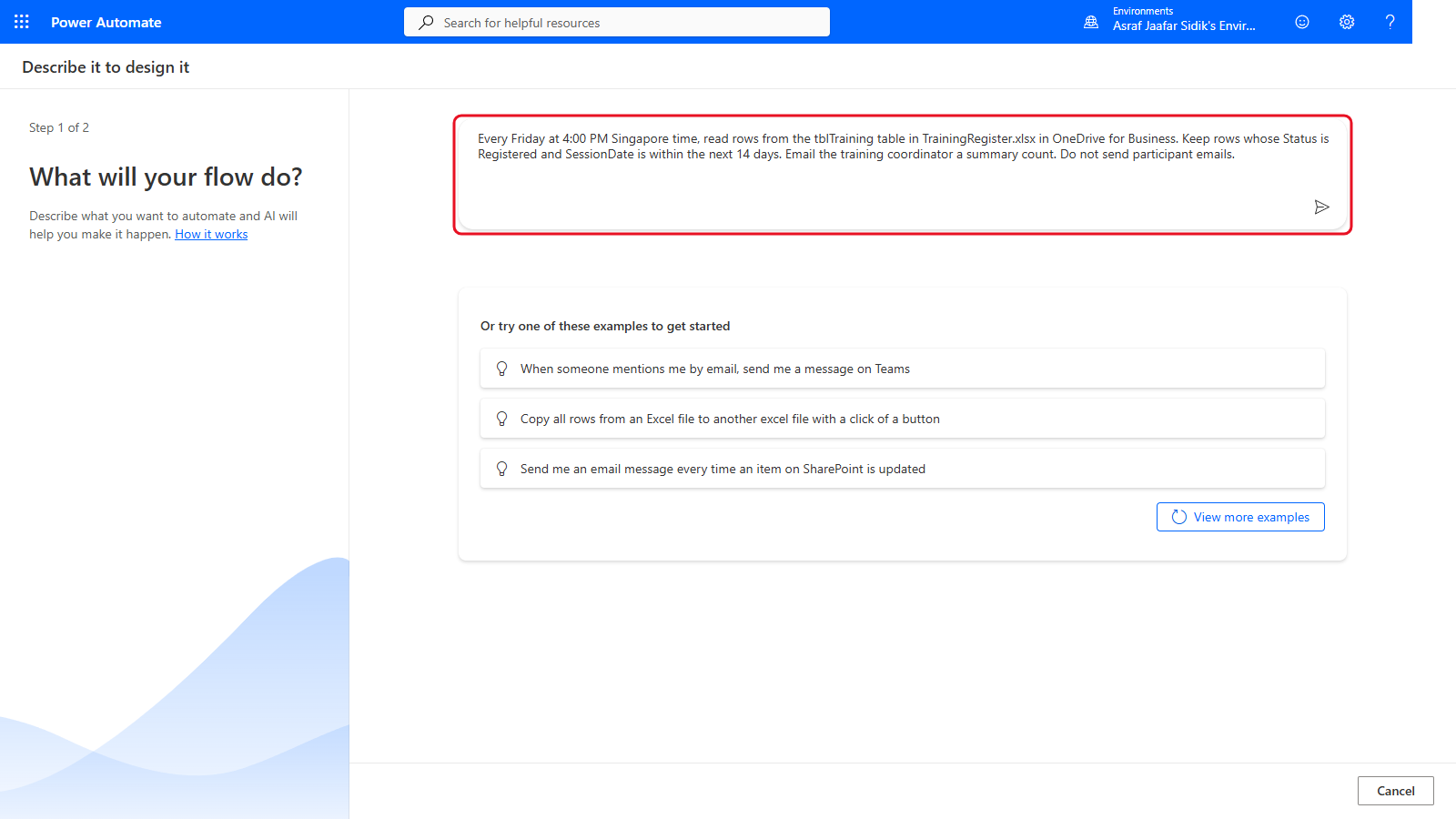
The prompt names the schedule, source, rule, output and a boundary.
A strong prompt states the event, the data source, the rule, the output and the boundaries. Even so, Copilot doesn’t know your approved recipient, the exact workbook location, your organisation’s policies, or how you’ll test the result.
9.3 Review the First Suggestion
Copilot takes a few seconds to answer. Scroll down to Suggested flow and read the trigger and every action before you select anything. In the example below, the first version suggested Recurrence, List rows present in a table, FilteredRows, Initialise Count and Send an email. It looks plausible, but Initialise Count doesn’t say how the count is calculated.
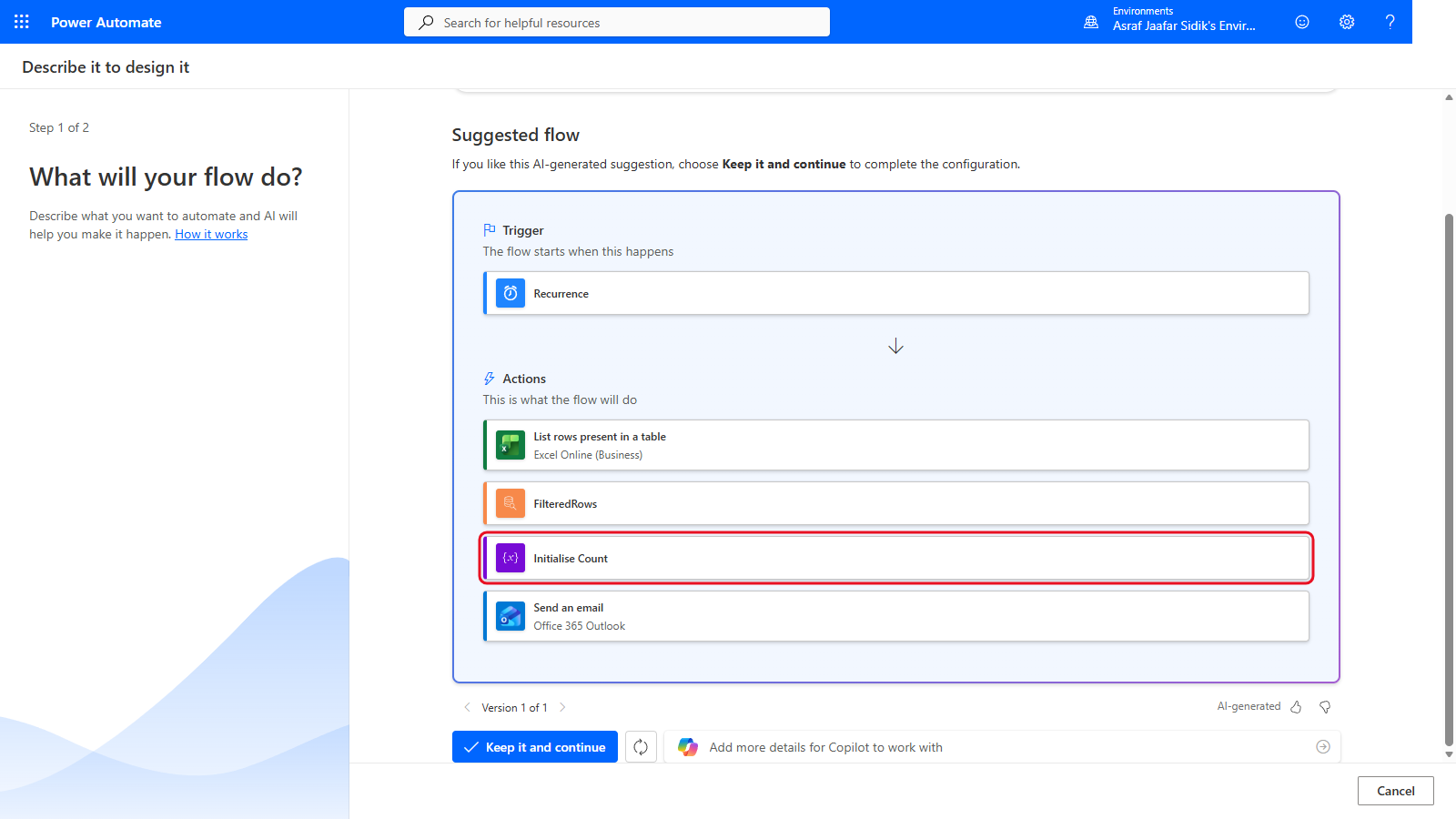
A plausible start, but the count isn’t explained.
Use these questions on any AI-generated flow plan:
| Review area | Question |
|---|---|
| Trigger | Does it start at the intended event, time and time zone? |
| Data | Does it use the correct connector, file, table, list, form or mailbox? |
| Logic | Are filtering, looping, conditions and calculations explicit? |
| Output | Is the destination approved, and could the action contact real people? |
| Licensing | Are all proposed connectors and actions available to participants? |
| Testing | Can the plan be tested safely with fictional data and approved destinations? |
9.4 Clarify the Filter and Count
In Add more details for Copilot to work with (the box below the suggestion, to the right of Keep it and continue), paste prompt 2 and select the arrow icon at its right end to send it. It names the actions, gives the counting expression, and draws a clear line around who gets email. Copy it from the box below.
Use a Filter array named FilteredRows to keep rows where Status is Registered and SessionDate is between today and 14 days from today. Calculate the count with length(body('FilteredRows')). Send one summary email only to coordinator@example.com. Do not add an Apply to each or any participant email.
9.5 Identify an Unnecessary Action
Copilot’s answers vary from run to run. Check whether the second suggestion added anything you didn’t ask for. A common one is Get file metadata using path before List rows present in a table. You don’t need it: List rows present in a table can select the workbook directly, so the extra action is just another dependency. If your suggestion is already clean, as in the screenshot below, note that and still send prompt 3: it locks in the exact structure.
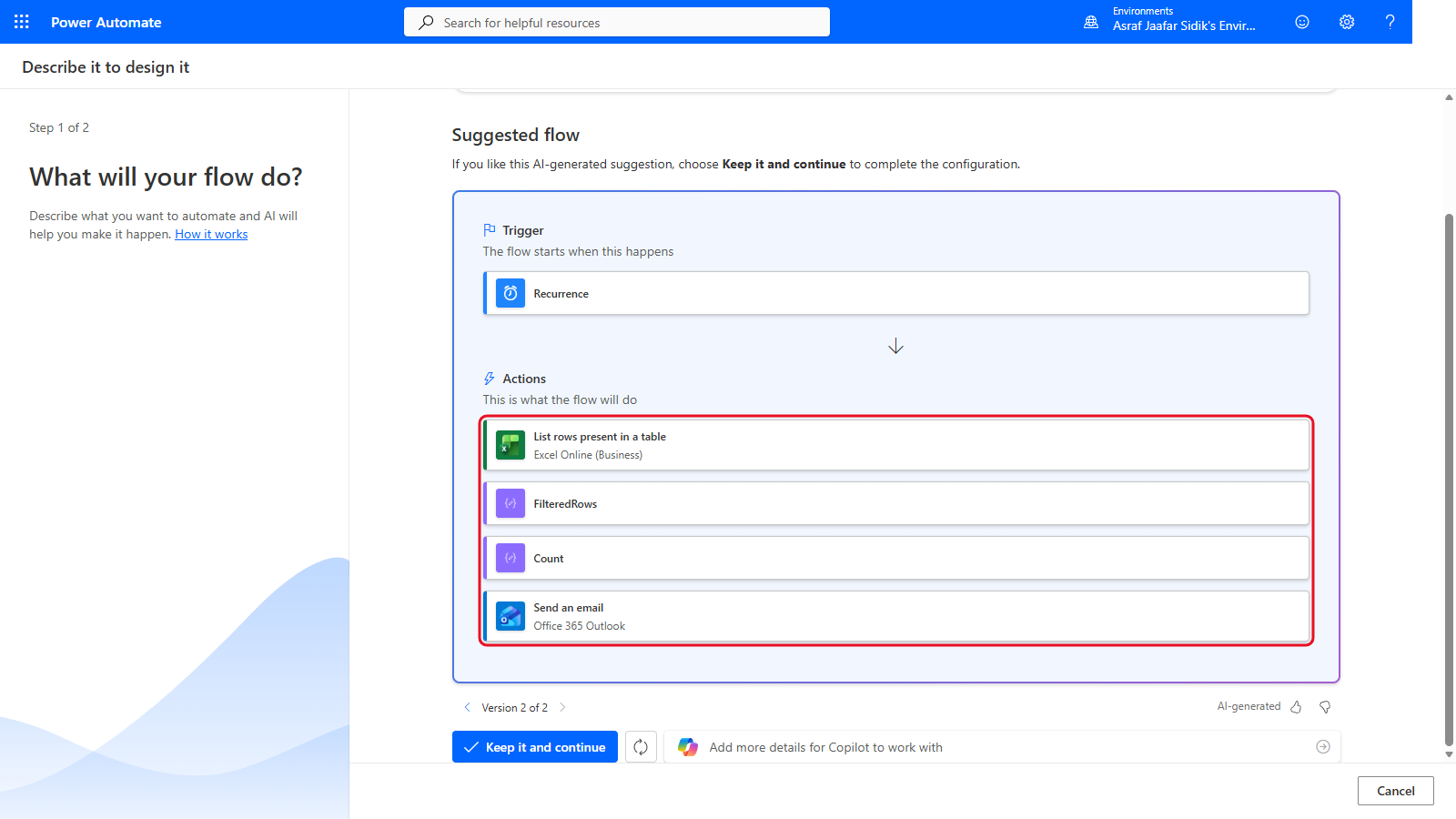
In this run the second suggestion was already clean: Recurrence, List rows, FilteredRows, Count and Send an email.
9.6 Request a Streamlined Design
Paste prompt 3 into the same Add more details for Copilot to work with box and select the arrow icon at its right end to send it. It says what to remove, why, and exactly which structure to keep. Copilot keeps each answer as a version. To compare them, use the small arrows beside Version (for example Version 3 of 3) below the suggestion. Copy prompt 3 from the box below.
Remove Get file metadata using path because List rows present in a table can select the workbook directly. Keep only Recurrence, List rows present in a table, Filter array named FilteredRows, Compose named Count using length(body('FilteredRows')), and one Send an email action to coordinator@example.com.
9.7 Validate the Final Suggestion
The third suggestion should have exactly these steps:
| Order | Proposed step |
|---|---|
| 1 | Recurrence |
| 2 | List rows present in a table |
| 3 | FilteredRows |
| 4 | Count (a Compose action) |
| 5 | Send an email |
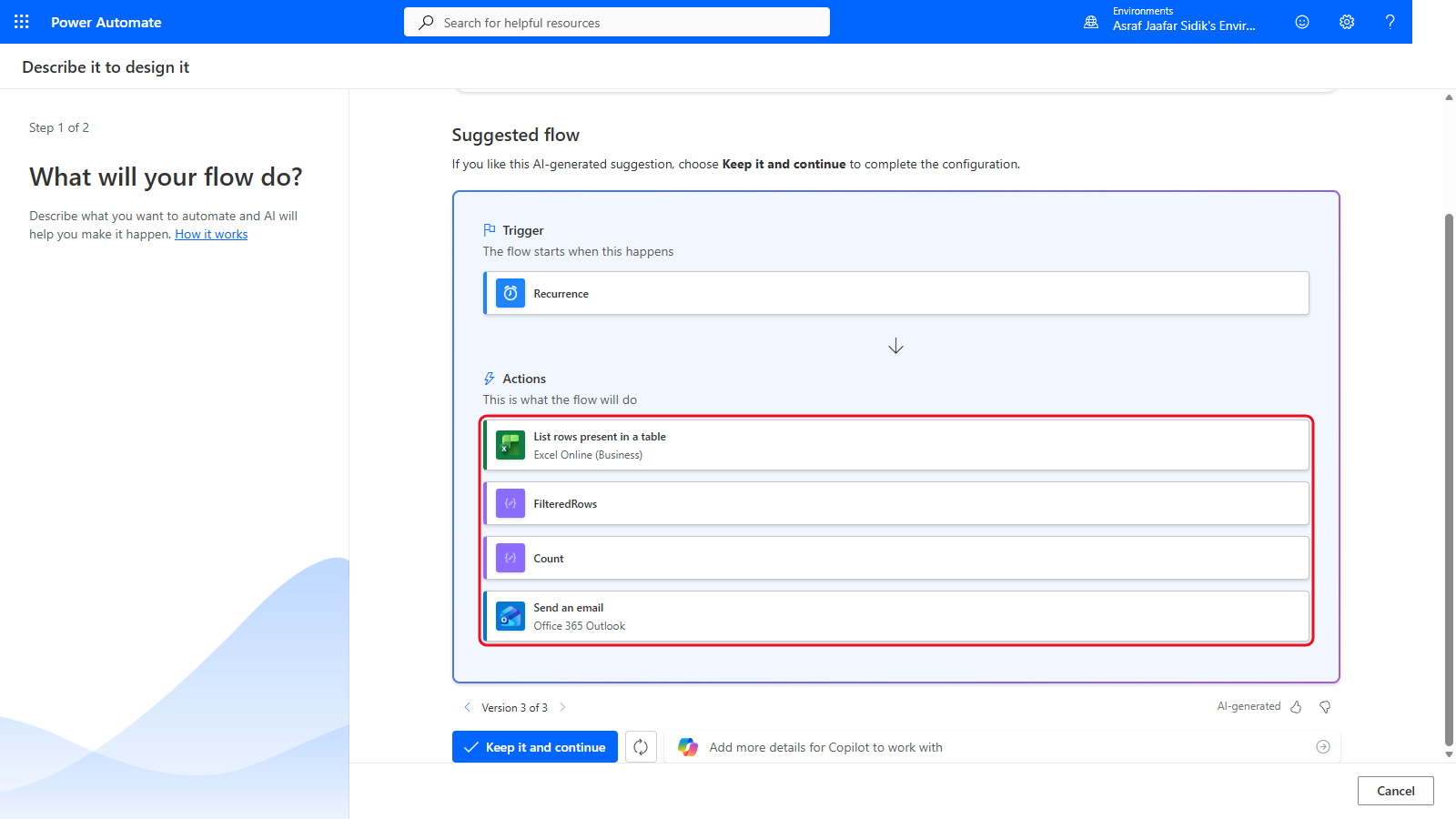
The outline matches the intended plan. Copilot shows the Compose action by its name, Count. Cancel is for 9.8; don’t select it yet.
This only checks the outline. If you continued, you’d still need to configure the Friday schedule and time zone, the workbook and table, the filter and count expressions, the recipient, subject and body, error handling, and test data.
9.8 Exit Without Creating the Flow
Select Cancel at the bottom right of the page, not Keep it and continue. Power Automate returns to the Create page. This exercise is planning only.
9.9 Plan Your Own Automation
The exercise above used prompts written for you. For your own work, plan in plain words first and let Copilot draft the flow second. Planning is where most of the gaps get caught, while they’re still cheap to fix.
- Before you open Copilot, write the job down as you’d explain it to a colleague. You need five things: what starts it, where the data lives, the rule it follows, the output it produces, and one boundary (what it must never do). If you can’t fill one in, the automation isn’t ready yet.
-
Ask Copilot to plan it, not build it. Use Microsoft 365 Copilot chat, or Create with Copilot without selecting Keep it and continue. Copy the template below, replace each part in square brackets with your details, and send it.
I want to automate a task in Power Automate. Don't build anything yet. Help me plan it.

Trigger: [when should it start: a new email, a schedule, a button, a form response]
Data: [where the information lives: Excel table name and columns, SharePoint list, Outlook folder]
Rule: [what decision it makes: for example, only rows where Status is not Completed and the date is in the next 14 days]
Output: [what it produces: one email per row, a summary to me, a Teams message]
Boundary: [what it must never do: for example, send to anyone outside the company, delete anything]

First ask me up to five questions about anything unclear. Then give me:
1. The trigger and each action in order, using Power Automate action names
2. Where a condition, loop or variable is needed and why
3. Which connectors are standard and which may need a premium licence
4. What could go wrong (empty data, duplicates, timing, permissions) and how to guard against it
5. A safe test plan that only sends to me
Saying “don’t build anything yet” matters: without it, Copilot jumps straight to a draft and skips the questions.
- Answer Copilot’s questions, then refine in small, specific turns. Ask for one exact change each time, for example “add a condition that skips Completed rows”, not “make it better”.
- Review the plan with the six questions from 9.3: trigger, data, logic, output, licensing and testing. Look out for a loop you don’t need and a missing condition: they’re the most common mistakes in Copilot drafts.
-
When the plan looks right, turn it into steps you can follow. In the same chat, copy and send the prompt below. It asks Copilot for a click-by-click lab in the same style as this book, without screenshots.
The plan looks good. Now write it as a hands-on lab for a beginner who has never used Power Automate, in the new designer at make.powerautomate.com.

Rules:
- Number every step. One action per step: where to click, what to search for, what to type or pick.
- Use the exact button and field names a beginner sees on screen, in bold.
- To add an action, always say: "On the canvas, select the + below [card], then Add an action. Search for `[name]` and select it under [connector]."
- To insert a value from an earlier step, say: "Click into the box, select the lightning bolt, and pick [value] under [step]."
- For an expression, say: "Select the fx button beside the box, type the expression, and select Add." Put the expression in a code block.
- Put every value I need to type in backticks or a code block.
- Group steps into short sections with a heading for each action. End each section with "Check: your canvas should now show ..." listing the cards in order.
- Include any setting a beginner would miss (for example DateTime Format set to ISO 8601 on List rows present in a table).
- End with a safe test section: how to run it, where to look in the run history, and what a correct result looks like. All emails go to me only.
- Don't use code view or @{...} syntax.

Here is one step written in the style I want:

1. On the canvas, select the **+** below **List rows present in a table**, then **Add an action**. Search for `Filter array` and select it under **Data Operation**. Its settings open on the left.
The sample step at the end is what makes the difference: Copilot copies its shape for the rest of the lab. Copilot can’t see your screen, so treat the lab as a first draft. Button names are sometimes slightly off, and the “Check: your canvas should now show” lines help you spot when something has gone wrong.
- Build it in a test environment with every recipient set to you, following the lab (or with Create with Copilot, or yourself as in Chapters 3 to 8). Test with a few rows before anyone else receives anything.
Here’s the planning prompt from step 2 with every value filled in, using the Chapter 7 capstone as the example. Copy it to see the whole conversation: Copilot asks its questions, you answer them, then you send the lab prompt from step 5.
I want to automate a task in Power Automate. Don't build anything yet. Help me plan it.

Trigger: every Monday at 9:00 Malaysia time (UTC+08:00).
Data: Excel table tblTraining in the file Power Automate Training/TrainingRegister.xlsx in my OneDrive for Business. Columns: ParticipantName, Email, CourseTitle, SessionDate, Status.
Rule: only rows where Status is not Completed and SessionDate is between today and 14 days from today.
Output: one reminder email per matching row, then one summary email to me with the number of reminders sent.
Boundary: never email anyone while testing; send every email to me until I approve it.

First ask me up to five questions about anything unclear. Then give me:
1. The trigger and each action in order, using Power Automate action names
2. Where a condition, loop or variable is needed and why
3. Which connectors are standard and which may need a premium licence
4. What could go wrong (empty data, duplicates, timing, permissions) and how to guard against it
5. A safe test plan that only sends to me
Tip: Use the real names of your table, columns and folders in the prompt, and ask for Power Automate action names. Vague prompts get placeholder actions you have to rewire, and action names let you find each step in the designer.
Independent Practice
Write a prompt for a monthly training-capacity report. Include the schedule, data source, inclusion rule, output and one explicit boundary. Swap prompts with another participant and find one ambiguity before asking Copilot for a suggestion.
Troubleshooting
| Symptom | What to check |
|---|---|
| Create with Copilot is missing | Organisation settings, environment, region, account entitlement. Follow the screenshots in this chapter instead |
| Copilot suggests the wrong trigger | State the exact event or schedule: frequency, day, time and time zone |
| The plan has a participant email loop | Say only one coordinator summary is needed and explicitly rule out participant emails |
| The count is unclear | Name the filtered array and ask for length(body('FilteredRows')) |
| An unnecessary connector appears | Explain which existing action already provides the data and ask Copilot to remove the extra one |
| The final outline looks right | Keep reviewing. Fields, expressions, connections, recipients and testing aren’t configured yet |
Lesson Summary
Copilot can propose a trigger and action sequence quickly, keep versions, and respond to refinements. You stay responsible for the business rule, connector choice, licensing, recipient safety, expressions, configuration and testing. The best result came from reviewing each suggestion and stating the exact correction.