
12 - Read PDF Invoices into Excel
Supplier invoices for your training sessions arrive as PDFs: the venue, the caterer, the printer. Someone opens each one and types the invoice number, date and total into a spreadsheet. In this chapter a desktop flow does that typing for you. It works through a folder of PDFs, pulls the three values out of each one and adds a row to an Excel log.
Copy-paste values: every value you need is in the steps, with a Copy button. The copy-paste page has them all on one page too.
Estimated time: 50 minutes
Your result: A desktop flow that reads every PDF invoice in a folder and logs its file name, invoice number, date and total in Excel.
Download: the files for this lab
- invoices.zip: five fictional supplier invoices in a folder called
Invoices.- InvoiceLog.xlsx: an empty log with four column headings.
What You Will Learn
- List the files in a folder with Get files in folder
- Repeat steps for each file with For each
- Pull all the text out of a PDF with Extract text from PDF
- Find one value inside a block of text with Parse text
- Add a row under the last one with Get first free column/row from Excel worksheet
- Save and close Excel at the end of a flow
How the Flow Works
Get files in folder > Launch Excel > For each file (extract the text > find the invoice number, date and total > find the next empty row > write four cells) > End > Close Excel
The flow gets a list of every PDF in the Invoices folder and opens the log in Excel. For each PDF it extracts the text, then uses Parse text three times to find the value after Invoice No:, Invoice Date: and Total Due: RM. It asks Excel for the first empty row and writes the four values there. When every file is done, it saves and closes the workbook.
Every invoice in the zip uses the same labels, like this one:
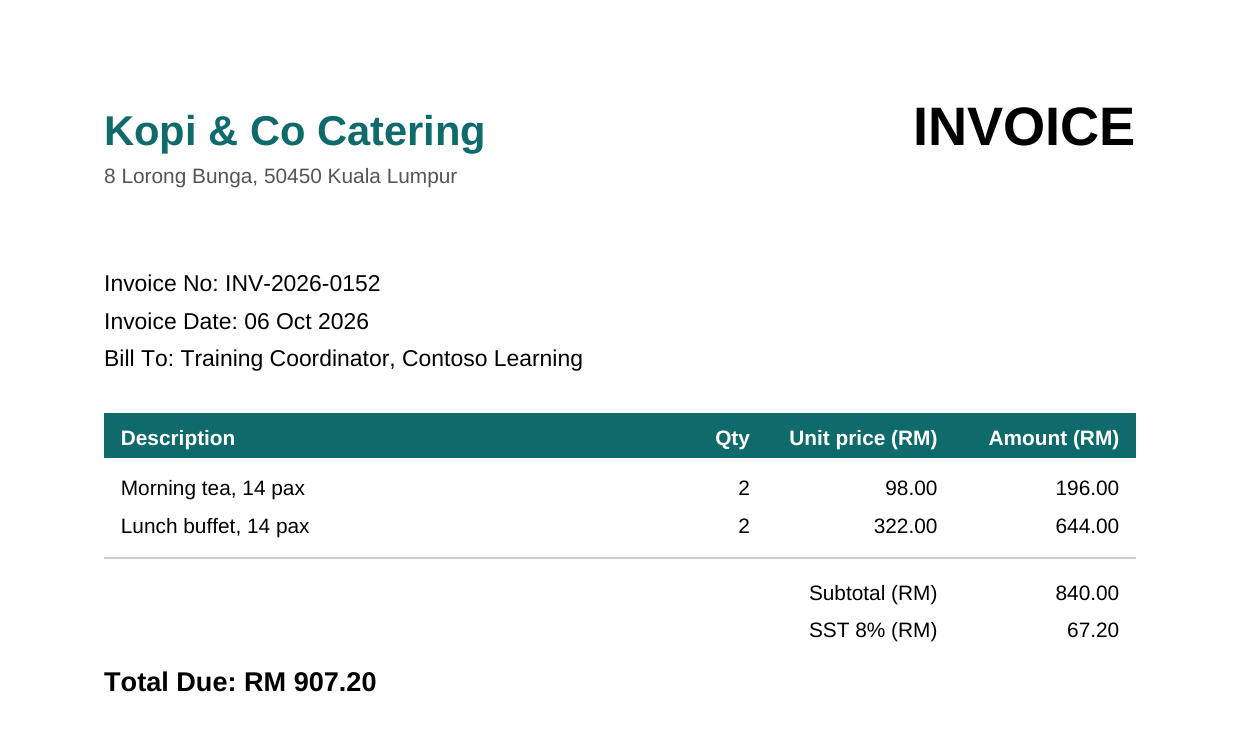
The flow looks for the text straight after Invoice No:, Invoice Date: and Total Due: RM. Those three labels are what makes this work.
Key point: This kind of flow works when your invoices share a layout, which is common when they come from the same system or the same few suppliers. A supplier with different labels needs its own patterns.
Before You Begin
You need:
- A Windows computer with Power Automate for desktop, signed in with your training account (as in Chapter 11).
- The Excel desktop app.
invoices.zipdownloaded, then extracted to your Desktop: right-click it, choose Extract All, and pick the Desktop. You should now have aInvoicesfolder on the Desktop with five PDFs inside.InvoiceLog.xlsxsaved to your Desktop. Open it once to see the four headings in row 1 (File, Invoice No, Invoice Date, Total (RM)), then close it.
Warning: Extract text from PDF reads PDFs that contain real text, like the ones in this lab. A scanned invoice is just a picture of text, so it returns nothing. Scanned documents need OCR or AI Builder, which this chapter doesn’t cover.
12.1 Create the Desktop Flow
- Open Power Automate (the desktop app) from the Start menu.
-
Select + New flow, enter the name below, then select Create.
PA - Invoice log
As in Chapter 11, add each action by searching for it in the Actions pane, then double-clicking it or dragging it into Main. Fill in the settings window and select Save.
12.2 List the PDF Files
- Search for
Get files in folderand add it. - In Folder, select the folder icon at the right of the box, select Desktop and then the
Invoicesfolder, and select OK. -
In File filter, enter:
*.pdfThe
*means any name, so this picks up every PDF and nothing else. - Leave Variables produced as
Files. It holds the list of PDFs. - Select Save.
12.3 Open the Log in Excel
- Search for
Launch Exceland add it below Get files in folder. - Set Launch Excel to and open the following document.
- In Document path, select the file icon, browse to your Desktop and select
InvoiceLog.xlsx. - Leave Make instance visible on and Variables produced as
ExcelInstance. - Select Save.
12.4 Repeat for Each File
- Search for
For eachand, under Loops, add For each below Launch Excel. -
In Value to iterate, enter:
%Files% - Leave Store into as
CurrentItem. On each pass it holds one PDF file. - Select Save. The designer adds a For each line and an End line. Every action from 12.5 to 12.8 goes between them, just above End.
Note: In Chapter 11 you used Loop, which counts row numbers. For each goes through a list instead, one item at a time, so you don’t need to know how many files there are.
12.5 Extract the Text
- Search for
Extract text from PDFand drag it between For each and End. -
In PDF file, enter:
%CurrentItem% - Leave Page(s) to extract as All.
- Leave Variables produced as
ExtractedPDFText. It holds all the words on the invoice as one block of text. - Select Save.
12.6 Find the Three Values
You add Parse text three times, once for each value. Each one searches ExtractedPDFText with a pattern (a regular expression) and keeps what it finds.
Invoice number
- Search for
Parse textand add it below Extract text from PDF, inside the loop. -
In Text to parse, enter:
%ExtractedPDFText% -
In Text to find, paste:
(?<=Invoice No:\s*)\S+ - Turn on Is regular expression.
- Turn on First occurrence only.
-
Under Variables produced, rename
Matchto:InvoiceNo - Select Save.
Invoice date
- Add another Parse text below the first, with Text to parse
%ExtractedPDFText%, Is regular expression on and First occurrence only on. -
In Text to find, paste:
(?<=Invoice Date:\s*)\d{2} \w{3} \d{4} -
Rename
Matchto:InvoiceDate - Select Save.
Total
- Add a third Parse text with the same settings.
-
In Text to find, paste:
(?<=Total Due:\s*RM\s*)[\d,.]+ -
Rename
Matchto:InvoiceTotal - Select Save.
You don’t need to write patterns like these from scratch, but it helps to read them:
| Part | Means |
|---|---|
(?<=Invoice No:\s*) |
Start right after the words Invoice No: and any spaces. The label itself isn’t kept |
\S+ |
Keep everything up to the next space: INV-2026-0152 |
\d{2} \w{3} \d{4} |
Two digits, a space, three letters, a space, four digits: 06 Oct 2026 |
[\d,.]+ |
Digits, commas and dots only: 907.20 or 1,144.80 |
Tip: For a different supplier, change only the label inside
(?<=and\s*)to match their invoice, for exampleBill No:instead ofInvoice No:.
12.7 Find the Next Empty Row
- Search for
Get first free column/row from Excel worksheetand add it below the third Parse text, inside the loop. - Excel instance shows
%ExcelInstance%. Leave it. - Select Save. It produces
FirstFreeColumnandFirstFreeRow. You only needFirstFreeRow: row 2 for the first invoice, then 3, and so on.
This sits inside the loop on purpose. After each invoice is written, the next empty row moves down by one.
12.8 Write the Four Cells
Add Write to Excel worksheet four times, inside the loop, one below the other. For each one, set Write mode to On specified cell, Row to %FirstFreeRow%, and the value and column below:
| # | Value to write | Column |
|---|---|---|
| 1 | %CurrentItem.Name% |
1 |
| 2 | %InvoiceNo% |
2 |
| 3 | %InvoiceDate% |
3 |
| 4 | %InvoiceTotal% |
4 |
- Search for
Write to Excel worksheetand add it below Get first free column/row. -
In Value to write, enter:
%CurrentItem.Name%CurrentItemis the whole file..Nameis just its file name, such asKopi-0152.pdf. -
Set Write mode to On specified cell. In Column, enter
1. In Row, enter:%FirstFreeRow% - Select Save.
-
Add the second, third and fourth Write to Excel worksheet the same way, using the values and columns from the table above:
%InvoiceNo%%InvoiceDate%%InvoiceTotal%
Tip: Right-click the first Write action and select Copy, then right-click it again and Paste three times. Then you only change the value and column in each copy.
12.9 Save and Close Excel
This action goes after End, outside the loop, so it runs once when every invoice is done.
- Search for
Close Exceland drag it below End. It should not be indented. - Excel instance shows
%ExcelInstance%. - Set Before closing Excel to Save document.
- Select Save.
12.10 Check Your Finished Flow
Select Save (the disk icon). The status bar should show 14 Actions, in this order:
| # | Action | What it does |
|---|---|---|
| 1 | Get files in folder | Lists every PDF in Invoices into Files |
| 2 | Launch Excel | Opens InvoiceLog.xlsx into ExcelInstance |
| 3 | For each | Repeats for each file, holding it in CurrentItem |
| 4 | Extract text from PDF | All the invoice text into ExtractedPDFText |
| 5 | Parse text | The invoice number into InvoiceNo |
| 6 | Parse text | The date into InvoiceDate |
| 7 | Parse text | The total into InvoiceTotal |
| 8 | Get first free column/row from Excel worksheet | The next empty row into FirstFreeRow |
| 9 | Write to Excel worksheet | File name to column 1 |
| 10 | Write to Excel worksheet | Invoice number to column 2 |
| 11 | Write to Excel worksheet | Date to column 3 |
| 12 | Write to Excel worksheet | Total to column 4 |
| 13 | End | Back to For each for the next file |
| 14 | Close Excel | Saves the log and closes Excel |
Actions 4 to 12 should be indented under For each. Close Excel should line up with For each, not with the actions inside it.
12.11 Run and Check
- Make sure
InvoiceLog.xlsxis closed. - Select Run (the play icon). Excel opens and five rows appear, one by one. Then Excel closes.
- Open
InvoiceLog.xlsxfrom your Desktop. It should look like this, although the order of the rows can differ:
| File | Invoice No | Invoice Date | Total (RM) |
|---|---|---|---|
| Bright-0141.pdf | INV-2026-0141 | 03 Oct 2026 | 1,144.80 |
| Fabrikam-0185.pdf | INV-2026-0185 | 16 Oct 2026 | 1,360.80 |
| Kopi-0152.pdf | INV-2026-0152 | 06 Oct 2026 | 907.20 |
| Northwind-0174.pdf | INV-2026-0174 | 13 Oct 2026 | 239.54 |
| PrintRight-0163.pdf | INV-2026-0163 | 09 Oct 2026 | 325.08 |
Excel may show the dates and totals in its own format, for example 3/10/2026 or 1144.8. That’s Excel recognising them as a date and a number, which is what you want.
Tip: To see what a variable held, look at the Variables pane on the right after a run. It shows the values from the last invoice. Double-click
ExtractedPDFTextto read the full text the flow worked with.
Independent Practice
Run the flow a second time without changing anything, then open the log. What happened, and why? Think about what a real invoice process should do with a PDF once it’s been logged. The Going further box has one answer.
Going further: move each invoice once it’s logged. Create a
Processedfolder insideInvoices. Inside the loop, after the last Write action, add Move file(s) with File(s) to move%CurrentItem%and Destination folder theProcessedfolder. Now a second run only picks up new invoices. To test again, move the PDFs back. Optional.
Troubleshooting
| Symptom | What to check |
|---|---|
| Nothing happens and no rows appear | Folder in Get files in folder must be the Invoices folder itself, and File filter must be *.pdf |
| A cell is empty | The matching Parse text found nothing. Check Is regular expression is on and the pattern was pasted exactly, including the brackets |
| Every row has the same values | Text to parse must be %ExtractedPDFText% in all three Parse text actions, and Extract text must use %CurrentItem% |
| All rows overwrite row 2 | Get first free column/row must be inside the loop, and every Write must use %FirstFreeRow% |
| Excel instance is not valid | Close Excel is inside the loop. Drag it below End |
| The file is in use | InvoiceLog.xlsx was open when you selected Run. Close it and run again |
| The column shows the full path | Use %CurrentItem.Name%, not %CurrentItem%, in the first Write |
Lesson Summary
A desktop flow listed the PDFs in a folder, read the text out of each one and used three short patterns to pick out the values a person would have retyped. Get first free column/row kept adding rows under the last one, and Close Excel saved the log once at the end. Point it at a folder of real invoices with matching labels and it does the same job.
For reference, see the PDF actions reference, the text actions reference and the Excel actions reference.