
07 - Capstone: Weekly Reminders and Summary
Chapter 5 sent a reminder to every row, including people who had already finished. The capstone turns that into a process a coordinator would actually use: skip completed training, limit the window to the next 14 days, count what was sent, and handle the week when nothing matches.
Copy-paste values: every value you need is in the steps, with a Copy button. The copy-paste page has them all on one page too.
Estimated time: 65 minutes
Your result: A copy of the weekly reminder flow that keeps only upcoming incomplete records, counts the reminders, and follows a clear summary or no-records branch.
Download: the files for this lab
- TrainingRegister.xlsx: only if you don’t have the workbook from Chapter 2 yet. Upload it to your
Power Automate Trainingfolder in OneDrive and update the dates so at least two Registered sessions fall in the next 14 days.
What You Will Learn
- Filter a list before a loop with Filter array
- Work out a future date with Get future time
- Use a condition with two rules that must both be true
- Count processed items with an integer variable
- Branch after a loop, including a week with no matching records
How the Flow Works
Recurrence > Current time > Convert time zone > List rows > Filter array > Get future time > Initialize variable > Apply to each (Condition > Send reminder > Increment variable) > Condition > Summary or no-records message
Filter array removes completed rows before the loop starts. Inside the loop, a condition checks that the session falls in the next 14 days. A counter goes up once per reminder. After the loop, a second condition checks the counter and picks what to tell the coordinator.
Before You Begin
Complete Chapter 5.
Important: The sample register uses
example.comaddresses, which can’t receive mail. Keep the capstone turned off and don’t test it until the trainer has replaced every recipient with an approved destination.
Note: The sample sessions run from 21 September to 5 October 2026. The SessionDate values in your workbook must include at least two Registered rows within the next 14 days of today. Otherwise the capstone finds nothing and goes to False. To update the dates, see Chapter 2, section 2.2, step 4, or ask your trainer.
7.1 Make a Safe Capstone Copy
-
In the left navigation, select My flows. Select the flow’s name
PA - Weekly training reminders(not the pencil) to open its details page.
The original flow’s details page. Use Save As here. Don’t select Edit on this page: you edit the copy in step 4.
- In the toolbar at the top, select Save As (in the … menu if it isn’t visible).
-
In Flow name, enter
PA - Weekly training capstoneand select Save. The copy starts turned off.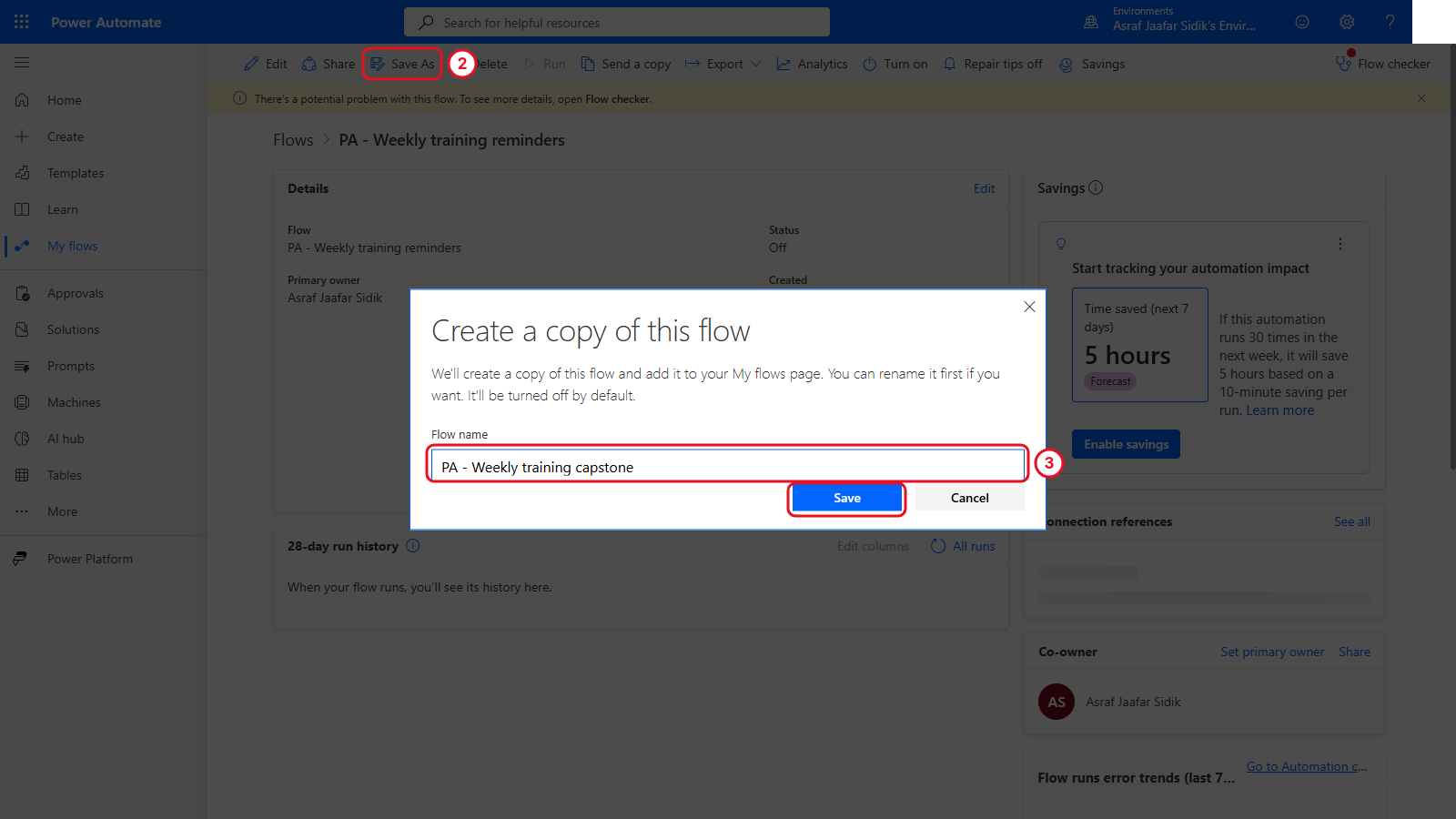
Working on a copy keeps your Chapter 5 flow safe.
- Go back to My flows and select the capstone copy’s name (not the pencil). Its details page opens. Select Edit at the left of the toolbar to open it in the designer.
Checkpoint: The name at the top of the designer reads PA - Weekly training capstone before you change anything.
7.2 Remove Completed Rows with Filter Array
- On the canvas, select the + between List rows present in a table and Apply to each, then Add an action.
- In the search box at the top of the panel, type
Filter array. Under the Data Operation heading, select Filter array. Its settings open on the left. - Rename it: select the action’s title at the top of the panel and type
Filter out completed training. - Click into the From box. Select the lightning bolt icon beside it (or type
/and choose Insert dynamic content), then select body/value under List rows present in a table. (It may be labelled value. If you can’t see it, select See more or typevaluein the picker’s search box.) - Fill the row of three boxes under Filter Query, left to right:
- Left box: open the lightning bolt and select Status under List rows present in a table. Type
Statusin the picker’s search box if it isn’t listed. - Middle dropdown: select is not equal to.
- Right box: type
Completed.
- Left box: open the lightning bolt and select Status under List rows present in a table. Type
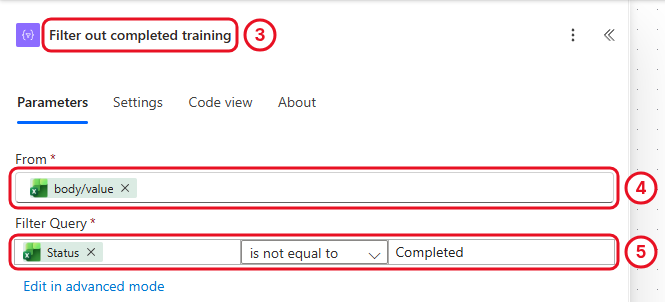
Filter array keeps only the rows where the rule is true. Completed rows are dropped before the loop.
Tip: The comparison is exact, including capital letters.
Completedandcompletedcount as different. The sample data usesCompleted.
Check your flow so far. Your screen should look like this.
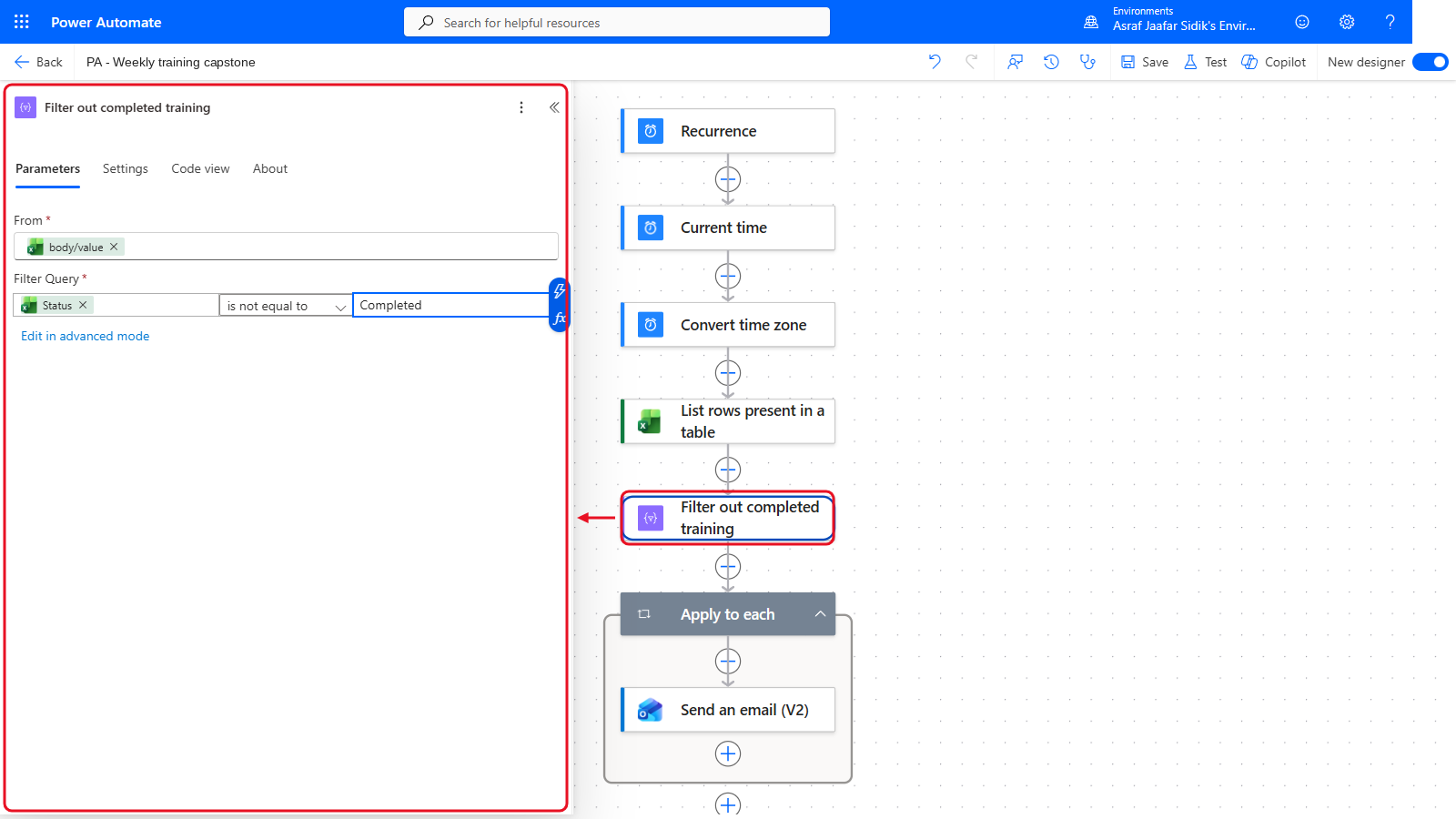
Filter out completed training sits between List rows and Apply to each.
7.3 Work Out the End of the Window
- On the canvas, select the + below Filter out completed training, then Add an action.
- Search for
Get future timeand select it under Date Time. - In Interval, enter
14. Open the Time unit dropdown and select Day.
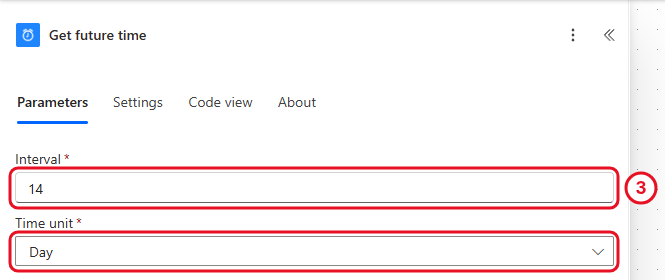
This gives you “14 days from now” without any expression.
You now have both ends of the window: Current time (already in the flow from Chapter 5) and Future time from this step.
Check your flow so far. Your screen should look like this.
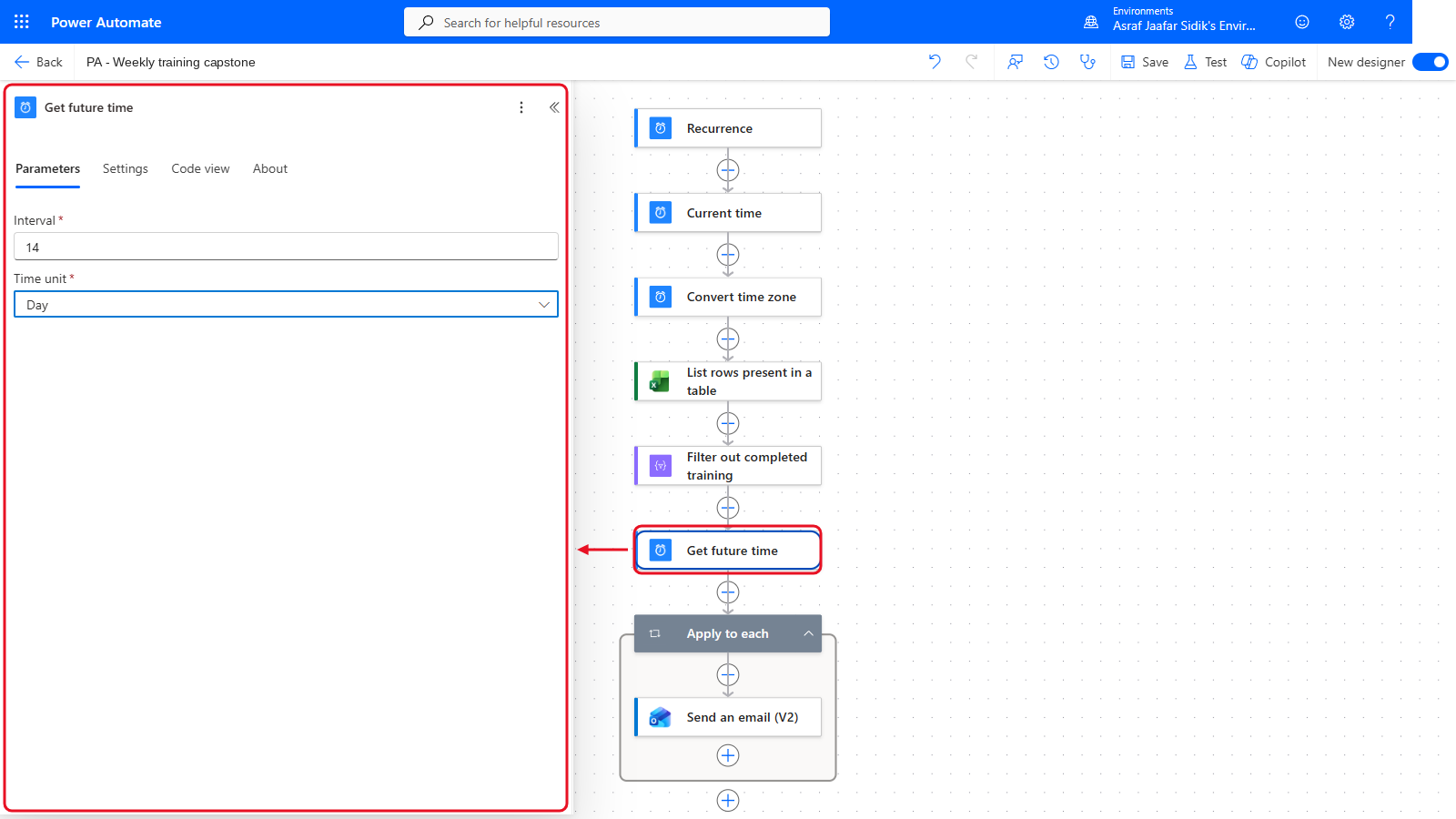
Get future time comes after the filter.
7.4 Start the Reminder Counter
- On the canvas, select the + below Get future time, then Add an action. Search for
Initialize variableand select it under Variables. - Rename it: select the title at the top of the panel and type
Initialize reminder count. - Fill in the boxes below. For Type, open the dropdown and select Integer.
| Field | Value |
|---|---|
| Name | ReminderCount |
| Type | Integer |
| Value | 0 |
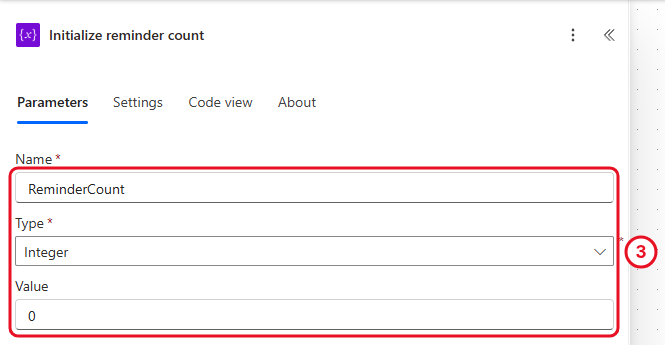
A variable is a named box that can change while the flow runs. This one starts at zero.
Key point: Variables must be created at the top level of the flow, never inside a loop or a condition. That’s why this step comes before Apply to each.
Check your flow so far. Your screen should look like this.
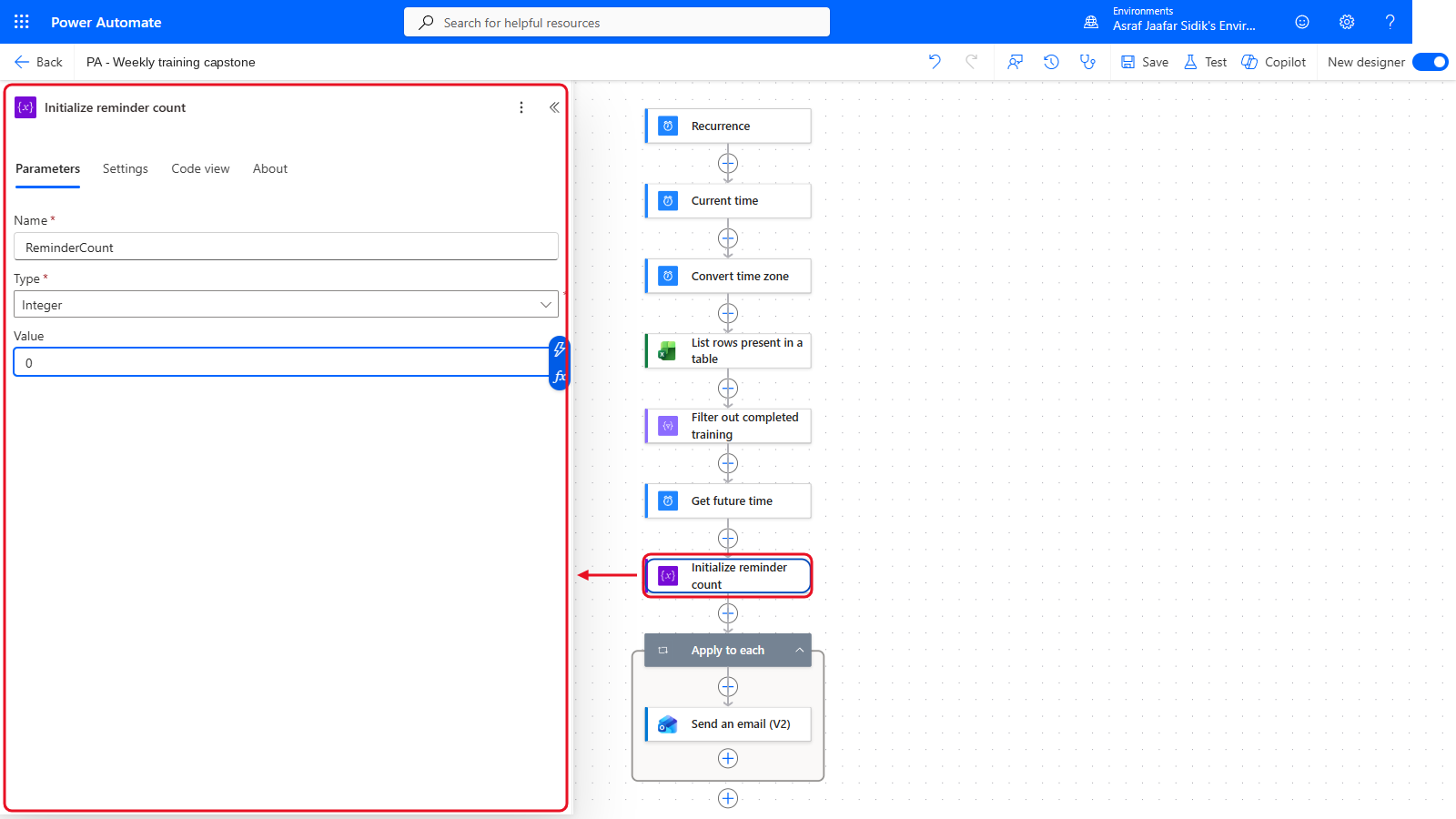
Initialize reminder count sits just above the loop.
7.5 Loop Through the Remaining Rows
- On the canvas, select the Apply to each card to open its panel.
- In Select an output from previous steps, select the x on the current token to remove it.
- Click into the empty box, open the lightning bolt, and select Body under Filter out completed training.
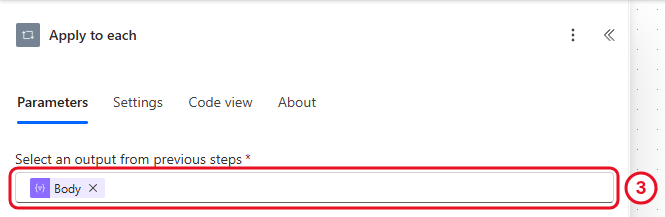
The loop now only sees rows that aren’t completed.
Key point: Don’t leave the original Excel value here. That brings back the Chapter 5 behaviour and includes completed rows.
Check your flow so far. Your screen should look like this.
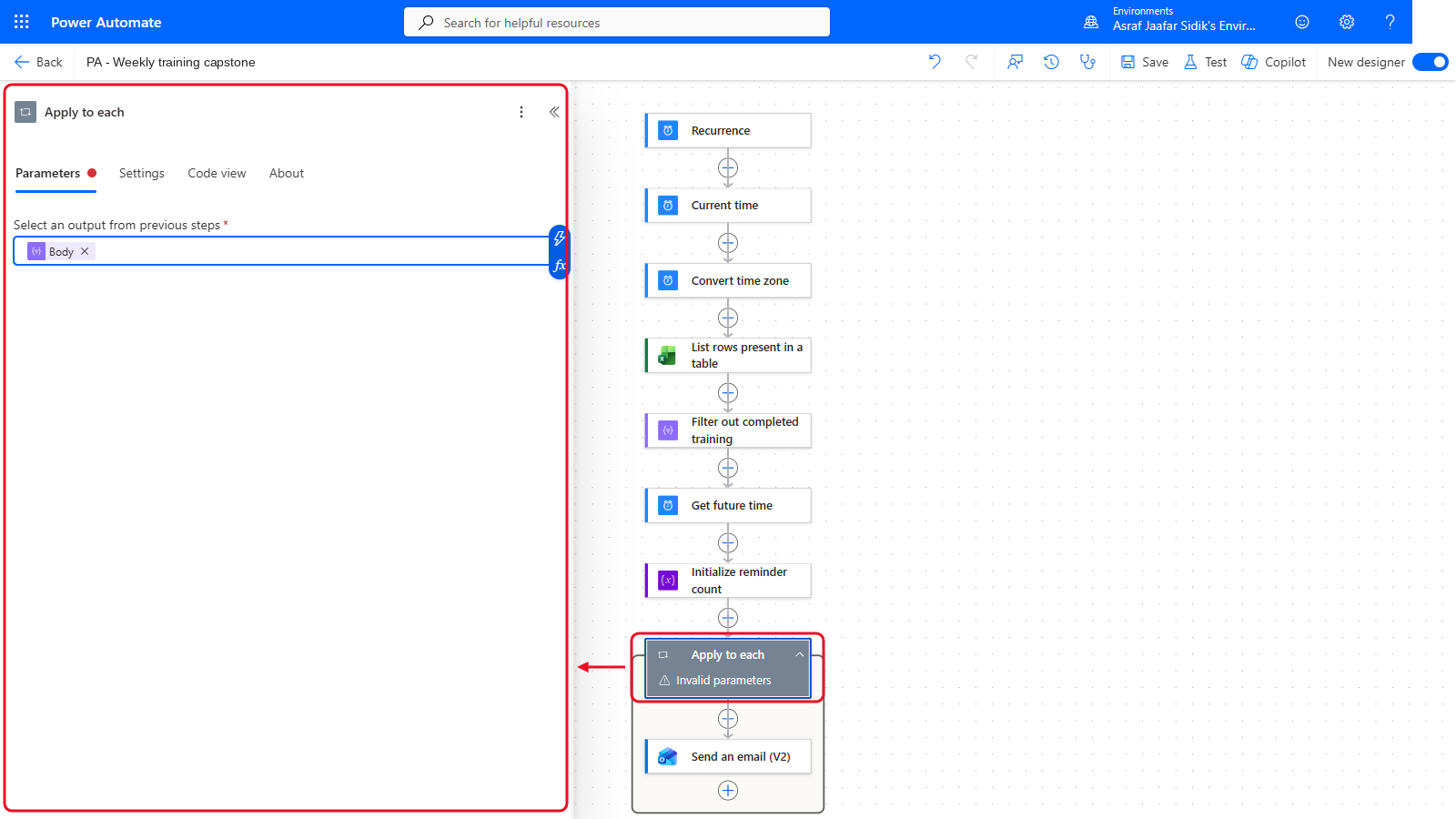
Apply to each now loops over the filtered rows. If the loop shows Invalid parameters straight after the change, select another card and then the loop again. Flow checker in 7.11 confirms there are no errors.
7.6 Check the Date Window
-
On the canvas, inside the Apply to each box, select the + just above Send an email (V2), then Add an action. Search for
Conditionand select it under Control.Note: The new condition appears above the email, and the email stays where it was, underneath the condition rather than inside it. You move it into True in step 7.
- Rename it: select the title at the top of the panel and type
Is the session in the next 14 days. -
First row: click the left Choose a value box and select the fx button that appears beside it (or type
/and choose Insert expression). Paste the expression (copy it from the box below) and select Add.items('Apply_to_each')?['SessionDate'](See the key point below for why.) If your loop has a different name (for example Apply_to_each_1), change the name in the expression to match. The box now shows a pink expression token. It may read SessionDate or items(…): both are correct. Open the middle dropdown and select is greater or equal to. Click the right box, open the lightning bolt, and select Current time under Current time.
- Select Add row below the rows. Second row: insert the same expression on the left, select is less or equal to in the middle, and on the right pick Future time under Get future time.
- If an empty extra row appears below your two rows, select its … and then Delete.
- Check the dropdown above the rows reads And, so both rules must be true.
-
Move the email into True: press and hold on the Send an email (V2) card below the condition, drag it up into the green True box, and let go when a dashed blue drop zone appears there. On the canvas, the email now sits inside True, and nothing is left below the condition inside the loop. (If dragging won’t work, delete the email and add it again inside True with the same settings.)
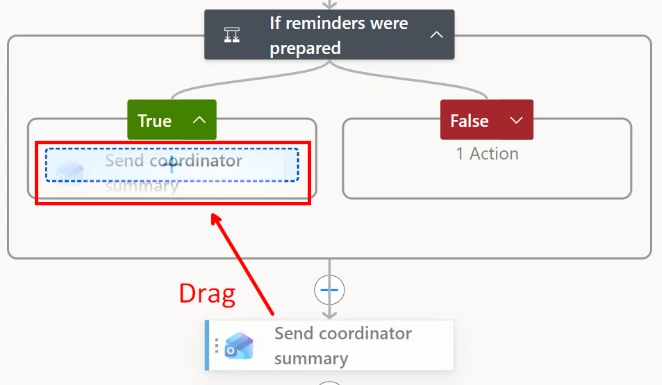
The drag shown here is from 7.9, a later step; the move is the same. Hold the card (the dotted handle at its left edge is easiest to grab), drag it over True, and let go on the dashed blue drop zone.
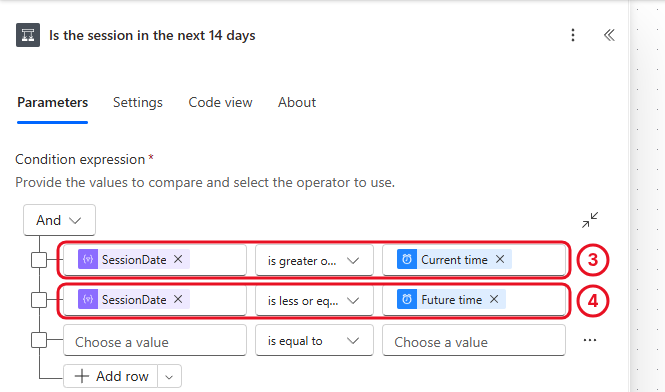
Two rules joined by AND. Your boxes show pink fx tokens from the expression; the picture shows the same values. The screenshot still shows the empty row; delete it on yours.
Key point: why an expression here? Once the loop runs over Filter array’s Body, the dynamic content picker no longer lists the Excel columns. If you pick SessionDate from List rows present in a table anyway, the designer wraps the condition in a second, unwanted loop. The expression
items('Apply_to_each')?['SessionDate']simply means “the SessionDate of the row this loop is on right now”. The email tokens you added in Chapter 5 keep working, because they already point at the loop’s current row.
This works because the Excel dates are in ISO 8601 format (set in Chapter 5), the same format as Current time and Future time. Same format means they compare correctly.
Check your flow so far. Your screen should look like this.
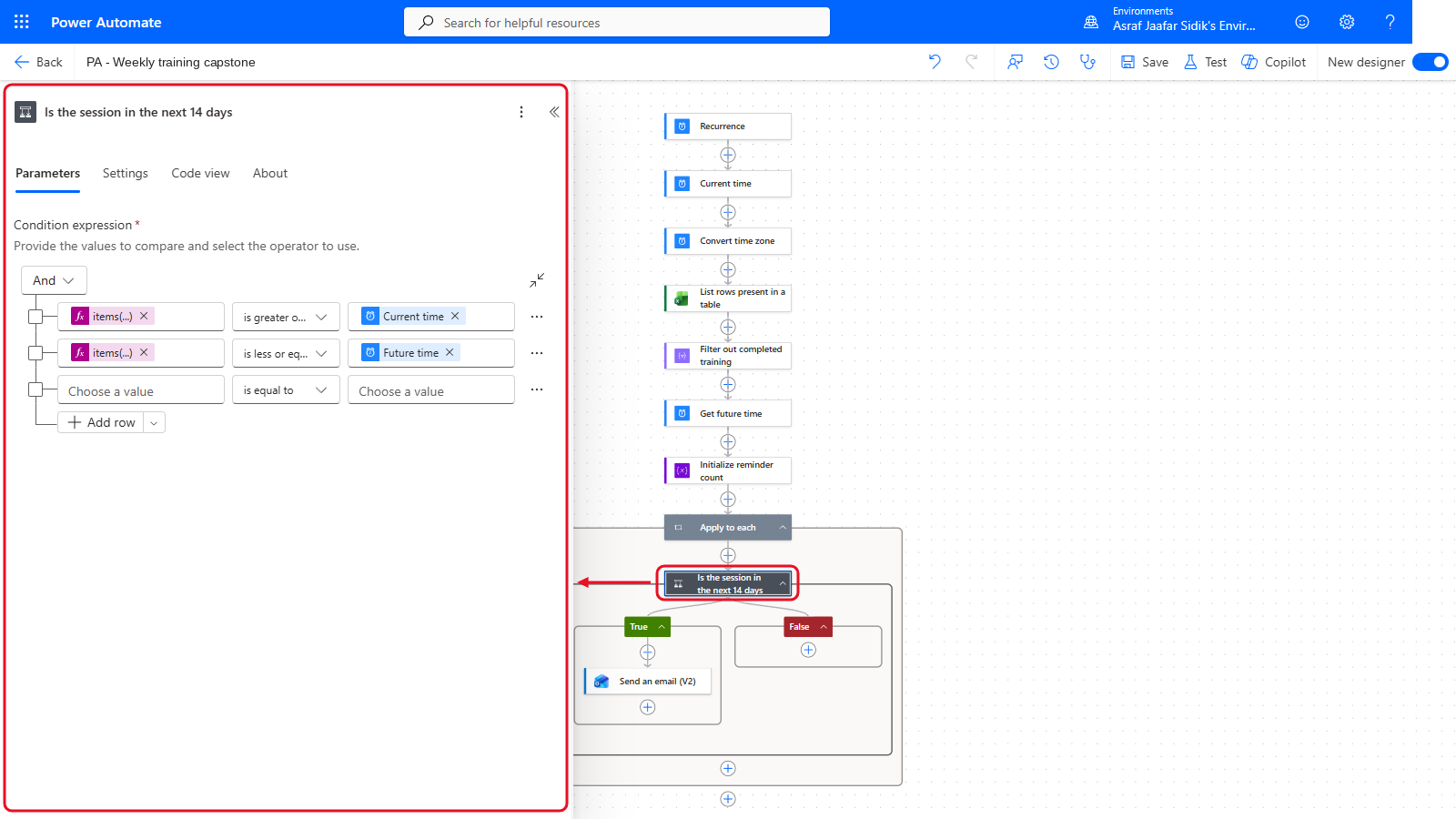
The date condition sits inside the loop, with the email in True.
7.7 Count Each Reminder
- On the canvas, inside the green True box, select the + below Send an email (V2), then Add an action. Search for
Increment variableand select it under Variables. - Open the Name dropdown and select ReminderCount. In Value, enter
1.
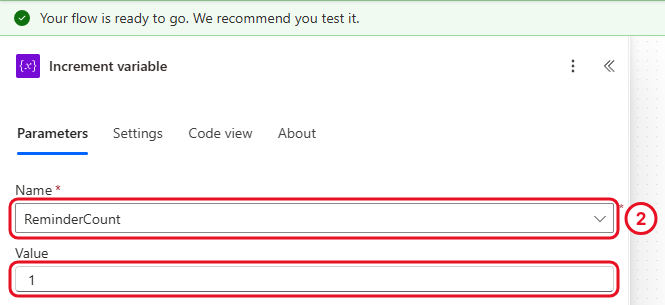
Each reminder adds one to the counter.
Keep the increment after the email, so the count only includes reminders that reached the email step.
Check your flow so far. Your screen should look like this.
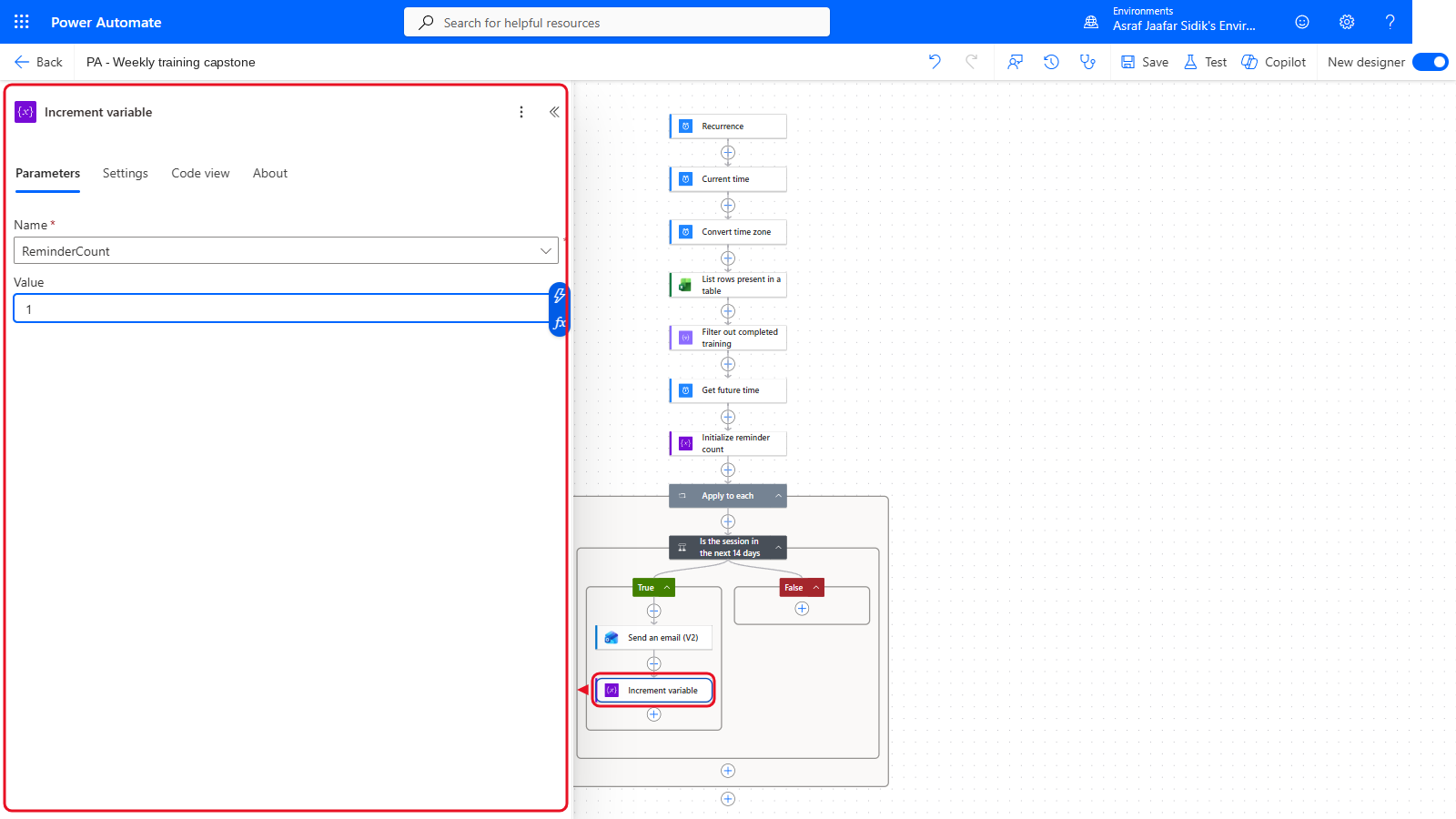
Increment variable sits under the email in True.
7.8 Decide Whether a Summary Is Needed
-
On the canvas, select the + below the Apply to each box, then Add an action. Search for
Conditionand select it under Control.Warning: use the + outside the loop. The loop’s grey box has its own + at the bottom, just inside its border. Use the one below the grey border, the last + on the canvas. If the new condition appears inside the grey box, it would run once per row: delete it and add it again from the right +.
- Rename it
If reminders were prepared. - Click the left Choose a value box, select the lightning bolt (or type
/and choose Insert dynamic content), and pick ReminderCount under Variables. - Open the middle dropdown and select is greater than. Click the right box and type
0. - If an empty extra row appears, select its … and then Delete.
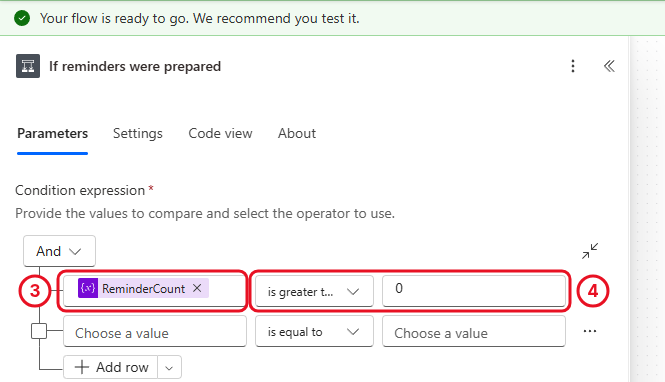
A positive count goes to True. Zero goes to False. The screenshot still shows the empty row; delete it on yours.
Check your flow so far. Your screen should look like this.
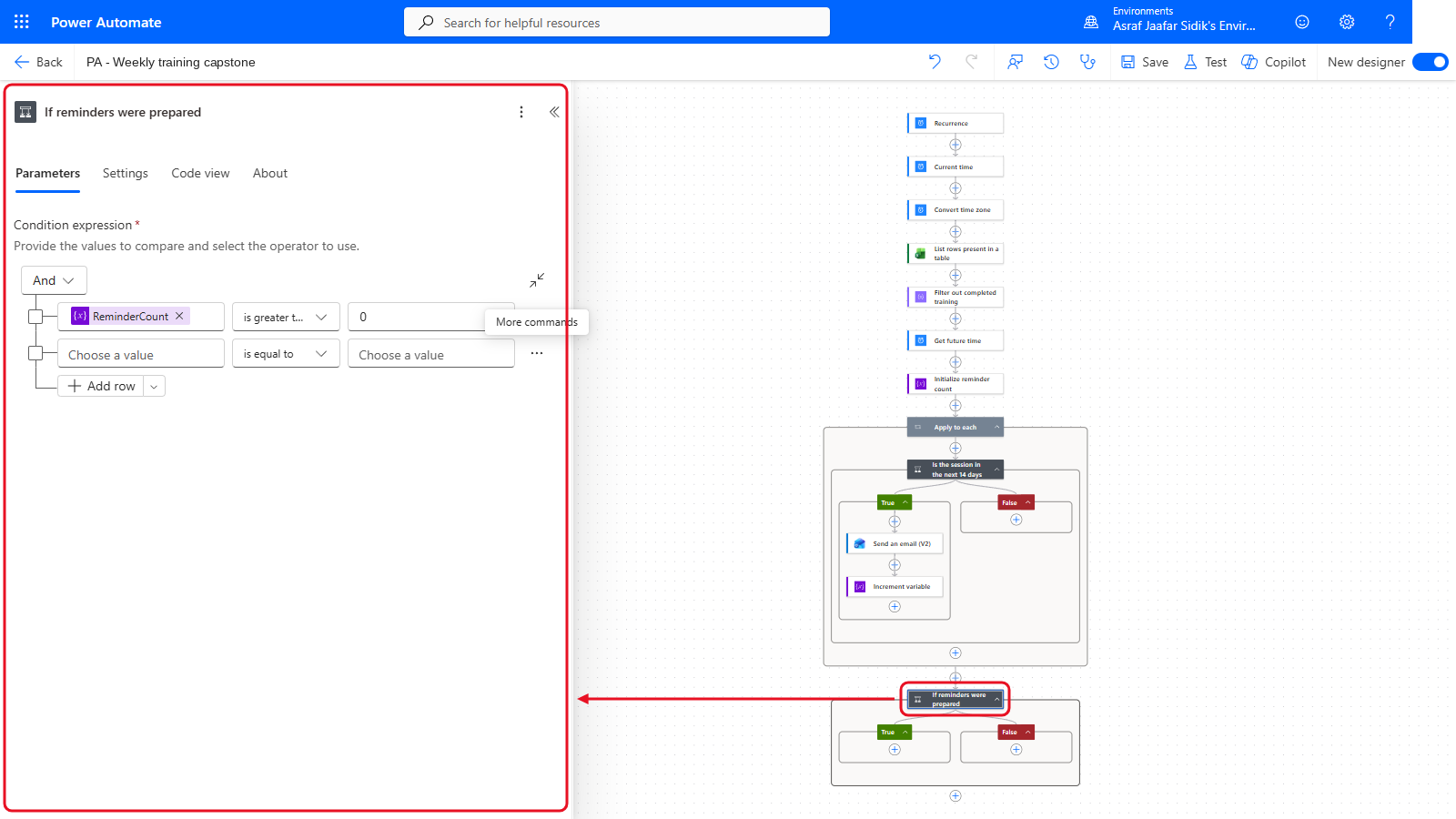
The summary condition sits below the loop.
7.9 Prepare the Coordinator Summary
On the canvas, inside the green True box under If reminders were prepared, select the +, then Add an action. (If the email lands below the condition instead, drag it into True the same way as in 7.6.) Search for Send an email, select Send an email (V2) under Office 365 Outlook, and rename it Send coordinator summary:
| Field | Value |
|---|---|
| To | Type your own email address, then select it from the list. (The screenshot shows coordinator@example.com, a placeholder: see the warning below.) |
| Subject | [PA TRAINING] Weekly reminder summary |
| Body | Type The weekly training reminder flow prepared , then select the lightning bolt (or type / and choose Insert dynamic content) and pick ReminderCount under Variables. Then type ` reminder(s) for upcoming sessions in the next 14 days.` (with the space at the start). Both text pieces are in the boxes below the table. |
Body, first part (paste before the ReminderCount token, keep the space at the end):
The weekly training reminder flow prepared
Body, second part (paste after the token, keep the space at the start):
reminder(s) for upcoming sessions in the next 14 days.
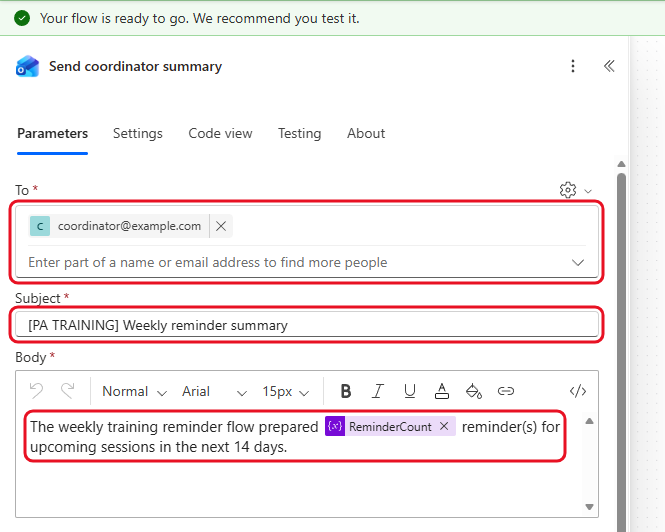
The variable drops into the email like any other dynamic content.
Warning:
coordinator@example.comis not a real mailbox. It stands in for the training coordinator. Mail sent to it bounces, so the summary would never arrive. Put your own email address in To, so the summary comes to you when you test. The learner reminders inside the loop go to the Email column in the workbook, so put your own address in the rows you test with too (Chapter 5 has the same warning).
Check your flow so far. Your screen should look like this.
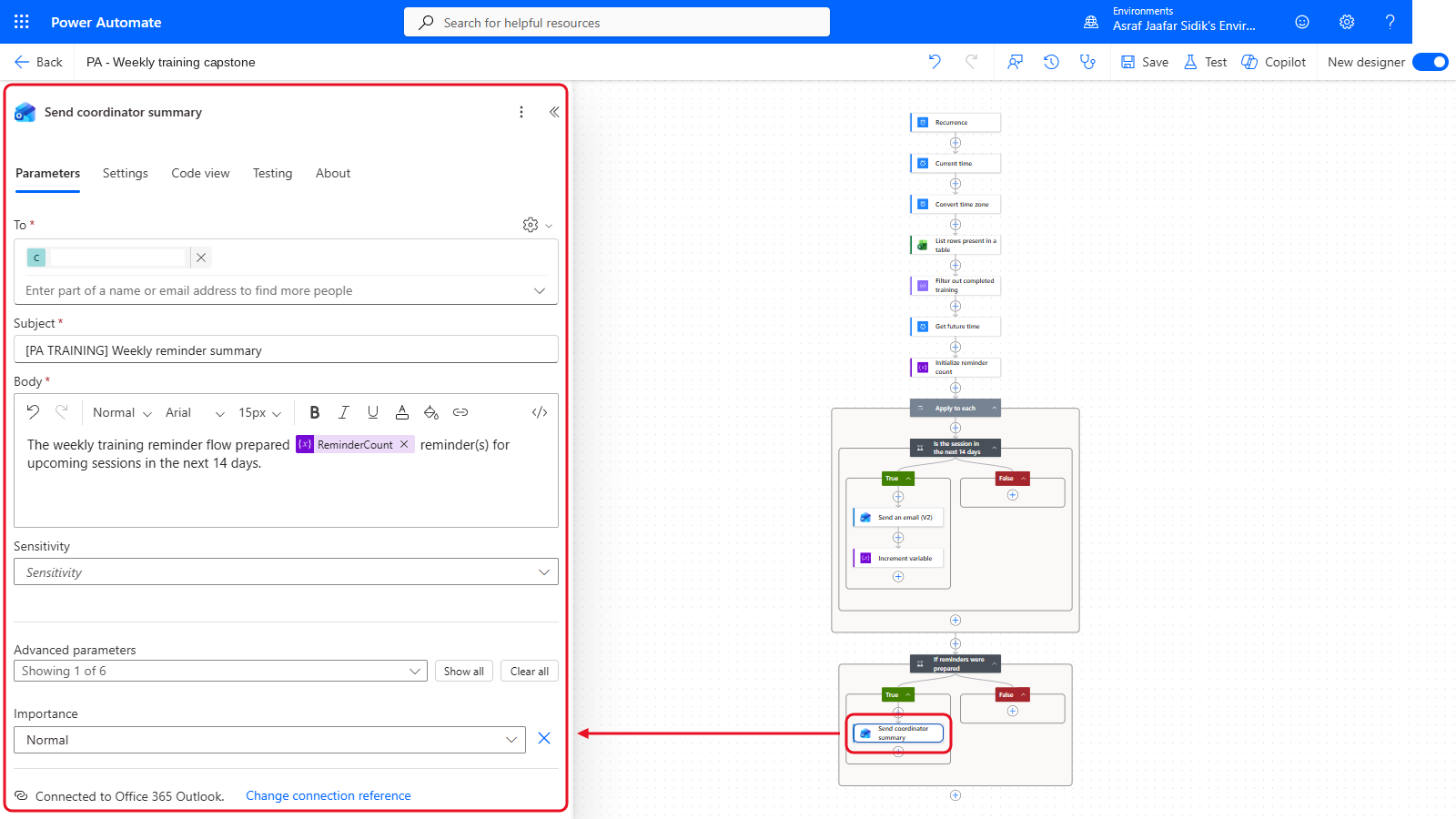
Send coordinator summary sits in True.
7.10 Handle a Week with No Matching Rows
On the canvas, inside the red False box, select the +, then Add an action. Search for Compose and select it under Data Operation. Rename it No upcoming records, and paste the text below in Inputs. Copy it from the box below.
No upcoming training records were found for the next 14 days.
That records a clear outcome in run history without sending an unnecessary email.
Check your flow so far. Your screen should look like this.
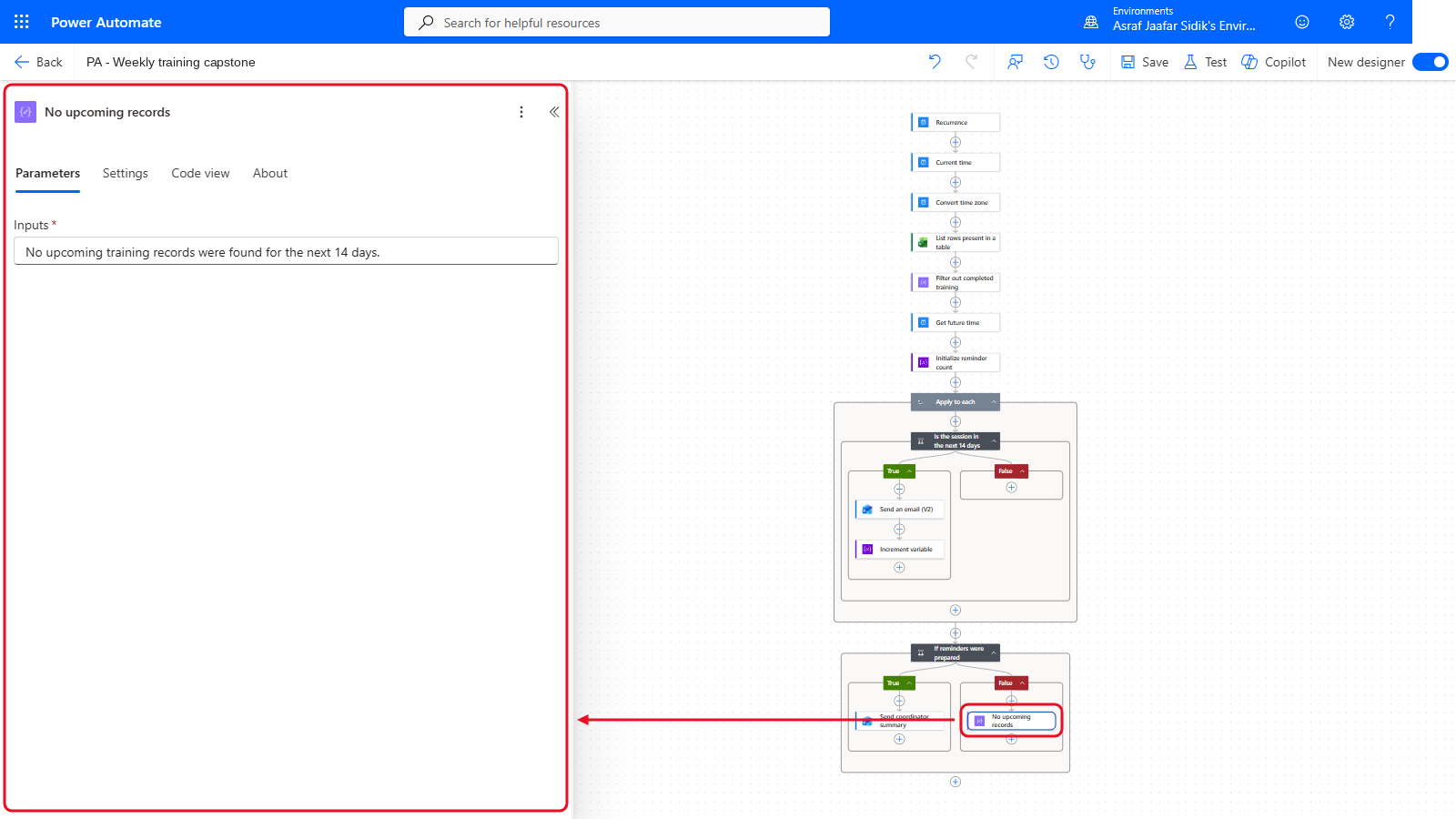
No upcoming records sits in False. That is the whole capstone.
7.11 Save and Check the Capstone
- Select Save in the toolbar at the top right. Then select Flow checker in the same toolbar and confirm zero errors and zero warnings.
- Close Flow checker. In the column of buttons at the bottom left of the canvas, select Zoom view to fit. Check the shape: filter before the loop, date check and count inside the loop, decision after the loop.
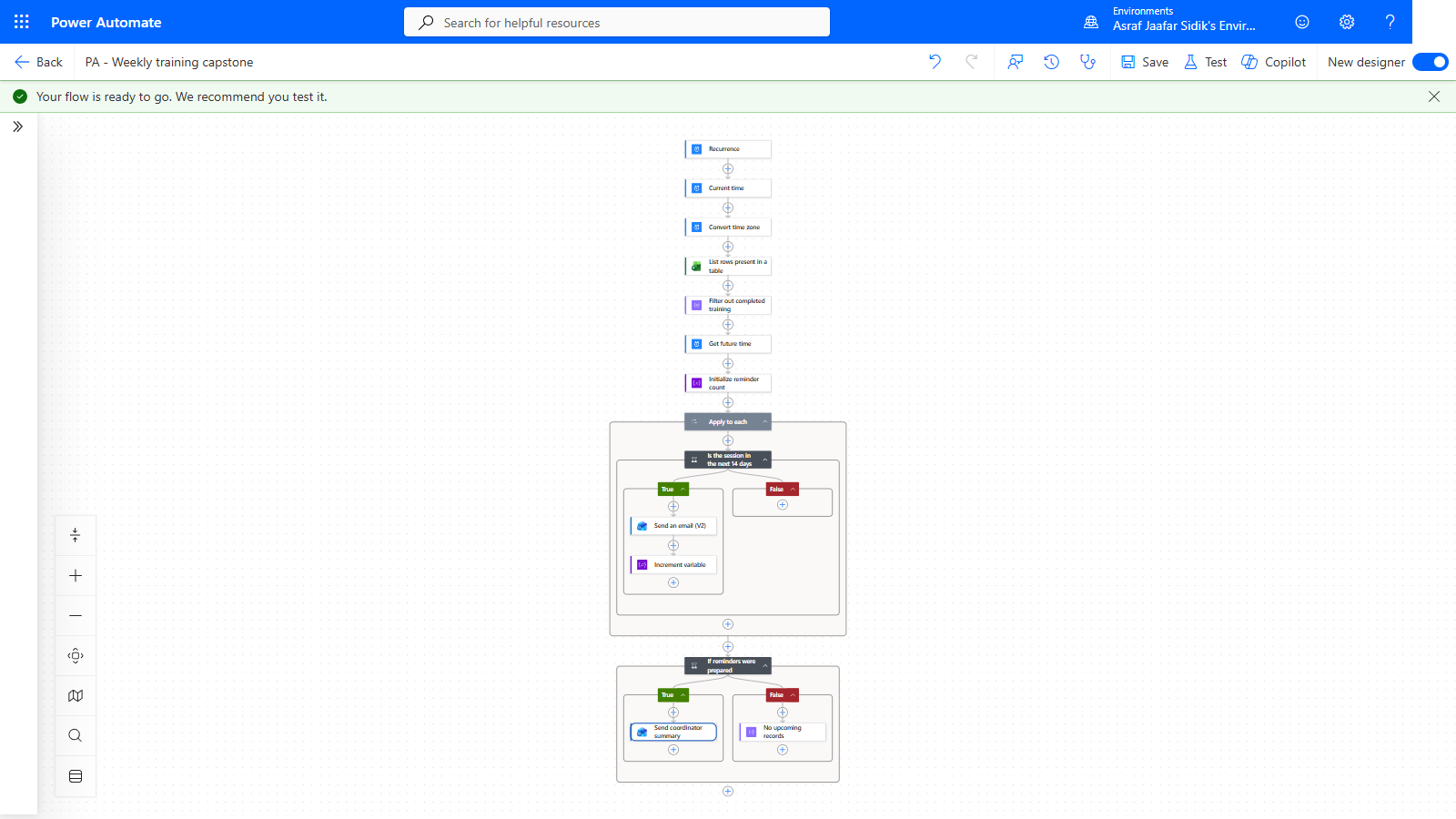
Filter before, check and count inside, decide after.
Trainer-Controlled Test
A test can send one learner reminder per matching row plus, when the count is positive, a coordinator summary. With dates set as in Chapter 2 (section 2.2, step 4), at least two rows match. Before testing, replace every example.com address with your own, both in the workbook’s Email column and in Send coordinator summary, save the workbook, and wait for the trainer’s go-ahead.
Afterwards, check the run history:
- Filter out completed training returned only the rows that aren’t Completed (four with the sample data)
- Apply to each ran once for each of those rows, and the date condition was true for the ones dated within the next 14 days
- ReminderCount matches the number of true results
- The final condition took True and prepared the coordinator summary
Independent Practice
Without running the flow, change the window from 14 days to 7 by editing only Get future time. Which of your rows would match today? Then change it back to 14.
Going further: one filter that does it all. Experienced makers often replace the filter and the date condition with a single Filter array in advanced mode, using an expression that also ignores capital letters and stray spaces. You’ll build flows like that in the advanced course. Optional. To try it, in Filter array choose Edit in advanced mode and paste the expression below.
@and(
not(equals(toLower(trim(item()?['Status'])), 'completed')),
greaterOrEquals(ticks(item()?['SessionDate']), ticks(startOfDay(utcNow()))),
lessOrEquals(ticks(item()?['SessionDate']), ticks(addDays(startOfDay(utcNow()), 14)))
)
Troubleshooting
| Symptom | What to check |
|---|---|
| A completed row still gets a reminder | Filter array right value is exactly Completed, and the loop uses Filter’s Body |
| Every date fails the condition | DateTime Format is ISO 8601 in List rows present in a table |
| A second Apply to each appears inside the loop | You picked SessionDate from the Excel action. Delete the extra loop and use the expression from section 7.6 |
| No date passes the condition | The sample dates may be in the past. Ask the trainer to update SessionDate |
| ReminderCount stays at zero | Increment variable is inside the True branch of the date condition |
| Initialize variable can’t be added | You’re inside the loop. Variables are created at the top level |
| The summary runs before reminders finish | Put the final Condition below Apply to each, outside its box |
| Flow checker is clean but a test is unsafe | Flow checker checks structure. It doesn’t approve recipients |
Lesson Summary
The capstone filters out completed rows before looping, checks a date window with a two-rule condition, keeps a running count in a variable, and branches on the final count. That turns a broad weekly reminder into a controlled process with a clear result for the coordinator. Next, you’ll use variables again, alongside parallel branches, in a flow that’s all about you.