
05 — Copilot in Word
You have built your AI Usage Guide draft in Copilot Pages. Now it is time to turn it into a formal proposal document you can submit to your supervisor or management team.
Prompts to Try: Open the copy-paste prompt exercises for this topic.
Continuing from Topic 04
At the end of Topic 04 you exported your draft from Copilot Pages as a Word document. That Word file is your starting point here.
If you have not exported from Pages yet:
- Open your Copilot Page from Topic 04
- Click the … menu at the top right of the page
- Select Export then Document
- Save the file to your OneDrive or desktop
- Open it in Microsoft Word
If you cannot find your Pages document: Go to m365.cloud.microsoft, click the … menu at the top right, and select Recent pages. Your Topic 04 document should be listed there.
Once the Word document is open, make sure you are connected to Microsoft 365 (signed in with your work account) so Copilot in Word is available. Look for the round Copilot button floating at the bottom right of the document.
What Copilot Can Do in Word
- Draft new content from a prompt
- Rewrite, shorten, or expand existing text
- Change the tone from casual to formal or vice versa
- Summarise long documents
- Generate tables, lists, and structured sections
- Reference other files from your Microsoft 365 account using the
/key
Three Ways to Use Copilot in Word
This is where participants often get confused. There are three separate Copilot entry points in Word and each does something different.
1. Copilot Chat panel (side panel)
Click the round Copilot button that floats at the bottom right of the document to open the full Copilot panel on the right side of the screen. (It may already be open when you first open a document.) The panel starts with Allow editing selected, so Copilot can make changes to the document directly, plus suggested prompts such as Catch me up on this document.
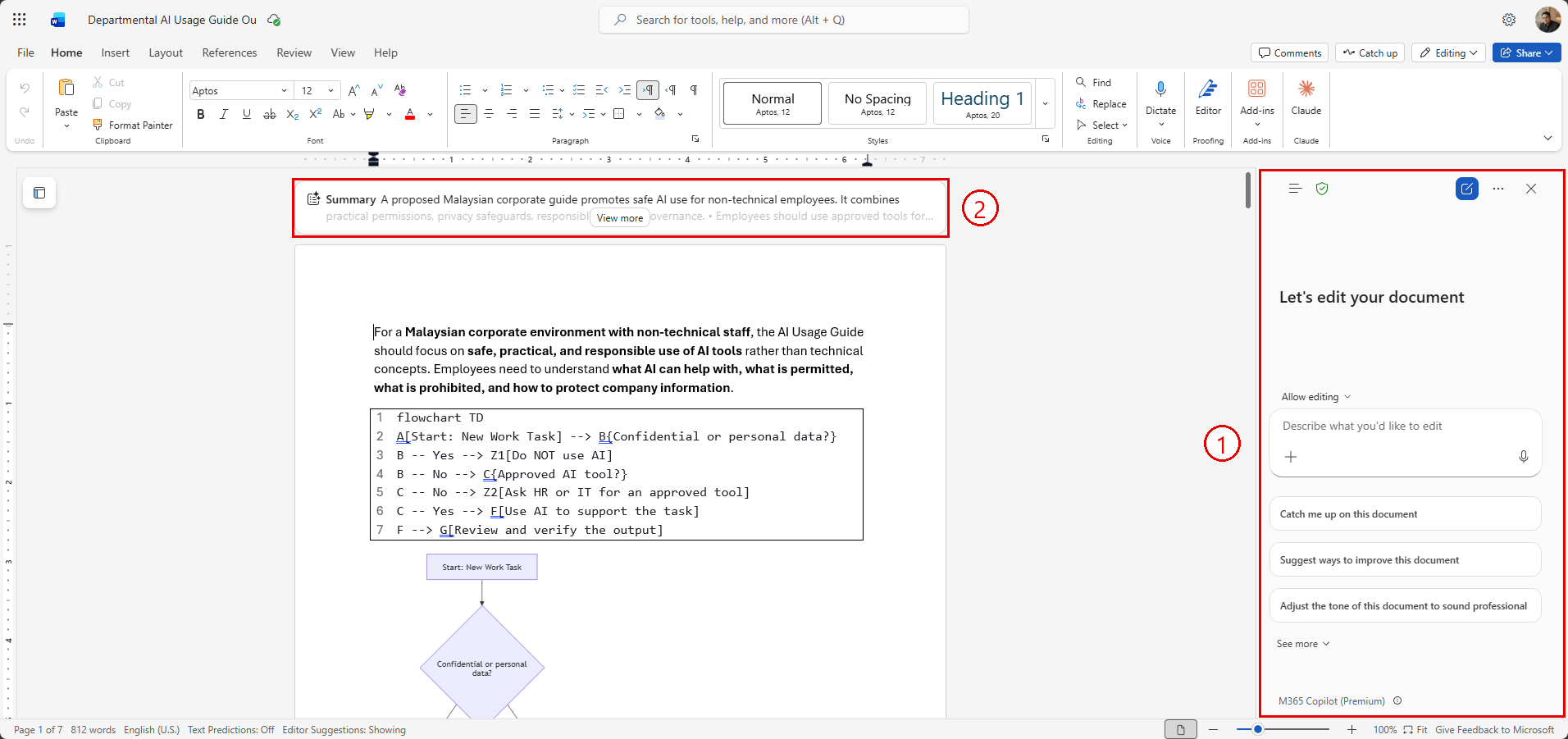
Callout 1: the Copilot panel (“Let’s edit your document”) opens on the right side. Callout 2: the Summary bar appears at the top of the document — click View more to expand it.
Use the Chat panel for:
- Restructuring the entire document
- Adding new sections that do not exist yet
- Referencing other files from OneDrive or SharePoint using
/ - Asking broad questions about the document as a whole
- Generating a summary or cover page
The panel can see the whole document, not just the section you are in.
2. Edit with Copilot (highlight to edit)
Select any text in your document and a mini toolbar appears above it. Click Edit with Copilot to open an inline prompt box targeting just that selection.

Select any text and click Edit with Copilot in the mini toolbar to rewrite just that selection.
Use this for:
- Rewriting or improving a specific paragraph
- Changing the tone of one section without affecting the rest
- Shortening or expanding a particular piece of text
- Fixing a sentence that does not read well
This is the most precise entry point since it only acts on exactly what you have selected.
3. Adding new content in a specific place
Word for the web no longer shows a Copilot icon in the margin on blank lines. To add new content at a specific point, keep Allow editing selected in the Copilot panel and say where it should go, for example: Add a short section called “Reporting Mistakes” after the Human Review section.
Practical tip: Start with the Copilot panel for big structural changes and new sections. Use Edit with Copilot for targeted rewrites of a selected paragraph.
Workshop Scenario
Your AI Usage Guide draft is now in Word. The goal here is to reframe and polish it as a formal proposal that your supervisor can read, approve, and sign off on.
A proposal has a different structure from a guideline. It needs to make a case for why this guide is necessary, what changes are needed to implement it, and what the expected outcome is. Copilot will help you add the missing sections and elevate the language to management level.
Referencing Other Documents
If you have other files in your OneDrive or SharePoint, you can reference them directly in Copilot using the / key in the Chat panel. Type / and start typing the file name. Copilot will search your connected Microsoft 365 files and let you select one.
This is useful for checking your AI Usage Guide against existing company policies to make sure there are no conflicts.
Tips for Working with Copilot in Word
- Use Edit with Copilot (select text first) for section-level edits and the Copilot panel for document-wide tasks and new sections.
- Always review Copilot’s output before finalising. It will sometimes rephrase things in ways that do not match your intended meaning.
- Turn on Track Changes (Review tab) before asking Copilot to make revisions so you can compare before and after and accept or reject changes selectively.
- If the document is very long, Copilot may not see all of it at once. Work section by section rather than asking it to revise everything in one prompt.
- Save regularly. Copilot edits in Word are not automatically undoable the same way typing is.