Lab 08: Monitor with Work grounding and Scheduled Prompts
Scenario
You are still the HR Officer at Mayfield Bank Berhad. The AI Usage Guideline has been rolled out to all staff. Two weeks have passed and feedback is coming in through various channels, emails, Teams chats, and meeting notes. Rather than manually checking each source, you will use Copilot Chat with Work grounding to surface relevant feedback automatically. You will also set up a Scheduled Prompt so this summary runs automatically every week.
In this lab, you learn how to:
- Switch to Work grounding and understand what it can access.
- Write a work-grounded monitoring prompt.
- Understand the difference between Web and Work grounding.
- Create a Scheduled Prompt for recurring monitoring.
- Write a schedule-ready prompt that produces reliable weekly output.
This lab should take approximately 45 minutes.
Part A: Guided Exercise
Task 1: Switch to Work grounding
-
Open Copilot Chat at https://m365.cloud.microsoft/chat.
-
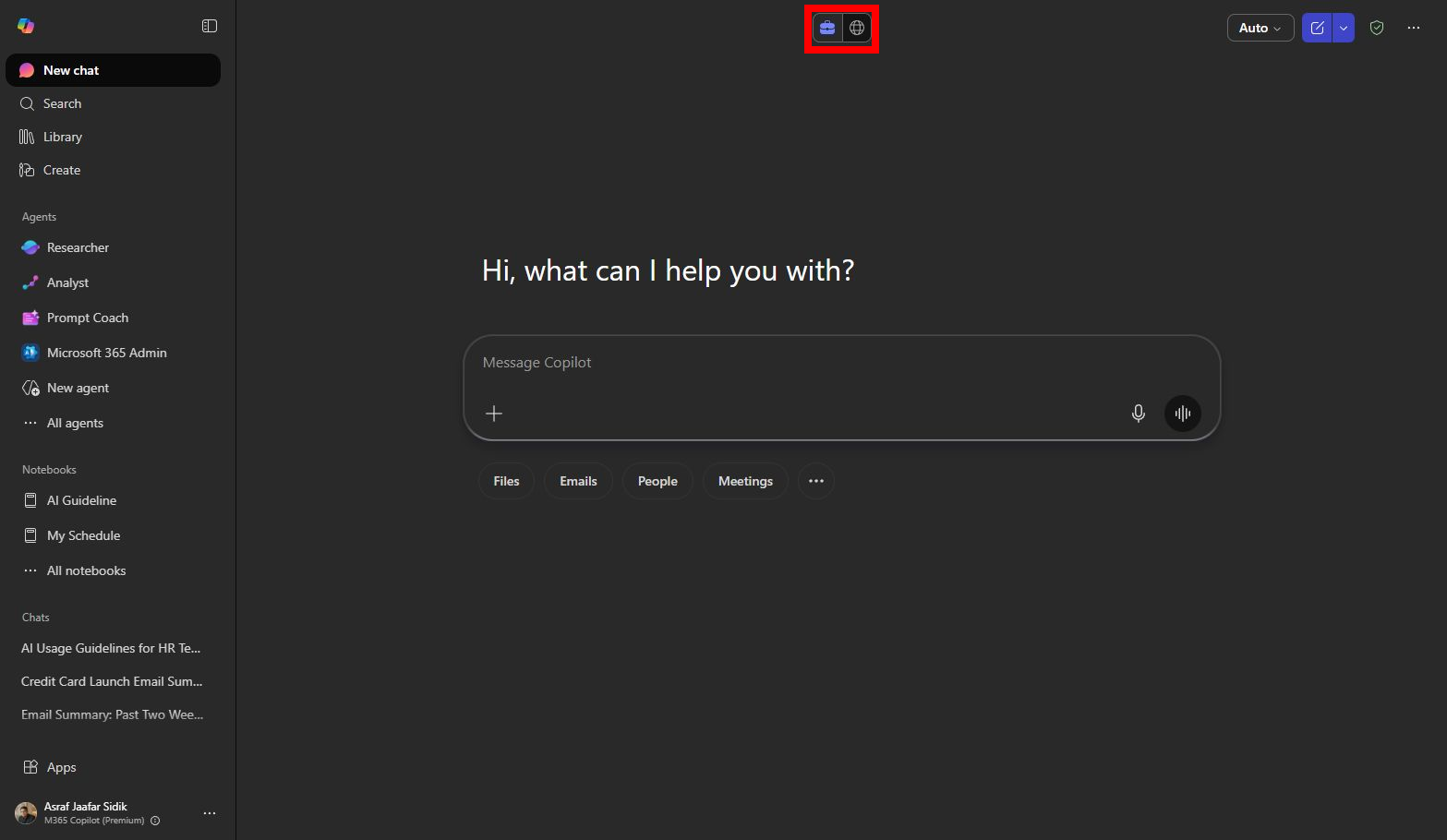
Look for the Work and Web toggle near the top of the interface. Select Work.
-
Note the difference from Web grounding: Work mode draws from your internal Microsoft 365 content, emails, Teams messages, meeting notes, SharePoint files, and calendar entries, based on what you have permission to access.
Note: Copilot can only surface content you already have access to. It does not bypass permissions. If a colleague has not shared a file with you, Copilot cannot reference it.
Task 2: Run a work-grounded monitoring prompt
-
Type the following prompt:
Using work content I have access to, summarise feedback received in the past 2 weeks about the Mayfield Bank AI Usage Guideline. Include emails, Teams messages, and meeting notes where available. Group findings by: Theme, Risk level, Owner, and Action needed. -
Review the response. If Copilot surfaces relevant content, check whether the groupings are accurate.
-
Follow up with:
Separate the concerns that have already been addressed from those that are still open. Which department appears to have the most unresolved questions?Note: In a training environment, your mailbox and Teams may not have real guideline feedback. Your trainer will either provide sample content or demonstrate this step using a live environment. The prompt structure is what matters here.
Task 3: Write a schedule-ready prompt
Before scheduling a prompt, it must be specific enough to produce a reliable output every time it runs. A vague scheduled prompt will produce inconsistent results.
-
Review the difference between these two prompts:
Weak scheduled prompt Why it fails Summarize feedback. Too vague, Copilot will not know the time window, topic, or output format. Tell me what is happening this week. No topic scope, no output structure, no time boundary. -
Write your schedule-ready prompt using this structure, type it into Copilot Chat first to test the output:
Every Friday afternoon, summarise new feedback about the Mayfield Bank AI Usage Guideline from the past 7 days. Use work content I have access to including emails, Teams messages, and meeting notes. Return: top 5 themes, urgent risks, stakeholder objections, recommended actions, and items requiring leadership decision. -
Review the output. Refine the prompt if the output is too broad or missing key elements.
Task 4: Schedule the prompt
-
Hover over the prompt response in Copilot Chat.
-
Look for a Schedule this prompt option or a clock icon near the response.
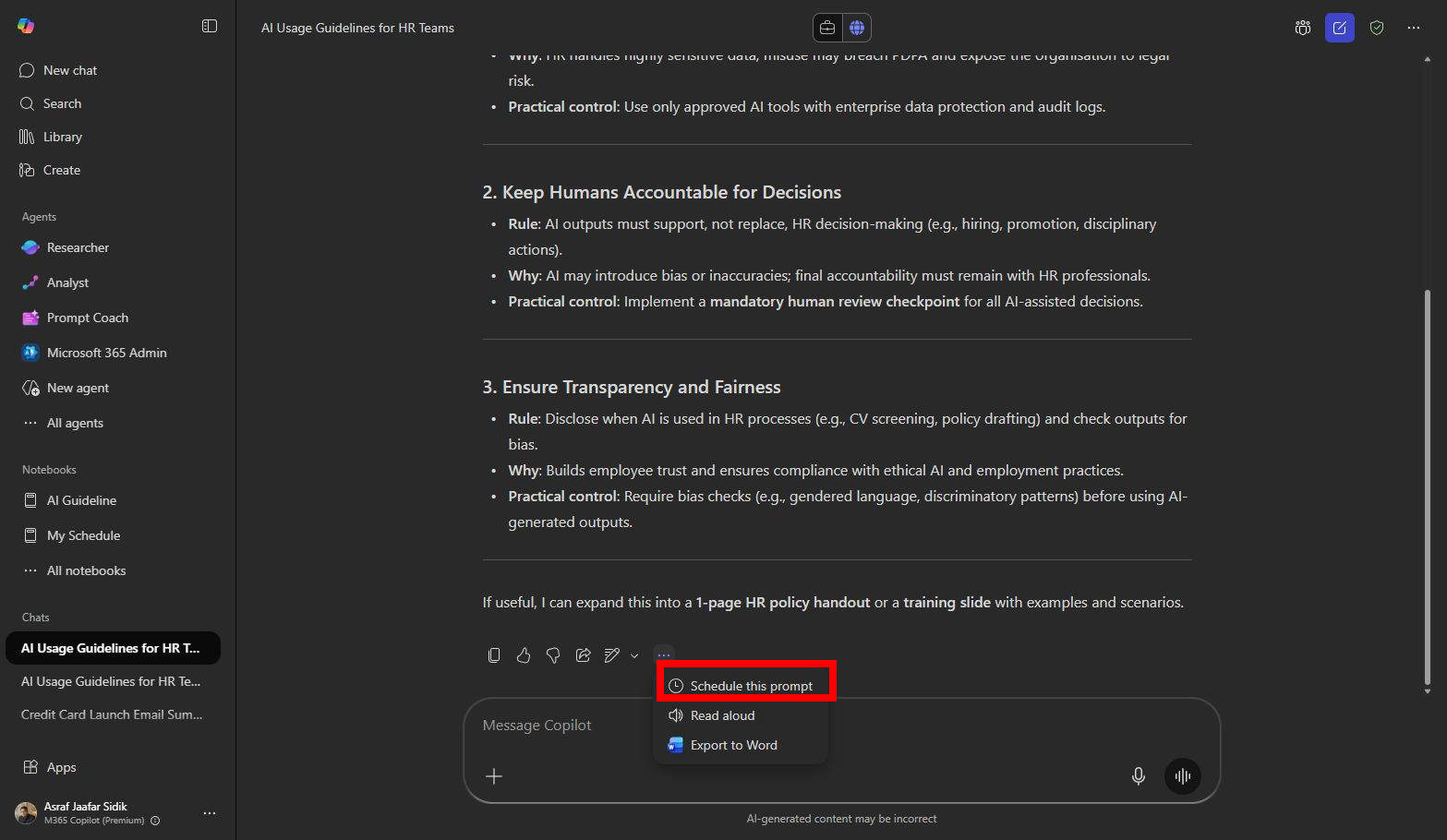
- If the scheduling option is available in your tenant:
- Set the frequency to Weekly
- Set the day and time to Friday, 4:00 PM
- Set the number of runs or end date as directed by your trainer
- Enable email notification if the option is available
-
Review the scheduled prompt wording carefully before confirming, it will run repeatedly as written.
Note: Scheduled prompts are subject to licence and tenant admin settings. If the option is not visible in your interface, prepare the prompt text and note where you would access scheduling when it becomes available in your tenant.
Prompt practice
| Weak prompt | Better prompt | Why the better prompt works |
|---|---|---|
| Summarize feedback. | Using work content I have access to, summarise feedback received this week about the HR AI Usage Guideline. Group by theme, risk, decision needed, and owner. | Defines time period, content scope, output categories, and action orientation. |
| Run weekly. | Every Friday afternoon, summarise new feedback about the HR AI Usage Guideline from the past 7 days. Return: top 5 themes, urgent risks, stakeholder objections, recommended actions, and items requiring leadership decision. | Schedule-ready, includes timing, time window, topic, and output structure. |
| What changed? | Compare this week’s feedback with last week’s feedback about the AI Usage Guideline. Identify new concerns, repeated concerns, resolved concerns, and changes in adoption sentiment. | Supports trend monitoring rather than one-off summarisation. |
| Make for leadership. | Rewrite this weekly monitoring summary for a leadership audience. Prioritise urgent risks and decisions required. Keep it under 150 words. | Adapts the output to a specific reader without re-running the full analysis. |
Extended practice
- Write one weekly monitoring prompt and one monthly trend prompt. Compare how the time window changes the output.
- Ask Copilot to compare this week and last week, then identify new issues, repeated issues, and resolved issues.
- Ask Copilot to create a version of the monitoring summary for leadership review and a separate version for the project team.
- Ask Copilot to flag any feedback that suggests the guideline needs an urgent update before the next rollout phase.
Part B: Independent Exercise
Scenario: You are the Branch Manager at Mayfield Bank Berhad’s Bangsar branch. Your regional head wants a weekly summary of any staff concerns, customer complaints, and operational issues raised across your branch communications.
Using what you practised in Part A, complete the following with minimal guidance:
-
Write a work-grounded prompt to summarise the past 7 days of branch-related communications. Group findings by: customer issues, staff concerns, operational risks, and items that need escalation to the regional head.
-
Write a schedule-ready version of the same prompt that could run every Monday morning to give you a weekly start-of-week briefing.
-
Test the prompt in Copilot Chat (Work grounding) and refine it based on the output.
-
If scheduling is available in your tenant, set it up. If not, save the prompt text in a Word document for future use.
Lab complete
Congratulations, you have completed all 8 labs. You have followed a single connected scenario from research through to ongoing monitoring, using Copilot Chat, Pages, Word, Outlook, Teams, Forms, Excel, and Scheduled Prompts. The same pattern of research, draft, review, communicate, present, collect, analyse, and monitor applies to almost any business process you work on.